
How to link related tickets in YakDesk
When two customers report the same kind of problem, linking their tickets lets whoever opens one see the other, with what's already been found and said.
Before you start
- A Growth or Agency plan (tickets are included)
Plays silently with captions; the narrated version is on its way.
Transcript
Connect tickets about the same problem, so each shows the other.
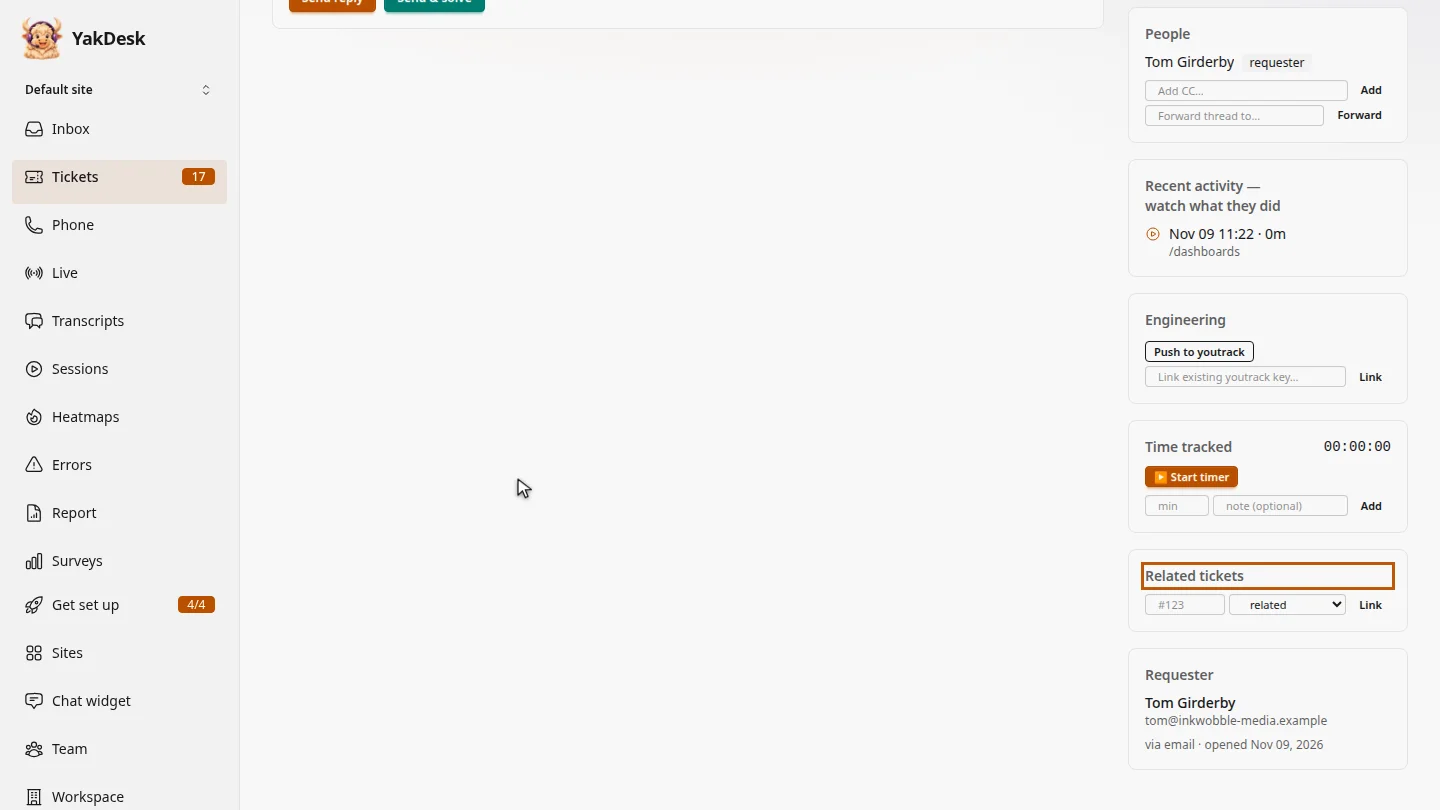
In Tickets, open the ticket. Tom's scheduled report didn't arrive either, just like Rahul's in ticket 1041.
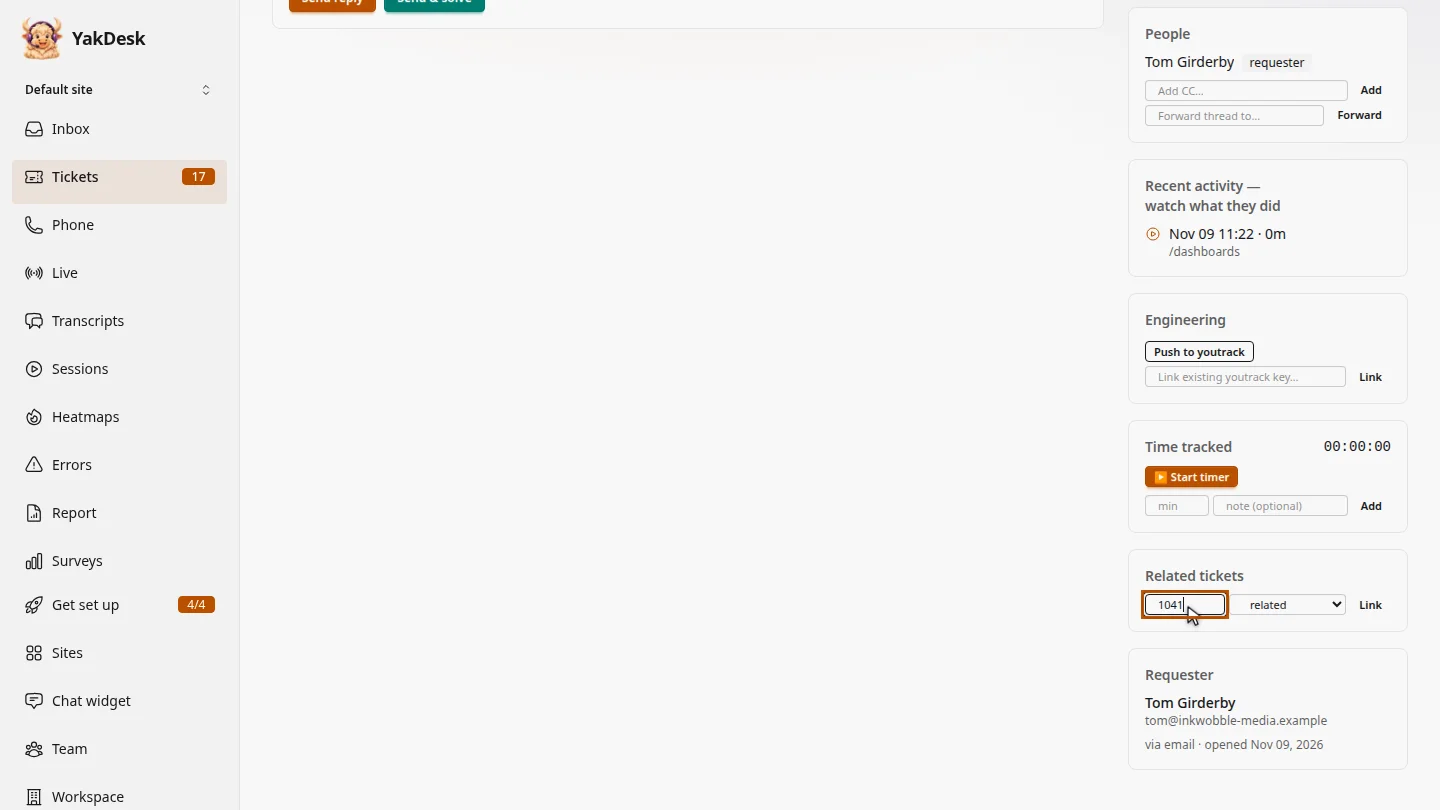
Under Related tickets, type the other ticket's number, and leave related selected. Choose incident of only when the other ticket tracks the underlying problem.
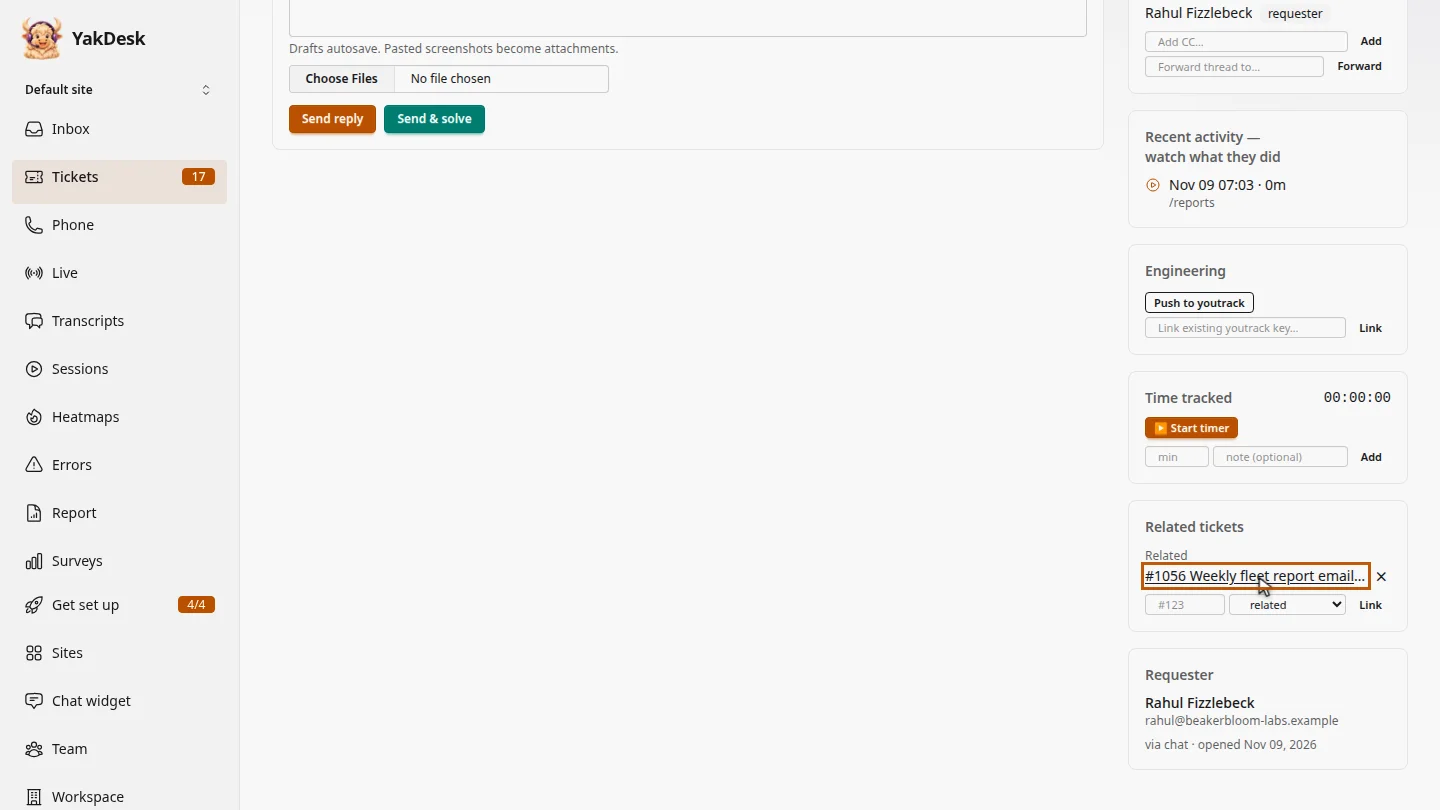
Select Link. Ticket 1041 is now listed here. Select it, and it lists this ticket back.
Steps
Open the ticket ▶ 0:05
In the sidebar, select Tickets, then select the ticket's subject. Find Related tickets.
Enter the other ticket ▶ 0:14
Under Related tickets, type the other ticket's number in #123. Leave related selected, or choose incident of if the other ticket tracks the underlying problem.
Link them ▶ 0:25
Select Link. The other ticket is listed under Related, and it lists this ticket back.
Next steps
Updated 2026-11-09
related tickets link tickets incident problem ticket