
How to change your notification preferences in YakDesk
Email for every new ticket buries the alerts that matter. Choose which chat and ticket events email you or show a desktop notification. In-app notifications stay on either way.
Before you start
- Ticket events need a Growth or Agency plan; chat events are on every plan
- For desktop notifications, allow them in your browser (Enable desktop notifications in this browser in Ticket settings)
Plays silently with captions; the narrated version is on its way.
Transcript
Choose which YakDesk events email you, and which show on your desktop.
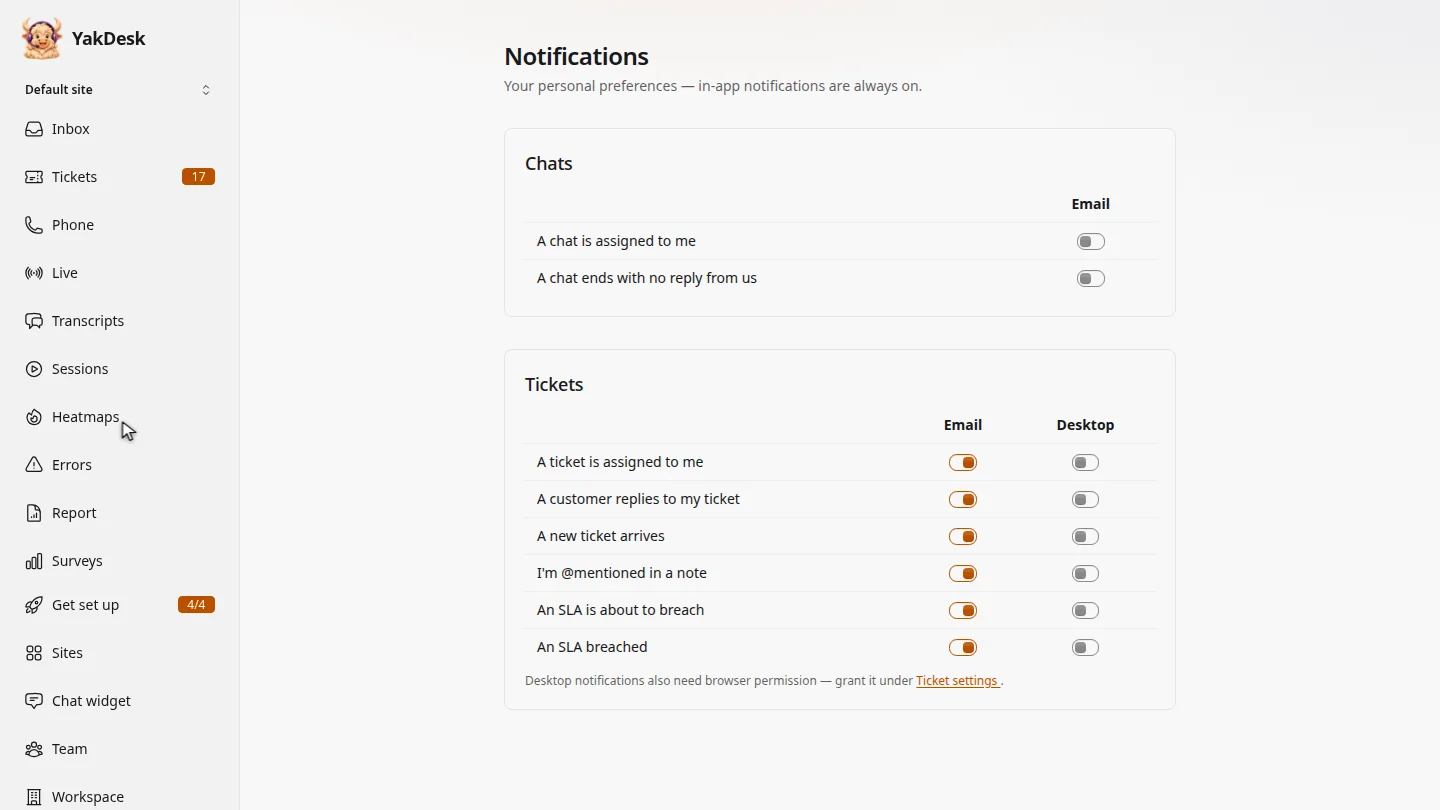
In the sidebar, select Notifications. Chats and Tickets each list the events you can be told about.
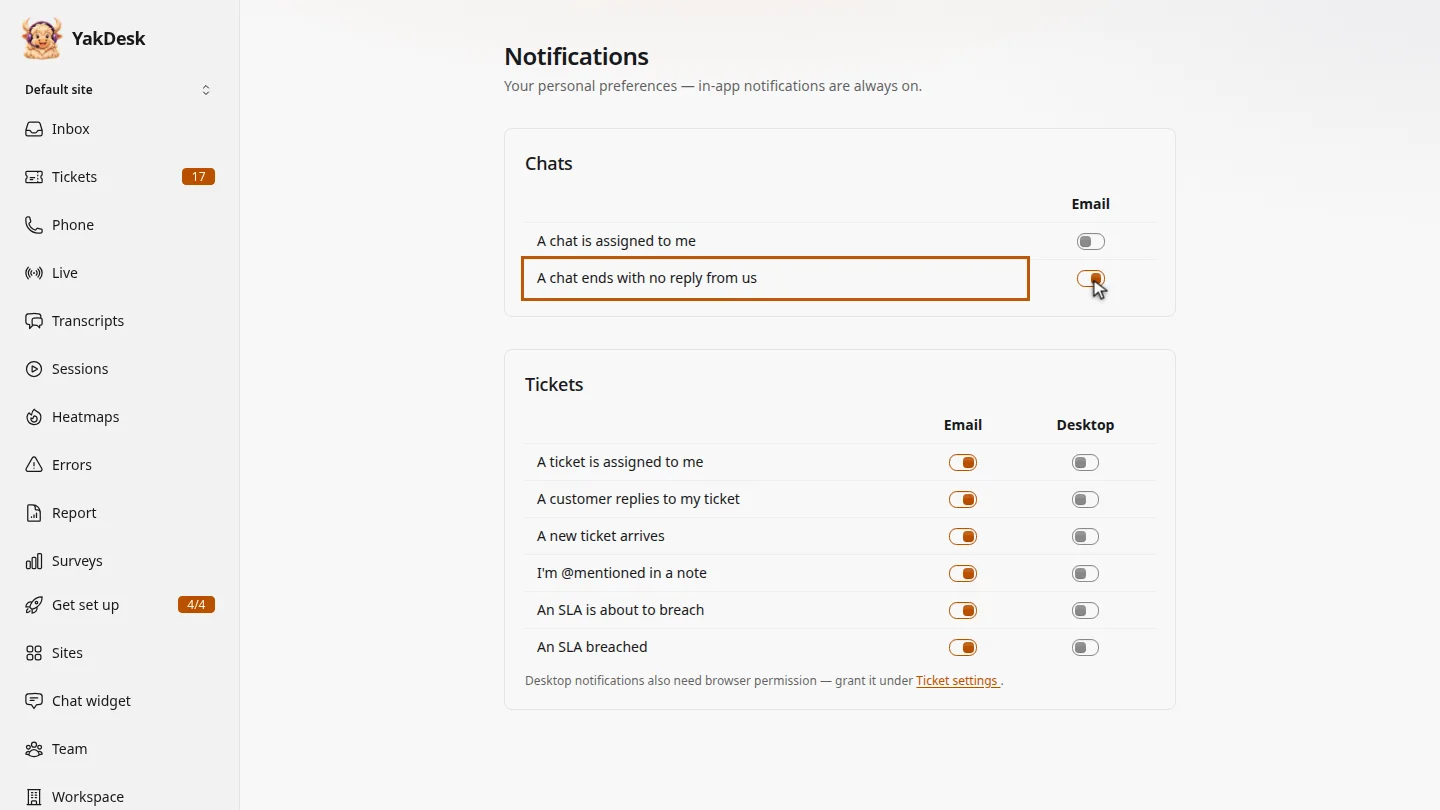
Under Chats, switch on email for a chat that ends with no reply from us, so a missed customer never goes unnoticed.
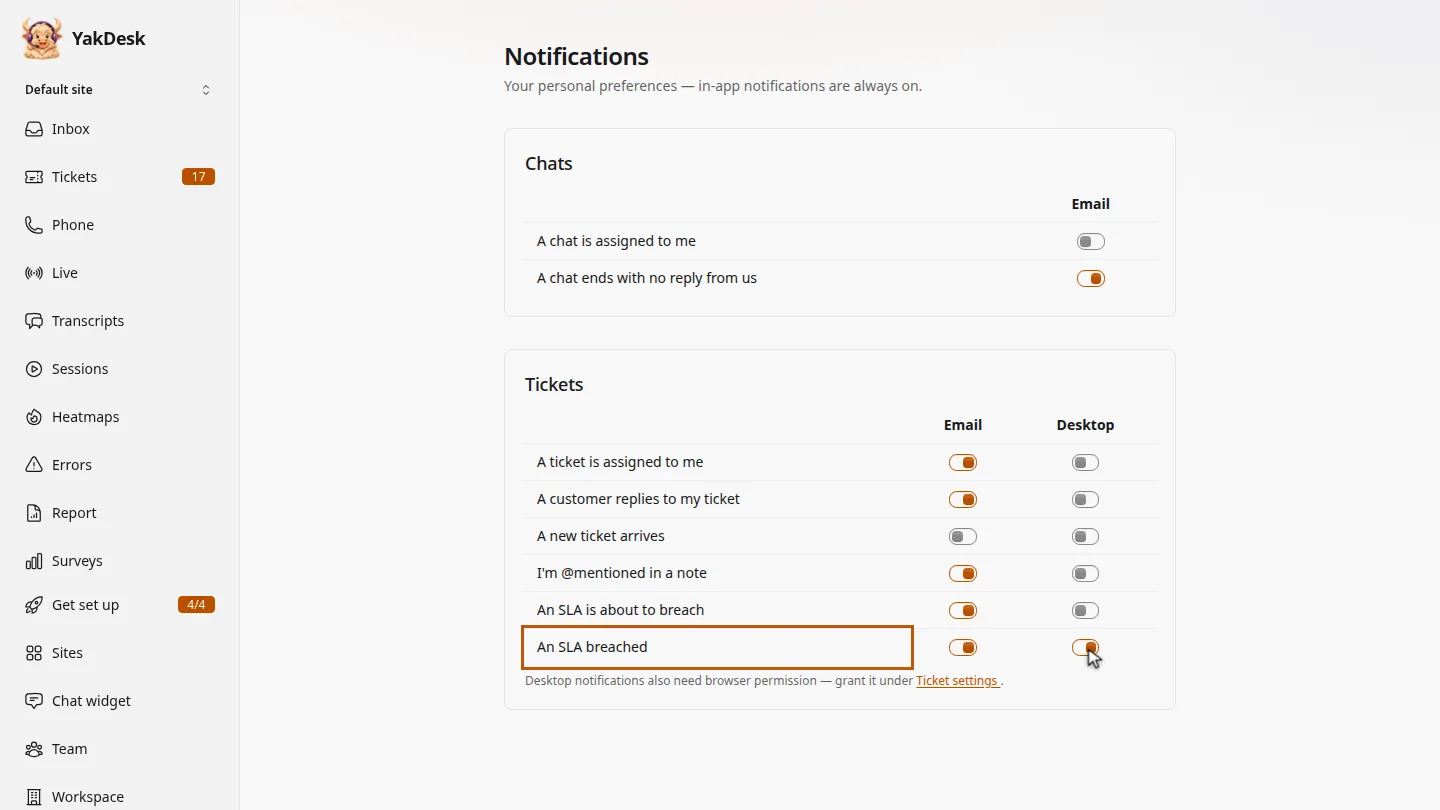
Under Tickets, switch off email for each new ticket, and switch on desktop notifications for SLA breaches. Each change saves straight away.
Steps
Open your notification settings ▶ 0:06
In the sidebar, select Notifications. The page lists Chats and Tickets events.
Choose chat emails ▶ 0:13
Under Chats, switch Email on or off for each event, for example A chat ends with no reply from us.
Choose ticket alerts ▶ 0:22
Under Tickets, switch Email and Desktop on or off for each event. Changes save immediately.
Next steps
Updated 2026-11-09
notifications email alerts desktop notifications notification settings