
How to invite a teammate to YakDesk
Add the people who answer customers. Each active member is a billed seat, and their role decides what they can see: owners and admins see every site, while members see only the sites you assign them.
Before you start
- An Owner or Admin role in YakDesk
Plays silently with captions; the narrated version is on its way.
Transcript
Bring a new agent into your YakDesk workspace with the right access.
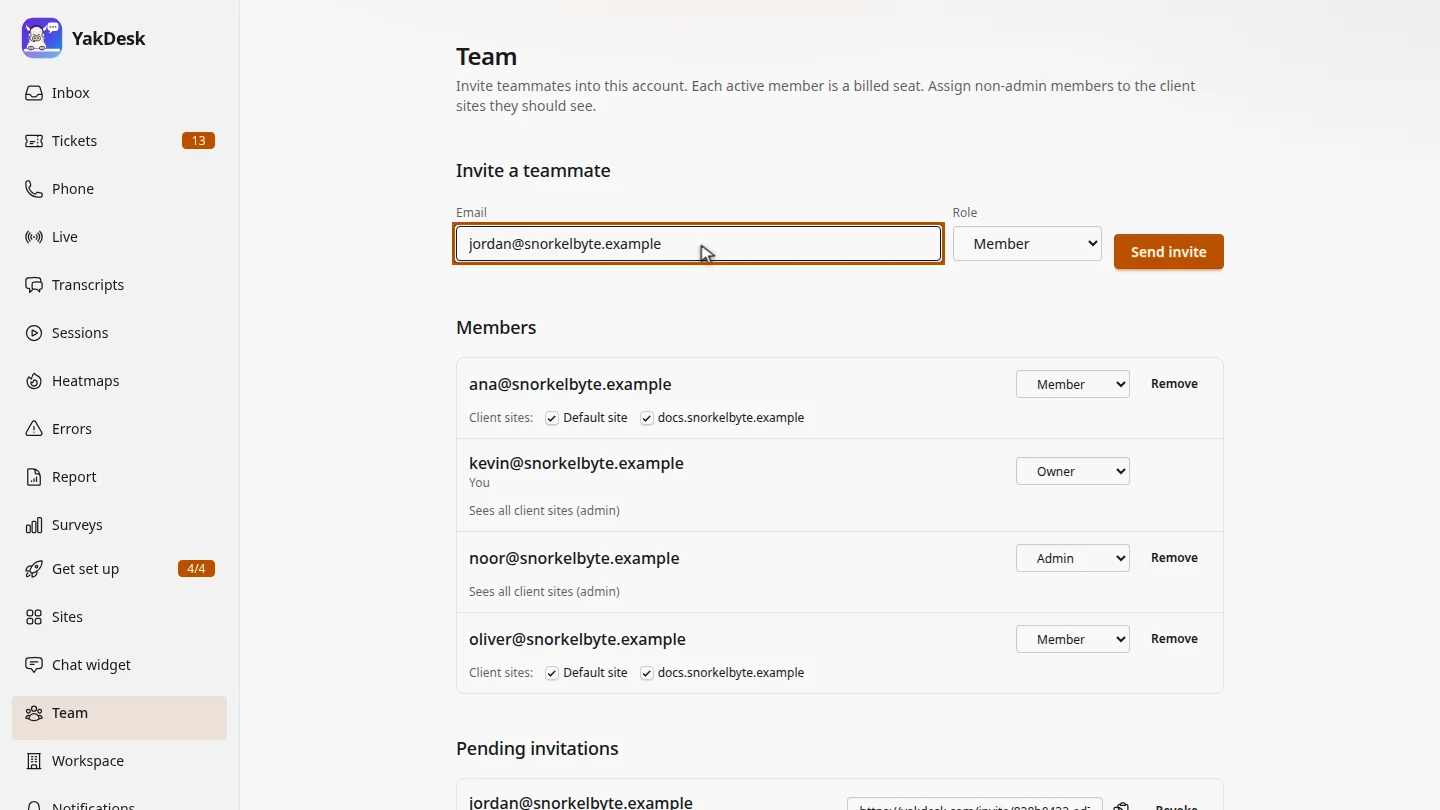
Open Team. Under Invite a teammate, enter your new agent's work email address.
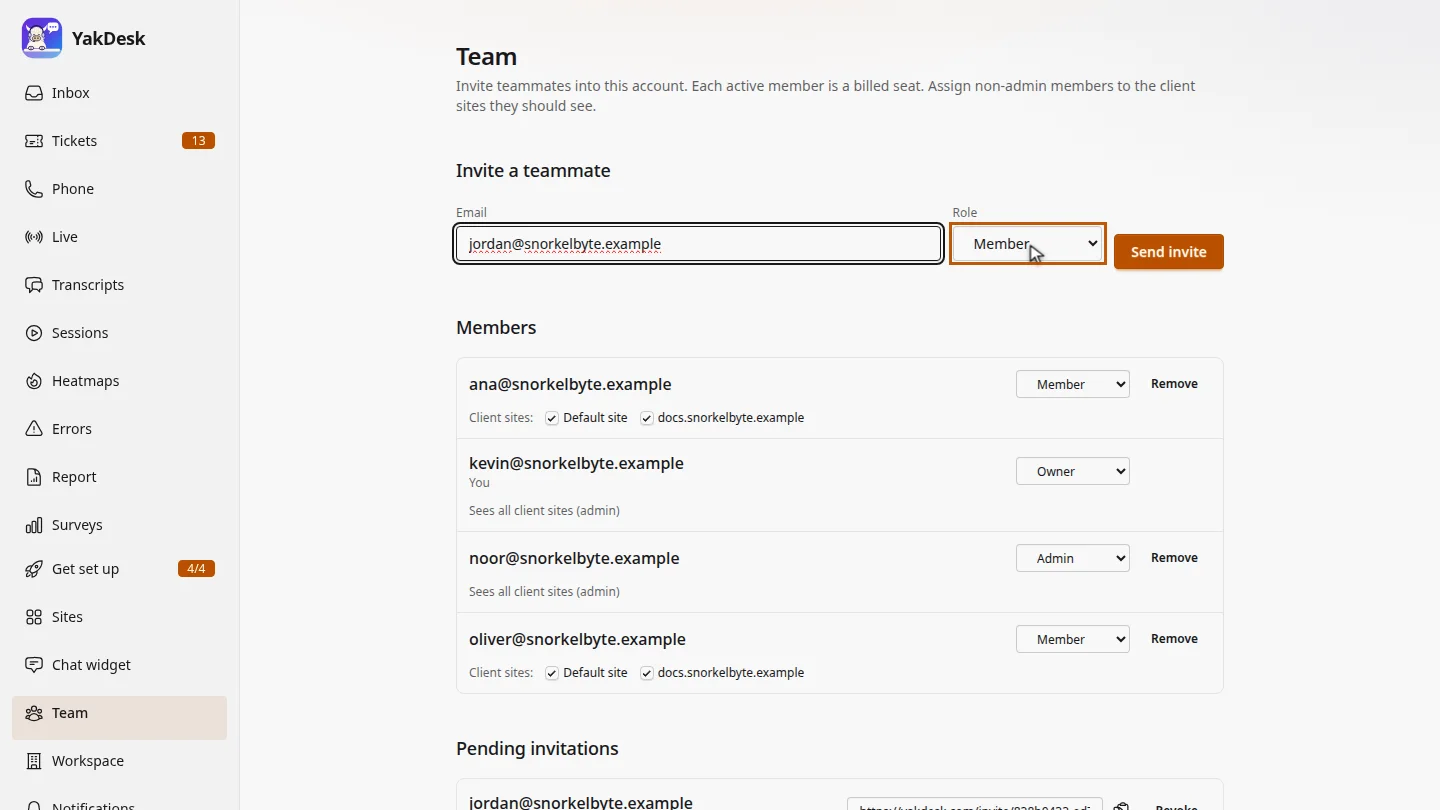
Choose a role. Admins see every site and can manage the team. Members only see the sites you tick for them.
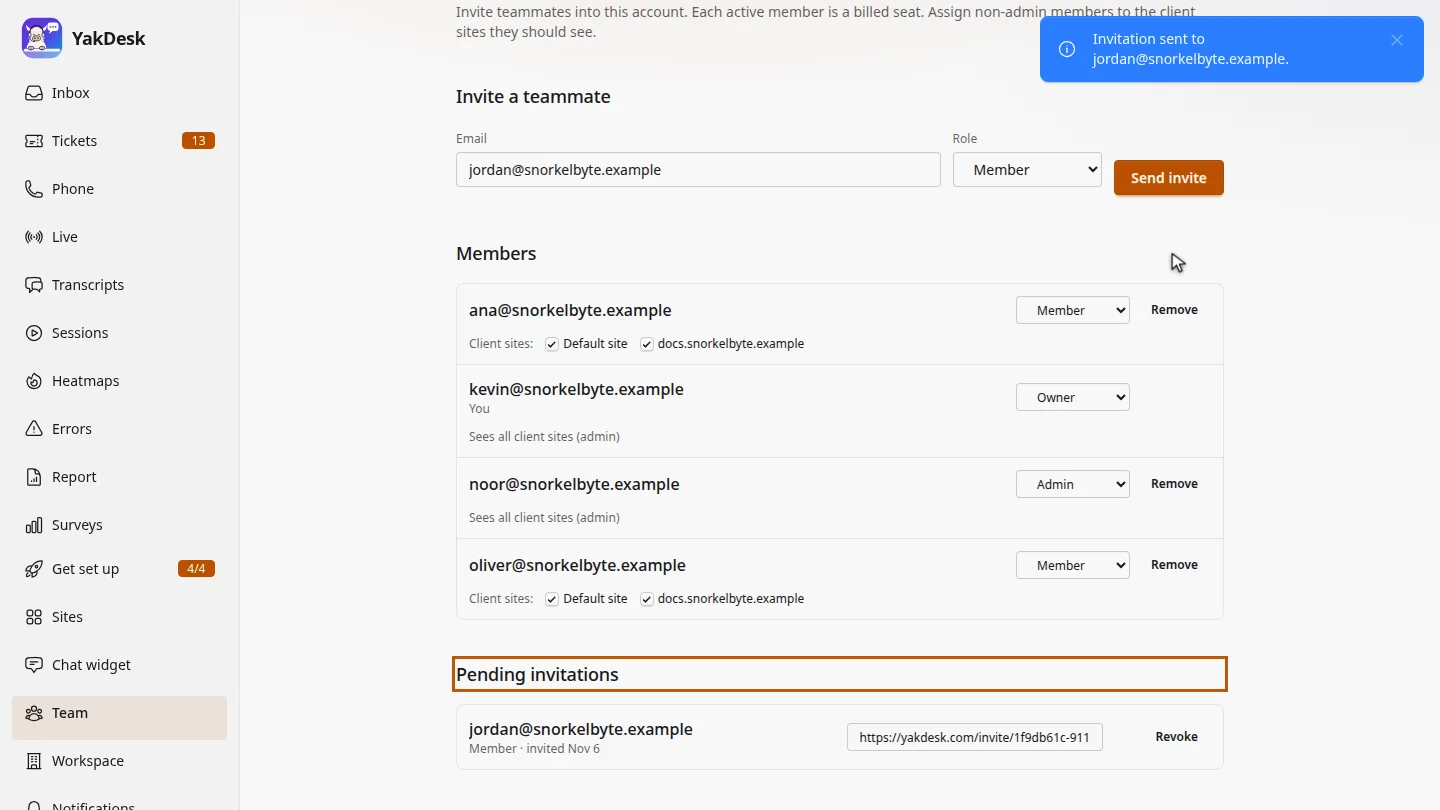
Select Send invite. They get an email with a link to join, and the invitation waits under Pending invitations until they accept it.
Steps
Enter their email ▶ 0:06
In the sidebar, select Team. Under Invite a teammate, enter their Email.
Choose a role ▶ 0:12
Choose a Role: Admin manages everything; Member and Editor see only their assigned sites; Viewer is read-only.
Send the invitation ▶ 0:20
Select Send invite. The invitation appears under Pending invitations.
Next steps
Updated 2026-10-26
add agent invite user team members roles seats