
How to connect Jira, YouTrack, Linear or GitHub to YakDesk
When a ticket turns out to be a bug, engineering needs it in their own tracker, and support needs to know when it's fixed. Connect YouTrack, Jira Cloud, Linear or GitHub Issues, and you can push a ticket to it as an issue. Status and comments sync back, so engineers never need to log in to the help desk.
Before you start
- A Growth or Agency plan (tickets are included)
- An Owner or Admin role in YakDesk
Plays silently with captions; the narrated version is on its way.
Transcript
Push tickets to your issue tracker, and keep their status in sync.
In Tickets, open Settings and scroll to Jira and YouTrack. Choose your tracker, and enter its address. Linear and GitHub don't need one.
Paste an access token from the tracker, and enter the project key that new issues go to.
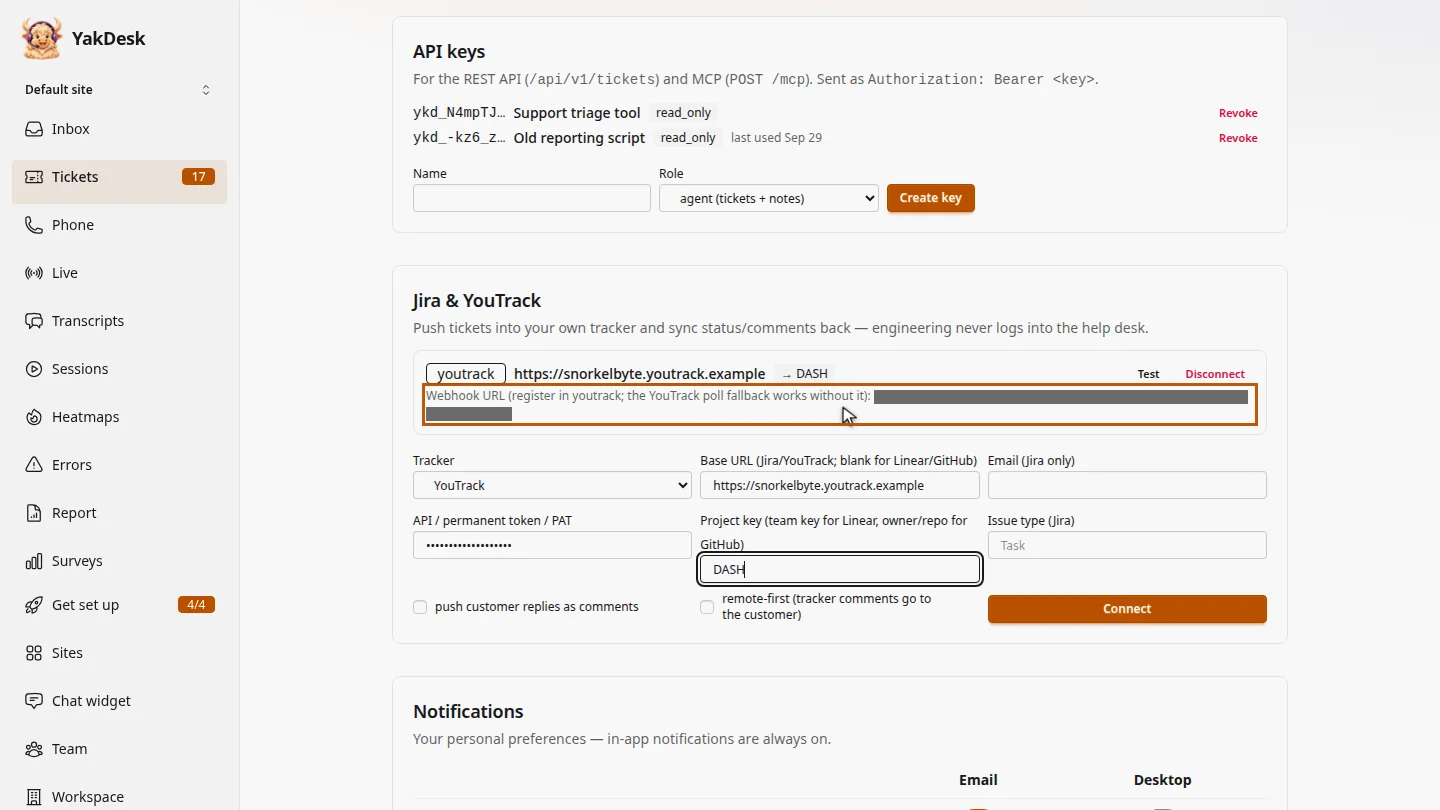
Select Connect. YakDesk checks the token and lists the tracker, with a webhook address to register there, so changes sync back straight away.
Steps
Choose the tracker ▶ 0:06
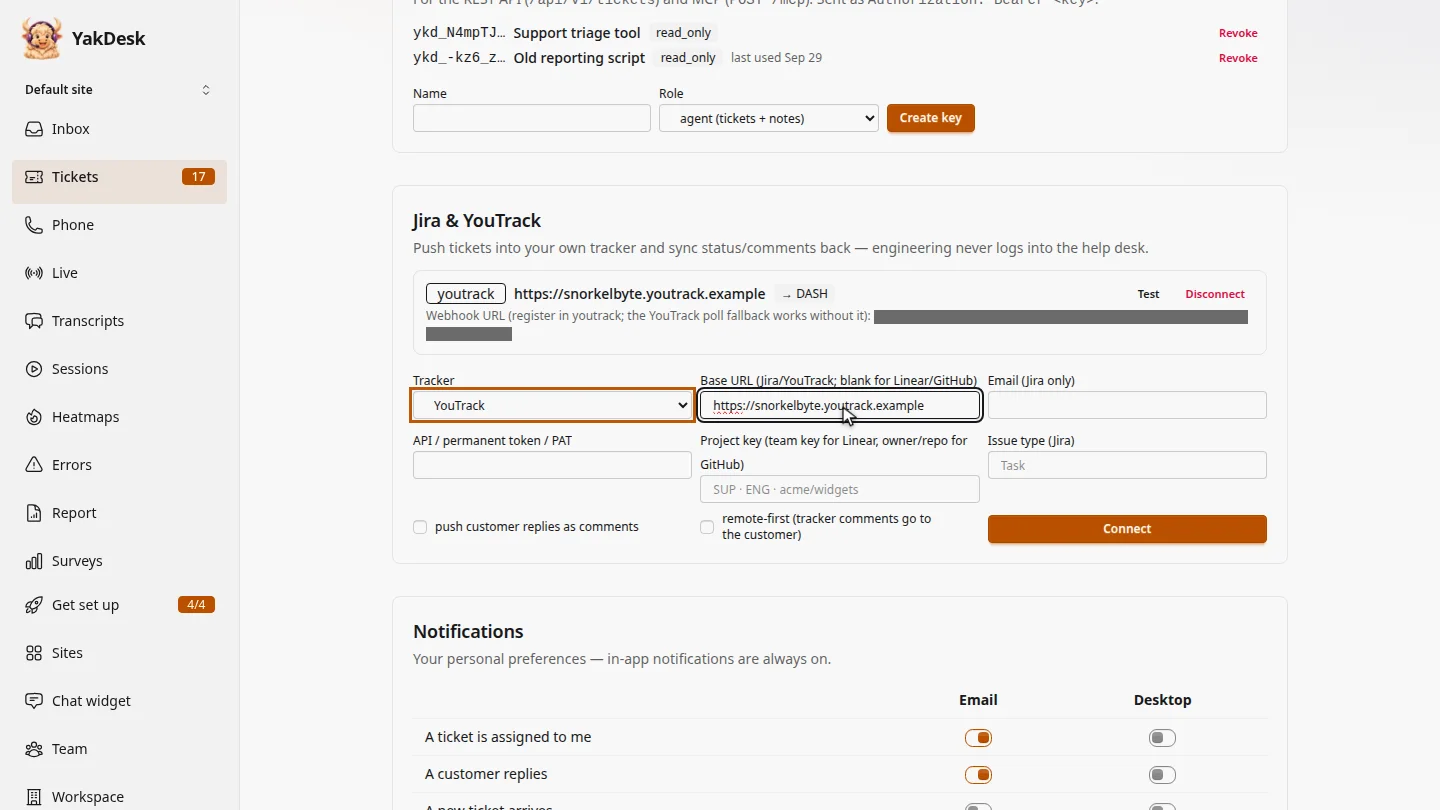
In Tickets, select Settings. Under Jira & YouTrack, choose a Tracker. For Jira or YouTrack, enter its Base URL; leave it blank for Linear or GitHub.
Add a token and project ▶ 0:16
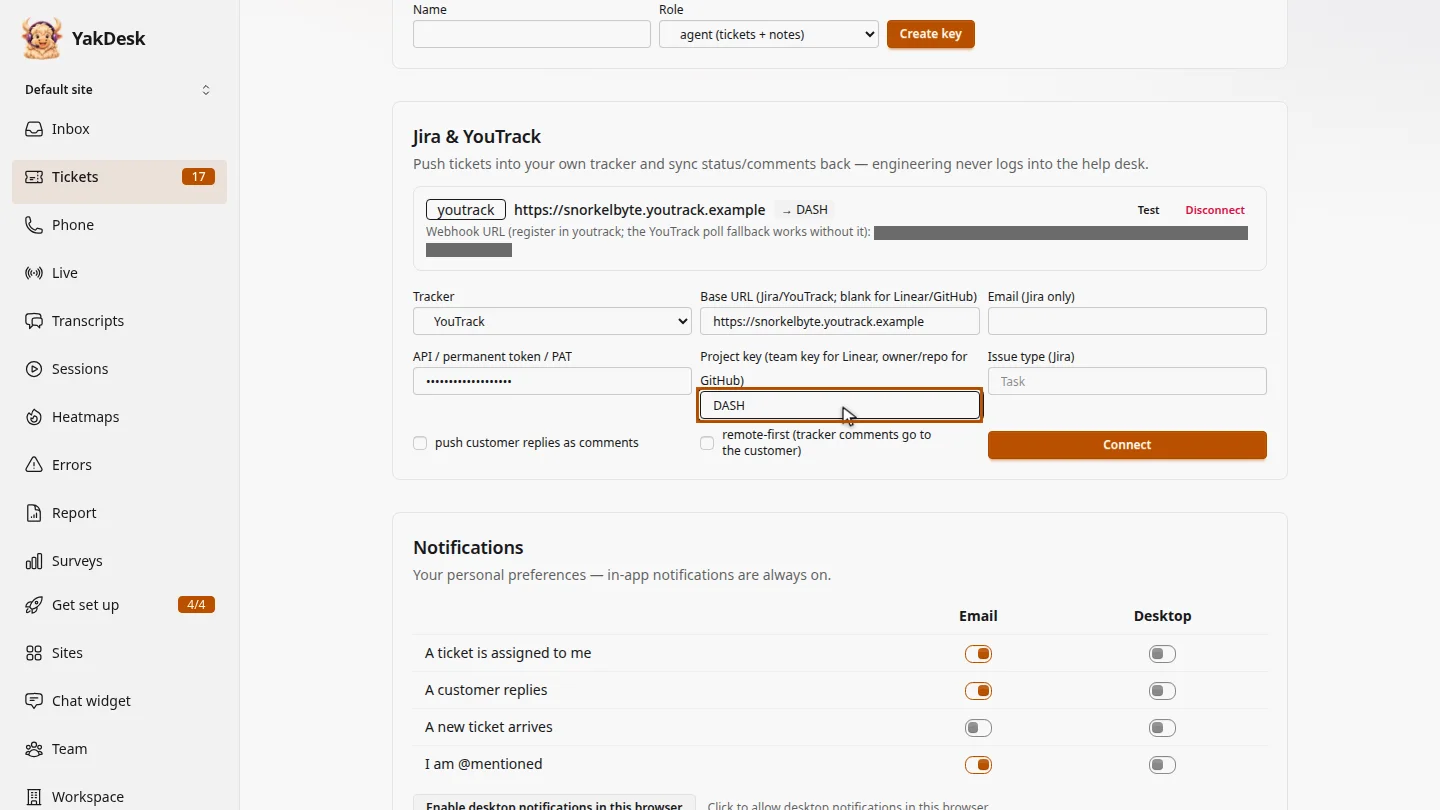
Paste a token in API / permanent token / PAT, and enter the Project key (team key for Linear, owner/repo for GitHub). For Jira, also enter Email (Jira only) and an Issue type (Jira).
Connect and register the webhook ▶ 0:22
Select Connect. The tracker is listed with a Webhook URL: register it in your tracker so status and comments sync back immediately. Without it, YouTrack is checked every hour.
Next steps
Updated 2026-11-09
jira integration youtrack linear github issues bug tracker escalate to engineering