
How to turn on AI reply drafts in YakDesk
Writing the same kind of answer over and over slows your team down. With the AI composer on, agents can draft a reply from your help articles, summarize a long thread, or rewrite a reply in a different tone. Drafts are suggestions, and an agent always reviews them before sending.
Before you start
- A Growth or Agency plan (tickets are included)
- An Owner or Admin role in YakDesk
Plays silently with captions; the narrated version is on its way.
Transcript
Let AI draft, summarize and rewrite ticket replies for your agents to review.
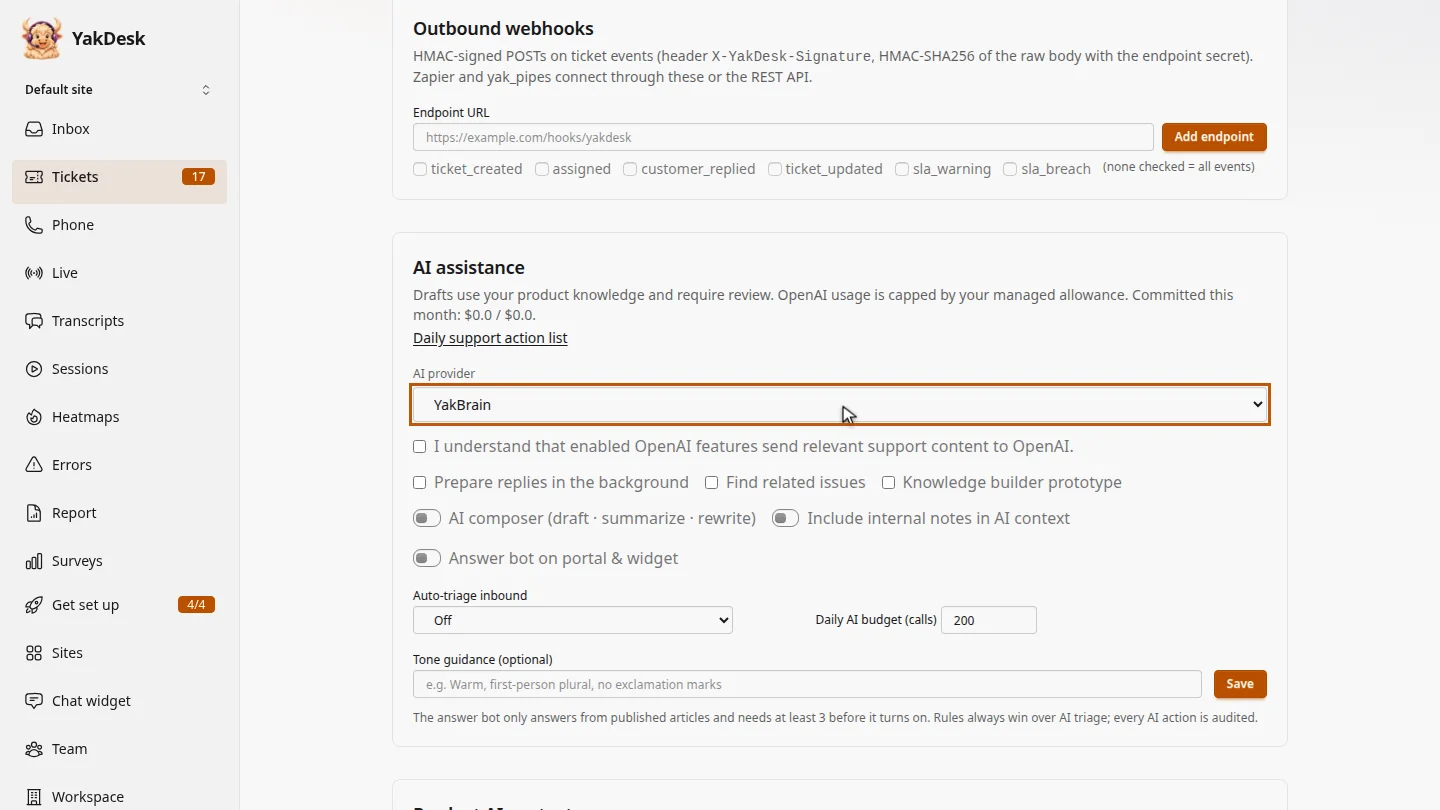
In Tickets, open Settings and scroll to AI assistance. Choose the AI provider: YakBrain, or OpenAI. For OpenAI, you also confirm that support content is shared with it.
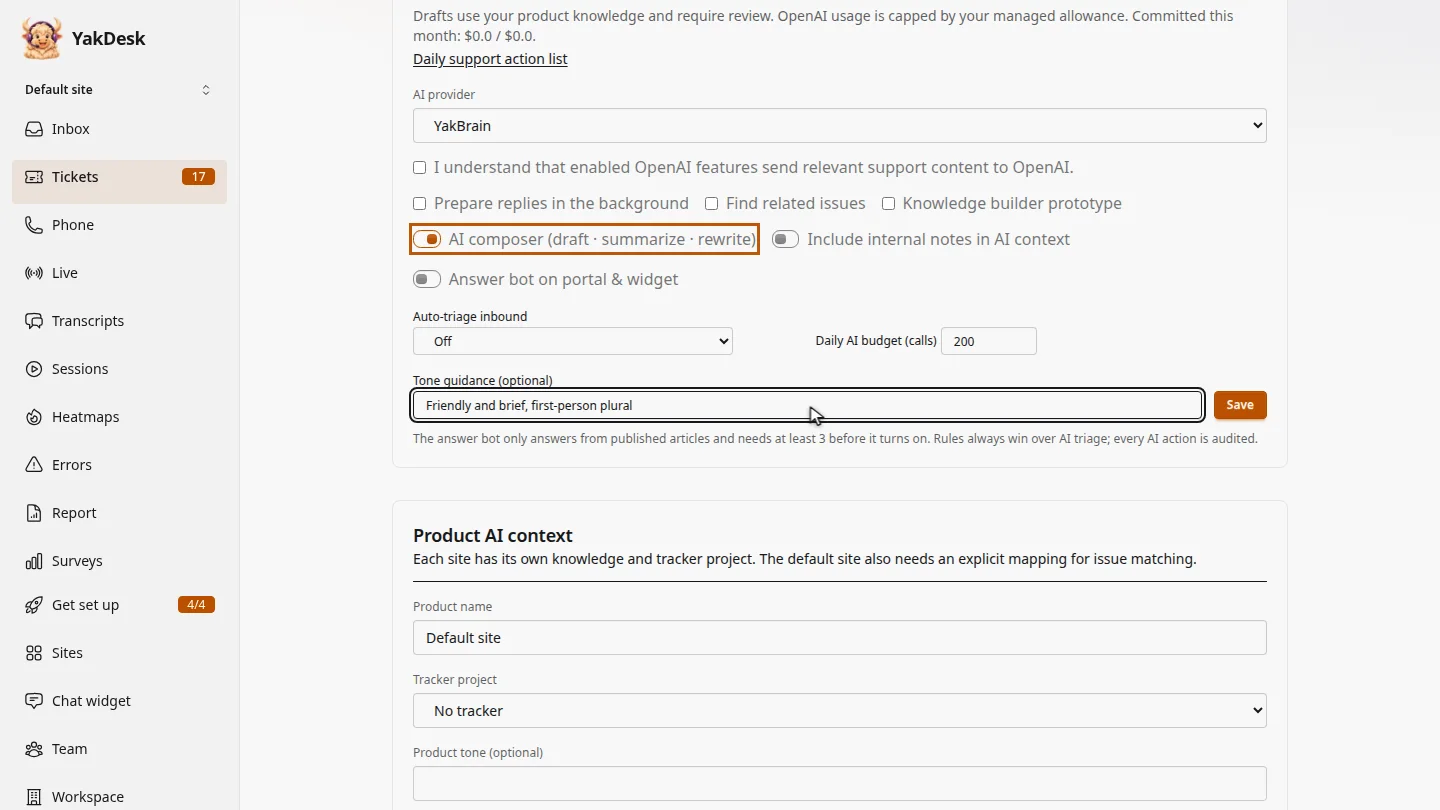
Switch on the AI composer. Optionally, add tone guidance, so drafts sound like your team.
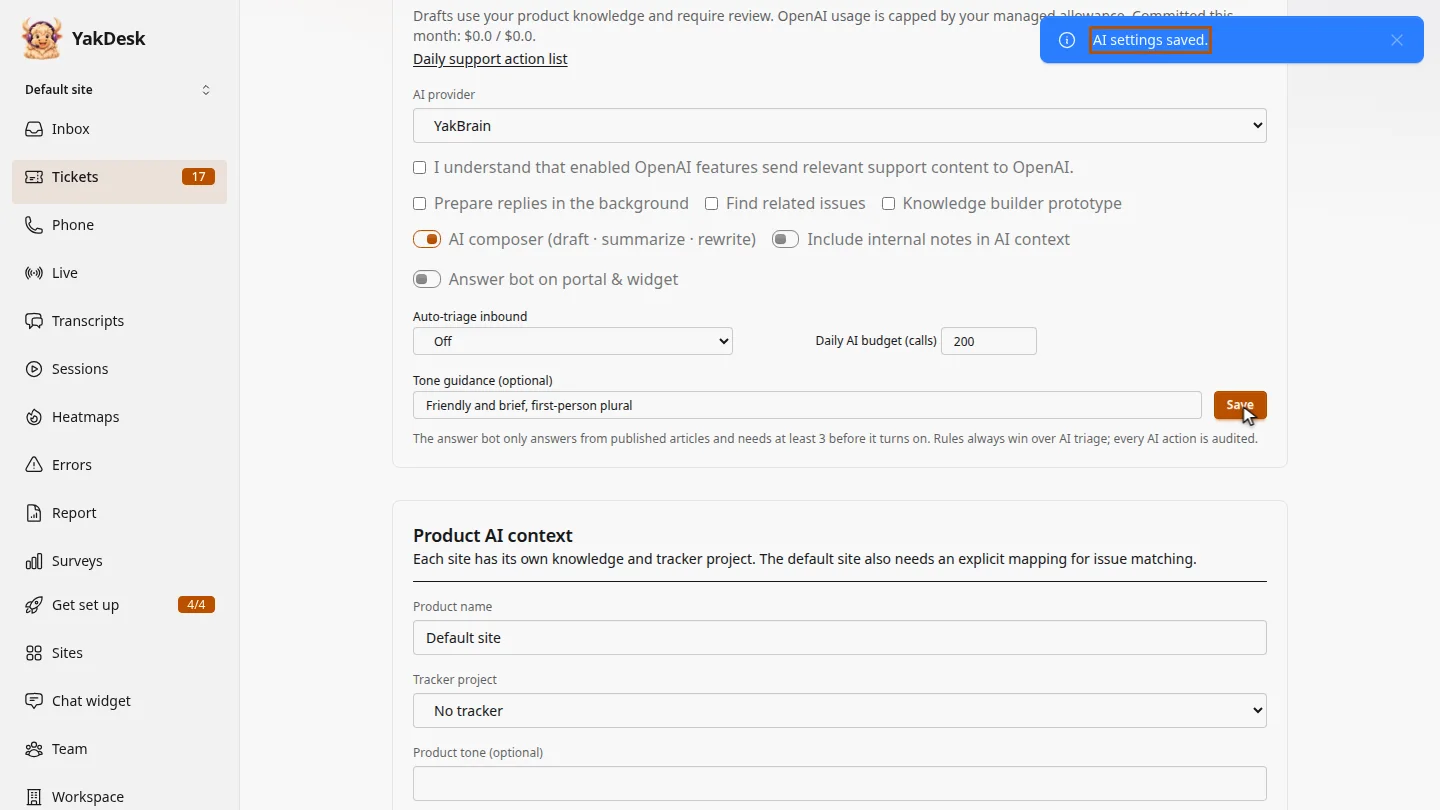
Select Save. In every ticket, agents now see Draft reply and Rewrite next to the reply box.
Steps
Choose a provider ▶ 0:06
In Tickets, select Settings. Under AI assistance, choose an AI provider: YakBrain or OpenAI. For OpenAI, also select I understand that enabled OpenAI features send relevant support content to OpenAI.
Turn on the composer ▶ 0:19
Switch on AI composer (draft · summarize · rewrite). Optional: enter Tone guidance (optional).
Save ▶ 0:25
Select Save. YakDesk shows AI settings saved.
Next steps
Updated 2026-11-09
ai ai drafts reply suggestions summarize ticket rewrite tone yakbrain openai