
How to publish a help center article in YakDesk
If the same question keeps arriving, answer it once in public. Published articles appear in your help center, and agents can insert them into replies.
Before you start
- A Growth or Agency plan (tickets are included)
Plays silently with captions; the narrated version is on its way.
Transcript
Answer a common question once, in your public help center.
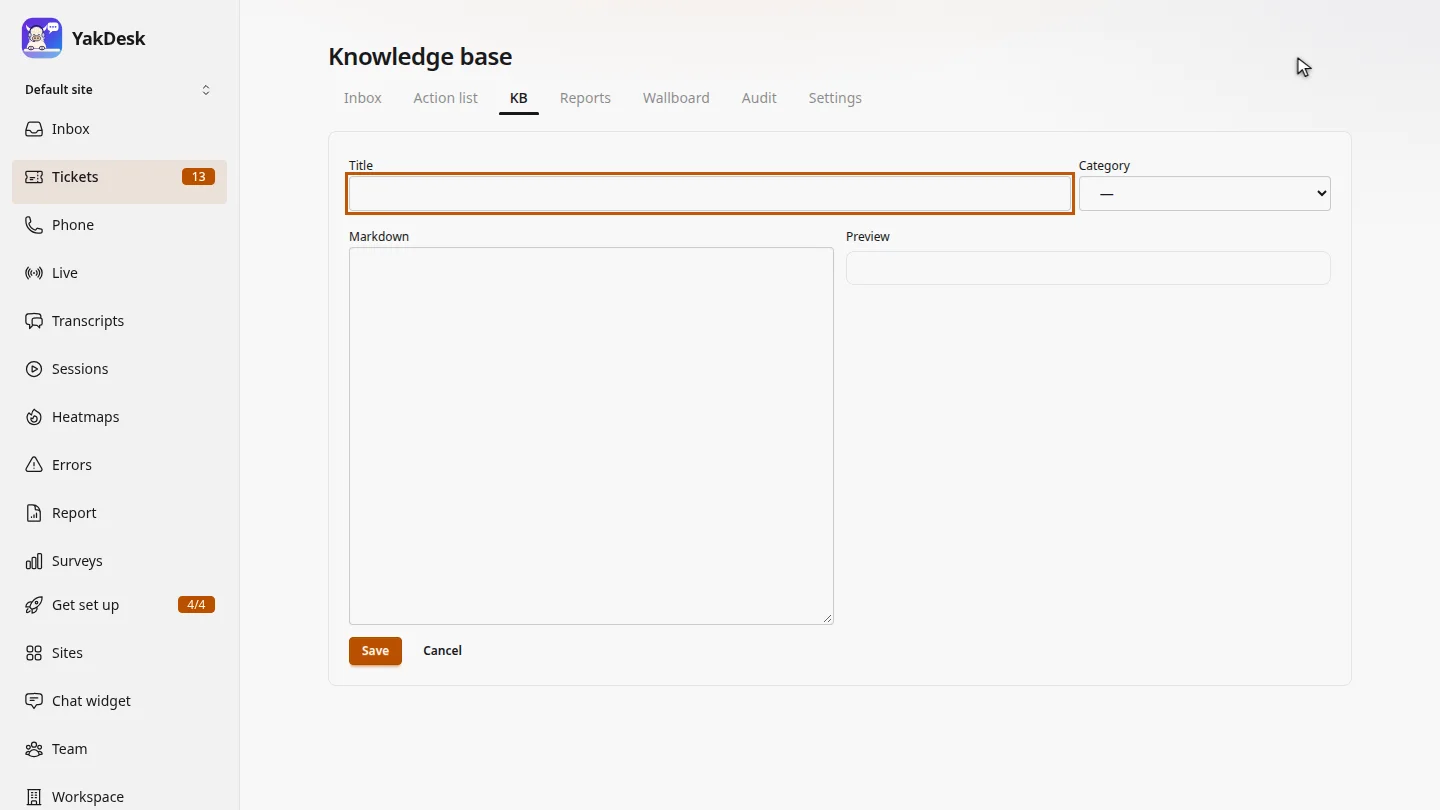
In Tickets, open the KB tab and select New article. An empty editor opens.
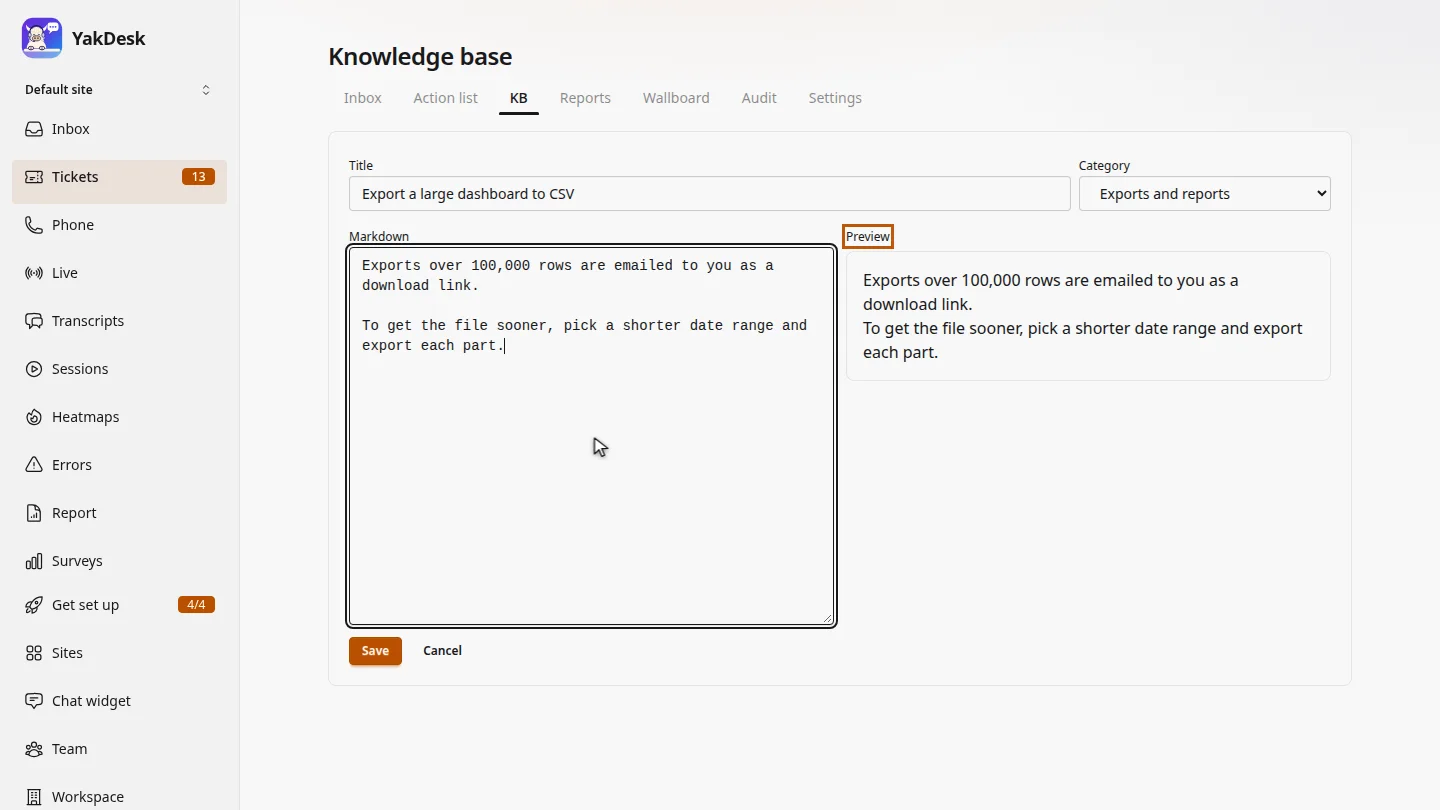
Give it a title, pick a category, and write the answer in Markdown. The preview shows how it will look.
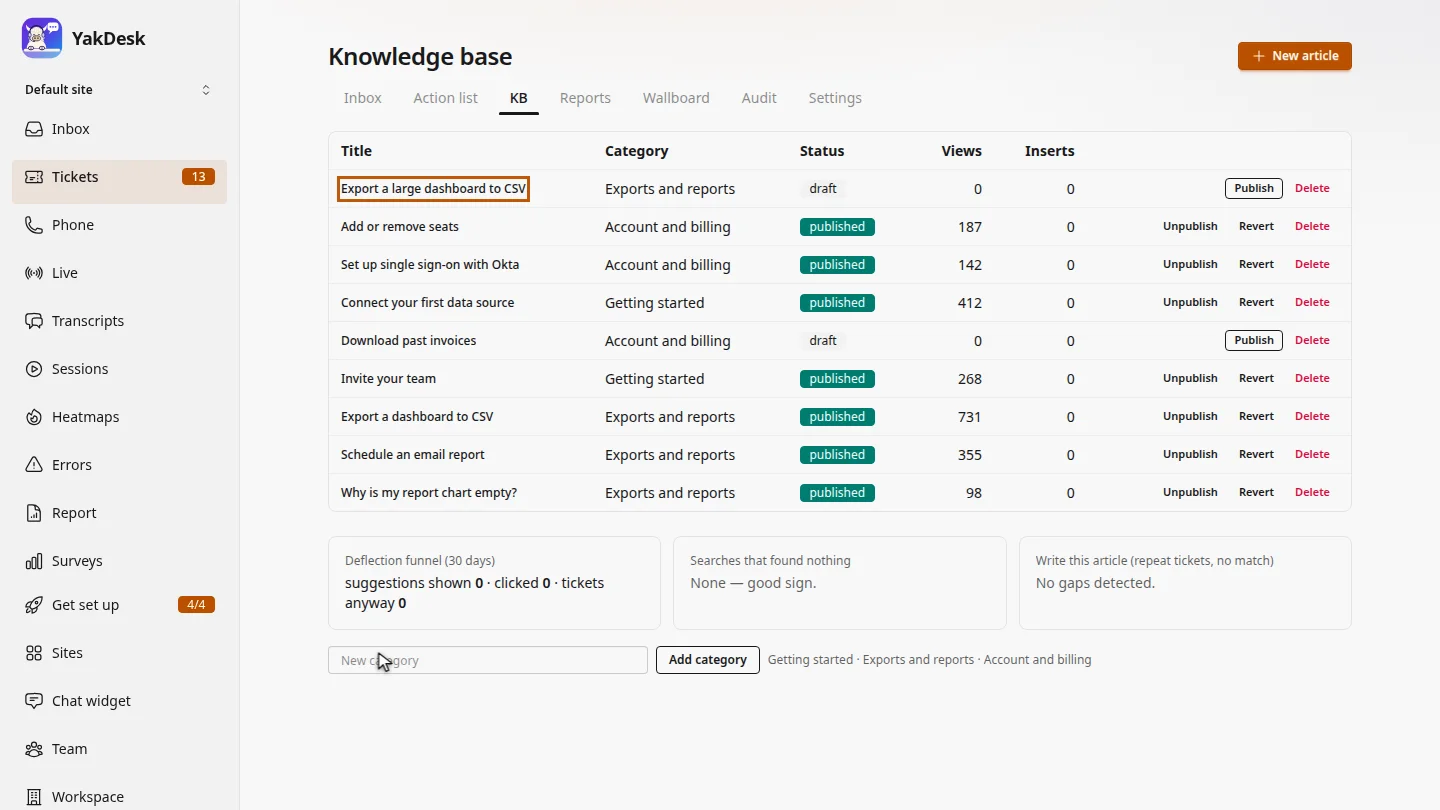
Select Save. The article is listed as a draft, so customers can't see it yet.
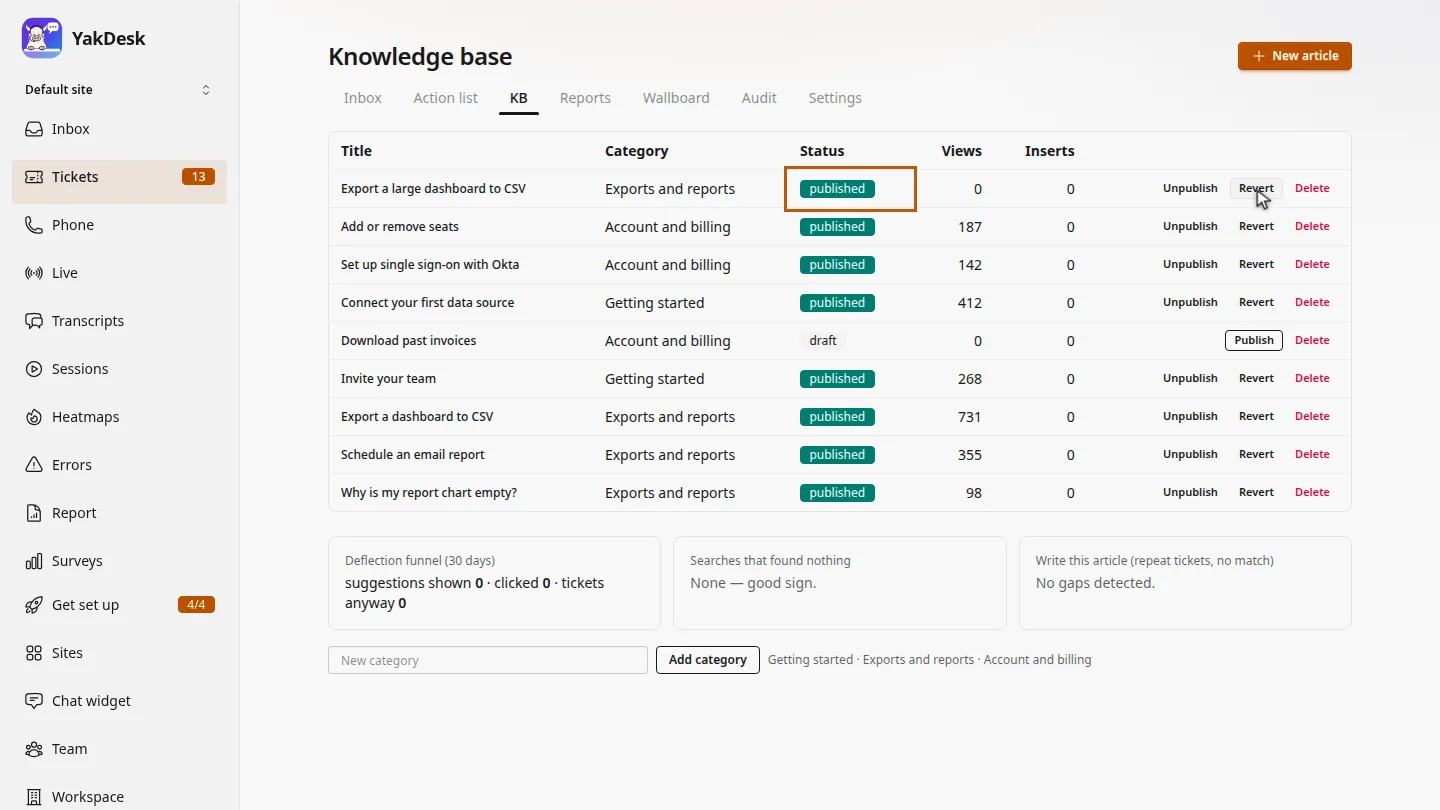
Select Publish on its row. It's now published, and live in your help center.
Steps
Start an article ▶ 0:05
In Tickets, select KB, then select New article.
Write the answer ▶ 0:11
Enter a Title, choose a Category, and write the body under Markdown. The Preview updates as you type.
Save the draft ▶ 0:18
Select Save. The article appears in the list as draft.
Publish it ▶ 0:24
Select Publish on the article's row. Its status changes to published.
Next steps
Updated 2026-10-26
knowledge base help center faq self-service kb article