
How to turn on two-factor authentication in YakDesk
A stolen password is enough to read every customer conversation in your workspace. With two-factor authentication on, signing in also needs a code from an authenticator app on your phone.
Before you start
- An authenticator app, such as Google Authenticator, Microsoft Authenticator or 1Password
Plays silently with captions; the narrated version is on its way.
Transcript
Protect your YakDesk sign-in with a code from your phone.
Open Workspace, then select Two-factor authentication. On Sign-in security, select Enable 2FA.
In your authenticator app, add a new account. Enter the secret shown, or open the setup link on your phone.
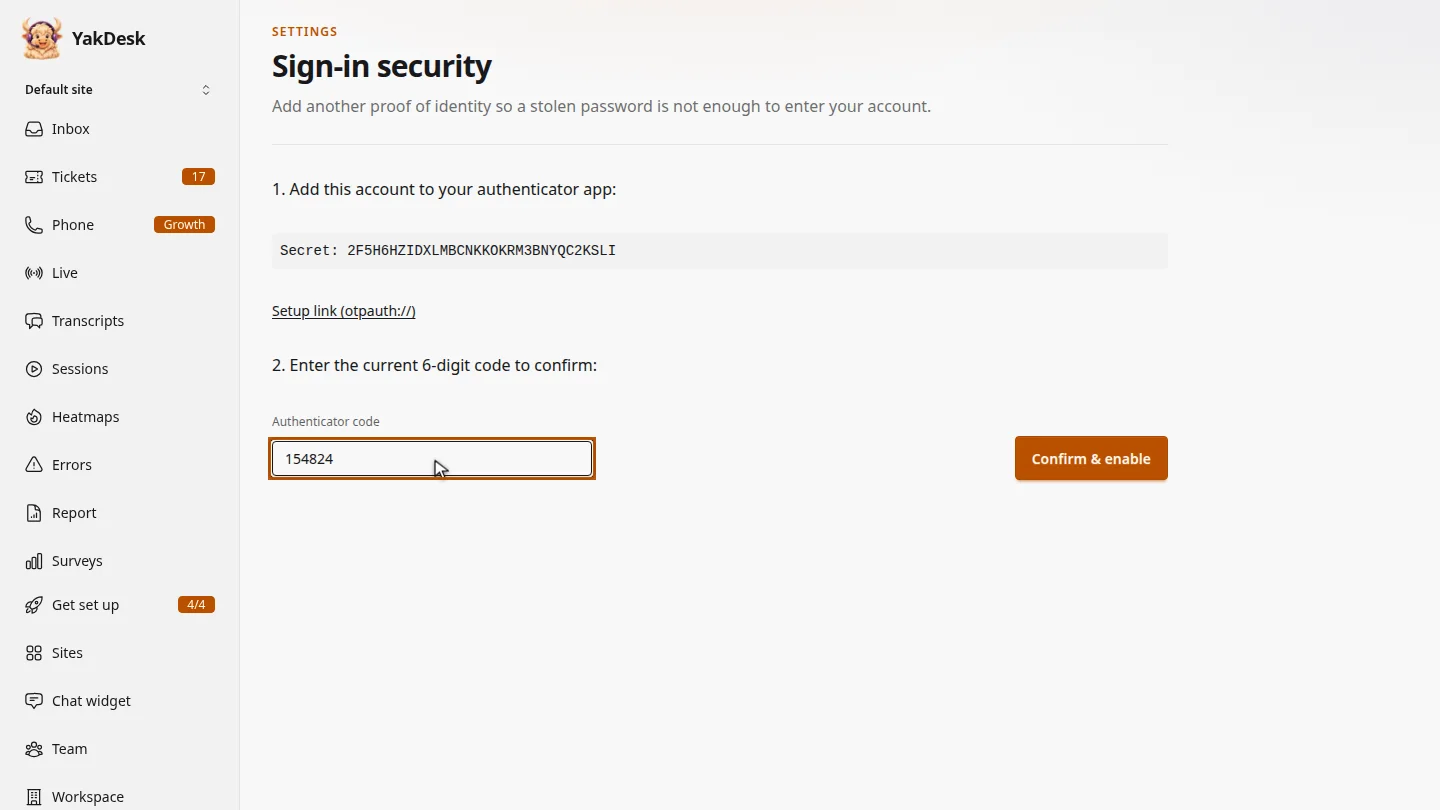
Type the six-digit code your app shows into Authenticator code, then select Confirm and enable.
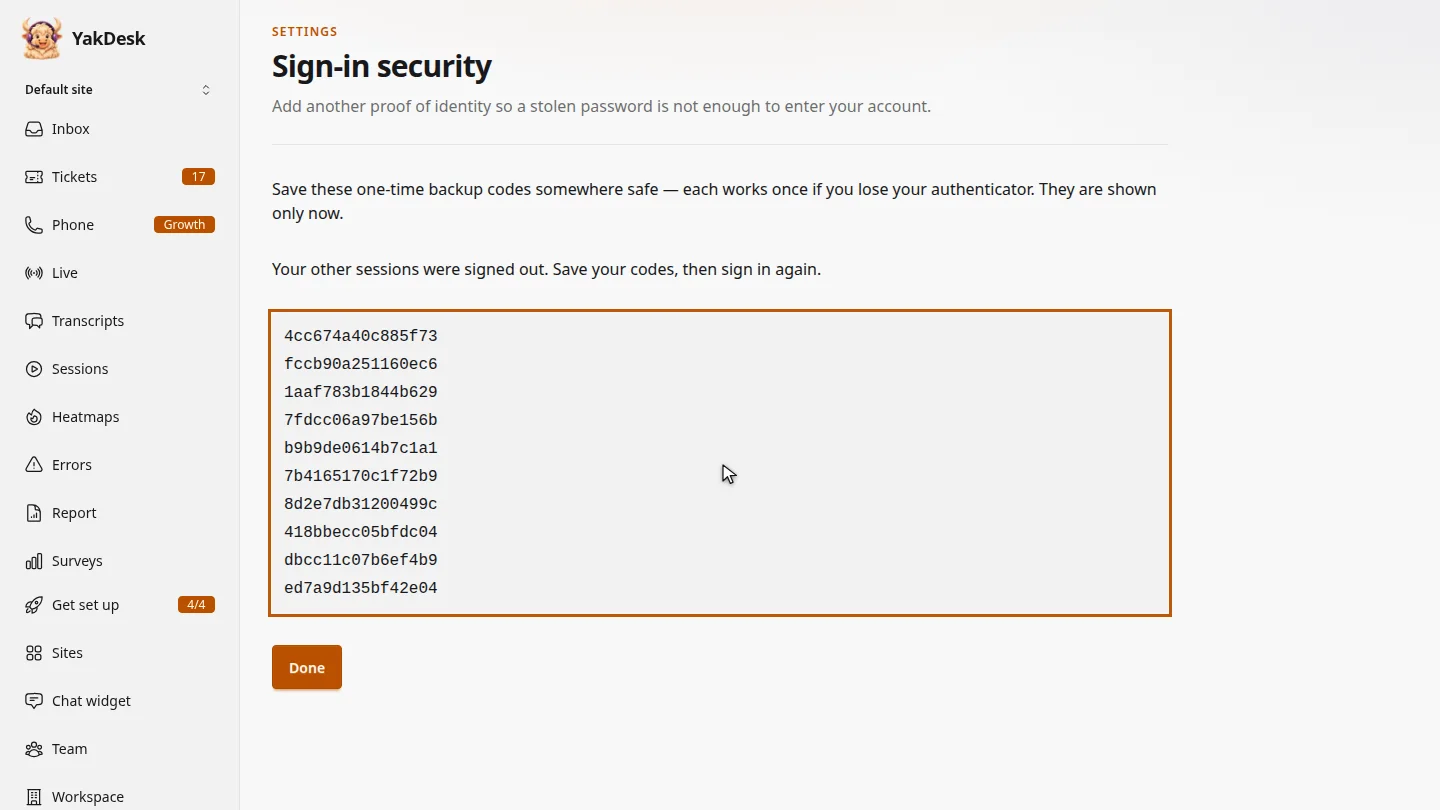
Save the backup codes somewhere safe. Each one works once if you lose your phone, and they're only shown now.
Steps
Start the setup ▶ 0:05
In the sidebar, select Workspace, then Two-factor authentication. Select Enable 2FA.
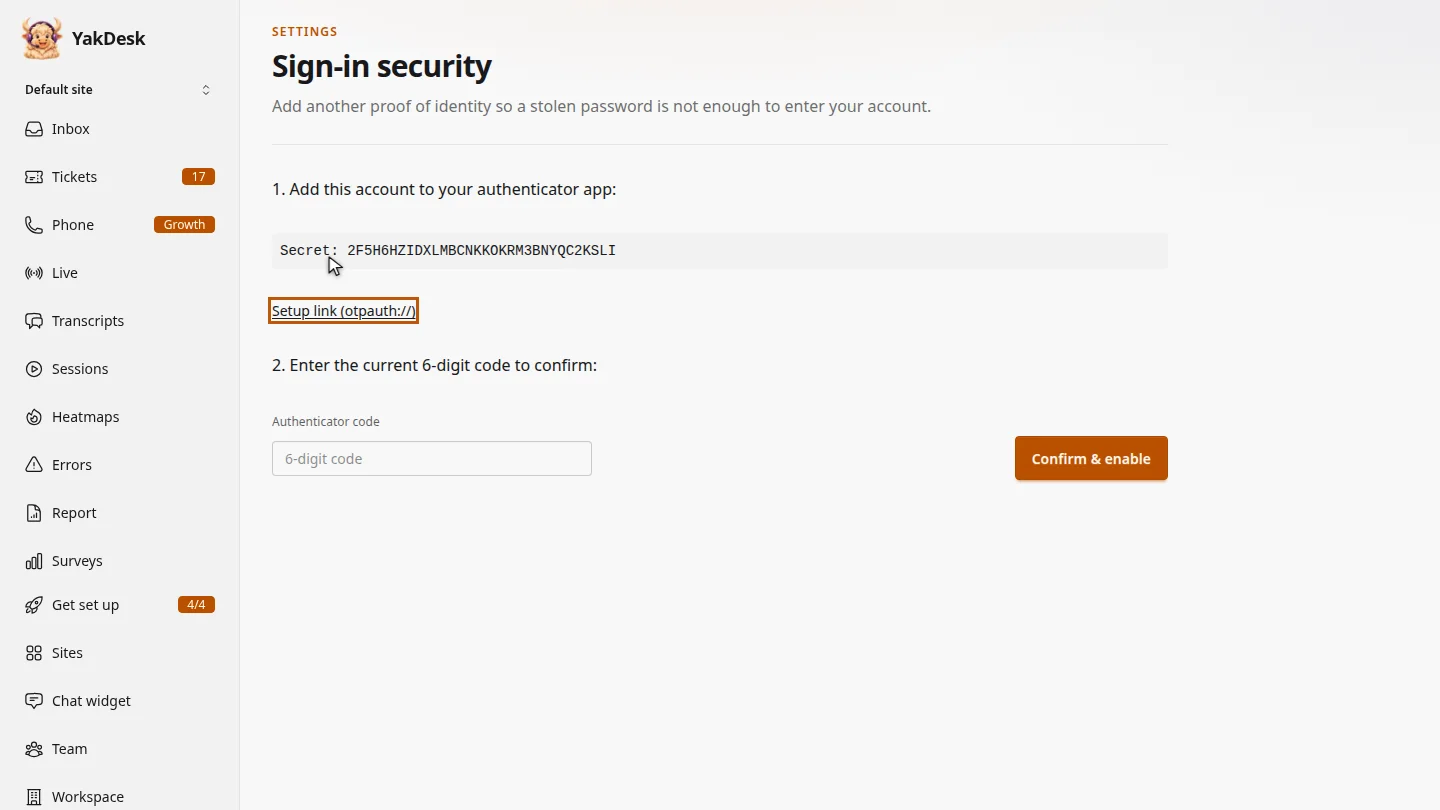
Add it to your authenticator app ▶ 0:12
In your authenticator app, add an account using the Secret, or open Setup link (otpauth://) on your phone.
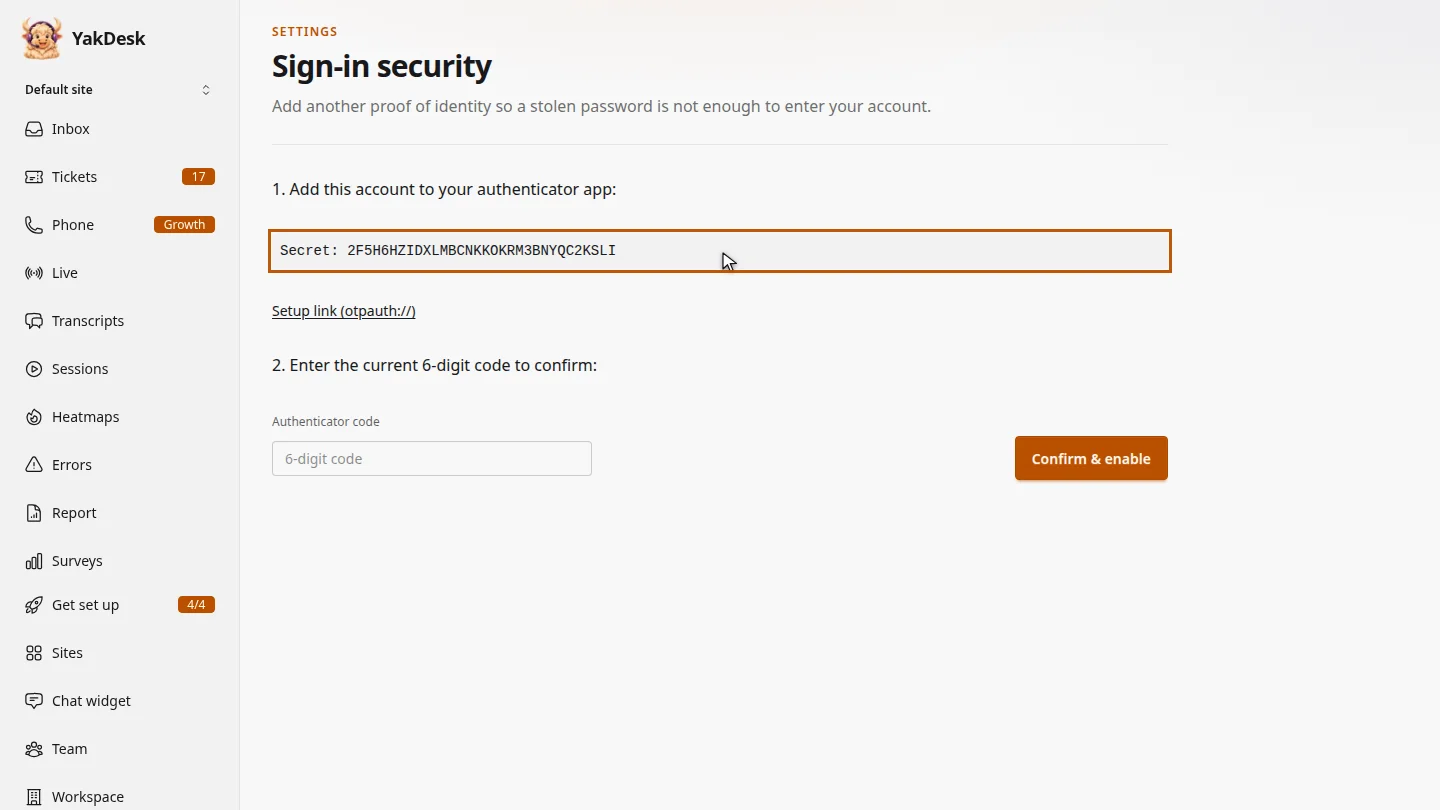
Confirm with a code ▶ 0:20
Enter the 6-digit code from the app in Authenticator code, then select Confirm & enable.
Save your backup codes ▶ 0:27
Save the backup codes in a password manager, then select Done. Each code works once, and they are shown only now.
Next steps
Updated 2026-11-09
2fa mfa totp authenticator app two-step verification backup codes