
How to use your Twilio number in YakDesk
Already have a support number with Twilio? Import it into YakDesk instead of buying a new one. Calls ring agents in the browser, and texts open as tickets.
Before you start
- A Growth or Agency plan (Phone is included; carrier costs are passed through)
- An Owner or Admin role in YakDesk
- A phone number in the Twilio account connected to YakDesk
Plays silently with captions; the narrated version is on its way.
Transcript
Bring the support number you already have into YakDesk.
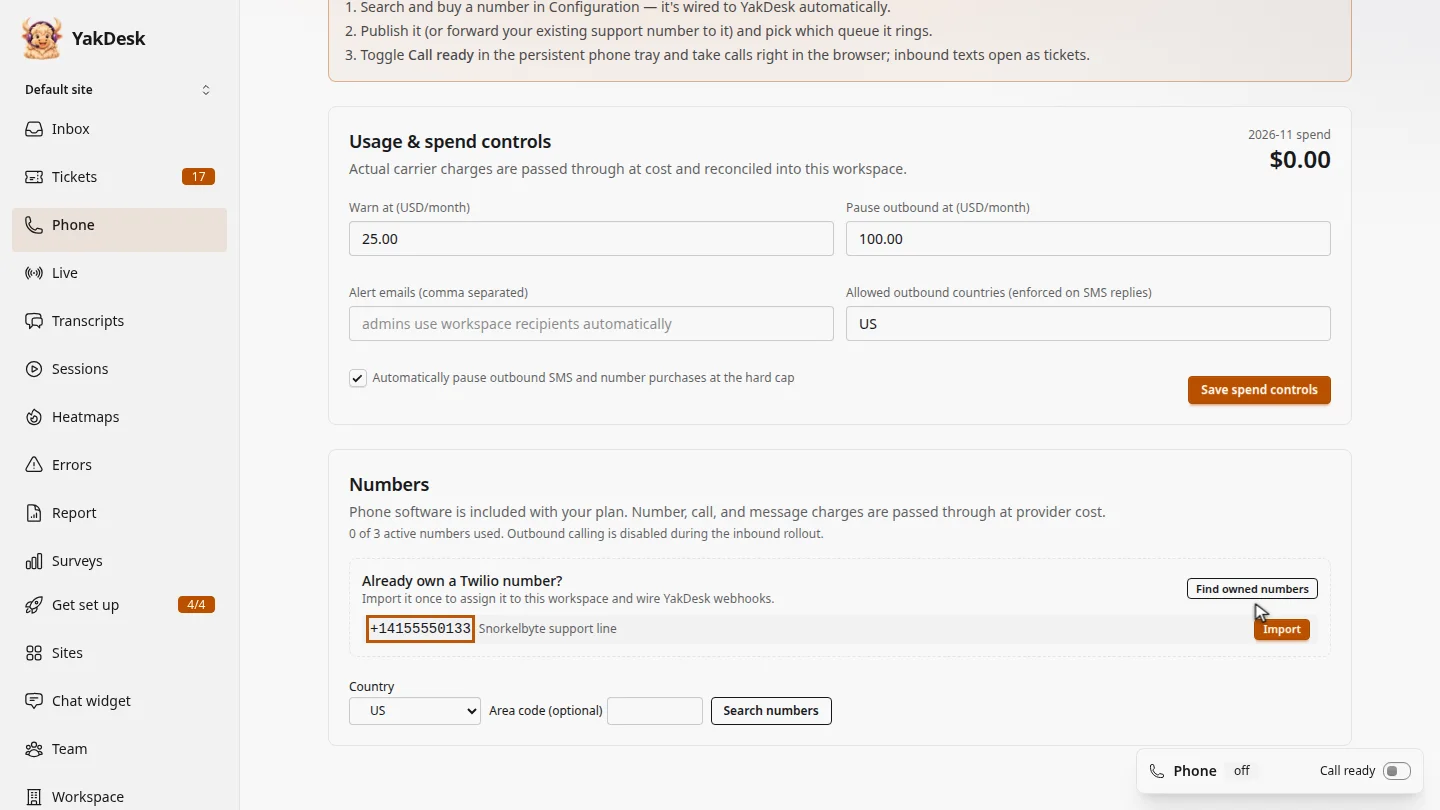
Open Phone, then Configuration. Under Already own a Twilio number, select Find owned numbers to list the numbers that are not in use yet.
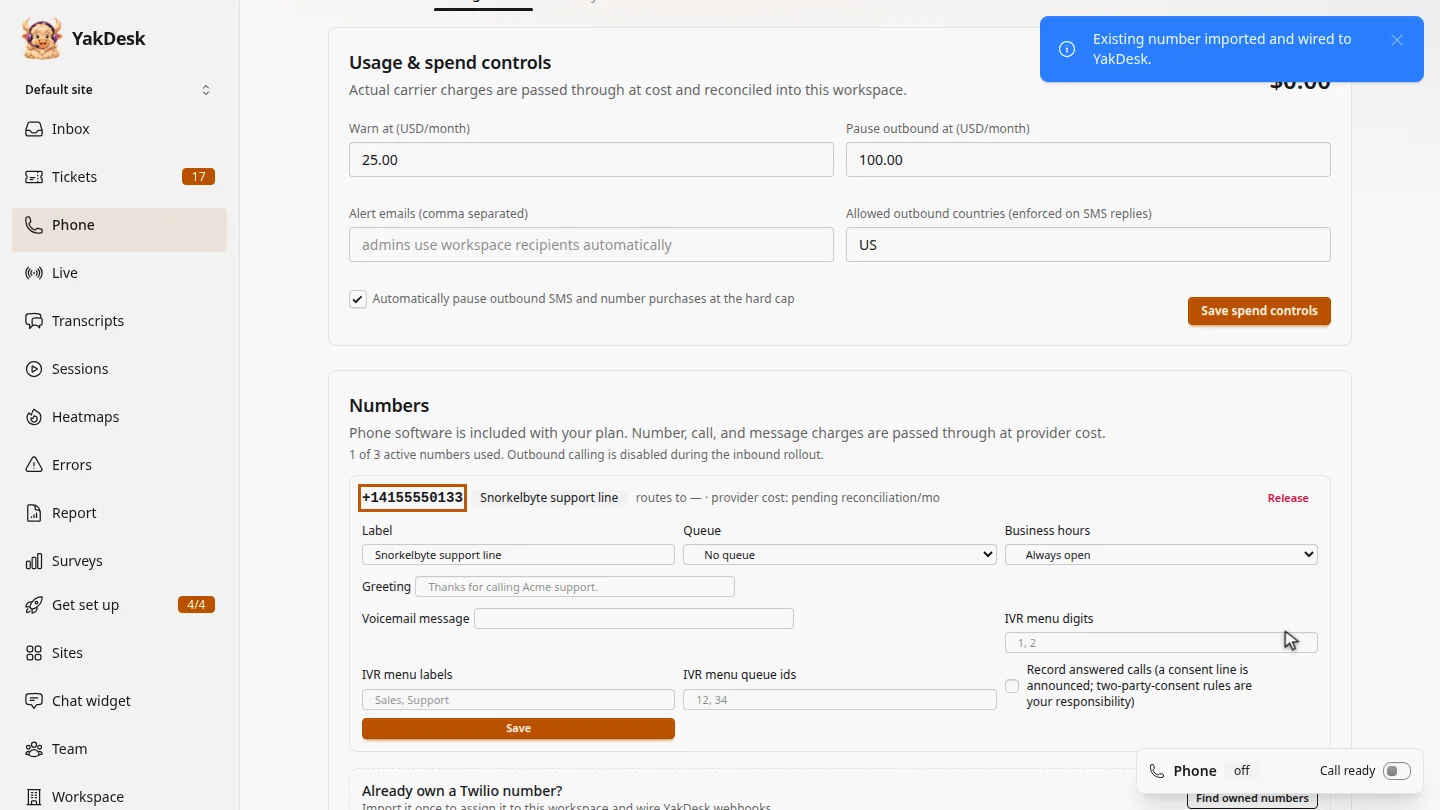
Select Import next to your support number and confirm. YakDesk points its calls and texts at your workspace, and it moves into the Numbers list.
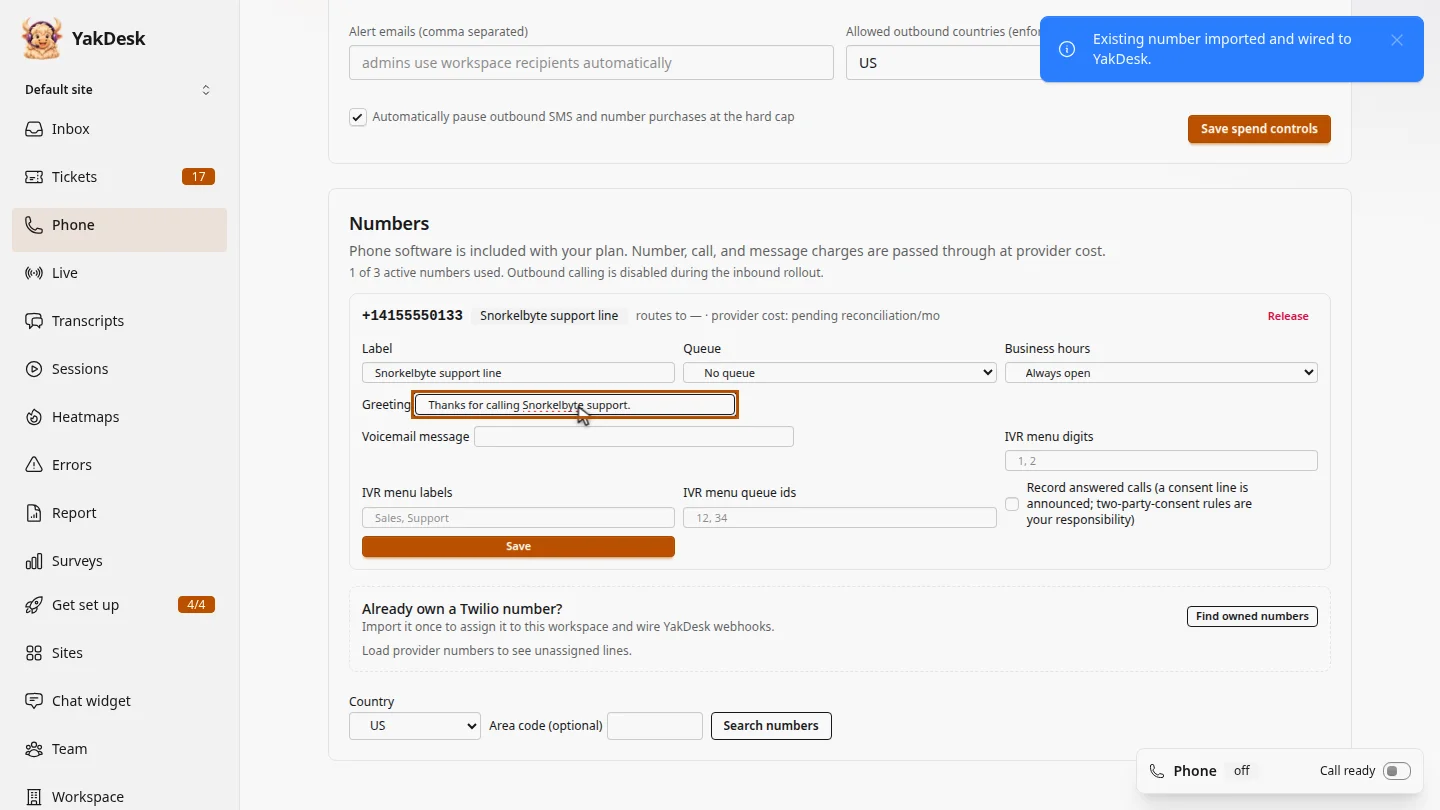
Give the number a greeting that callers hear first, choose a queue if you use one, then select Save.
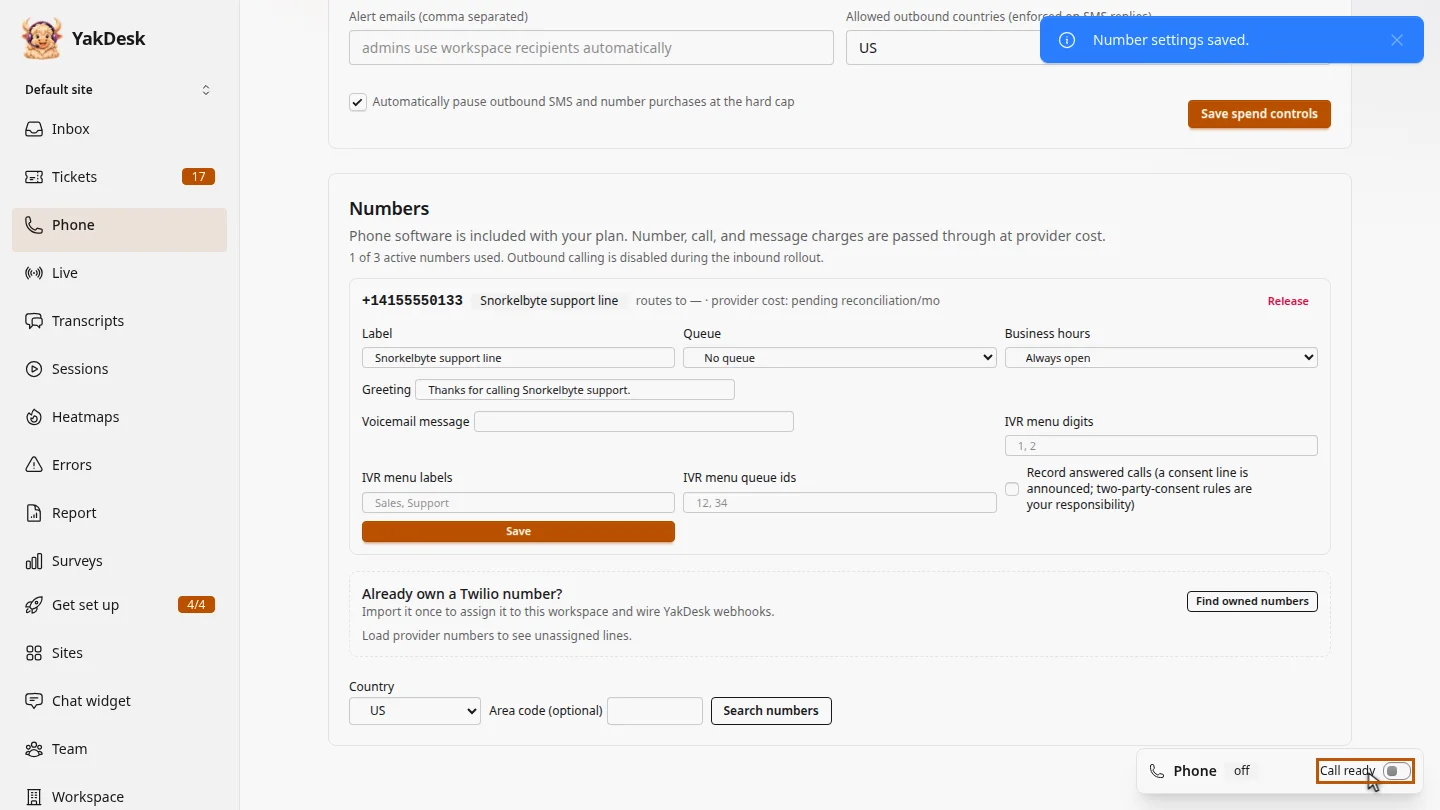
To take calls, turn on Call ready in the phone tray at the bottom of the screen. Calls to your number ring in your browser, and texts open as tickets.
Steps
Find your numbers ▶ 0:05
In the sidebar, select Phone, then Configuration. Under Already own a Twilio number?, select Find owned numbers.
Import the number ▶ 0:15
Select Import next to the number, then confirm. Existing number imported and wired to YakDesk. appears and the number is listed under Numbers.
Set a greeting ▶ 0:26
Optional: under the number, enter a Greeting and choose a Queue, then select Save. Number settings saved. confirms it.
Take calls ▶ 0:33
In the phone tray, turn on Call ready. Calls to the number now ring in your browser.
Next steps
Updated 2026-11-09
twilio support phone line call center sms support existing number