
How to import tickets from a CSV file in YakDesk
Bring your support history with you when you switch help desks, so past conversations are there when a customer writes in again. Imported tickets don't send notifications or start SLA timers, and re-running an import skips what's already there.
Before you start
- A Growth or Agency plan (tickets are included)
- An Owner or Admin role in YakDesk
- A CSV with the columns external_id, subject, status, priority, requester_email, created_at and body
Plays silently with captions; the narrated version is on its way.
Transcript
Move your old support tickets into YakDesk from a CSV file.
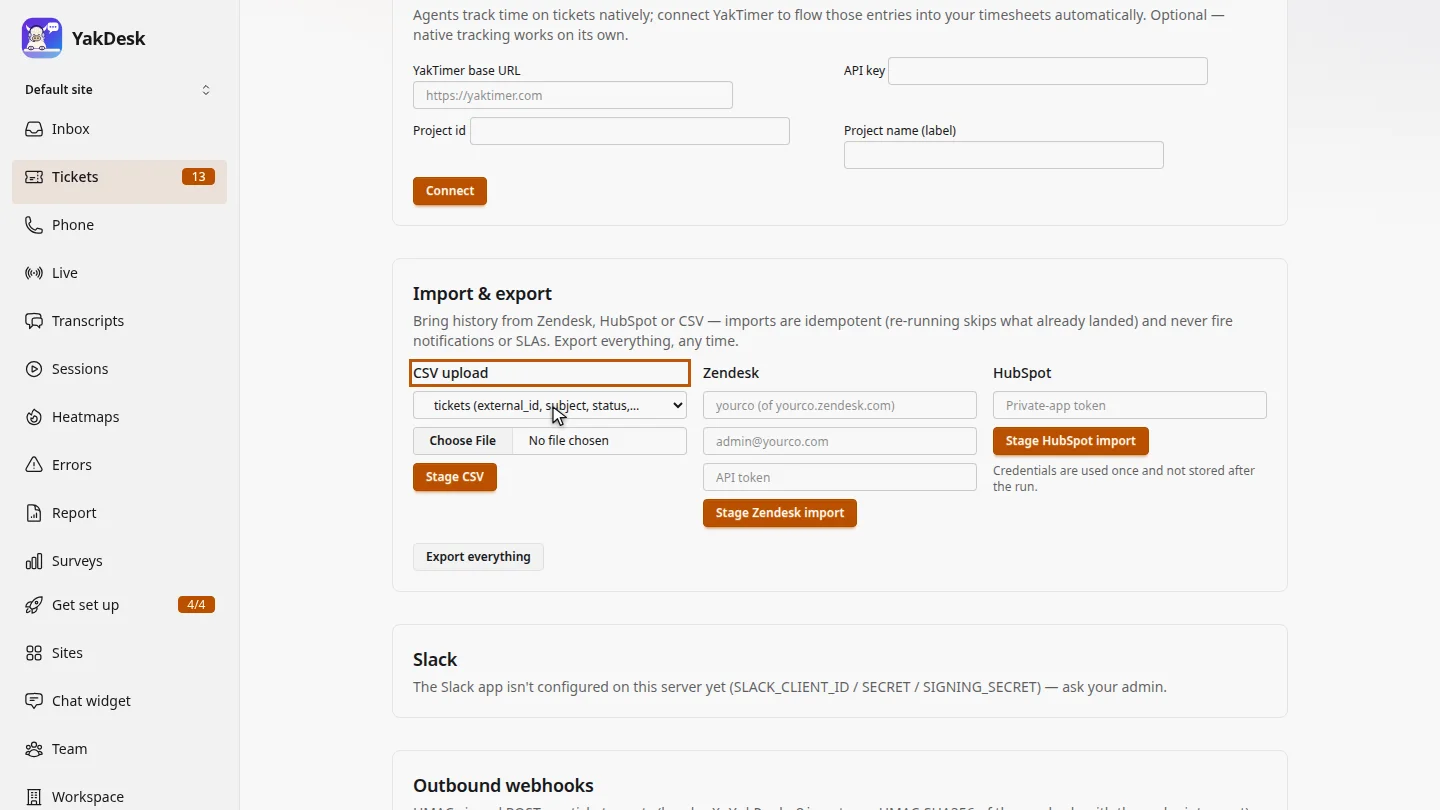
In Tickets, open Settings and scroll to Import and export. Under CSV upload, choose tickets. The columns your file needs are listed next to it.
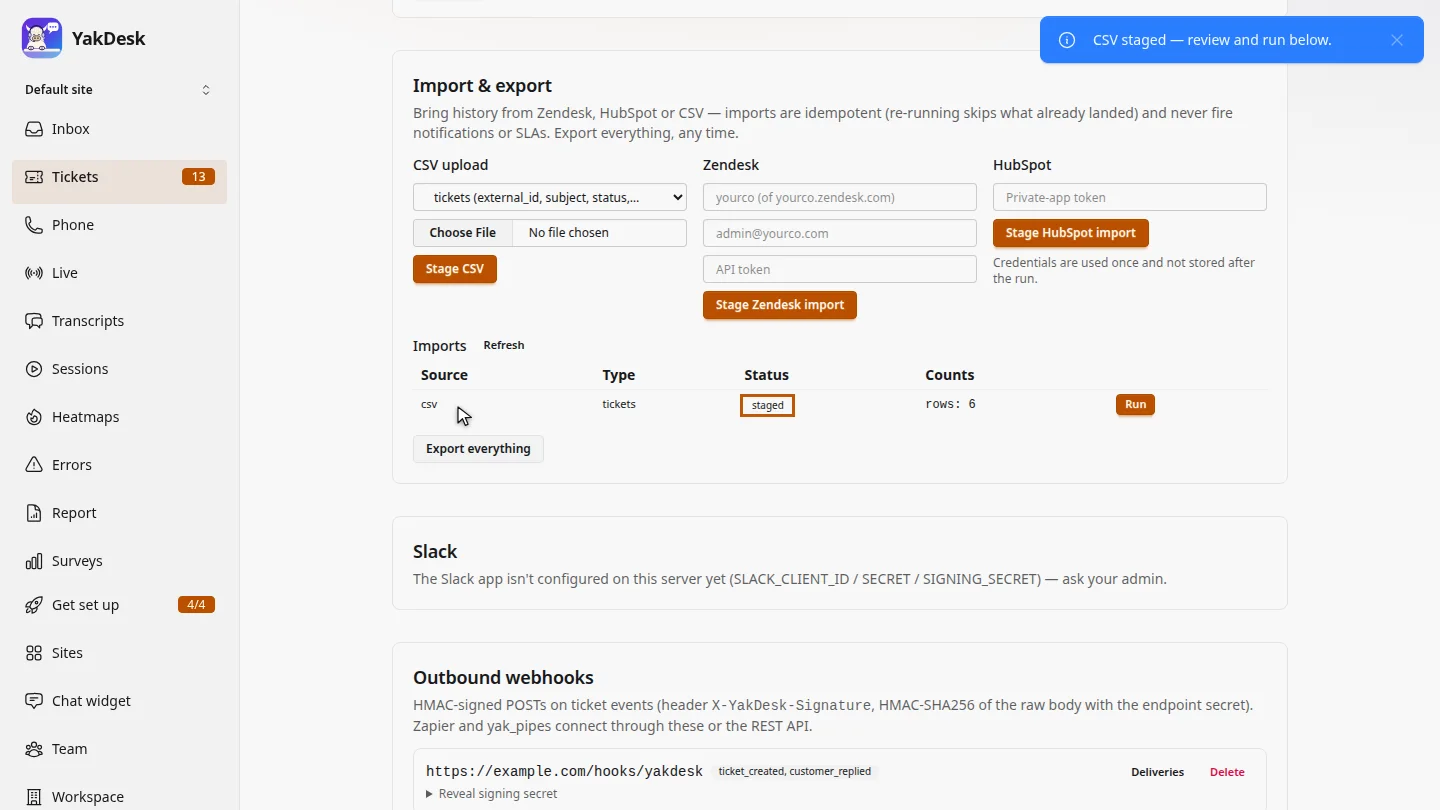
Choose your file and select Stage CSV. YakDesk checks the columns and lists the import, ready to run.
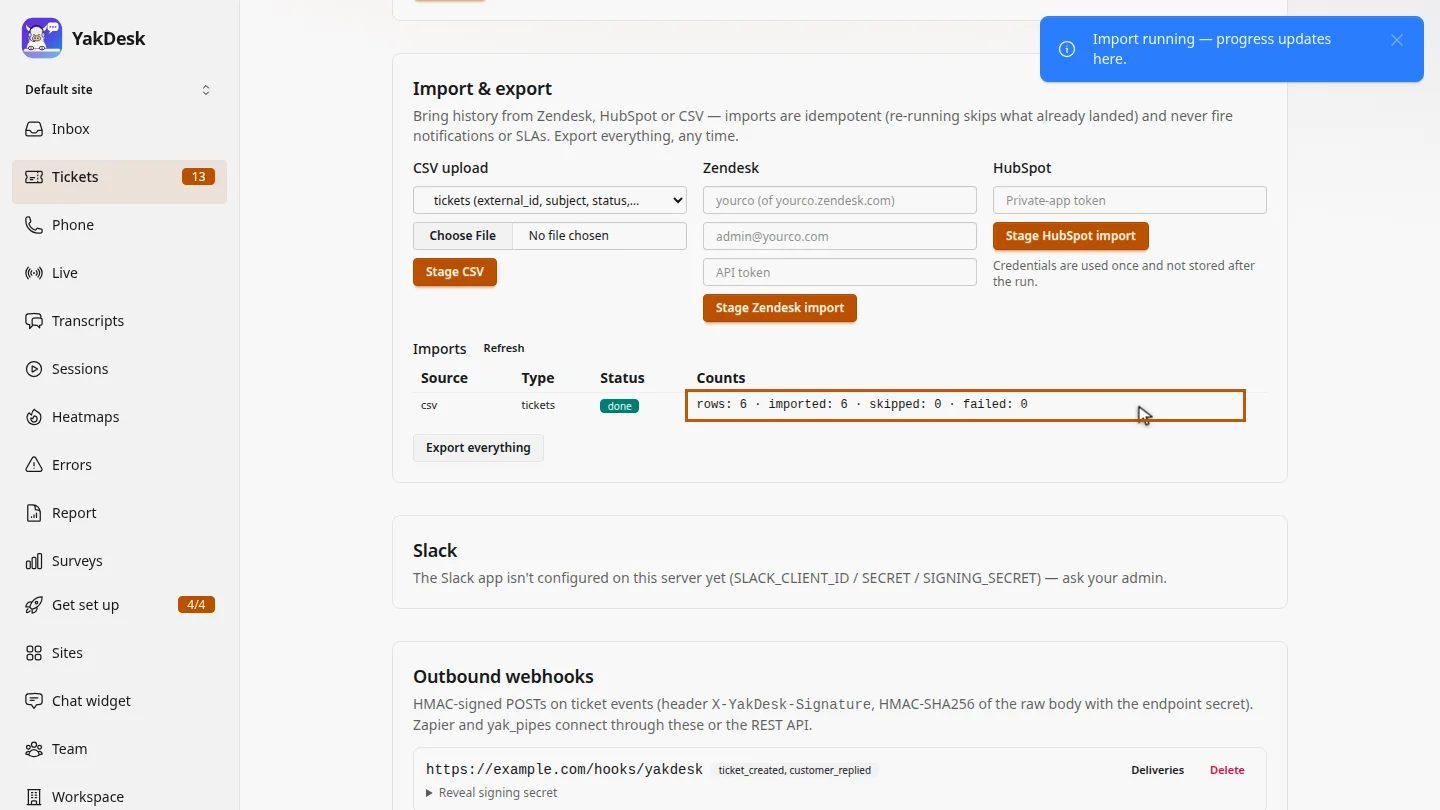
Select Run. When it finishes, the status changes to done, with how many tickets were created.
Steps
Choose what to import ▶ 0:05
In Tickets, select Settings. Under Import & export, in CSV upload, choose tickets.
Upload and stage it ▶ 0:16
Choose your CSV file, then select Stage CSV. The import appears under Imports as staged.
Run the import ▶ 0:23
Select Run. The status changes to done and Counts shows what was created.
Next steps
Updated 2026-10-26
csv import migrate help desk import tickets move from zendesk