
How to reply to a chat in YakDesk
A customer who writes in from your site is usually stuck right now. Replying while they're still on the page solves the problem before it turns into an email thread.
Before you start
- The chat widget installed on your site
Plays silently with captions; the narrated version is on its way.
Transcript
Answer a customer while they're still on your site, right from the YakDesk inbox.
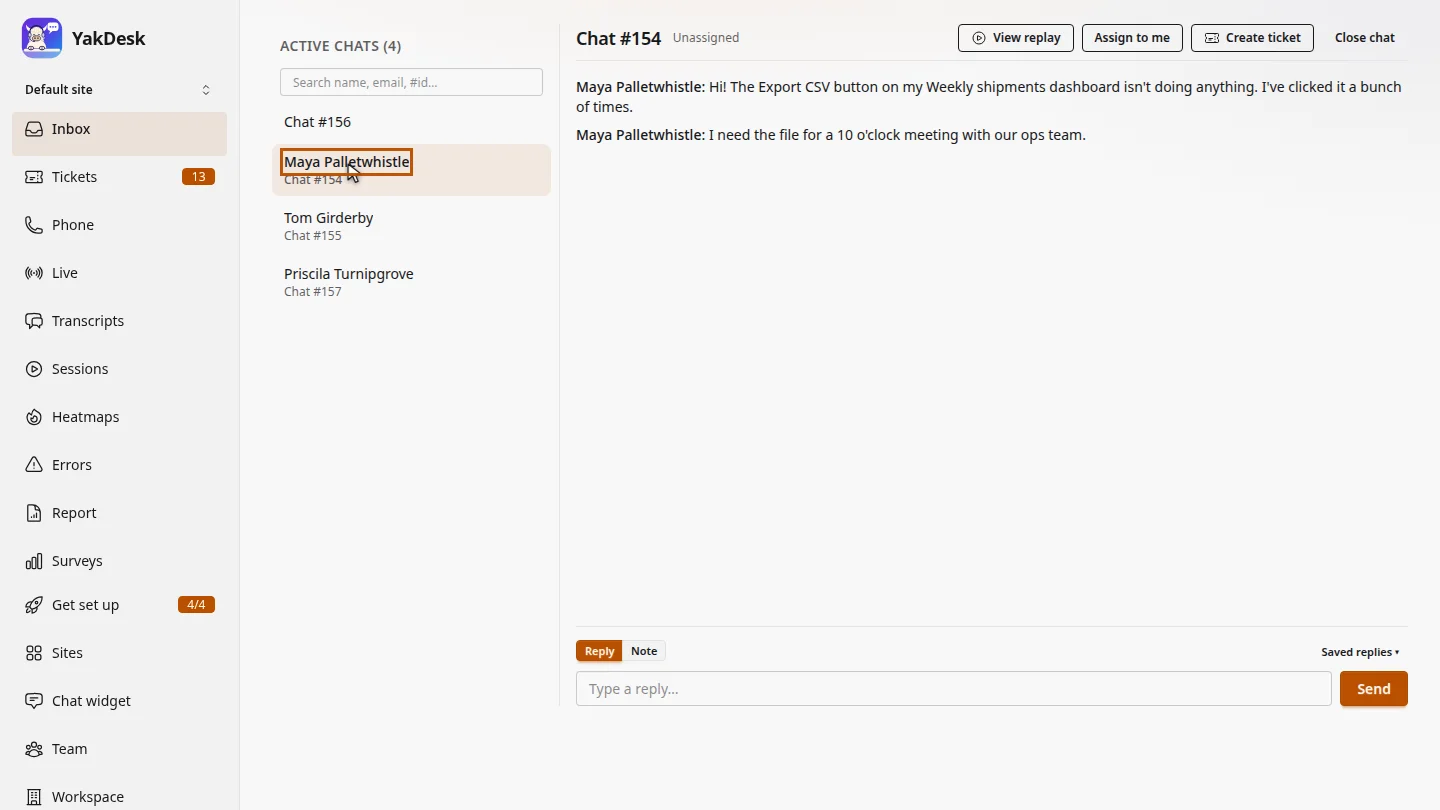
In the Inbox, Active chats lists every open conversation. Select one to read it. Maya says the Export CSV button isn't doing anything.
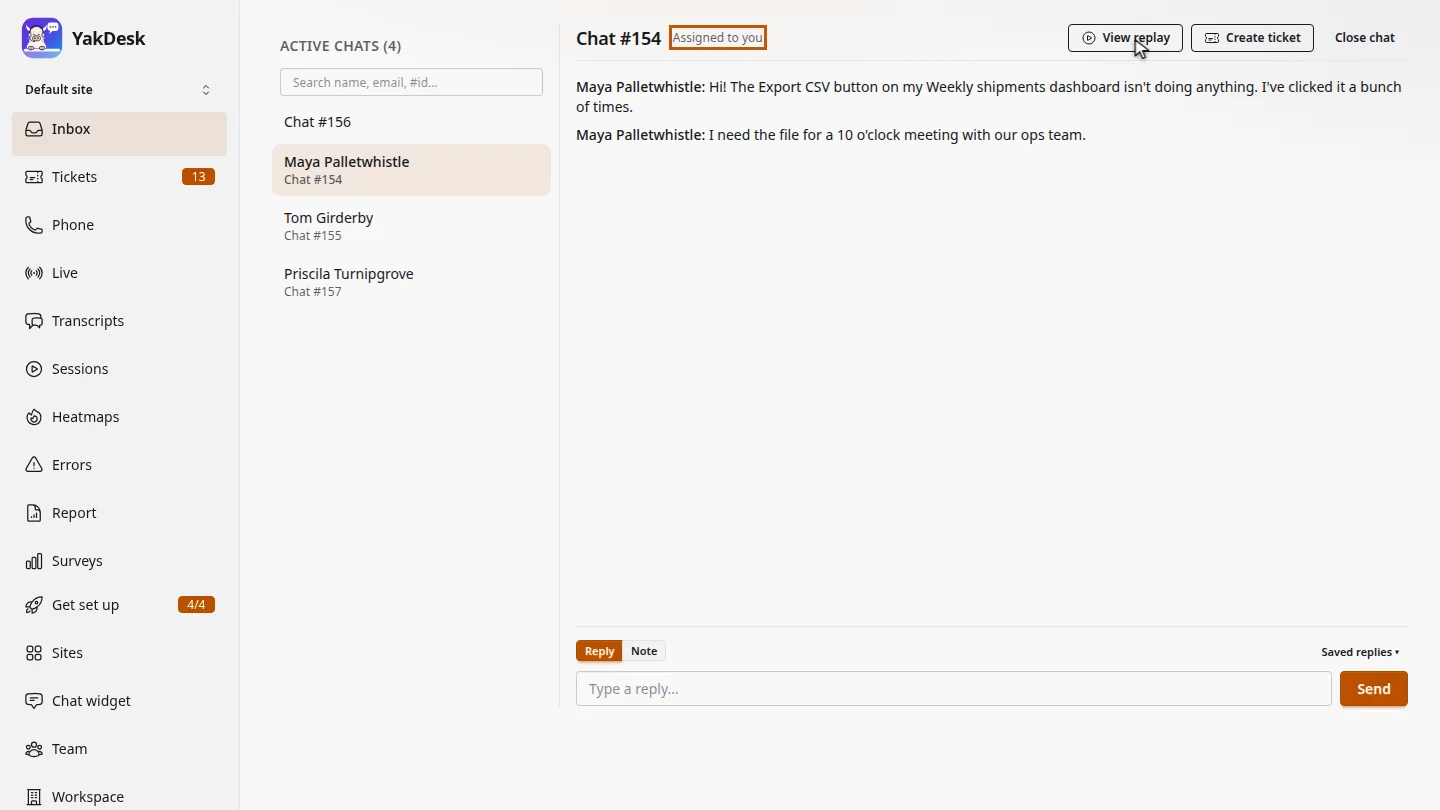
Select Assign to me, so your teammates know you're handling it. The header now says Assigned to you.
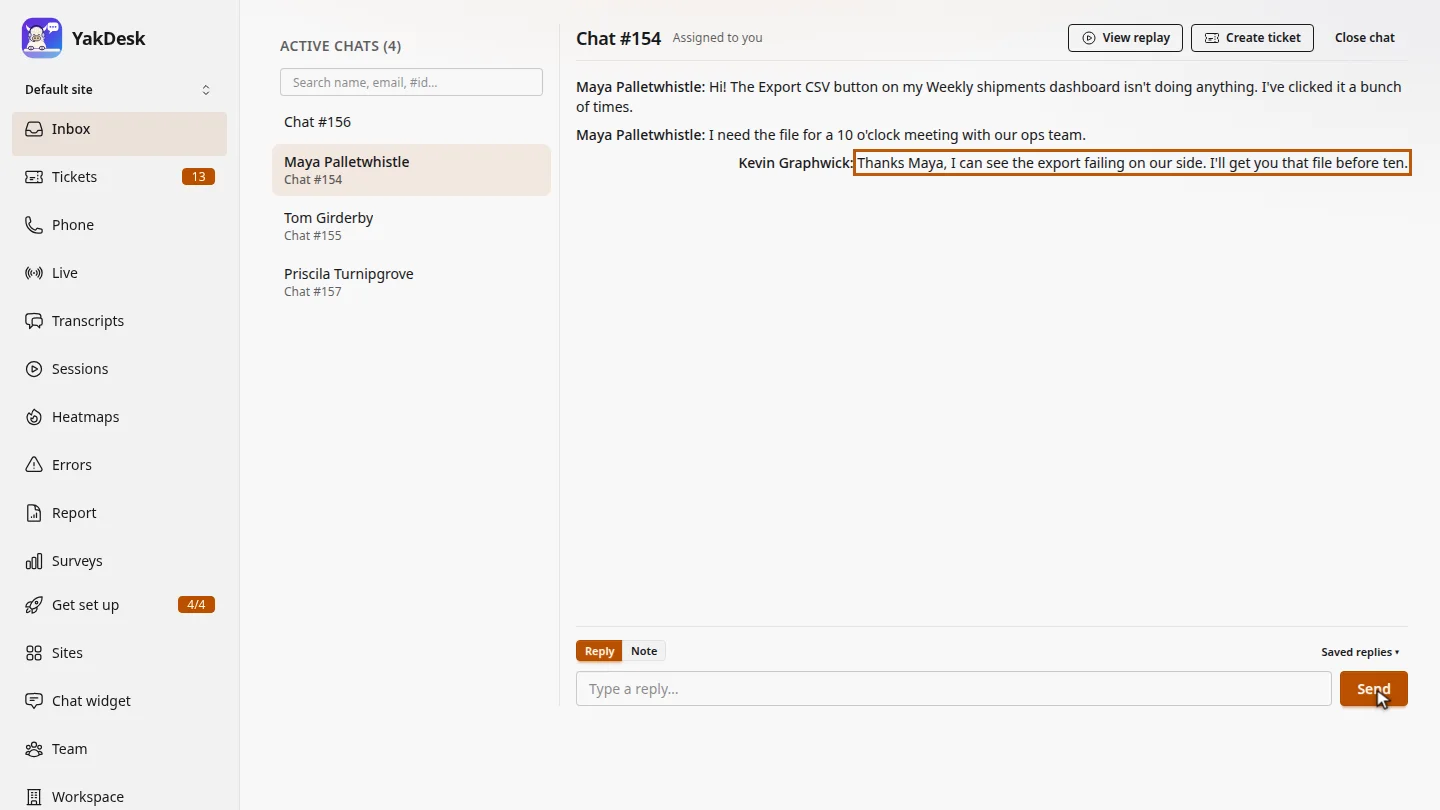
Type your answer and select Send. The reply appears in the thread, and in the chat window on Maya's screen.
Steps
Open the conversation ▶ 0:07
In the sidebar, select Inbox. Under Active chats, select the conversation.
Assign it to yourself ▶ 0:17
Select Assign to me. The header changes to Assigned to you.
Send your reply ▶ 0:24
Type in Type a reply… and select Send. Your message appears in the thread.
Next steps
Updated 2026-10-26
live chat reply answer visitor chat inbox assign chat