
How to turn a chat into a ticket in YakDesk
Some problems can't be fixed while the customer waits. Turning the chat into a ticket keeps the whole conversation, emails the customer that you're on it, and gives your team a record to assign, prioritise and solve.
Before you start
- A Growth or Agency plan (tickets are included)
- A chat from an identified visitor (YakDesk needs their email)
Plays silently with captions; the narrated version is on its way.
Transcript
Hand a chat that needs more work to your team as a ticket, with the conversation attached.
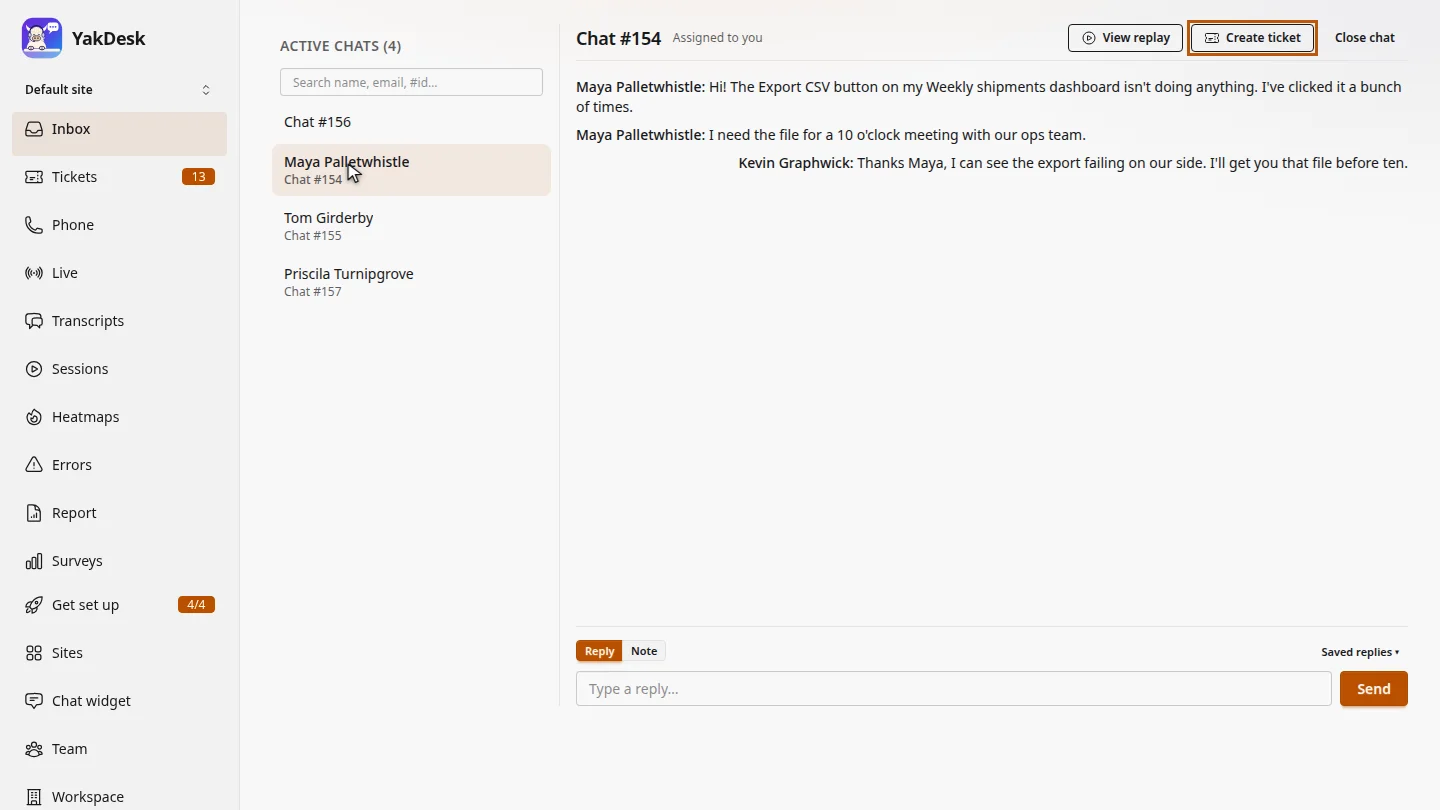
In the Inbox, open the conversation that needs follow-up. Maya's export problem needs an engineer, so it won't be solved while she waits.
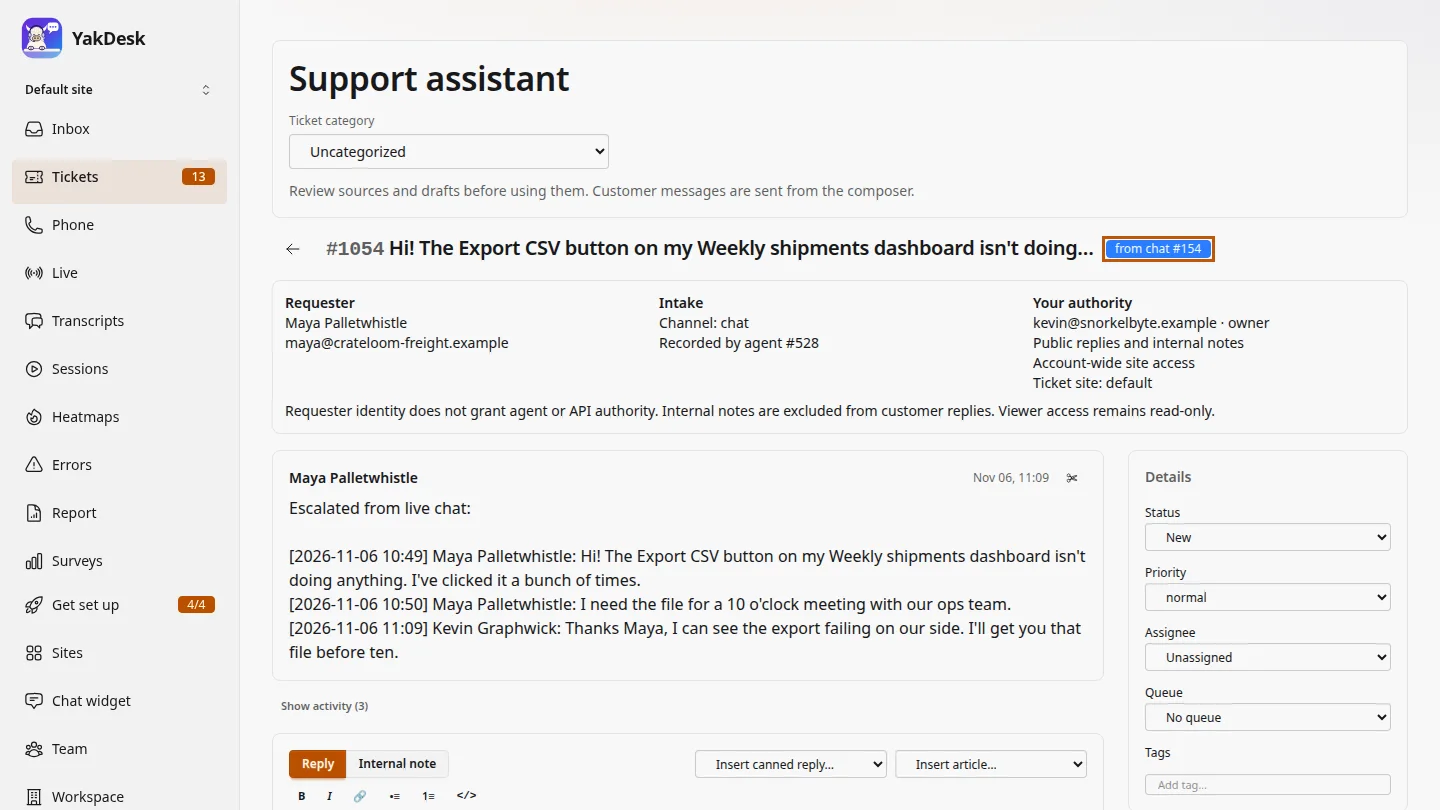
Select Create ticket. YakDesk opens the new ticket, with the chat transcript as its first message, and emails Maya that a ticket is open.
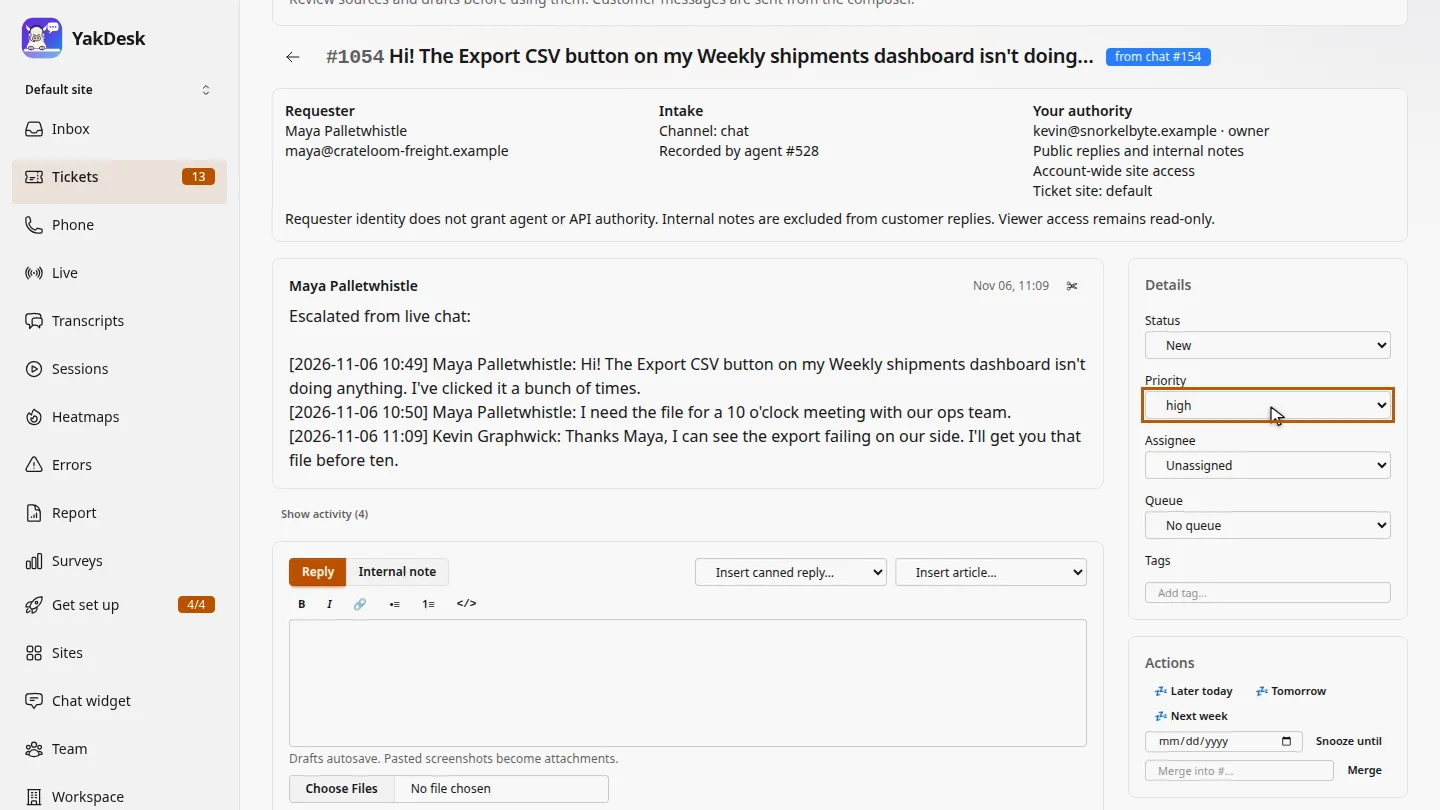
Under Details, set the priority. Maya needs the file for a meeting, so make it high.
Steps
Open the chat ▶ 0:07
In Inbox, under Active chats, select the conversation.
Create the ticket ▶ 0:17
Select Create ticket. The new ticket opens, marked from chat, with the transcript as its first message.
Set the priority ▶ 0:28
Under Details, change Priority to high.
Next steps
Updated 2026-10-26
escalate chat chat to ticket follow up later create ticket from chat