
How to remove a teammate from YakDesk
When someone leaves the support team, remove their YakDesk access straight away. They are signed out of YakDesk, their seat stops being billed, and the conversations they handled stay in your workspace.
Before you start
- An Owner or Admin role in YakDesk
- Only an owner can remove another owner, and a workspace always keeps at least one owner
Plays silently with captions; the narrated version is on its way.
Transcript
Remove a teammate's YakDesk access when they leave the team.
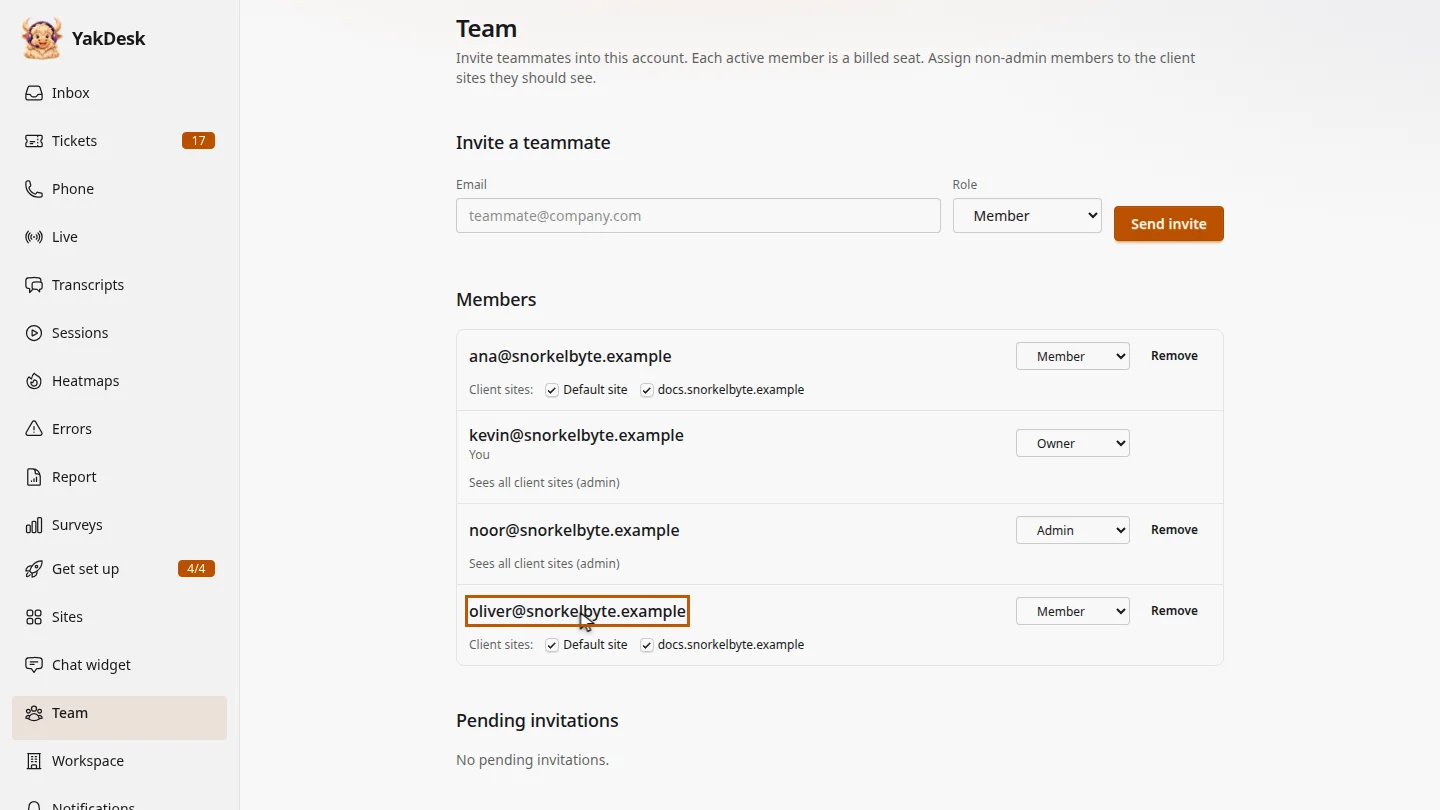
Open Team. Under Members, find the person who is leaving. Here, Oliver has moved to another team.
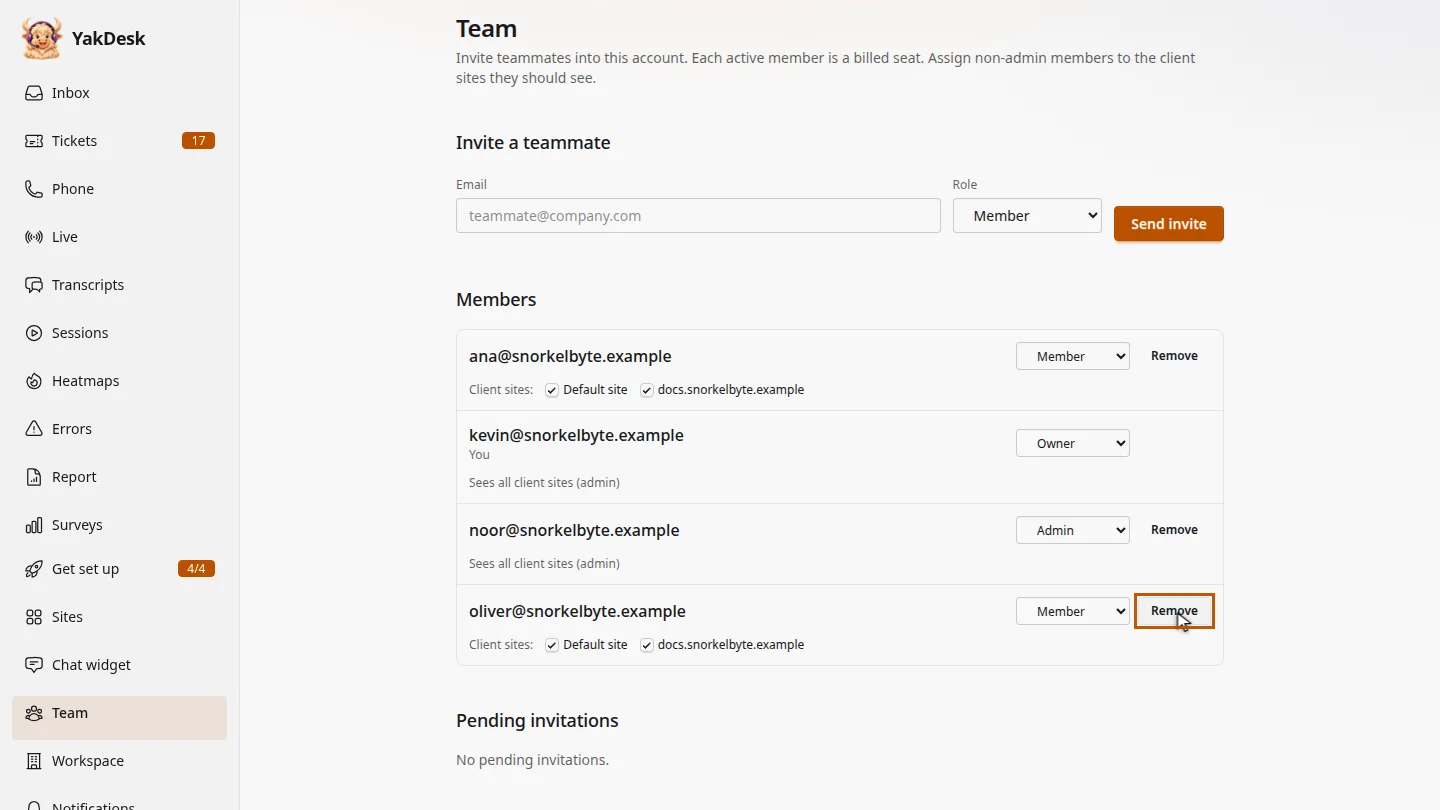
Select Remove on their row, and confirm. YakDesk signs them out straight away.
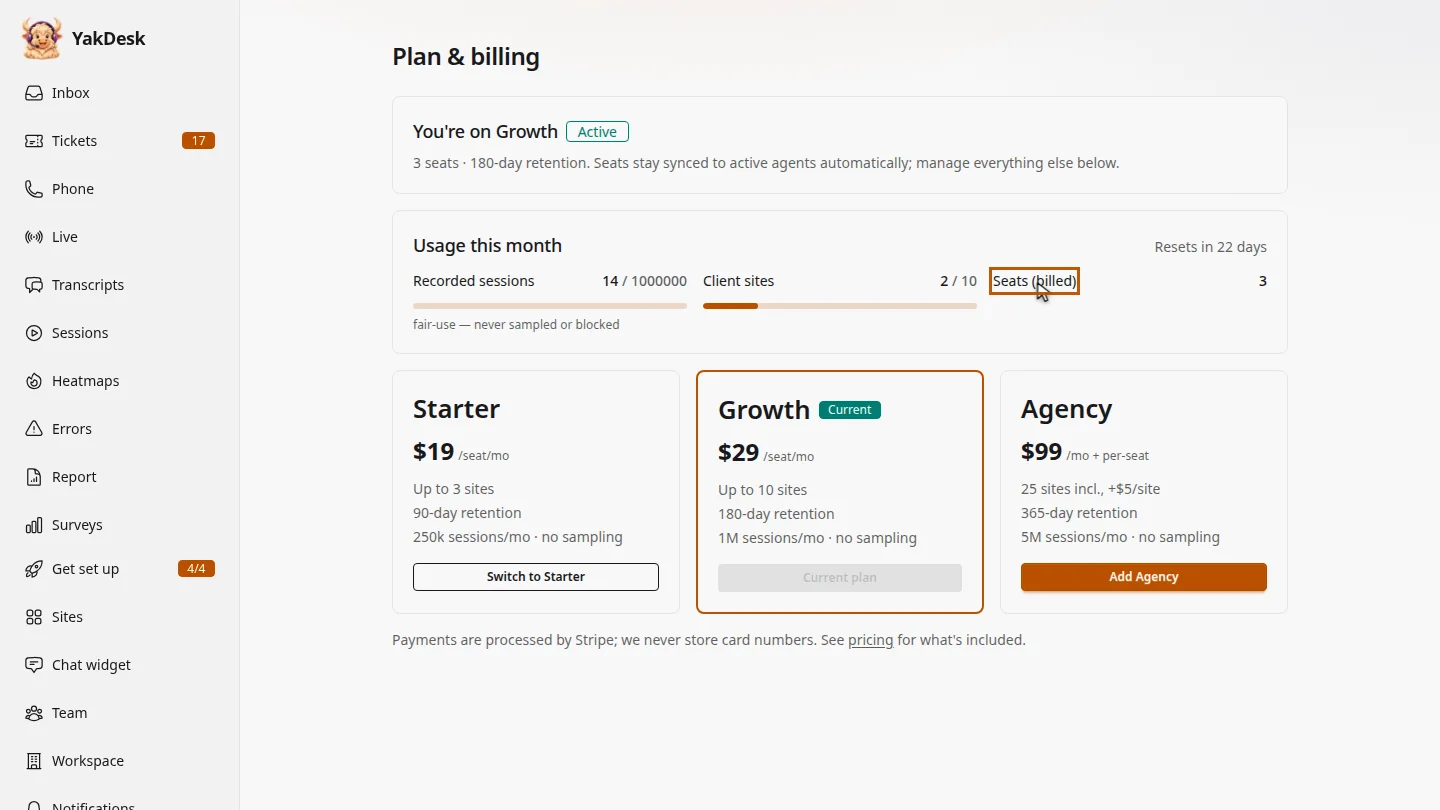
Oliver is gone from the Members list. On the Billing page, the billed seat count drops from four to three. The chats and tickets he worked on stay in your workspace.
Steps
Find the teammate ▶ 0:05
In the sidebar, select Team. Under Members, find the teammate.
Remove them ▶ 0:12
On their row, select Remove, then confirm. A Desk access removed. message appears.
Check your seats ▶ 0:18
The teammate no longer appears under Members. In Billing, Seats (billed) goes down by one.
Next steps
Updated 2026-11-09
offboard delete user revoke access deactivate agent seats