
How to rename a site in YakDesk
When a client moves their site to a new domain, rename it in YakDesk instead of adding a new site. The site keeps its sessions, branding and snippets, and the session recorder starts accepting the new domain.
Before you start
- An Owner or Admin role in YakDesk
- A client site besides the default site (the default site can't be renamed)
Plays silently with captions; the narrated version is on its way.
Transcript
When a client site moves to a new domain, rename it in YakDesk and keep everything already recorded for it.
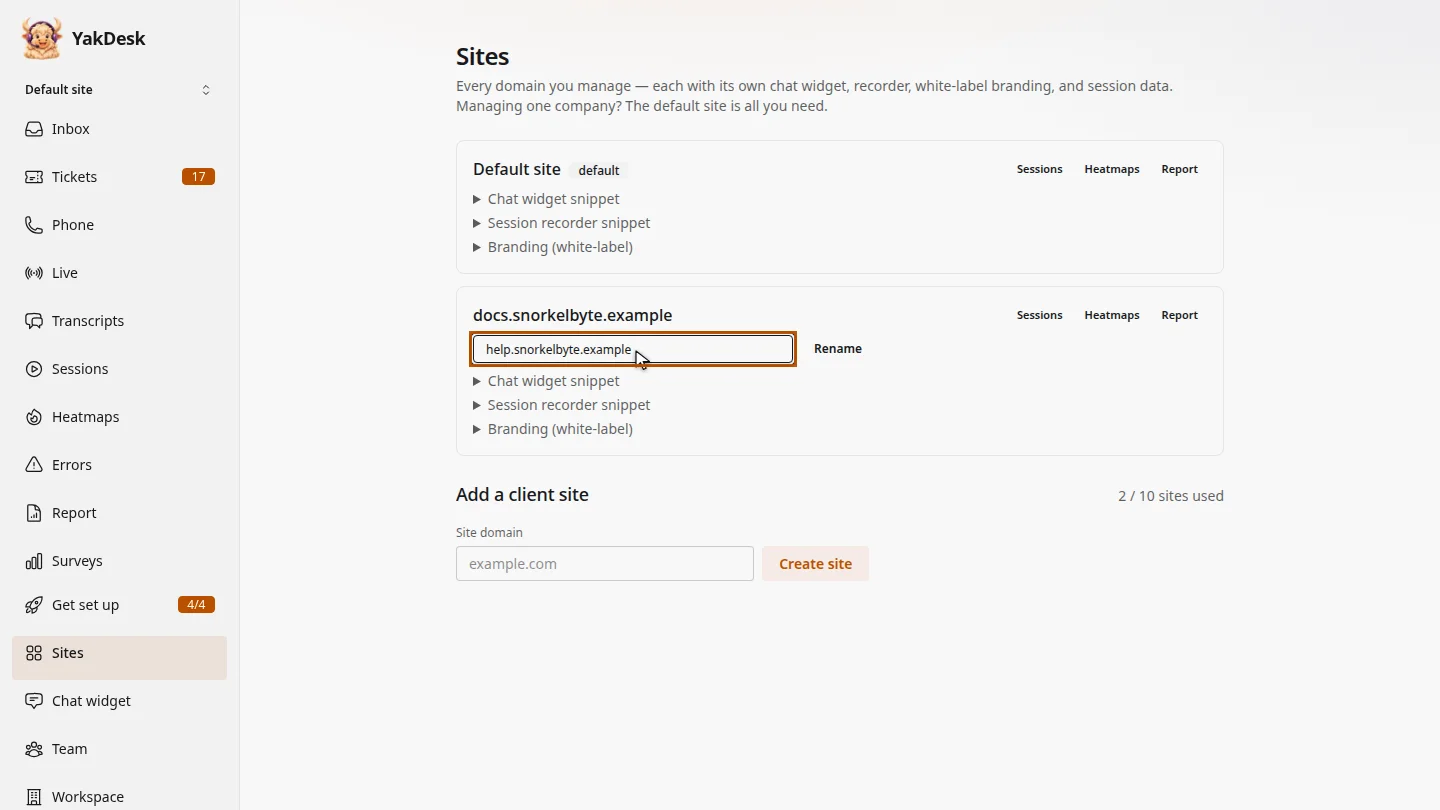
Open Sites from the sidebar. On the card for the site that moved, replace the domain in the name box with the new one, here help dot snorkelbyte dot example.
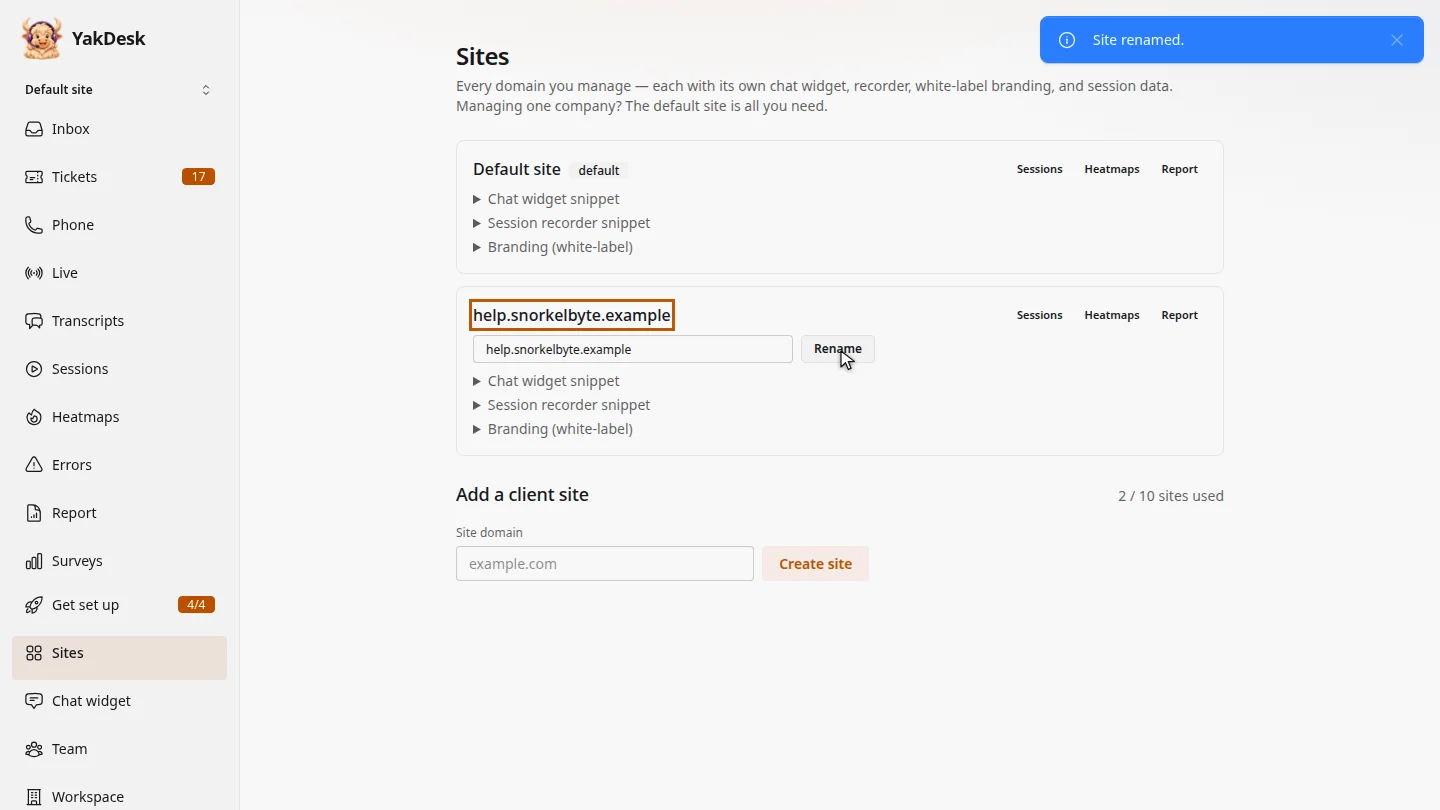
Select Rename. The card heading changes to the new domain, and its sessions, heatmaps and report stay with it.
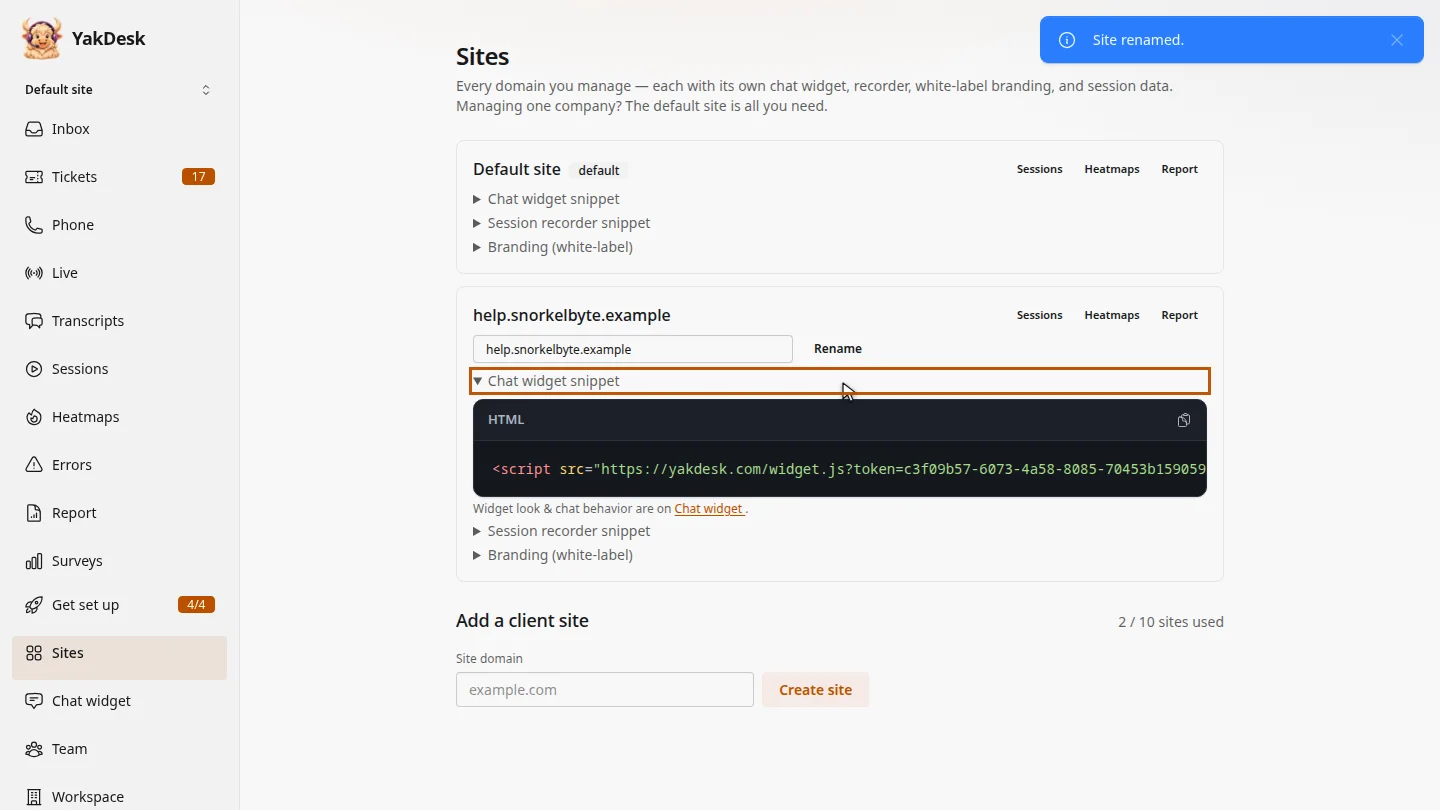
The snippets on the card don't change, so the widget and recorder already installed on the site keep working.
Steps
Enter the new domain ▶ 0:09
In the sidebar, select Sites. On the site's card, replace the name with the new domain.
Save the new name ▶ 0:20
Select Rename. A Site renamed. message appears and the card shows the new domain.
Check the snippets ▶ 0:28
Optional: select Chat widget snippet on the card. It's the same snippet as before, so there's nothing to reinstall.
Next steps
Updated 2026-11-09
change domain site name client site move domain