
How to review ticket performance in YakDesk
To know whether your team is keeping up, look at how many tickets arrive, how fast they get a first reply, and how customers rate the help. Ticket reports put those numbers for any date range on one page.
Plays silently with captions; the narrated version is on its way.
Transcript
See how quickly your team answers tickets, and how customers rate the help.
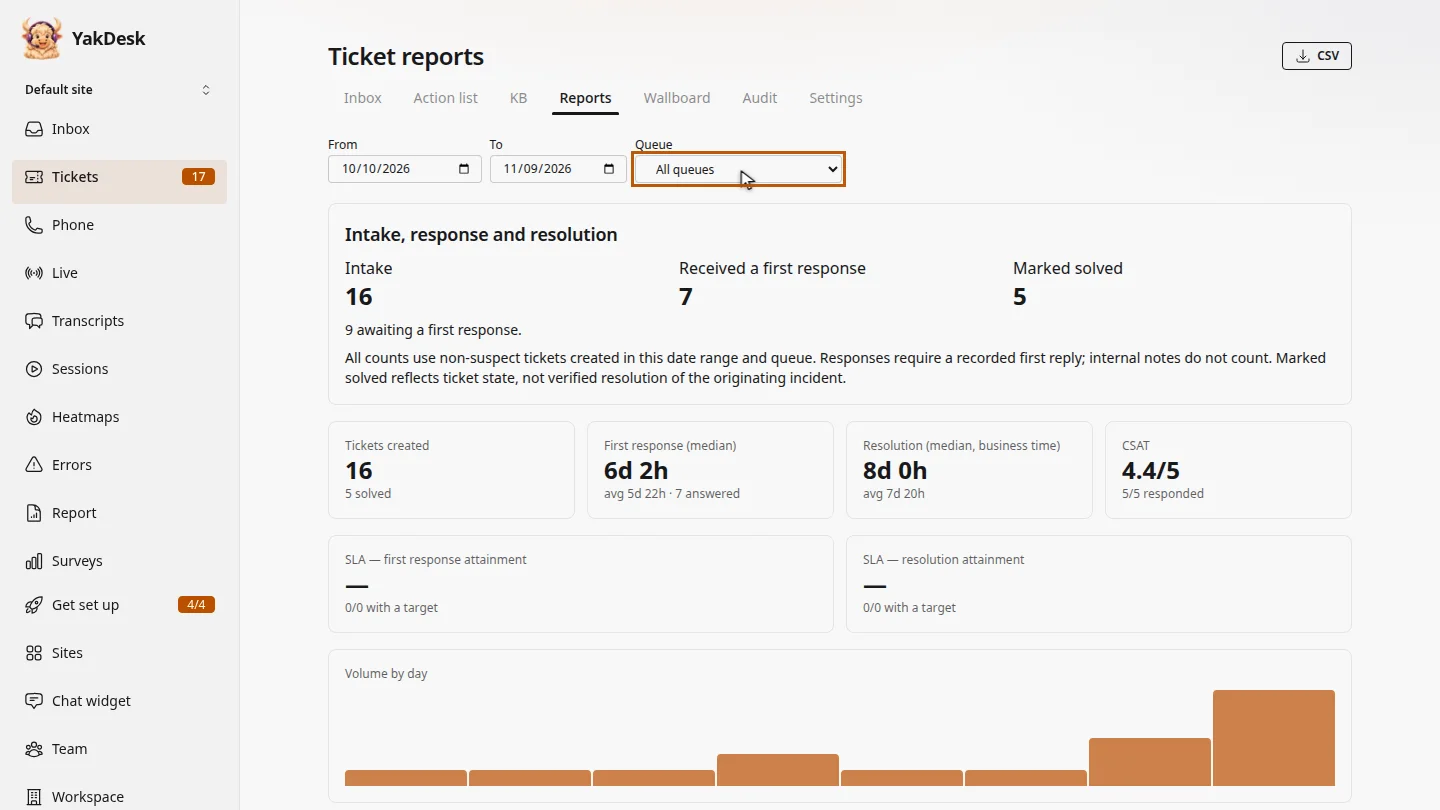
In Tickets, open Reports. Set the From and To dates, and pick a queue if you only want one team's tickets.
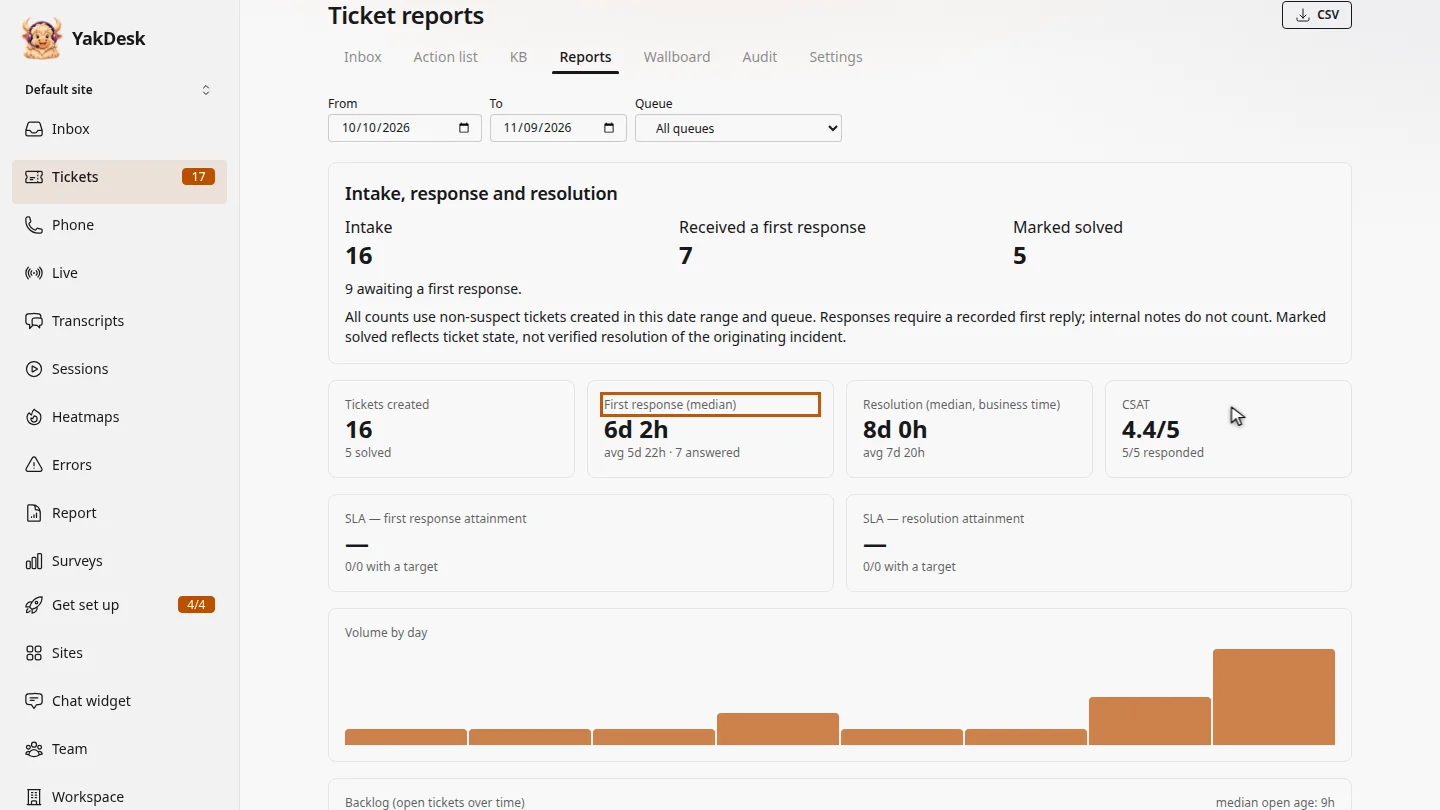
The tiles show tickets created, the median time to a first response, the median time to resolve, and CSAT from customer ratings.
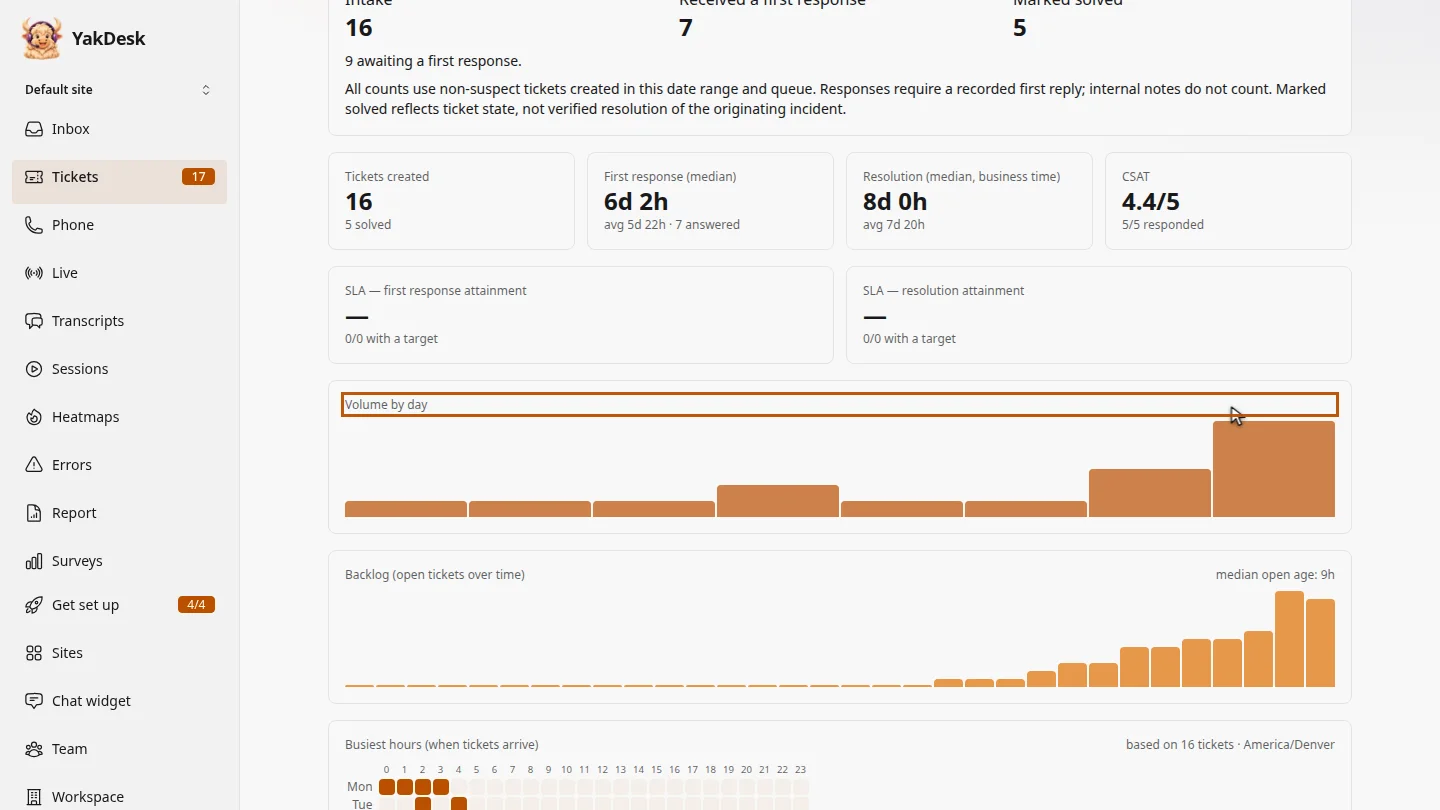
Further down, volume by day and the busiest hours show when tickets arrive, so you can plan who's on shift.
Steps
Choose dates and a queue ▶ 0:06
In Tickets, select Reports. Set From and To, and optionally choose a Queue.
Read response times and CSAT ▶ 0:14
Check First response (median), Resolution (median, business time) and CSAT.
Look at volume ▶ 0:24
Scroll down to Volume by day and the busiest hours to see when tickets arrive.
Next steps
Updated 2026-11-09
ticket reports first response time resolution time csat sla report support metrics