
How to schedule an activity report email in YakDesk
If you send the same numbers to a manager or client every week, let YakDesk send them. A scheduled report emails a copy of the activity report weekly or monthly to the address you choose.
Plays silently with captions; the narrated version is on its way.
Transcript
Get your activity report by email, every week or every month.
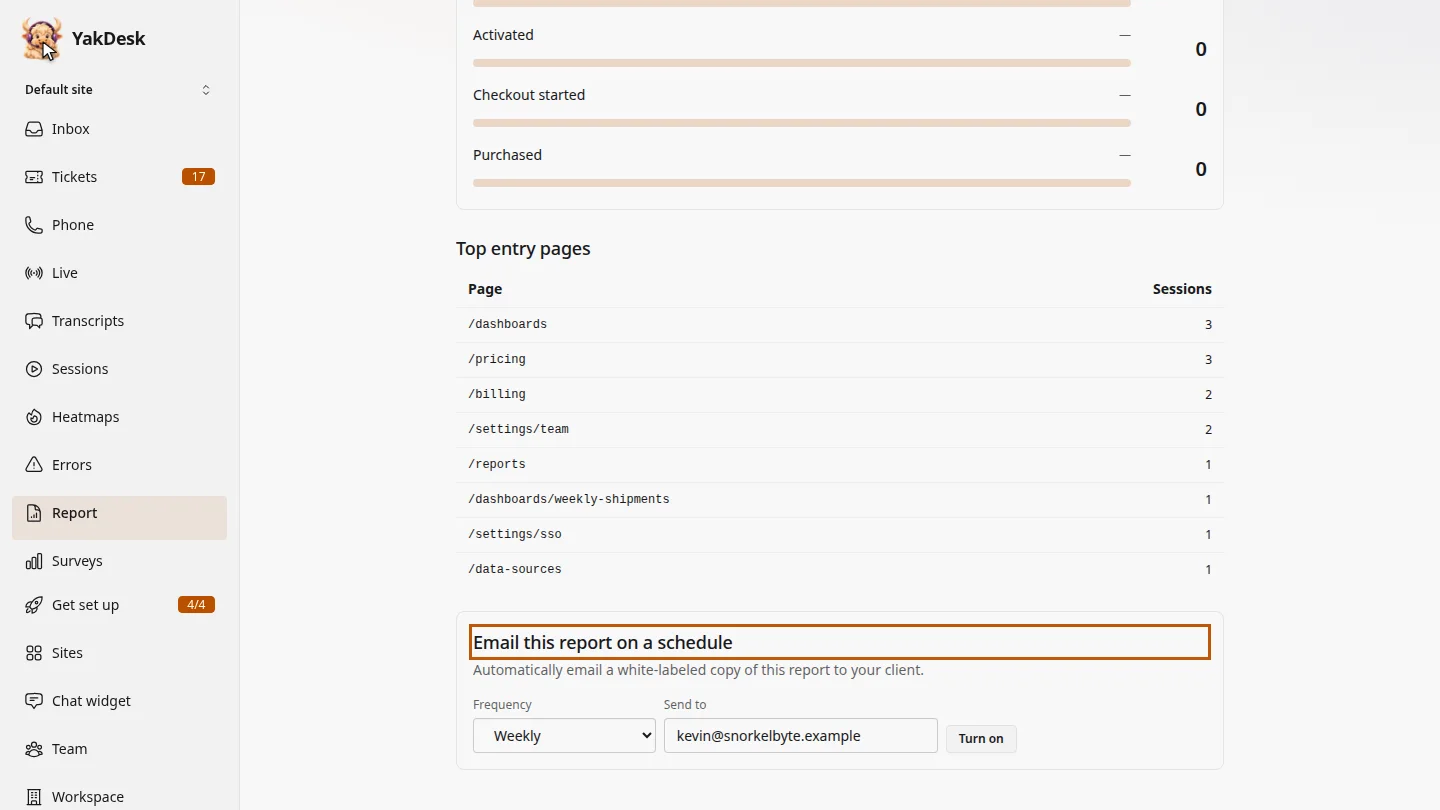
Open Report and scroll down to Email this report on a schedule. Each site has its own schedule.
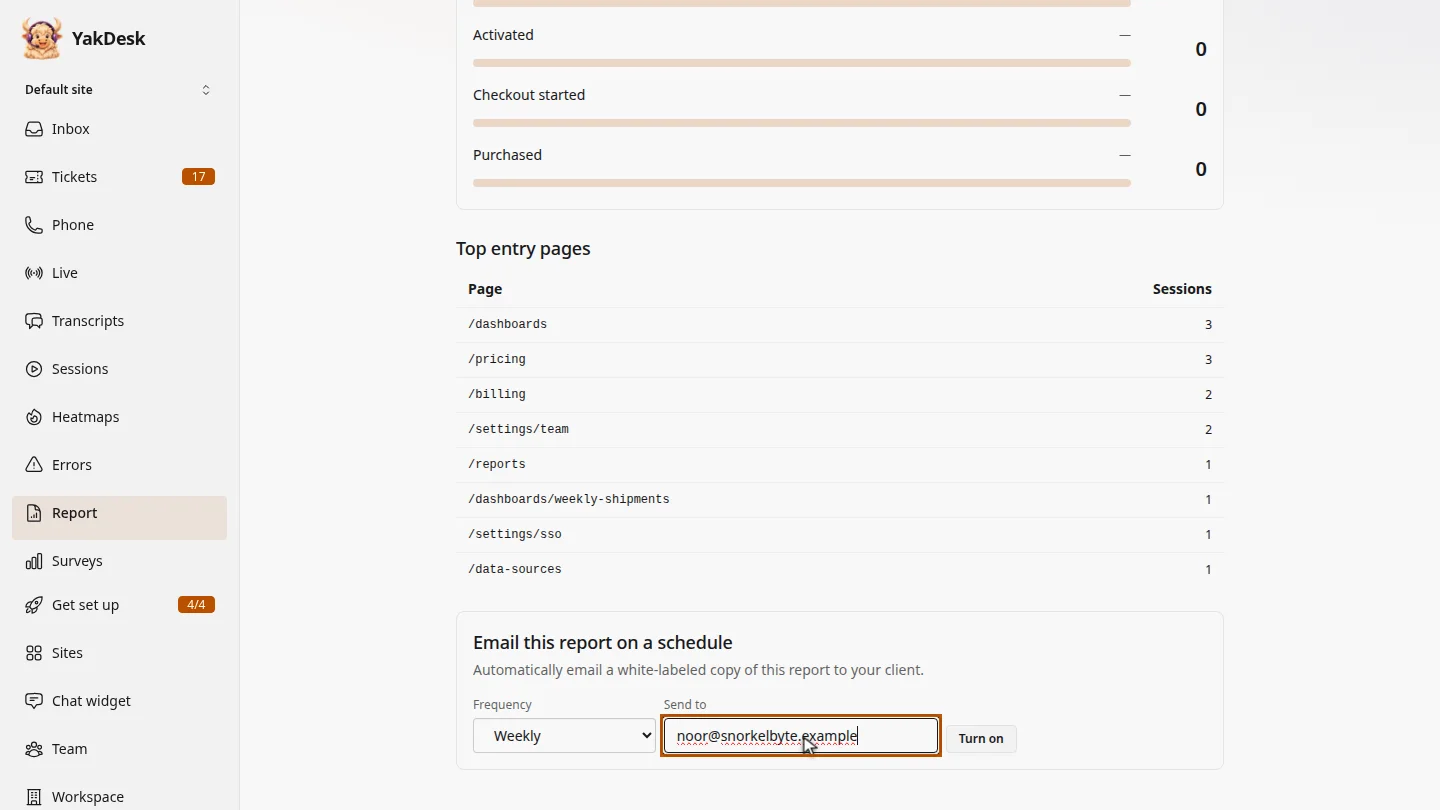
Choose how often to send it, weekly or monthly. Then enter the email address of the person who should get it, such as your manager or a client.
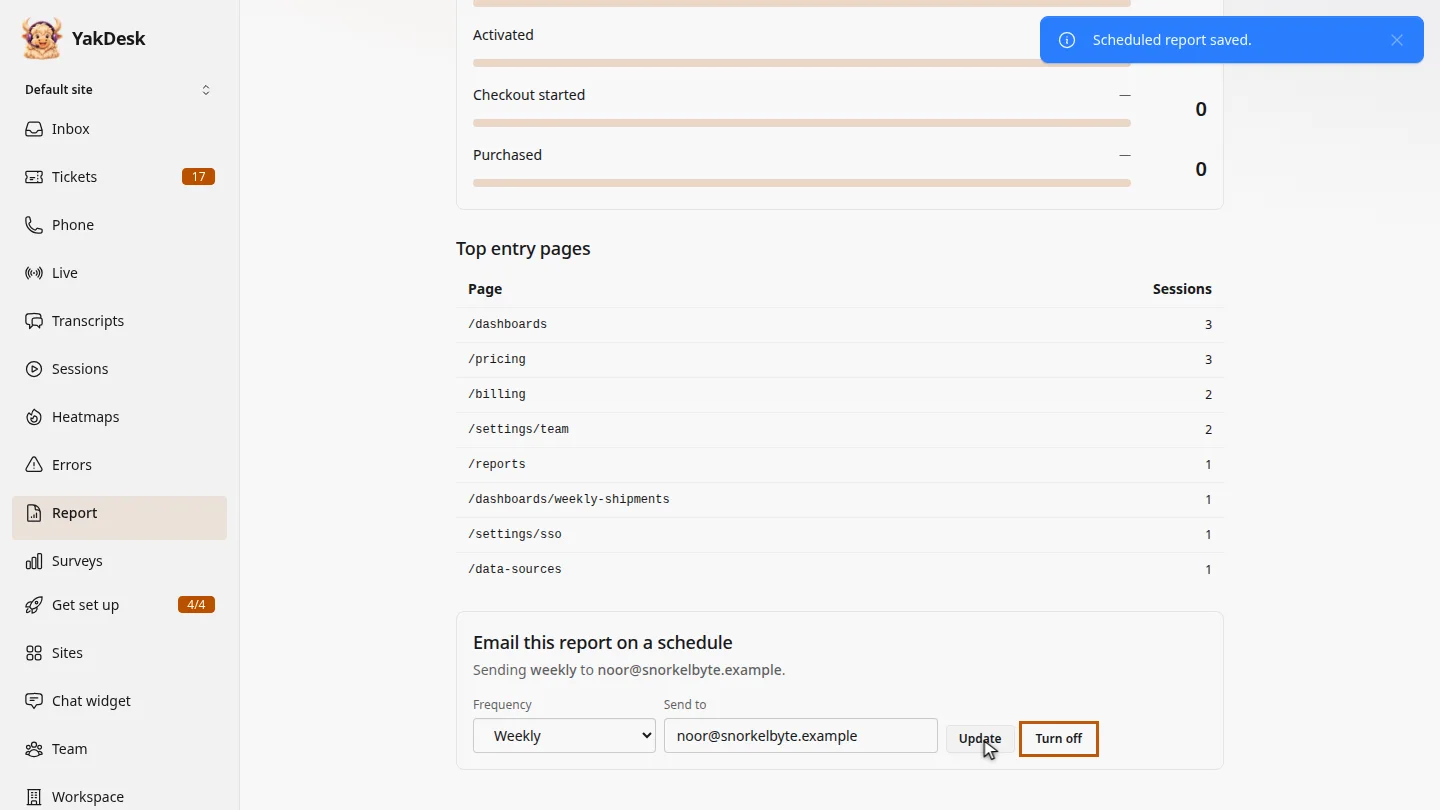
Select Turn on. The section now says the report is sending weekly to that address. Select Turn off at any time to stop it.
Steps
Find the schedule settings ▶ 0:05
In the sidebar, select Report, then go to Email this report on a schedule.
Choose how often and who gets it ▶ 0:12
For Frequency, choose Weekly or Monthly. In Send to, enter the email address.
Turn it on ▶ 0:23
Select Turn on. A Scheduled report saved. message appears and the section shows the schedule. Select Turn off to stop it.
Next steps
Updated 2026-11-09
email report weekly report monthly report scheduled report client report