
How to translate a help center article in YakDesk
Customers find answers faster in their own language. Add a translation to an article, and visitors whose browser asks for that language see it in your help center. Everyone else keeps seeing the English version.
Before you start
- A help center article (see Publish a help center article)
Plays silently with captions; the narrated version is on its way.
Transcript
Offer a help article in your customers' own language.
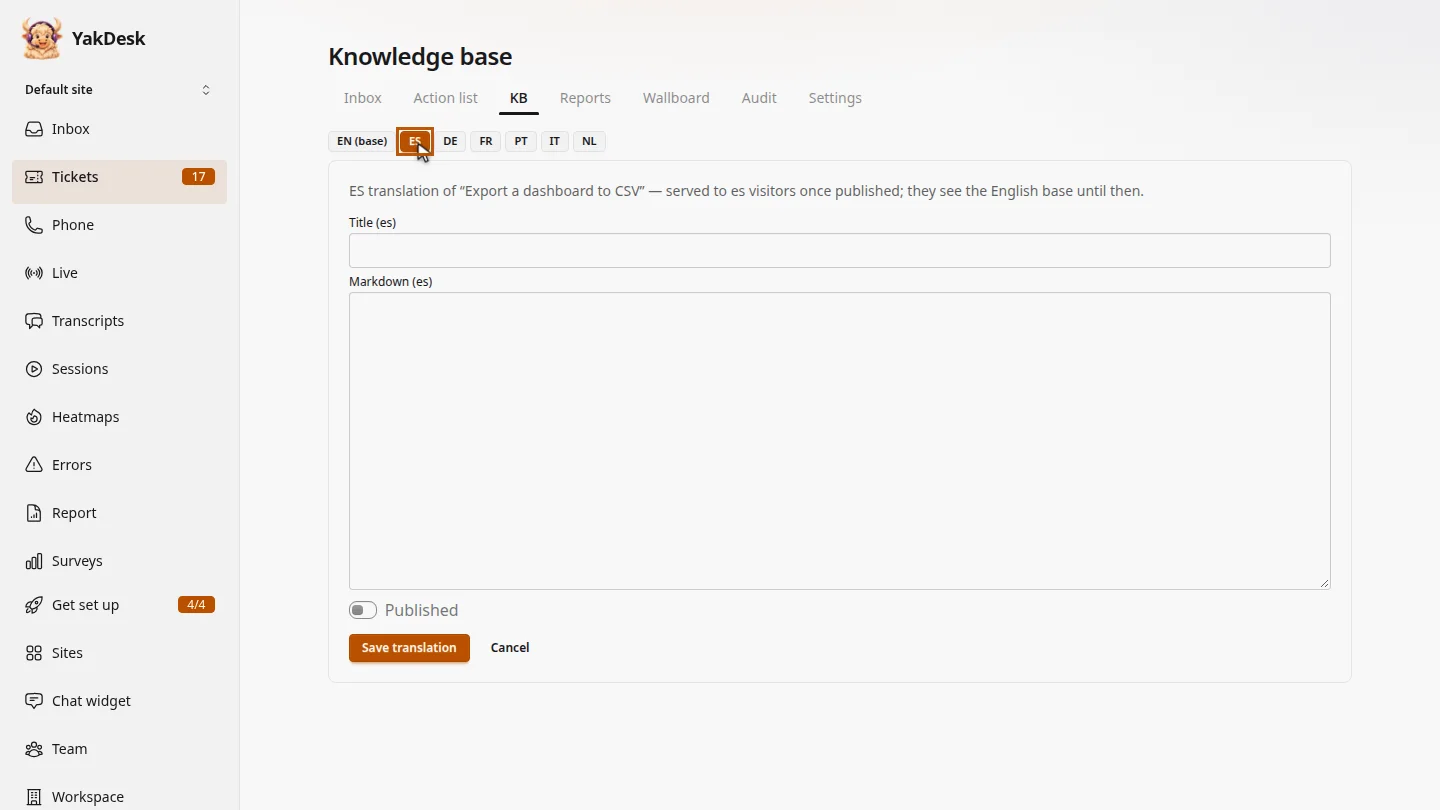
In Tickets, open the KB tab and select the article. Above the editor, pick a language. Here, Spanish.
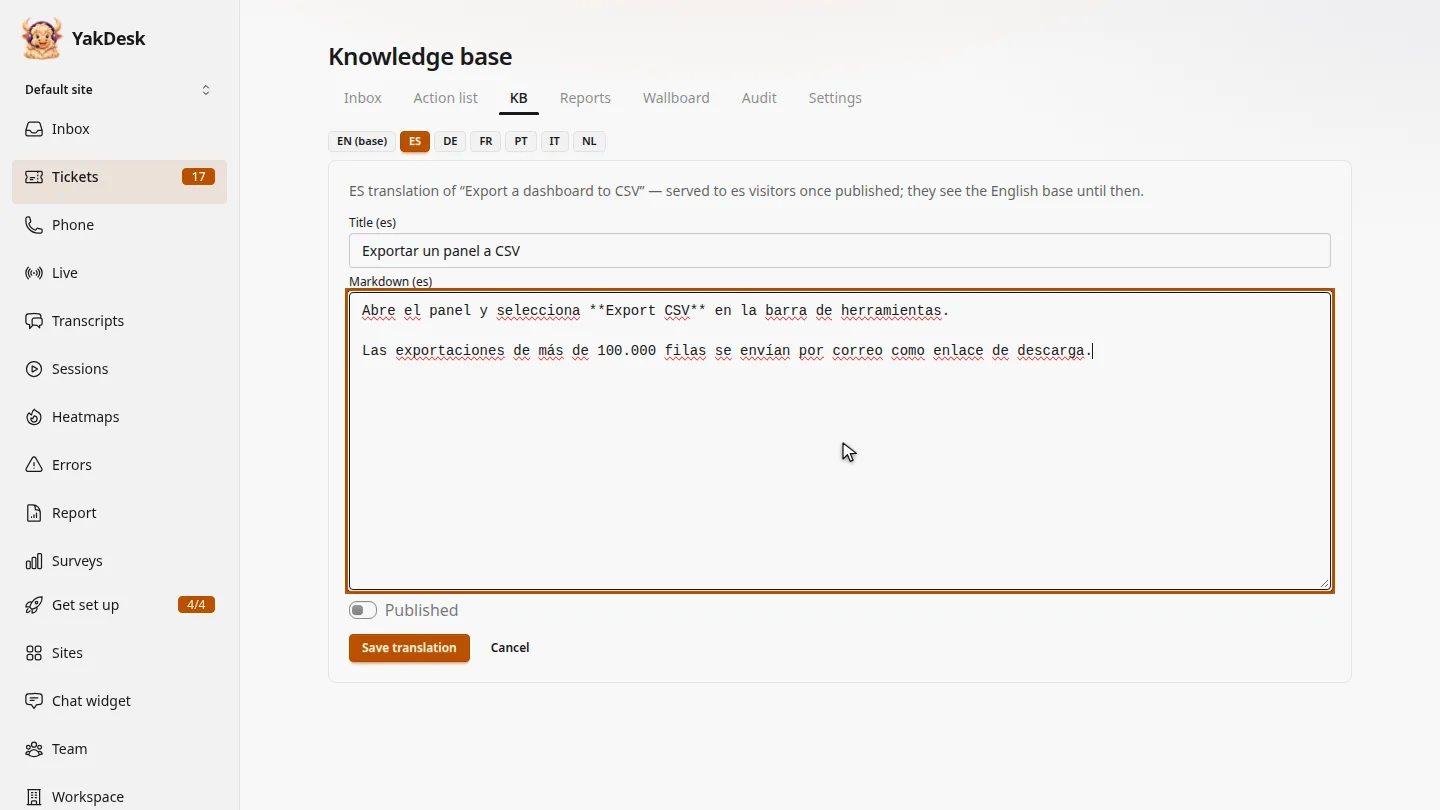
Enter the translated title and text. The form names the language you're writing in, so you can't mix them up.
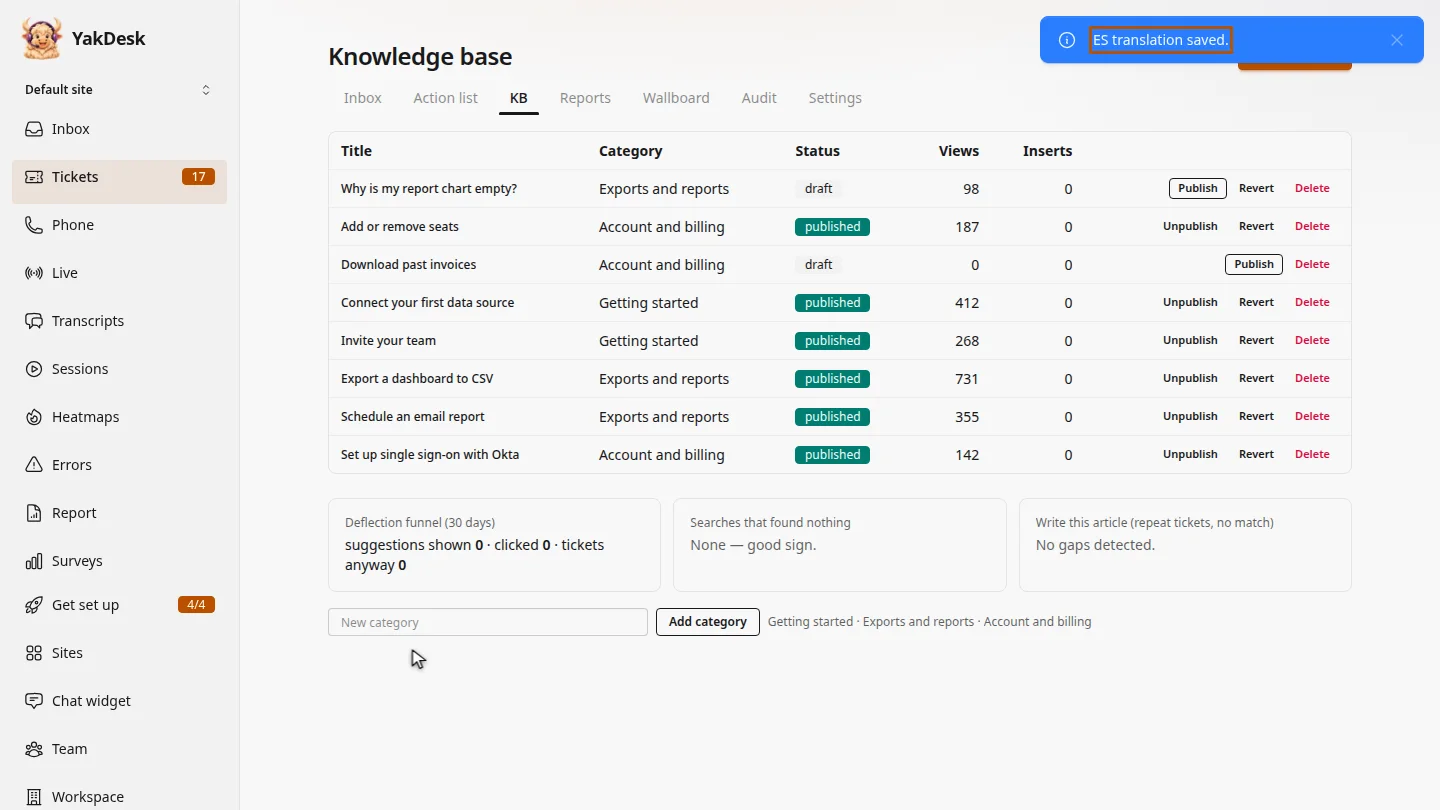
Turn on Published and select Save translation. Visitors whose browser prefers Spanish now see this version. Until it's published, they see the English one.
Steps
Choose a language ▶ 0:05
In Tickets, select KB, then select the article. Above the editor, select the language, such as ES.
Write the translation ▶ 0:12
Enter the translated Title (es) and Markdown (es). The labels show the language you picked.
Publish the translation ▶ 0:20
Turn on Published and select Save translation. An ES translation saved. message confirms it.
Next steps
Updated 2026-11-09
translate kb multilingual help center spanish article localize knowledge base