
How to update your payment method in YakDesk
When your card expires or the company switches cards, add the new one before the next renewal so your subscription doesn't lapse.
Before you start
- An Owner or Admin role in YakDesk
- A paid YakDesk subscription
Plays silently with captions; the narrated version is on its way.
Transcript
Switch your YakDesk subscription to a new card before the next renewal.
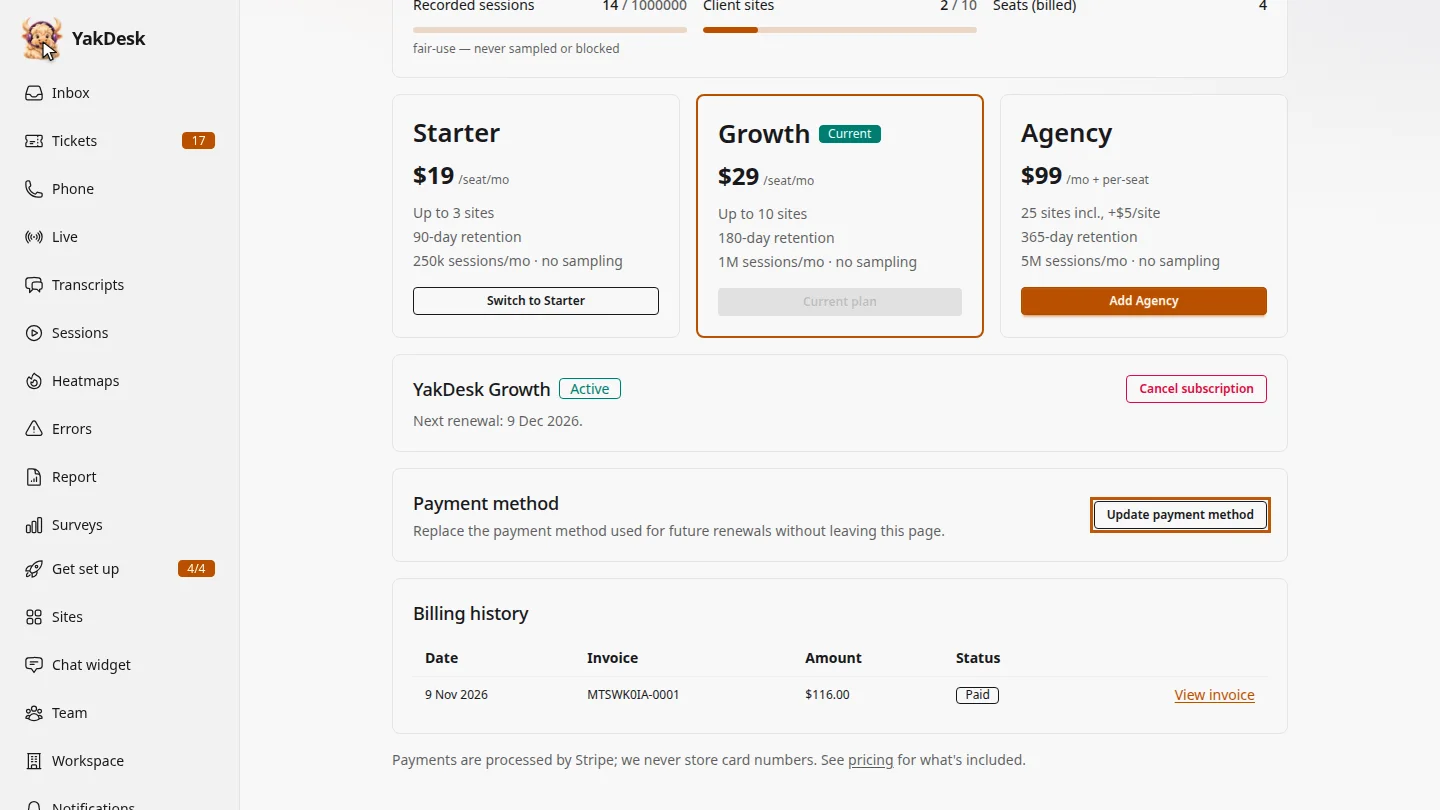
Open Billing from the sidebar. Under Payment method, select Update payment method. A secure payment form opens where you can add the new card.
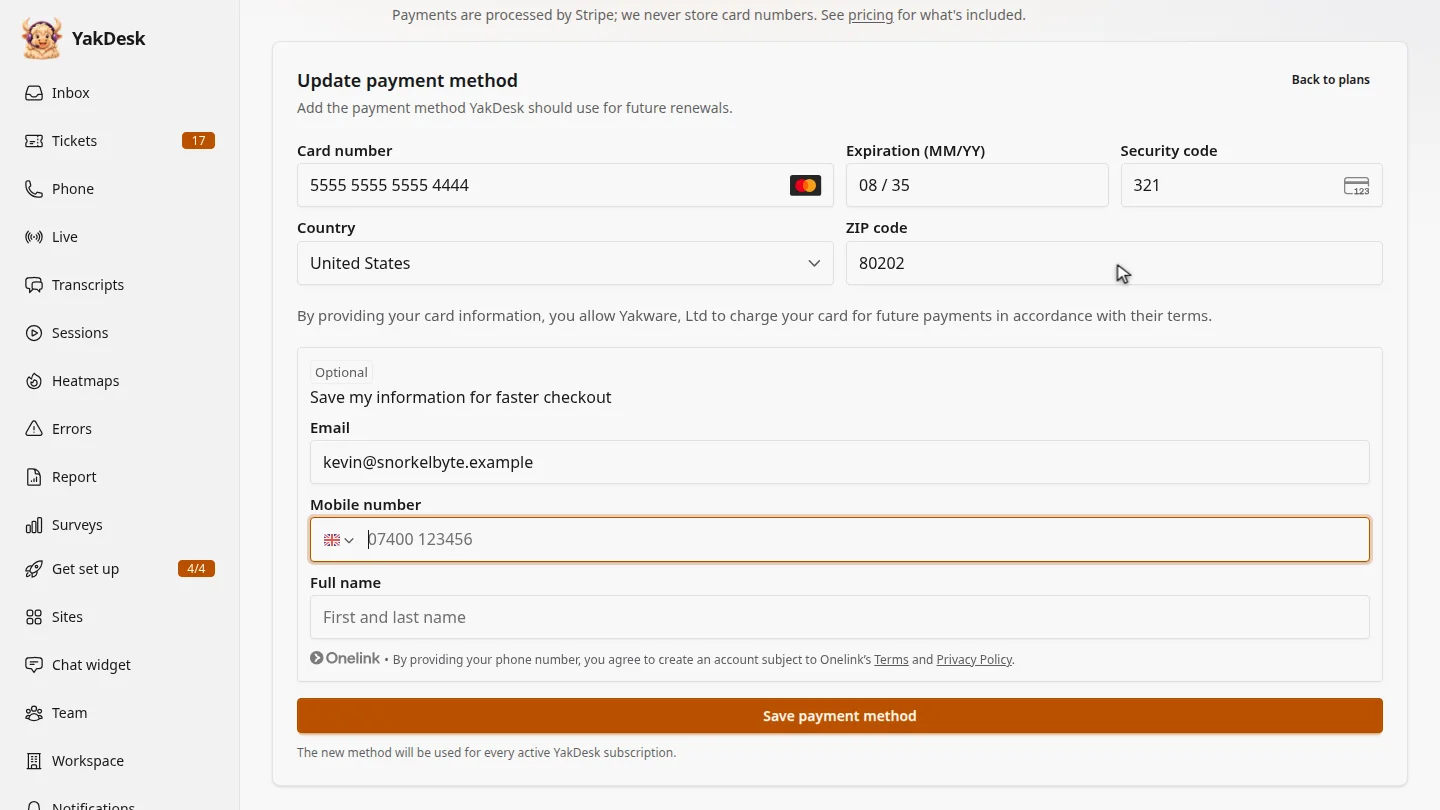
Enter the new card's number, expiry date and security code, then your country and ZIP code. The form is run by Stripe, so YakDesk never sees or stores the card number.
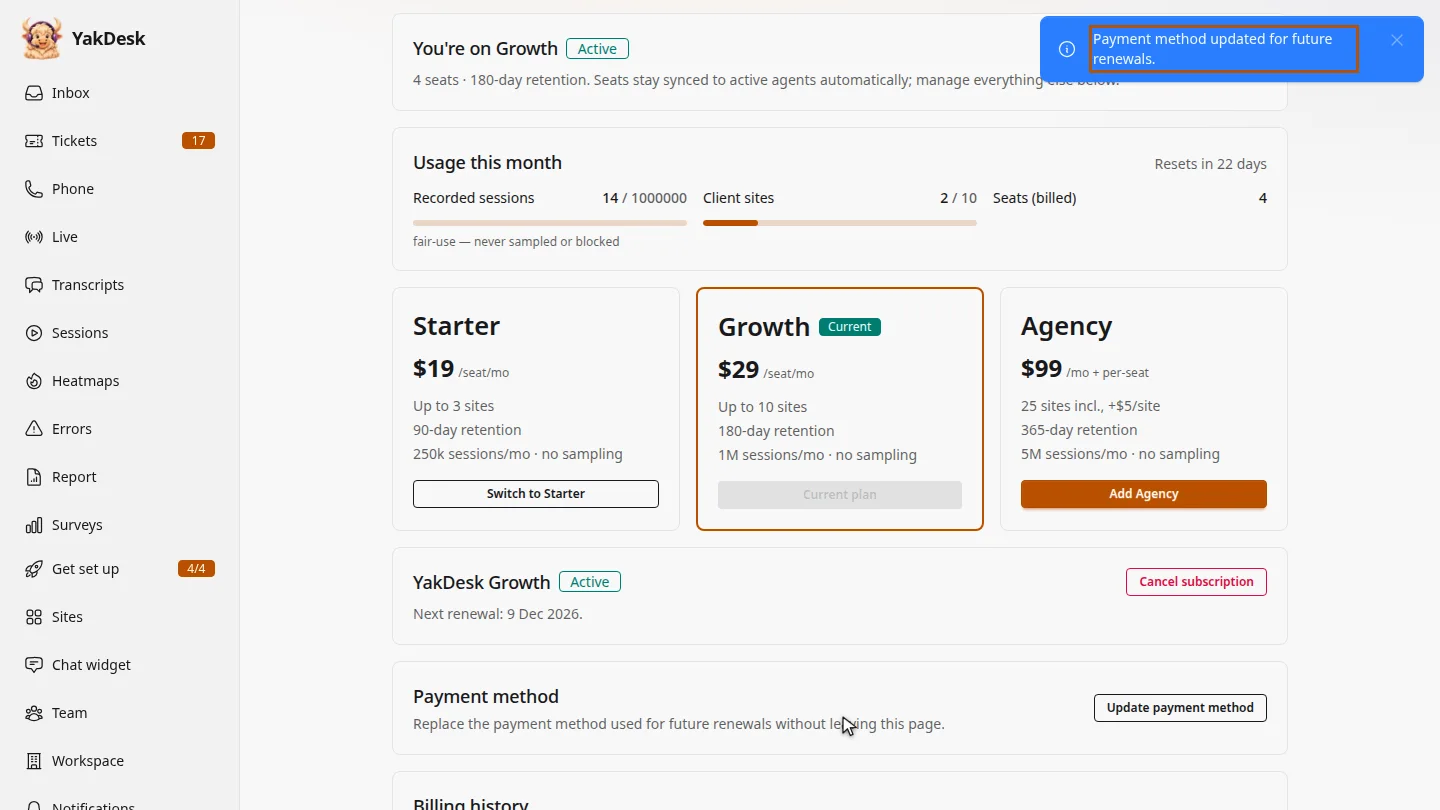
Select Save payment method. Stripe checks the card, which can take a few seconds, and then YakDesk confirms the new card will be used for every future renewal.
Steps
Open the payment form ▶ 0:06
In the sidebar, select Billing. Under Payment method, select Update payment method.
Enter the new card ▶ 0:16
Enter the new card details in the secure payment form.
Save it ▶ 0:29
Select Save payment method. Payment method updated for future renewals. confirms it.
Next steps
Updated 2026-11-09
change card new credit card expired card billing details