
How to view a billing invoice in YakDesk
Your finance team needs a copy of every invoice. YakDesk lists each one on the billing page, with a link to the full invoice that you can download as a PDF.
Before you start
- An Owner or Admin role in YakDesk
- A paid YakDesk subscription
Plays silently with captions; the narrated version is on its way.
Transcript
Find any YakDesk invoice and download a copy for your records or your finance team.
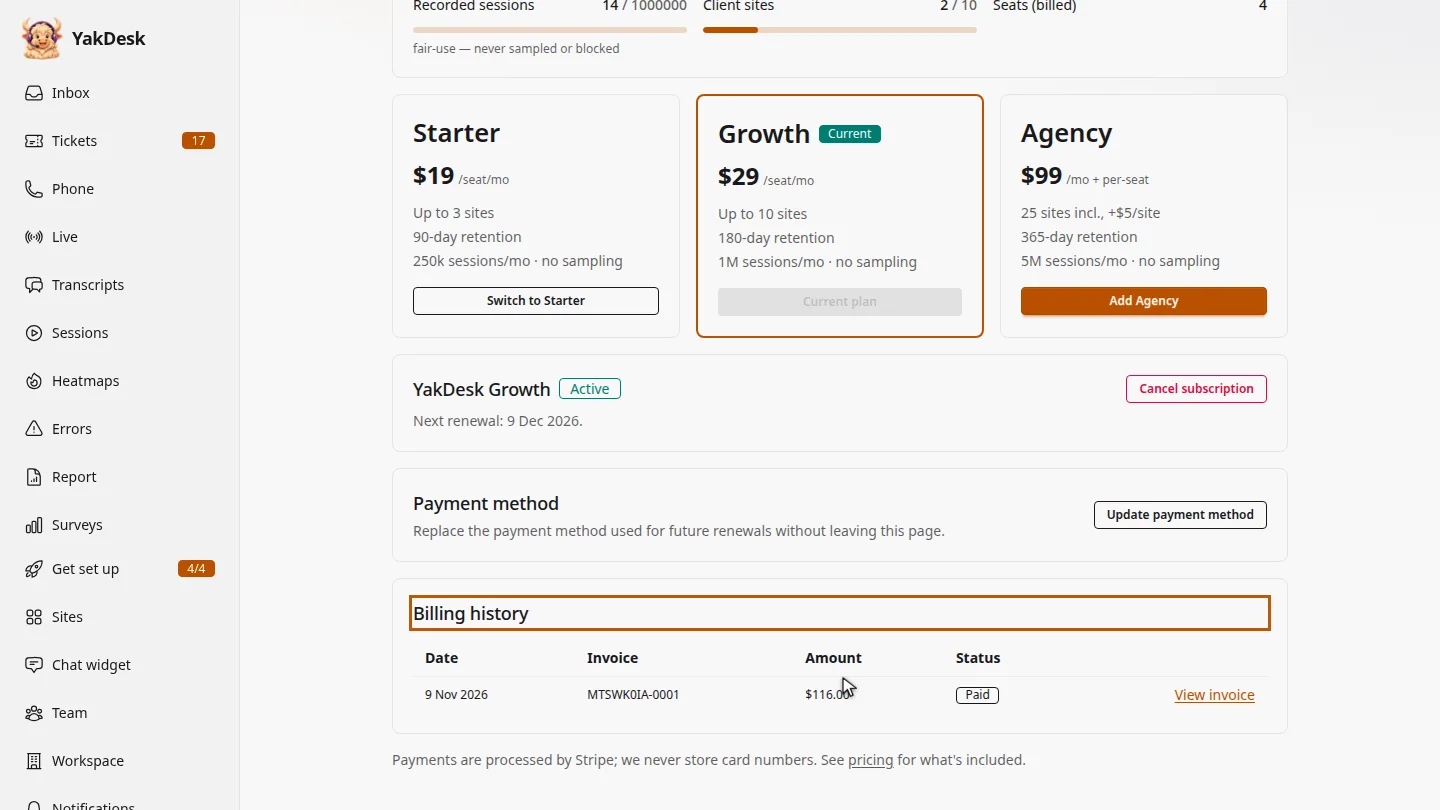
Open Billing from the sidebar and scroll down to Billing history. Each invoice is listed with its date, invoice number, amount and status, newest first.
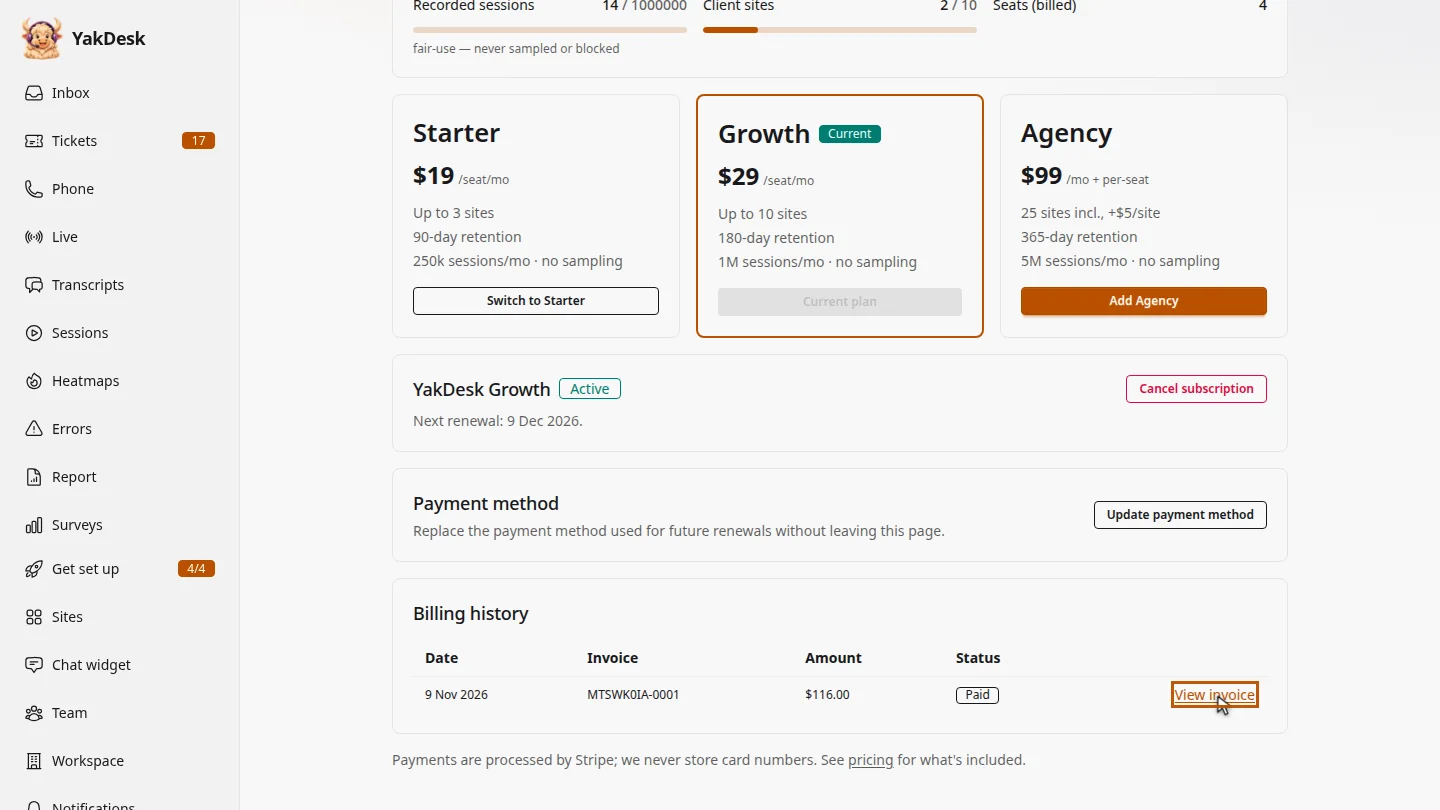
Select View invoice next to the one you need. The full invoice opens in a new tab.
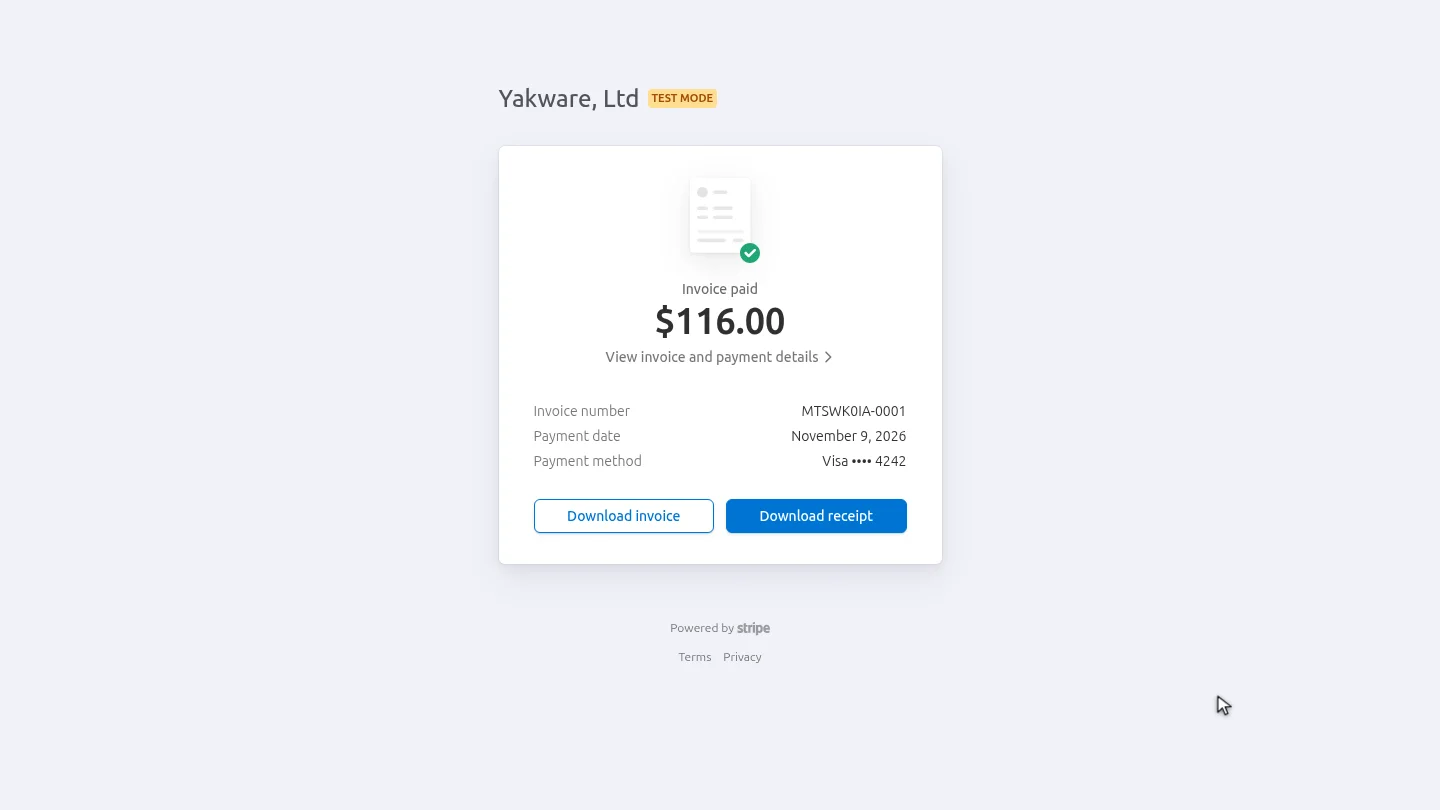
From the invoice page, download the invoice or the receipt as a PDF, ready to forward or file.
Steps
Find the invoice ▶ 0:07
In the sidebar, select Billing. Under Billing history, find the invoice by its date or number.
Open it ▶ 0:18
Select View invoice. The invoice opens in a new tab.
Download it ▶ 0:24
On the invoice page, select Download invoice or Download receipt.
Next steps
Updated 2026-11-09
receipt invoice pdf billing history payment history download invoice