
How to add an SLA policy in YakDesk
If you promise customers an answer within an hour, you need to know which tickets are about to miss it. An SLA policy sets first-response and resolution targets for a queue, counts only business hours, and alerts you before a ticket breaches.
Before you start
- A Growth or Agency plan (tickets are included)
- An Owner or Admin role in YakDesk
Plays silently with captions; the narrated version is on its way.
Transcript
Set response and resolution targets, so tickets are answered on time.
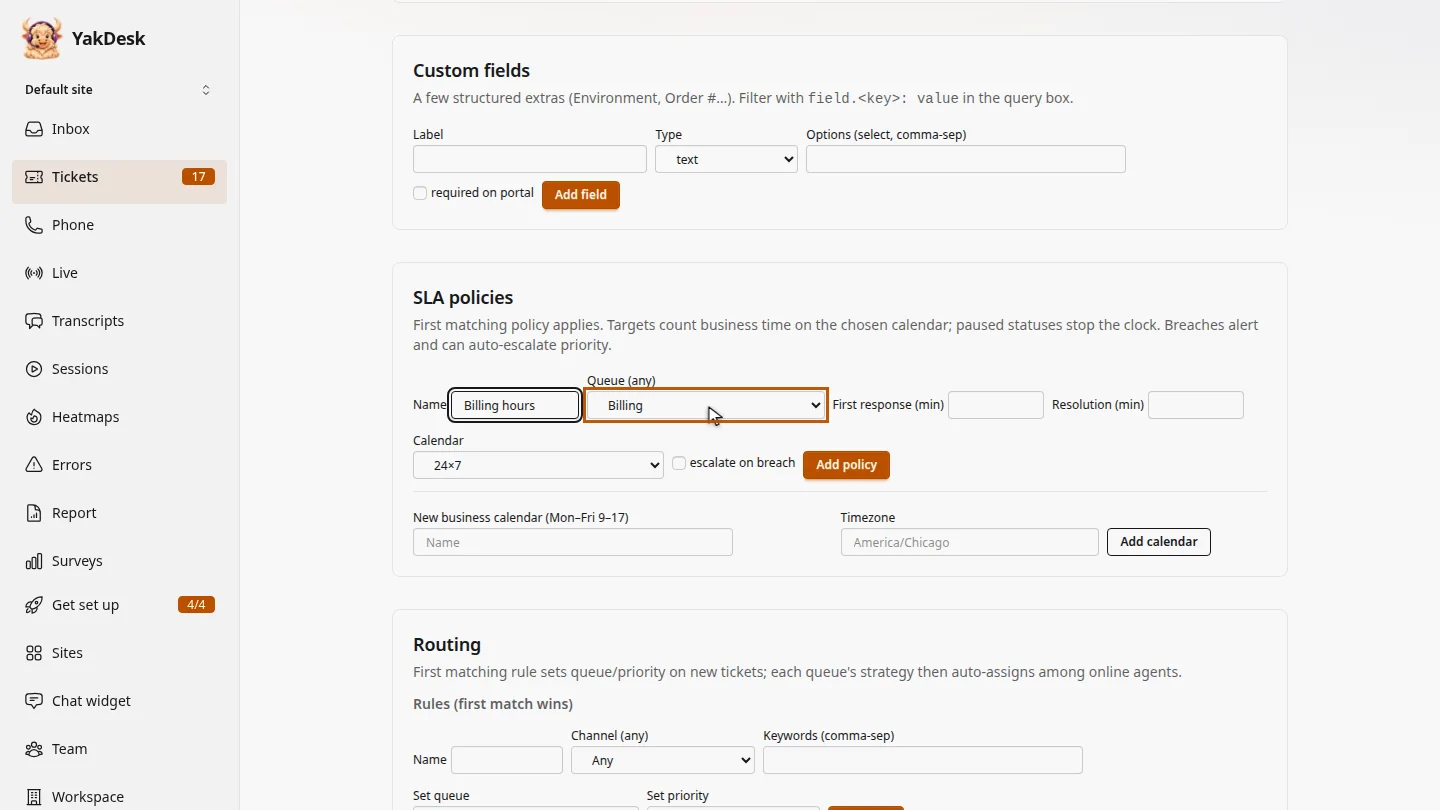
In Tickets, open Settings and scroll to SLA policies. Name the policy and choose the queue it covers, such as Billing.
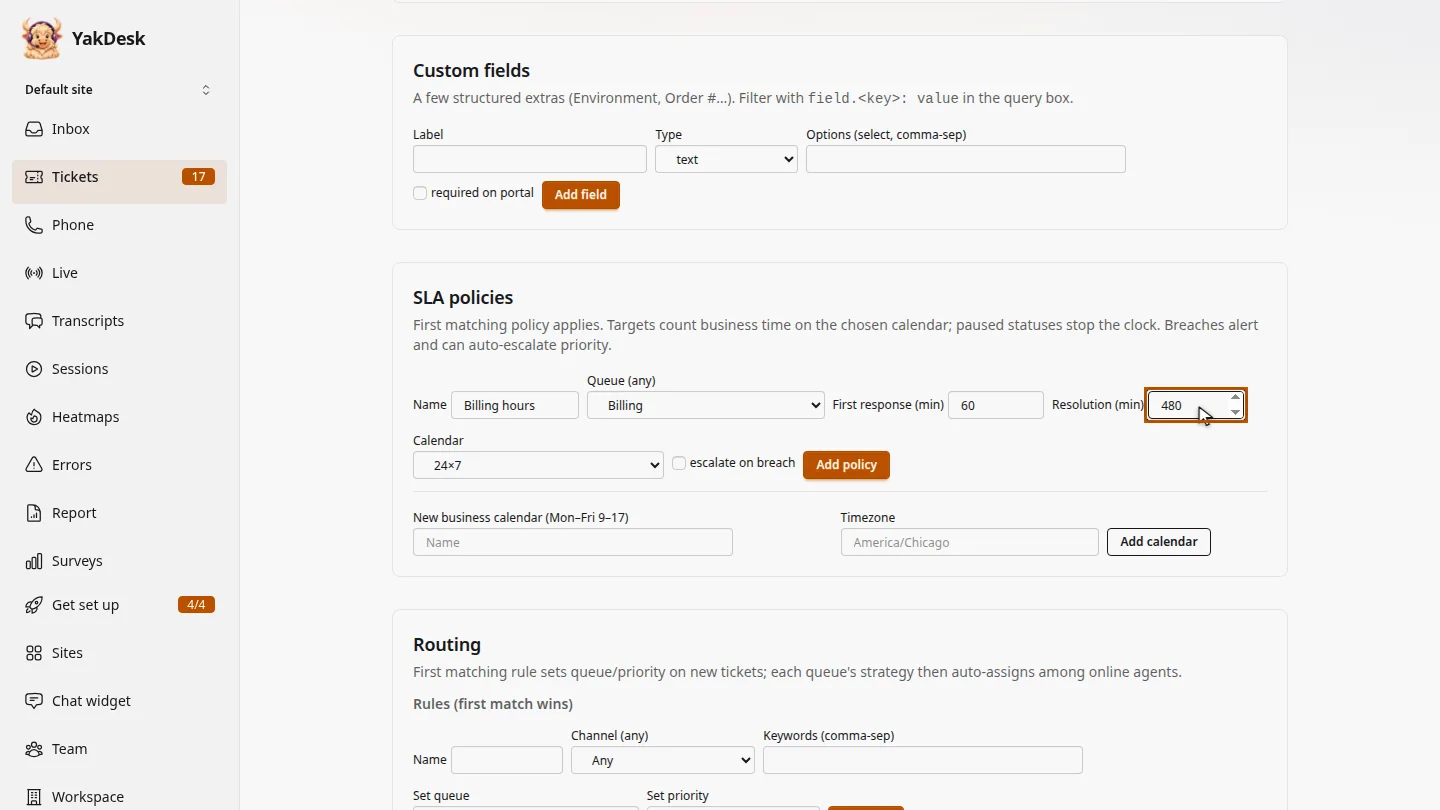
Enter the targets in minutes: a first response within 60, and a resolution within 480.
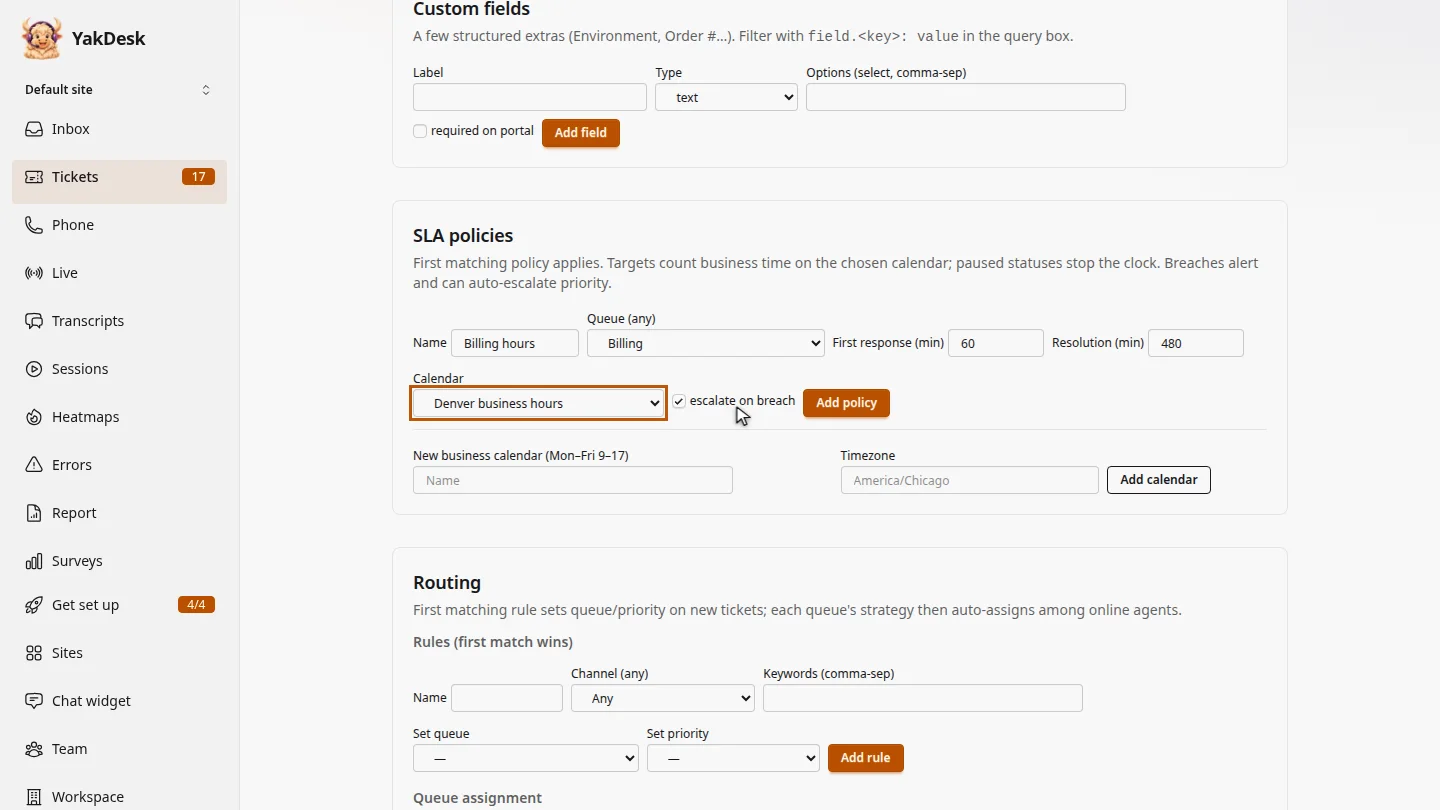
Choose a business calendar, so the clock only runs in working hours. Tick escalate on breach to raise the priority of late tickets.
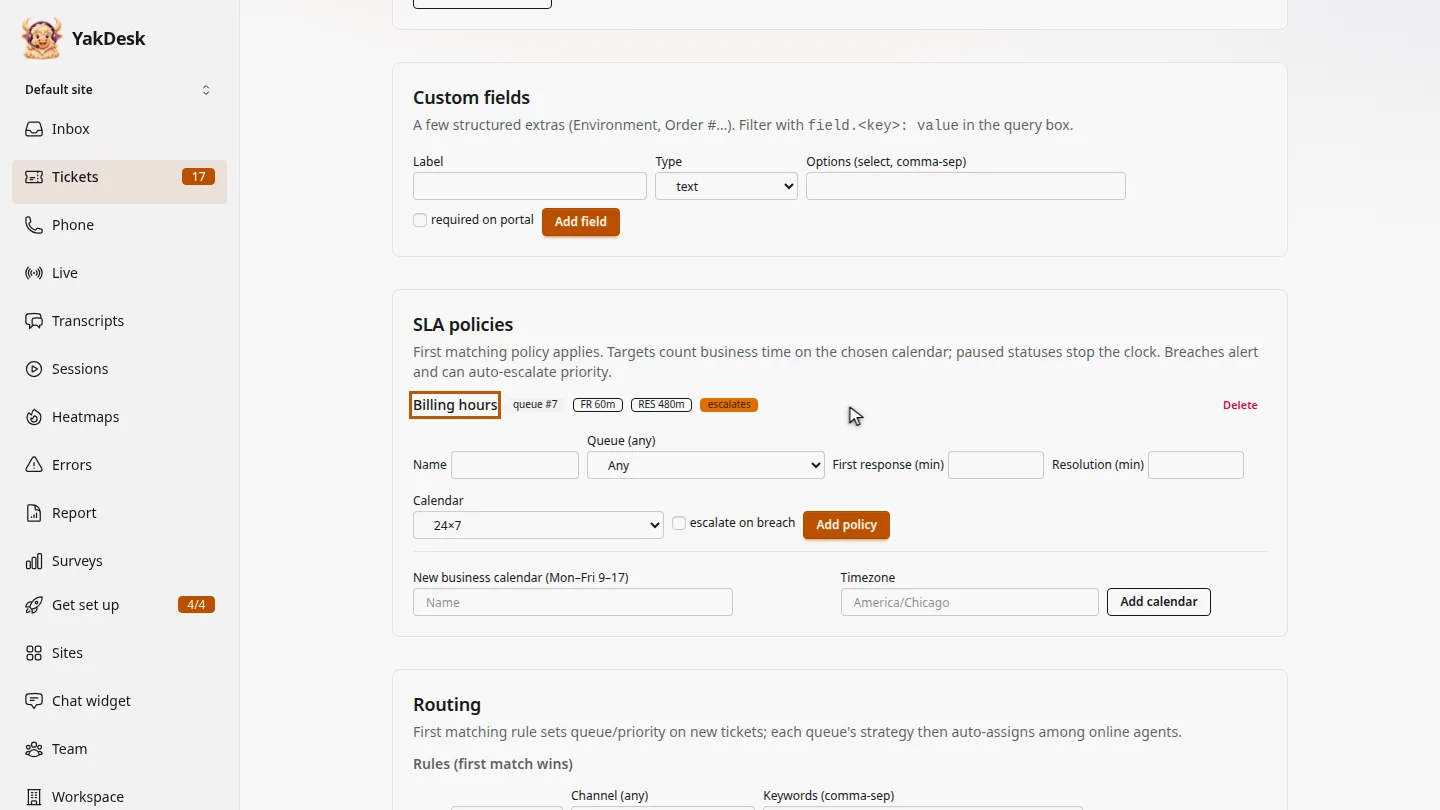
Select Add policy. The policy is listed with its targets.
Steps
Name it and pick a queue ▶ 0:06
In Tickets, select Settings. Under SLA policies, enter a Name and choose a queue in Queue (any). Leave it on Any to cover every ticket.
Set the targets ▶ 0:15
Enter First response (min) and Resolution (min).
Choose the hours ▶ 0:21
For Calendar, choose a business calendar, or 24×7. Optional: select escalate on breach to raise the priority of tickets that miss a target.
Add the policy ▶ 0:31
Select Add policy. The policy appears in the list with its targets.
Next steps
Updated 2026-11-09
sla service level agreement response time target business hours escalation