
How to assign a ticket in YakDesk
A ticket nobody owns is a ticket nobody answers. Assigning it tells the team who's handling it, and the priority tells them how soon.
Before you start
- A Growth or Agency plan (tickets are included)
Plays silently with captions; the narrated version is on its way.
Transcript
Give a ticket an owner and a priority, so it doesn't sit waiting.
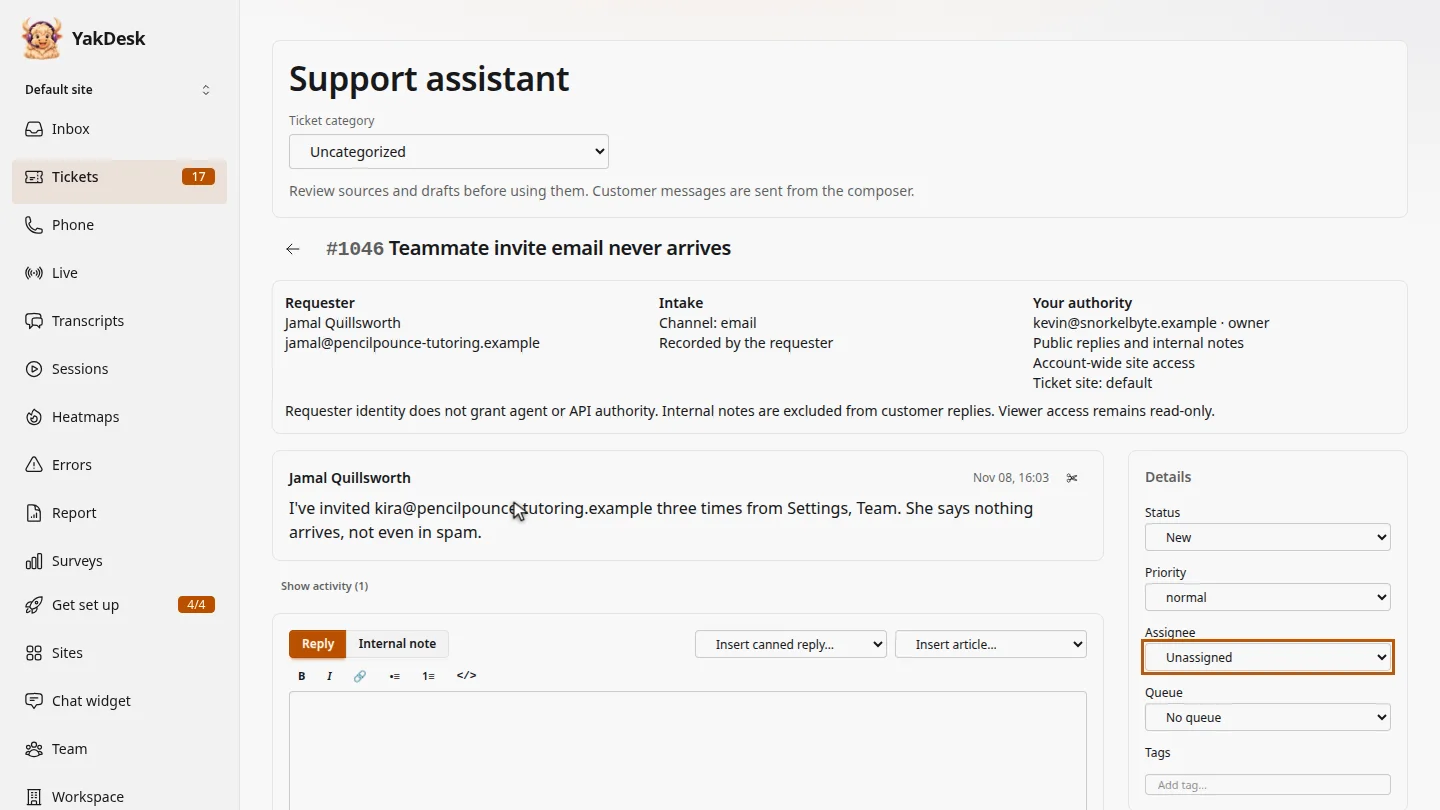
In Tickets, open the ticket. Jamal's teammate never got her invite, and no one has picked it up yet.
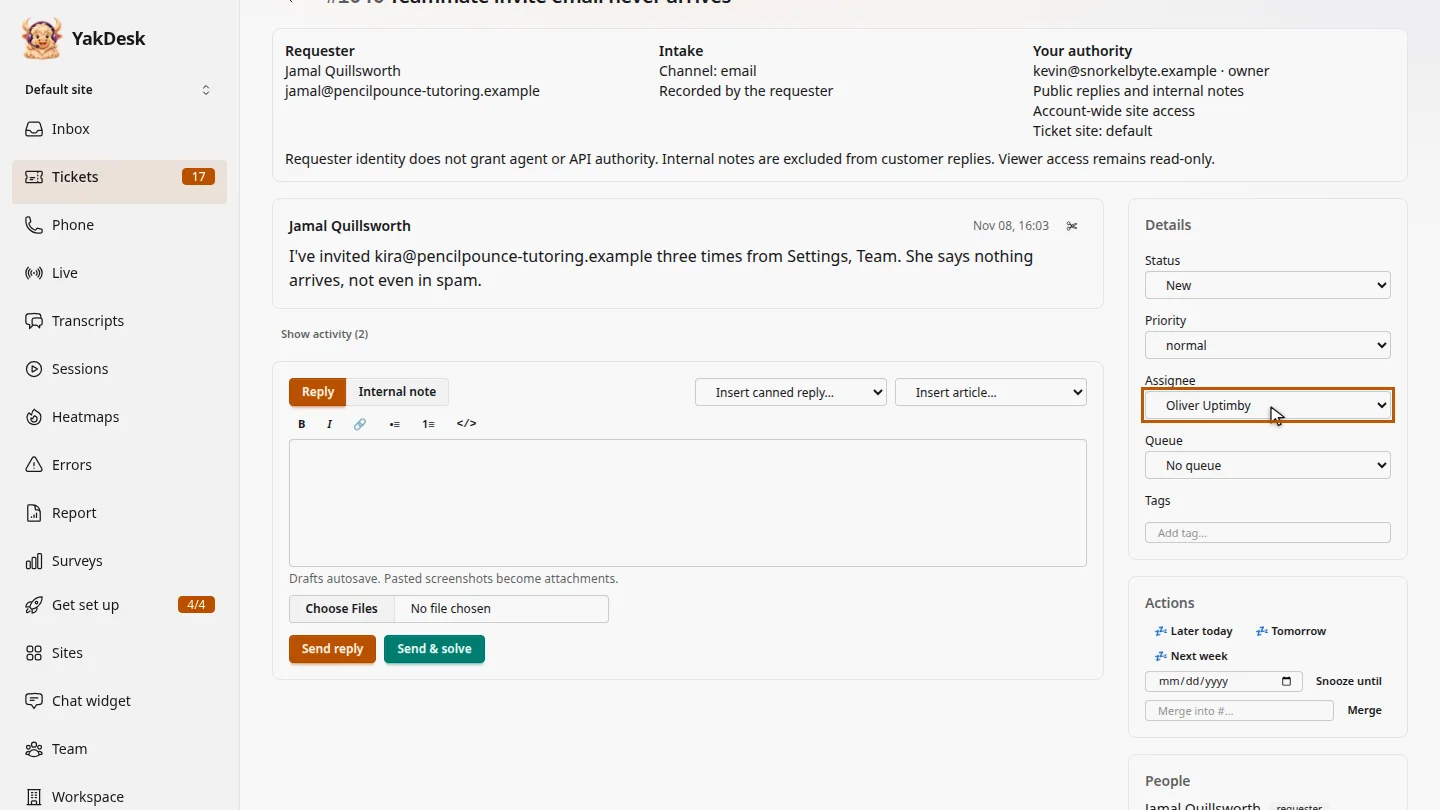
Under Details, open Assignee and choose who should handle it. Oliver looks after email delivery, so pick Oliver.
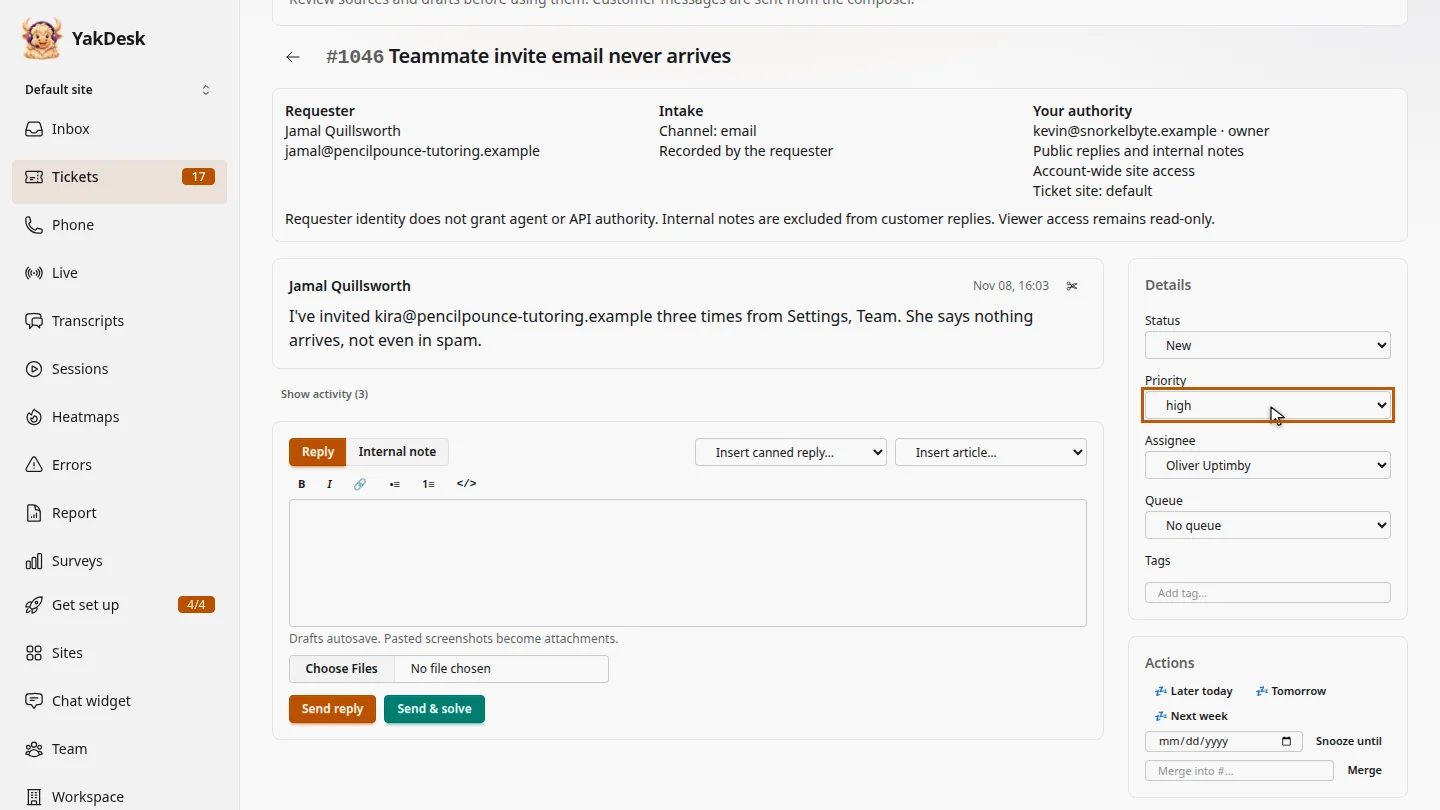
Set the priority too. Jamal's teammate can't join until the invite arrives, so make it high.
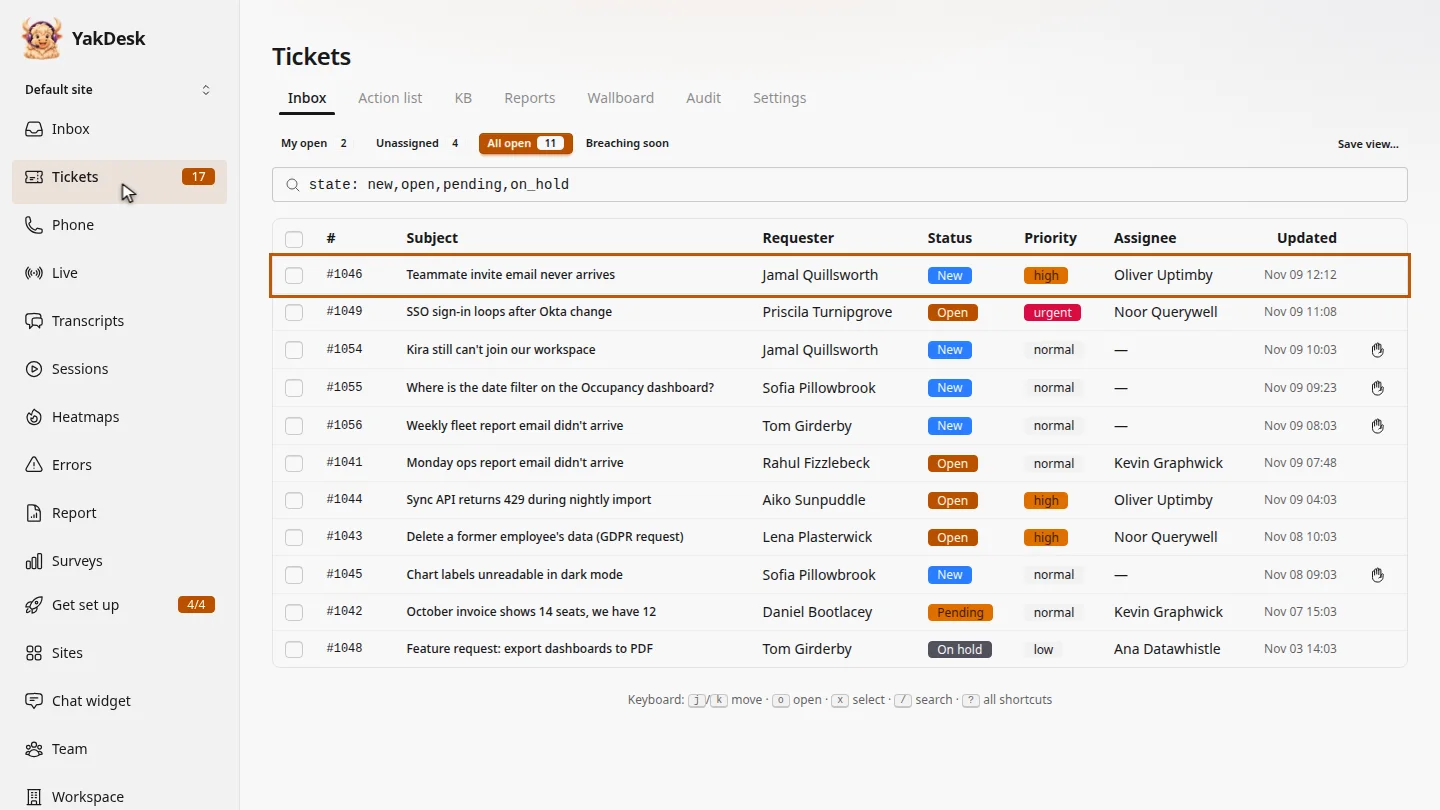
Back in Tickets, the list shows Oliver as the assignee, with the new priority.
Steps
Open the ticket ▶ 0:06
In the sidebar, select Tickets, then select the ticket's subject.
Choose the assignee ▶ 0:13
Under Details, for Assignee, choose a teammate. The change saves straight away.
Set the priority ▶ 0:21
For Priority, choose high.
Check the ticket list ▶ 0:28
In the sidebar, select Tickets. The row shows the new Assignee and Priority.
Next steps
Updated 2026-11-09
assign ticket reassign ticket owner change priority