
How to set up ticket automations in YakDesk
Tickets stall when a customer stops replying, and solved tickets pile up when nobody closes them. Automations send a follow-up to quiet customers, solve tickets that have waited too long, and close solved ones, so your queue stays current. Every automated action is recorded in the ticket's history.
Before you start
- A Growth or Agency plan (tickets are included)
- An Owner or Admin role in YakDesk
Plays silently with captions; the narrated version is on its way.
Transcript
Let YakDesk follow up on quiet tickets, and tidy up solved ones for you.
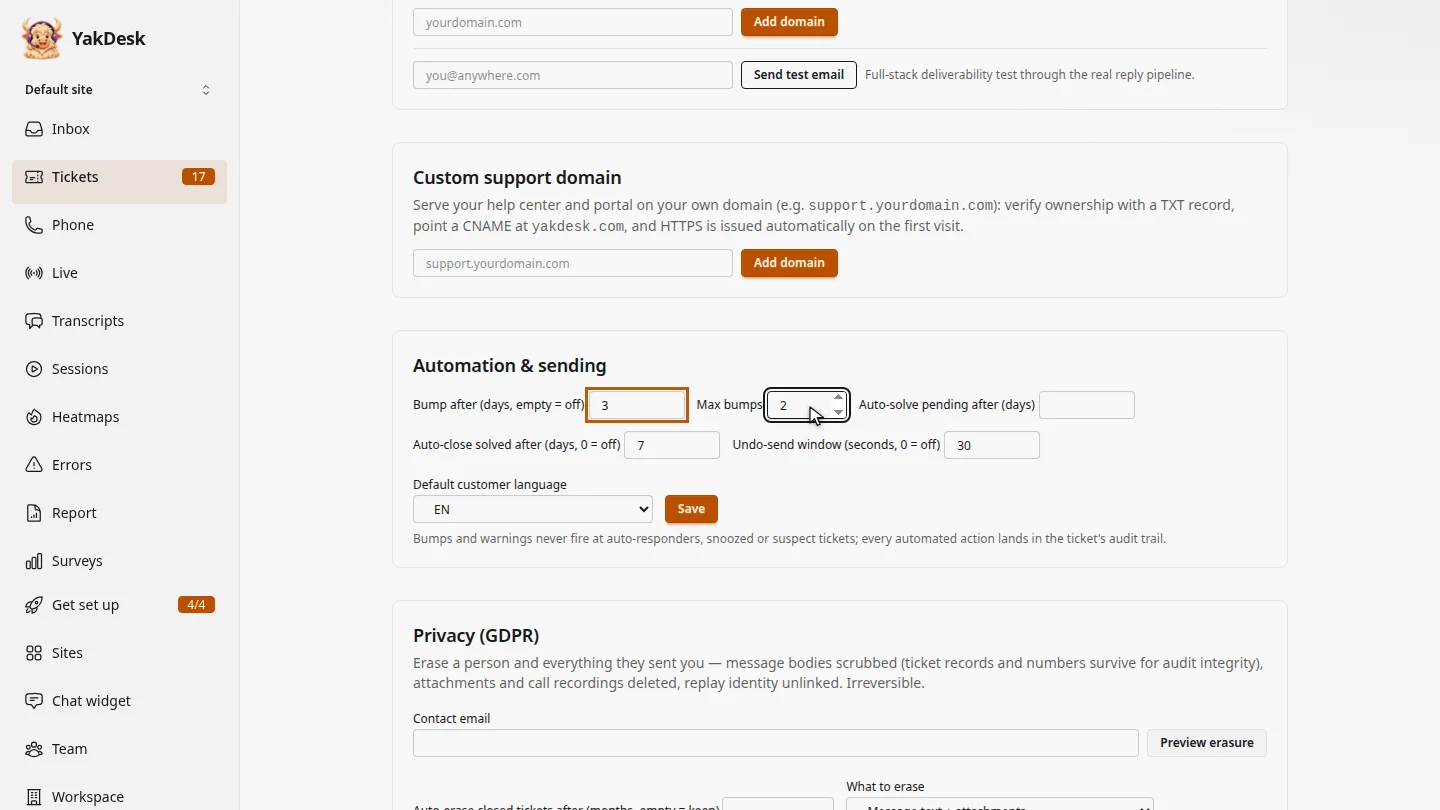
In Tickets, open Settings and scroll to Automation and sending. To nudge customers who have gone quiet, set Bump after to 3 days, with at most 2 bumps.
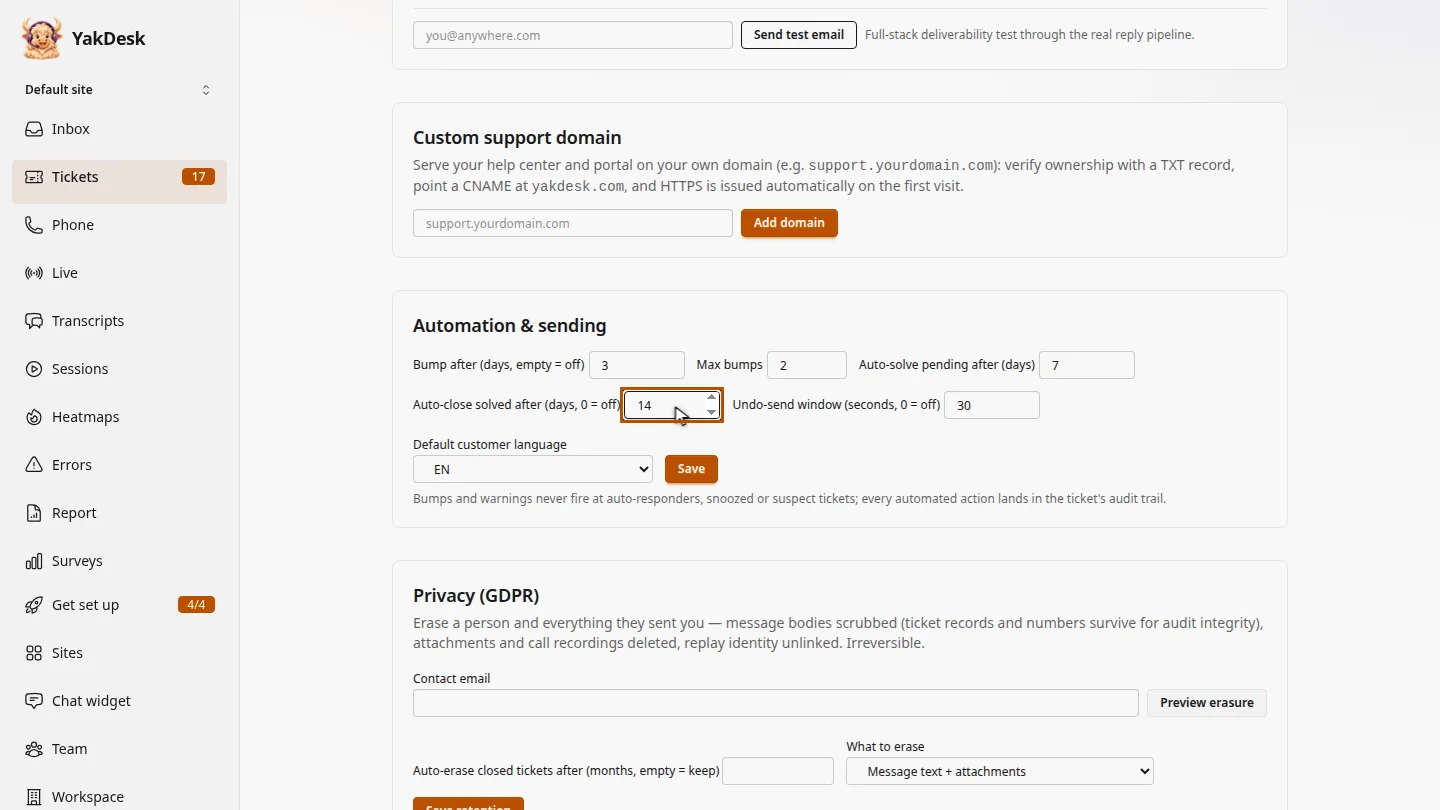
Set when tickets waiting on the customer are solved, and when solved tickets close.
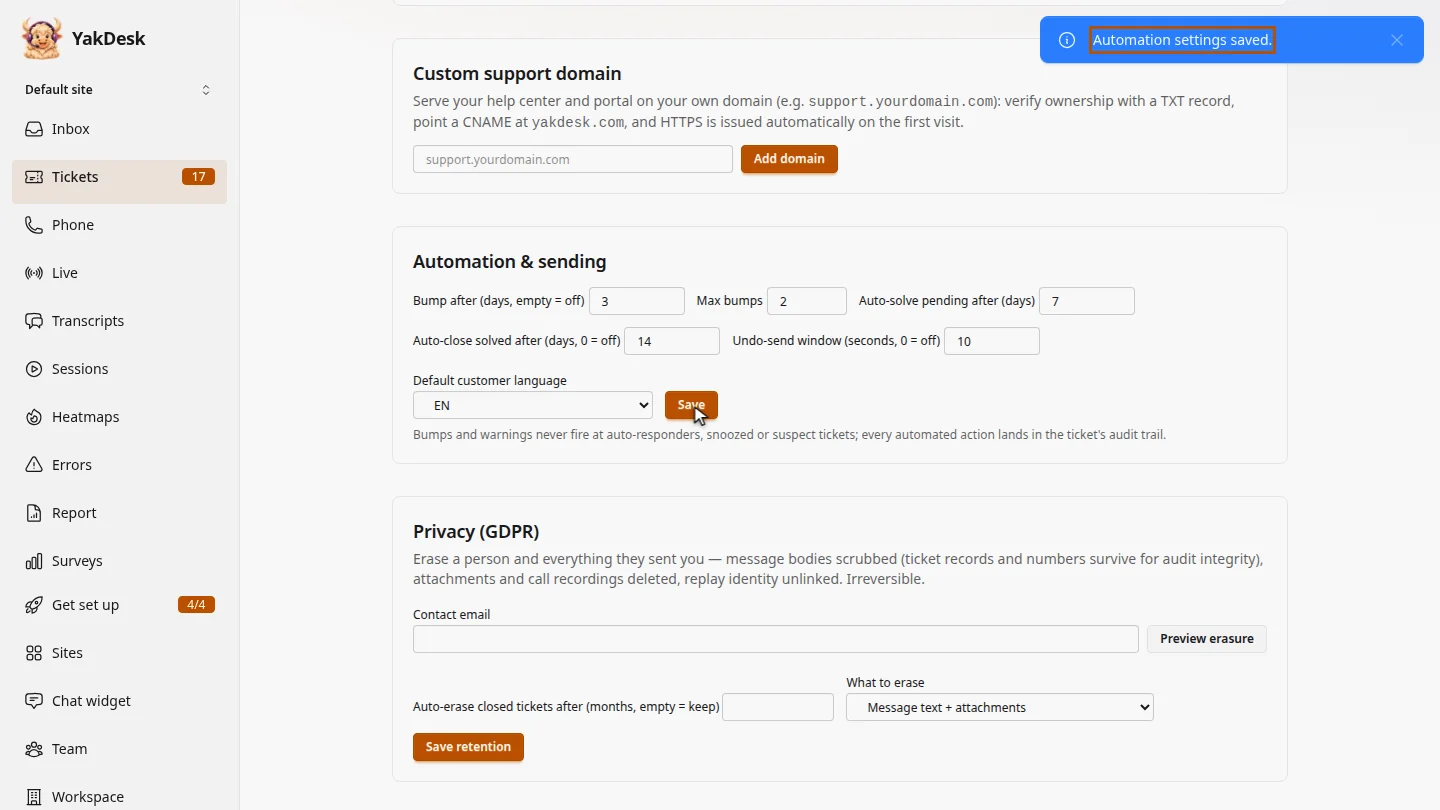
Optionally, set an undo window, so agents can take back a reply for a few seconds after sending it. Then select Save.
Steps
Follow up on quiet customers ▶ 0:06
In Tickets, select Settings. Under Automation & sending, enter Bump after (days, empty = off) and Max bumps. YakDesk then follows up when a customer hasn't answered your reply.
Solve and close old tickets ▶ 0:17
Enter Auto-solve pending after (days) and Auto-close solved after (days, 0 = off). Customers get a warning two days before a ticket is solved.
Save ▶ 0:23
Optional: enter an Undo-send window (seconds, 0 = off). Select Save. YakDesk shows Automation settings saved.
Next steps
Updated 2026-11-09
automations auto close tickets follow up reminder undo send auto solve