
How to create a feedback survey in YakDesk
Asking at the right moment gets more honest answers. A survey appears in the chat widget after a chat closes, or on the pages you choose, and the scores collect on the Surveys page.
Before you start
- The chat widget installed on your site (see Install the chat widget)
Plays silently with captions; the narrated version is on its way.
Transcript
Ask visitors how you're doing, right in the chat widget.
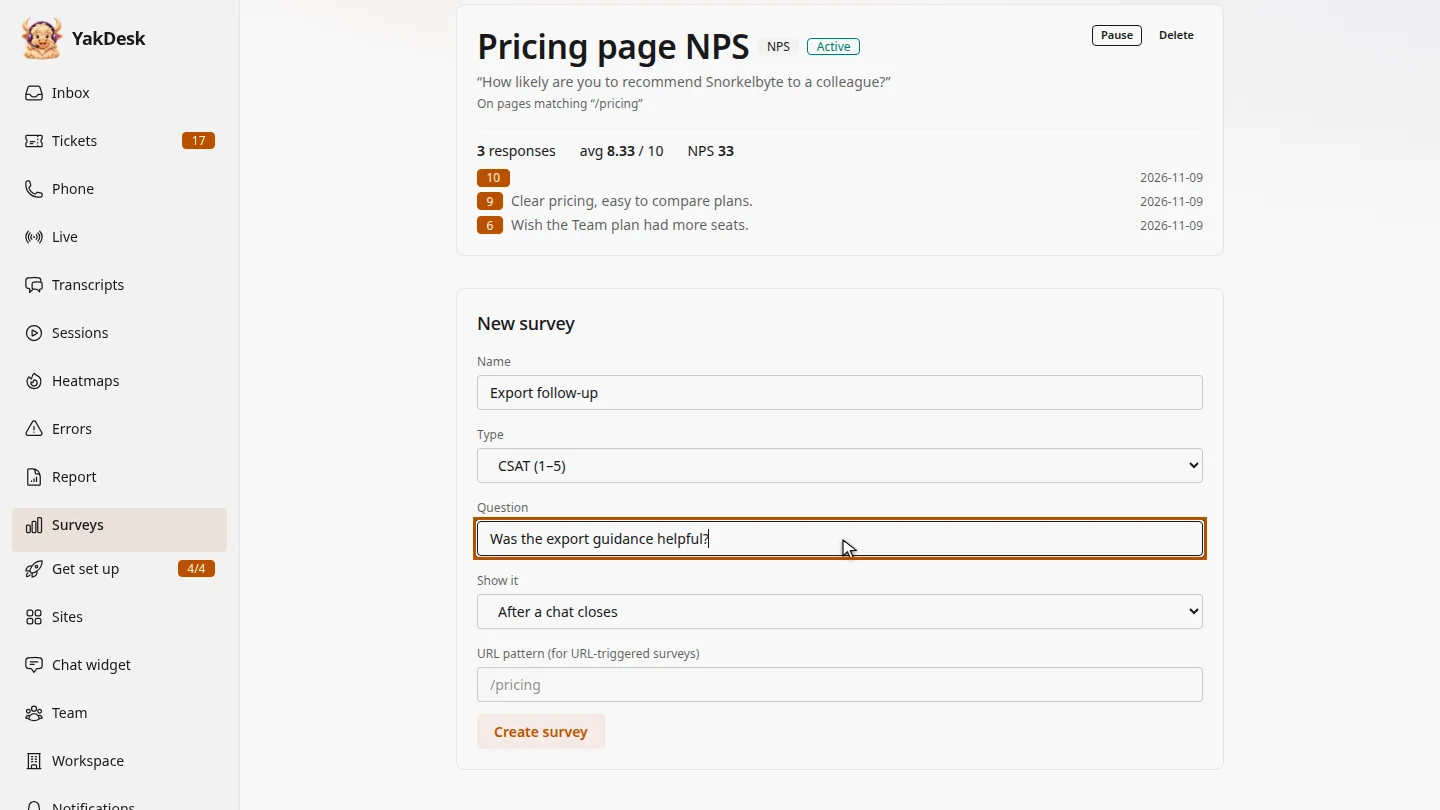
Open Surveys. Under New survey, give it a name your team will recognise, choose the type, such as CSAT from one to five, and write the question.
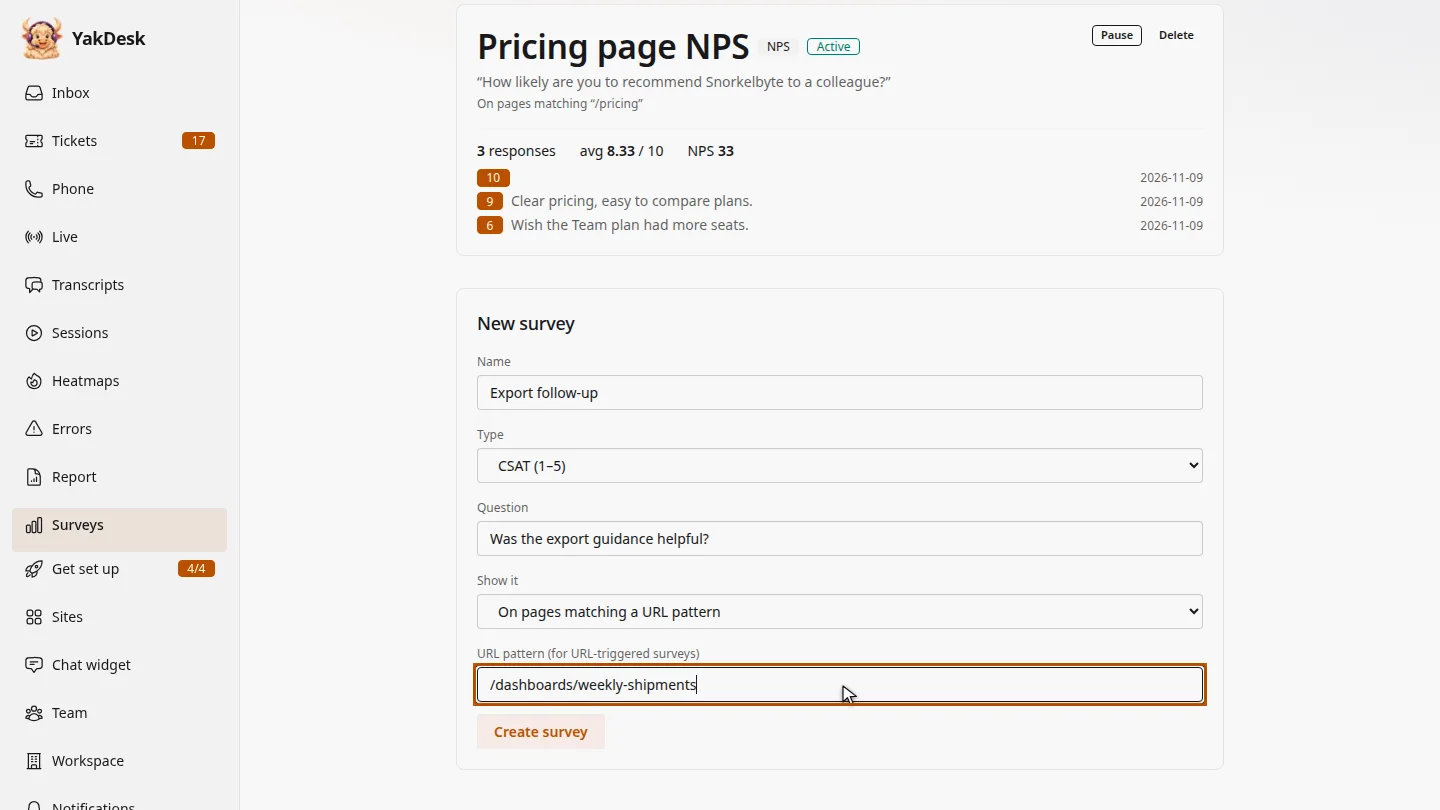
Under Show it, choose when it appears: after a chat closes, or on certain pages. Here, it shows on the Weekly shipments dashboard.
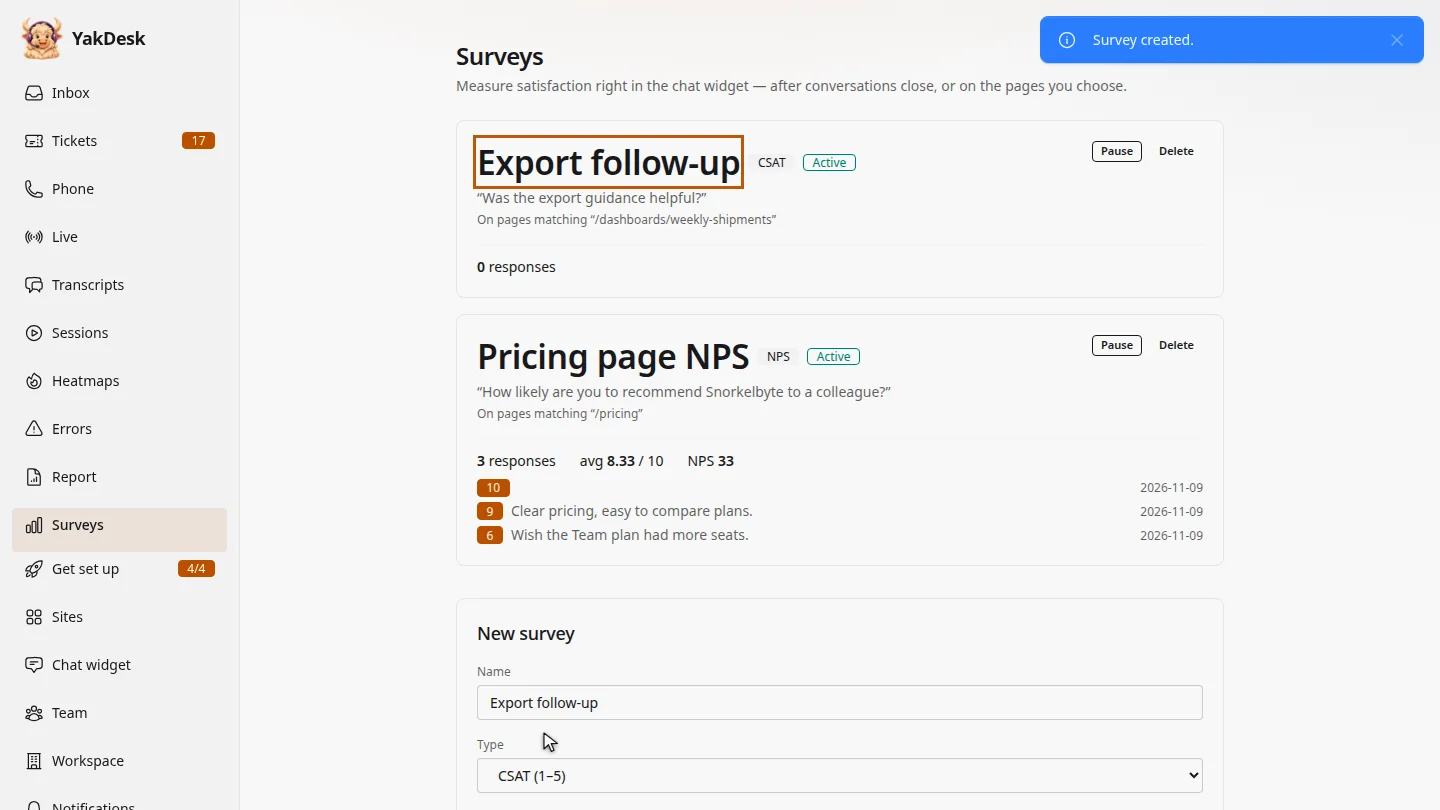
Select Create survey. It's listed as active, and responses and the average score appear under it as visitors answer.
Steps
Name it and ask the question ▶ 0:05
In the sidebar, select Surveys. Under New survey, enter a Name, choose a Type, and enter the Question.
Choose when it appears ▶ 0:16
For Show it, choose After a chat closes, or On pages matching a URL pattern and enter the URL pattern.
Create it ▶ 0:25
Select Create survey. The survey appears in the list as Active. Select Pause to stop showing it.
Next steps
Updated 2026-11-09
csat survey nps survey customer satisfaction feedback widget in-app survey