
How to erase a contact's support data in YakDesk
When a customer asks you to delete their personal data, for example under GDPR, erase it in one place. YakDesk scrubs their messages, deletes attachments and call recordings, and unlinks their session replays, while ticket numbers stay for your records.
Before you start
- An Owner or Admin role in YakDesk
- A Growth or Agency plan (tickets are included)
Plays silently with captions; the narrated version is on its way.
Transcript
Erase everything a customer has sent you, when they ask you to delete their data.
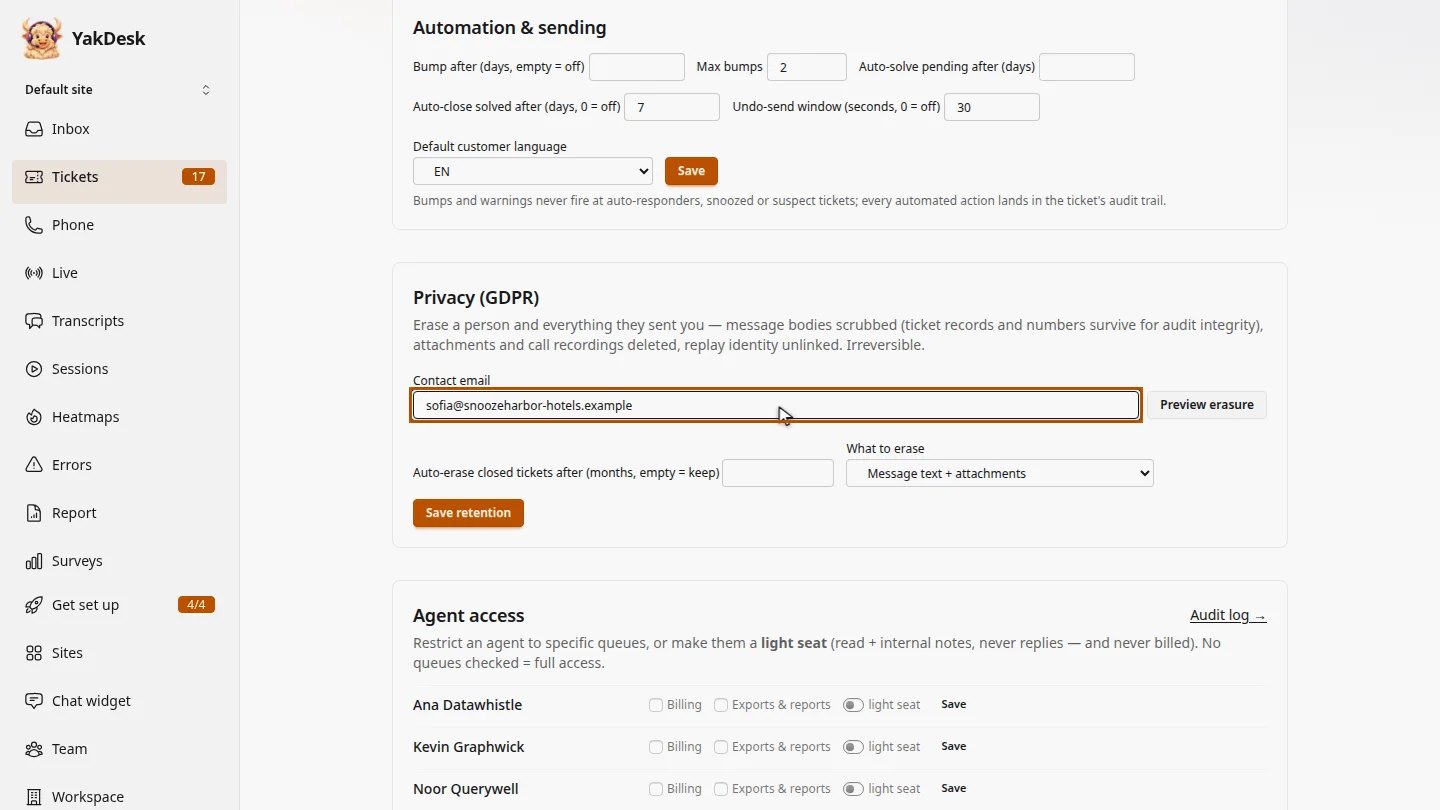
In Tickets, open Settings and scroll to Privacy. Enter the customer's email address, then select Preview erasure.
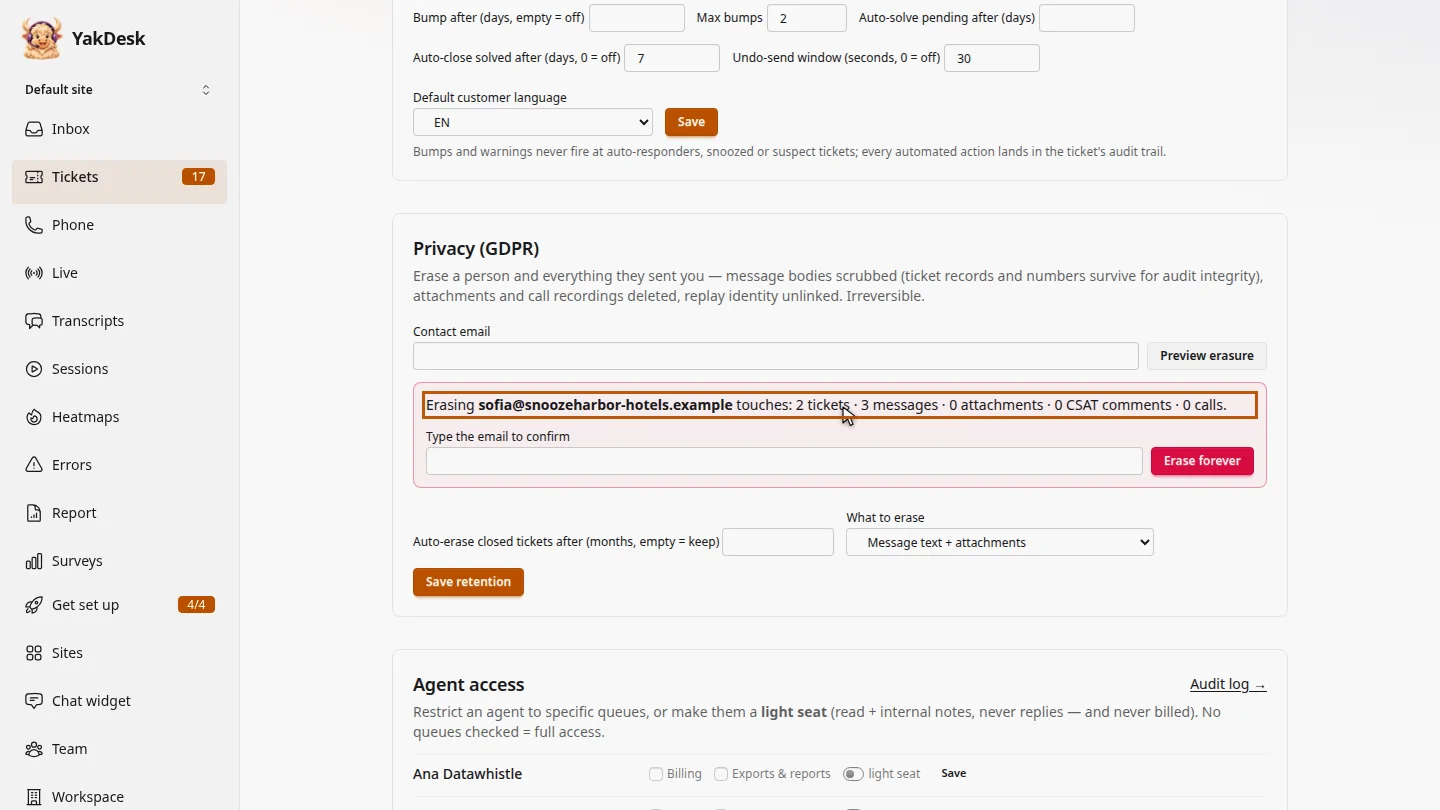
YakDesk shows how many tickets, messages, attachments and calls will be touched. Check this is the right person.
Type the email address again to confirm, then select Erase forever. This can't be undone.
Steps
Preview the erasure ▶ 0:07
In Tickets, select Settings. Under Privacy (GDPR), enter the Contact email and select Preview erasure.
Check what will be erased ▶ 0:15
Review the counts of tickets, messages, attachments, survey comments and calls that will be erased.
Erase forever ▶ 0:23
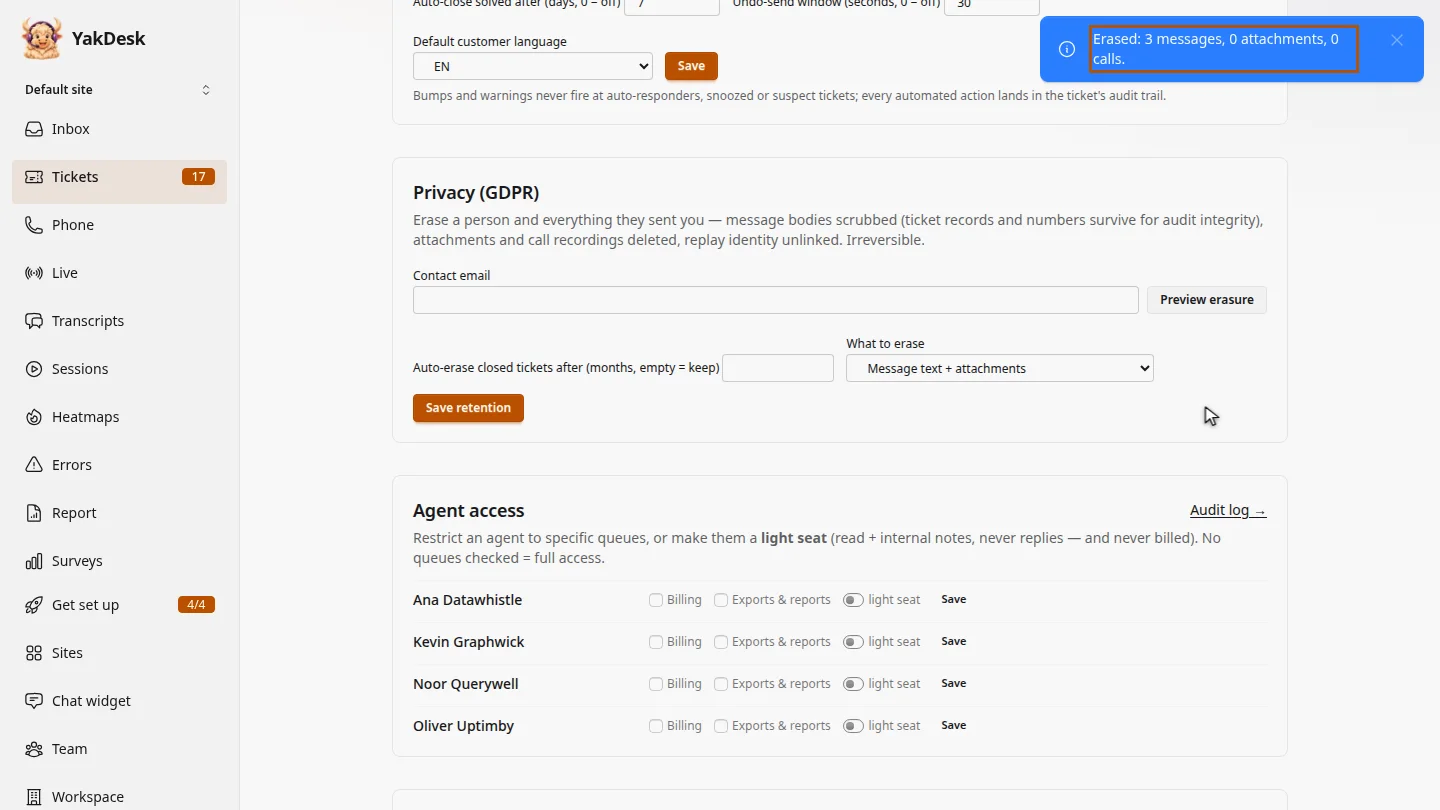
In Type the email to confirm, enter the email again, then select Erase forever. A message confirms how much was erased.
Next steps
Updated 2026-11-09
gdpr right to be forgotten delete customer data data subject request privacy ccpa