
How to export an activity report in YakDesk
The activity report adds up recorded sessions, chats and frustration signals for a date range. Export it as a CSV to share with your team or a client, or keep it with your monthly numbers.
Plays silently with captions; the narrated version is on its way.
Transcript
Download your activity numbers as a spreadsheet.
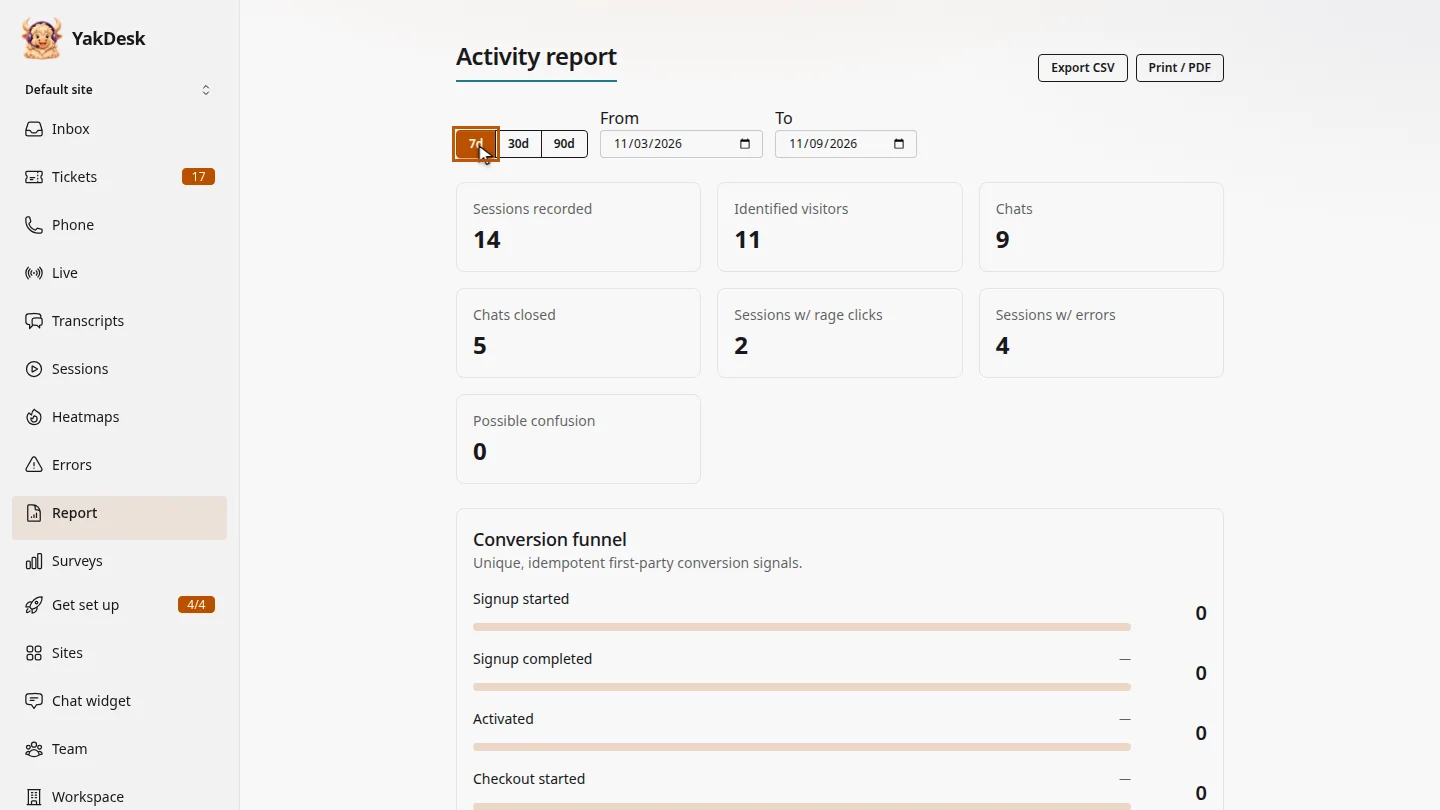
Open Report. Choose a quick range like 7 days, or set From and To.
Select Export CSV. The report for those dates downloads as a CSV file.
Steps
Choose the dates ▶ 0:04
In the sidebar, select Report. Select 7d, 30d or 90d, or set From and To.
Export it ▶ 0:10
Select Export CSV. The file downloads with the report for the chosen dates.
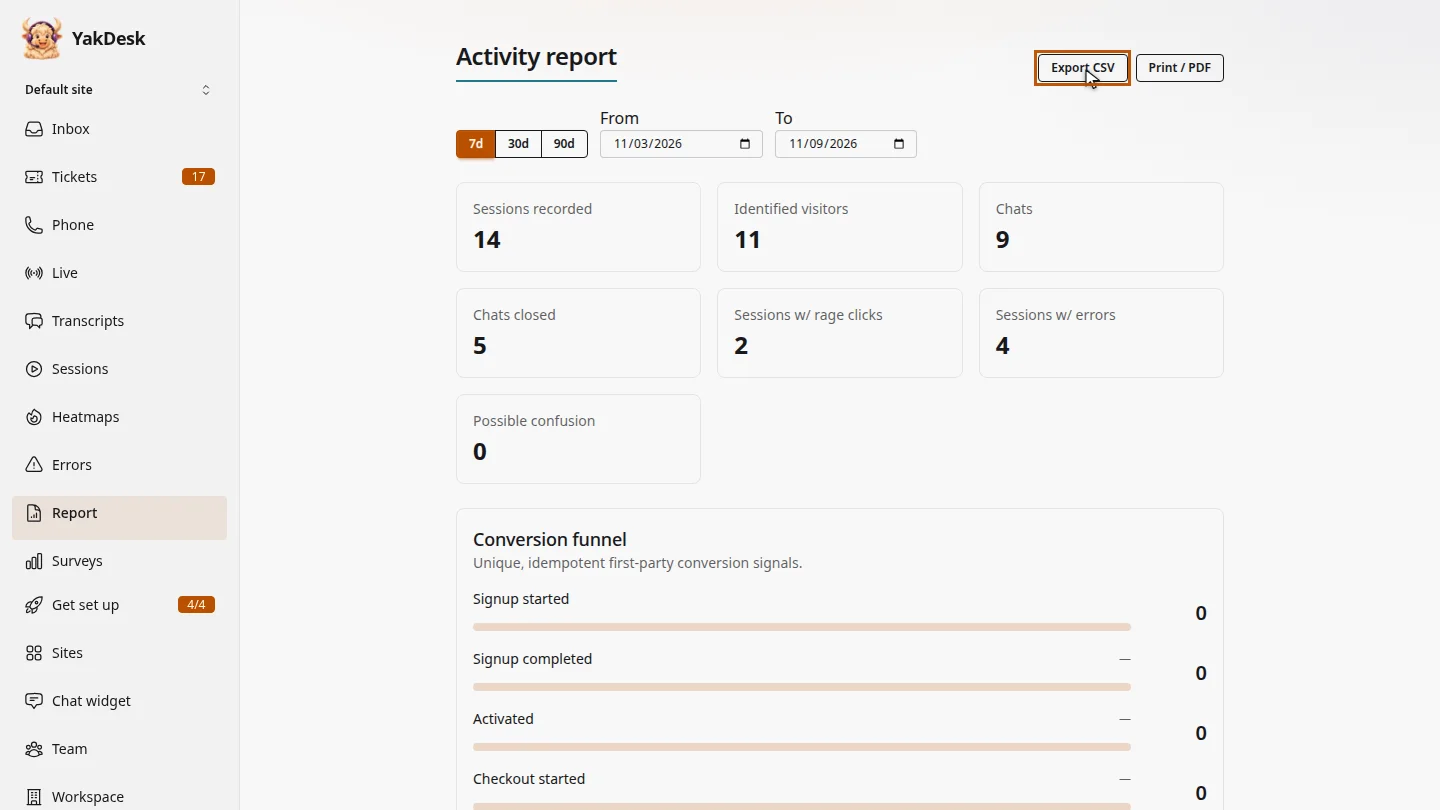
ResultA CSV of the report for the dates you chose downloads to your computer.
Next steps
Updated 2026-11-09
activity report csv download report monthly report client report