
How to forward a ticket thread in YakDesk
Some problems need someone outside your team, such as your email provider or a contractor. Forwarding sends them the customer-visible conversation, and their replies come back to the ticket as internal notes, so the customer never sees the back-and-forth.
Before you start
- A Growth or Agency plan (tickets are included)
Plays silently with captions; the narrated version is on its way.
Transcript
Send a ticket's conversation to someone outside your team, and keep their answers on the ticket.
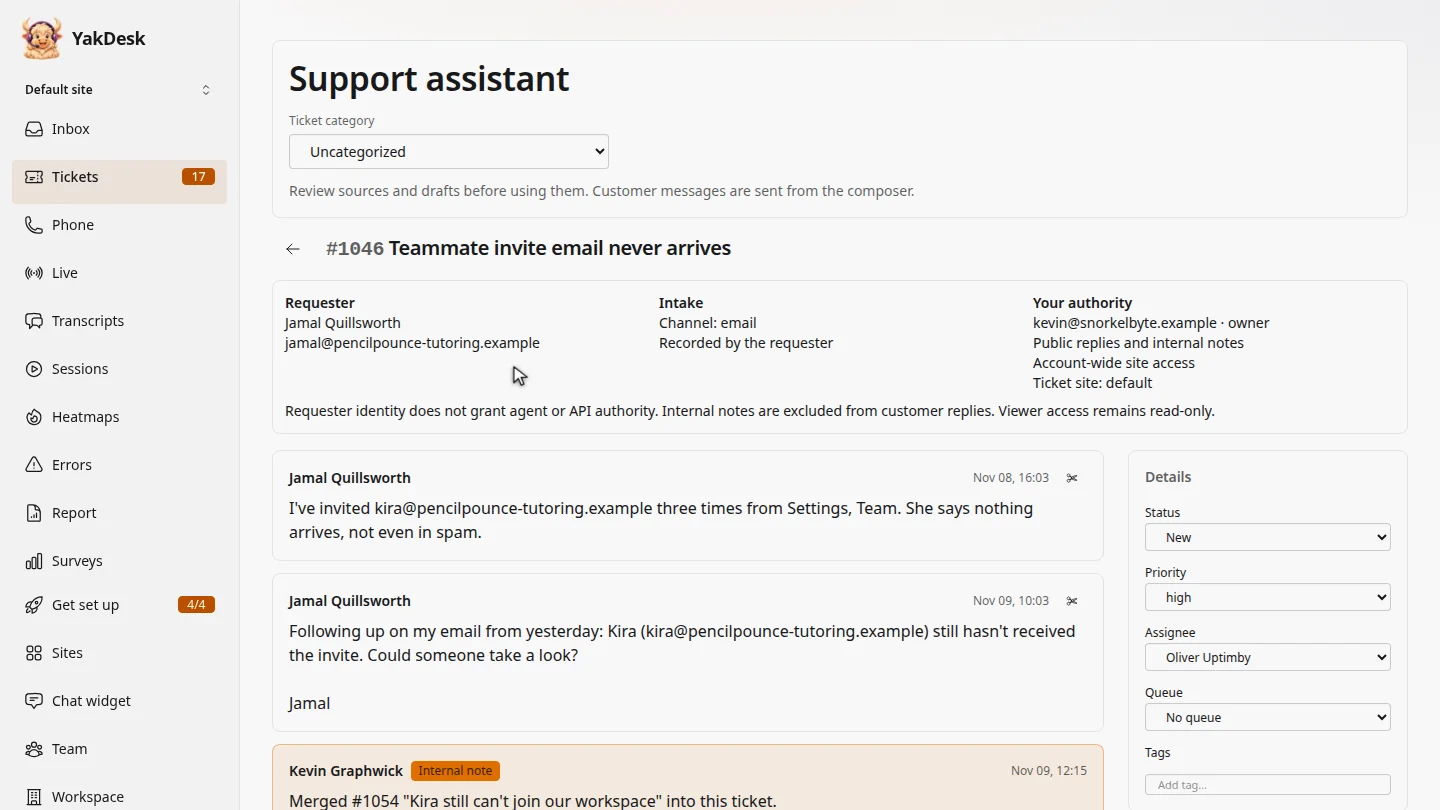
In Tickets, open the ticket. Jamal's invite emails aren't arriving, so your email provider needs to look.
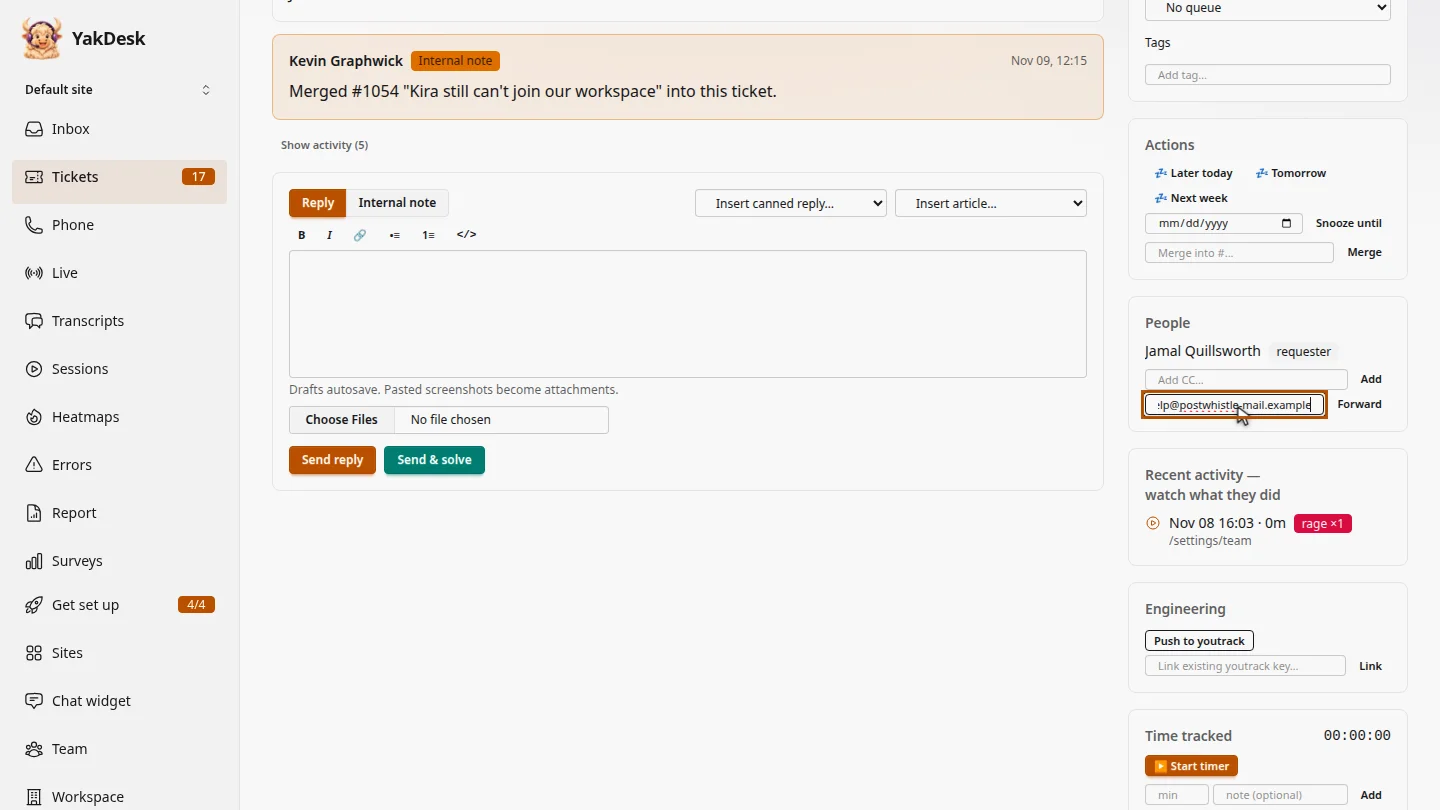
Under People, type their address in Forward thread to.
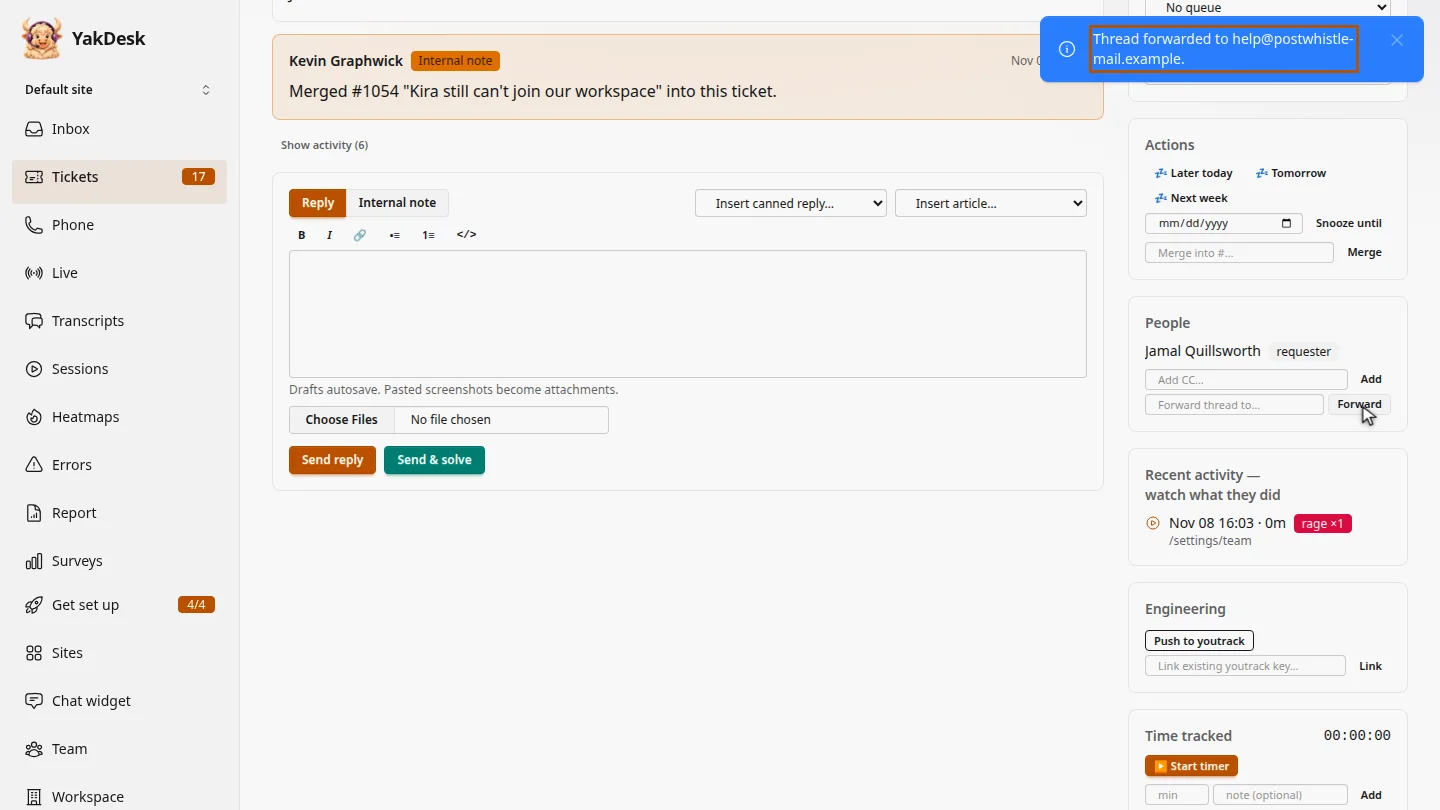
Select Forward and confirm. They get the customer-visible messages, never your internal notes. When they reply, it lands here as an internal note.
Steps
Open the ticket ▶ 0:08
In the sidebar, select Tickets, then select the ticket's subject. Find People.
Enter their address ▶ 0:16
Under People, type the email address in Forward thread to….
Forward ▶ 0:20
Select Forward, then confirm. YakDesk shows Thread forwarded to and the address.
Next steps
Updated 2026-11-09
forward ticket escalate to vendor send thread outside help