
How to inspect a page heatmap in YakDesk
One replay shows one visitor. A heatmap adds up every recorded visit to a page, so you can see which buttons draw the clicks and how far people scroll before they stop reading.
Before you start
- The session recorder installed with
captureMode: "replay", so pages are captured
Plays silently with captions; the narrated version is on its way.
Transcript
See where visitors click on a page, and how far down they scroll.
Open Heatmaps and pick a page from the list. Pages are listed with how many recorded views they have.
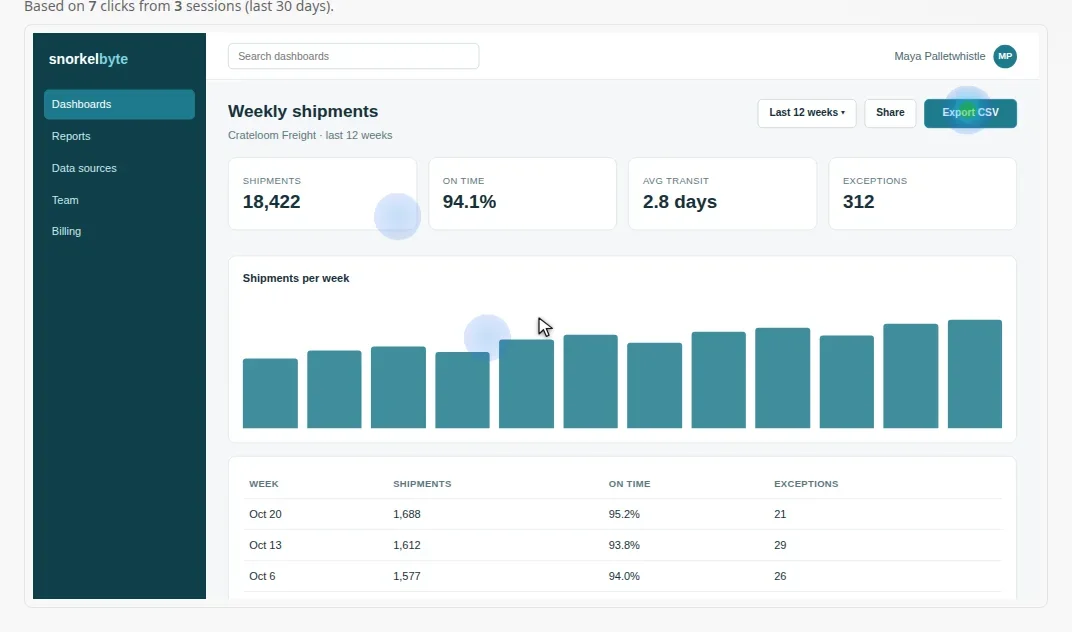
Clicks are drawn over the recorded page. The line above it says how many clicks and sessions it's based on. The hottest spot here is the Export CSV button, which one visitor clicked again and again.
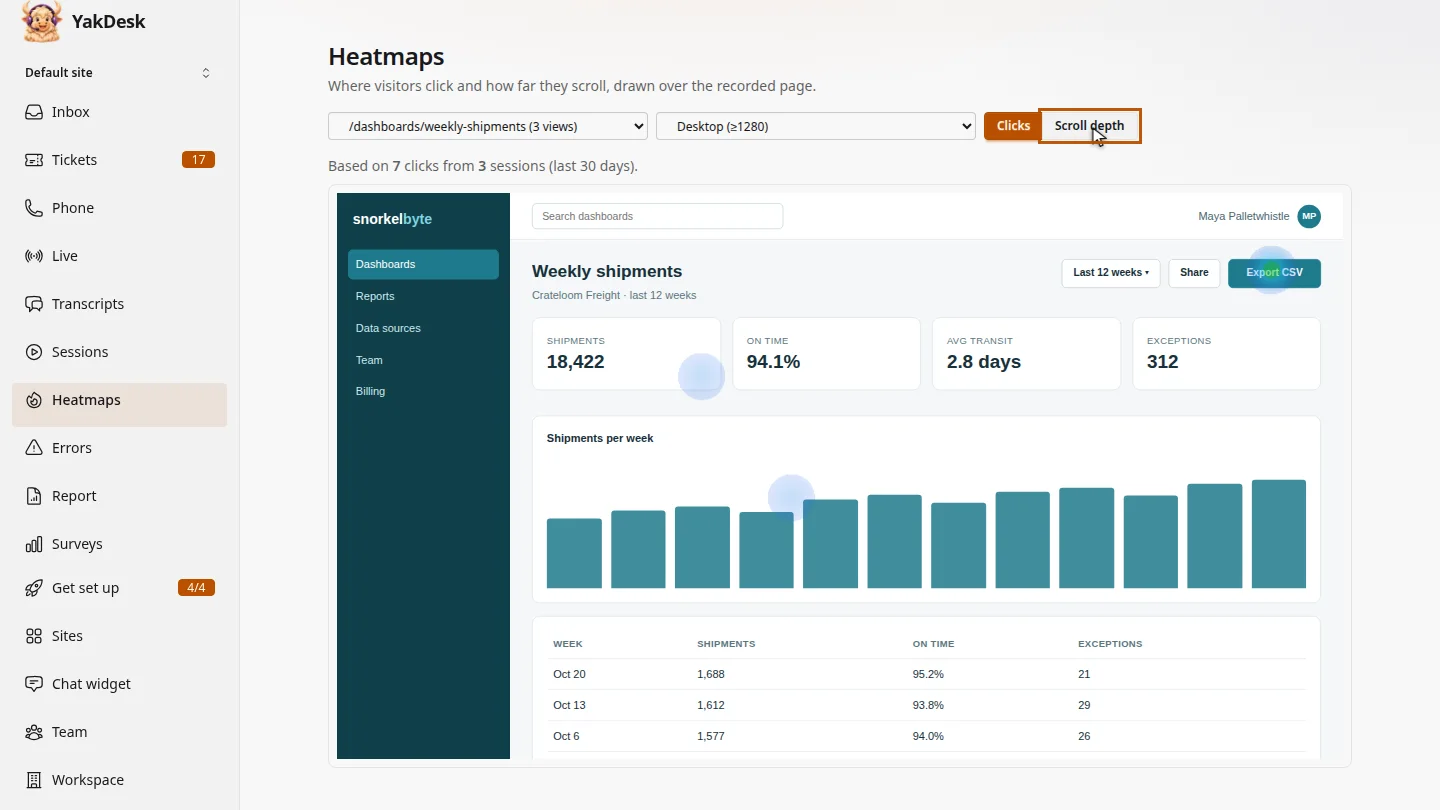
To see how far down the page visitors read before they stopped, switch to Scroll depth.
Steps
Pick a page ▶ 0:06
In the sidebar, select Heatmaps. In the page list, choose the page. Keep Desktop (≥1280), or choose another screen size.
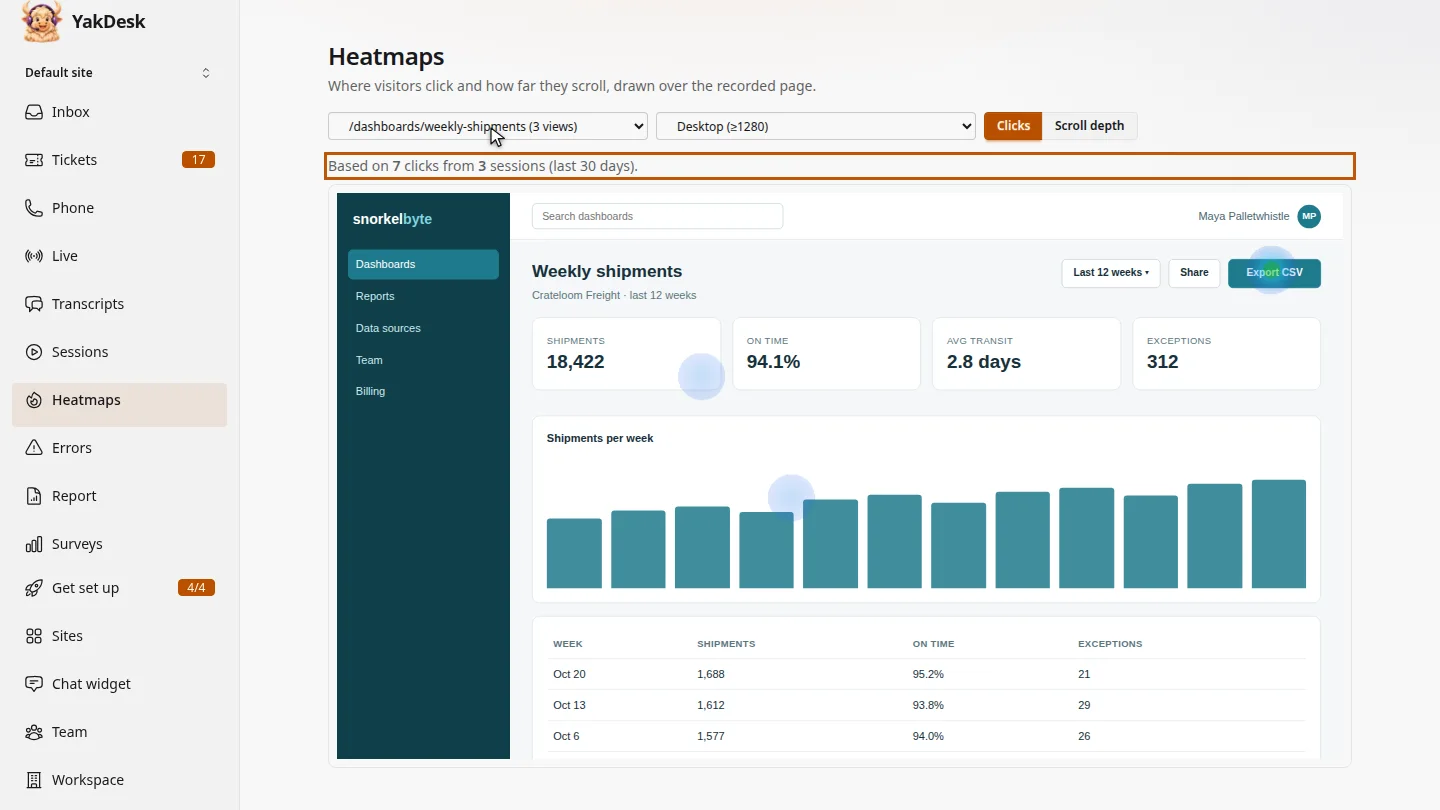
Read the click map ▶ 0:13
With Clicks selected, the brightest areas got the most clicks. The line above the page says how many clicks and sessions it's based on.
Switch to scroll depth ▶ 0:28
Optional: select Scroll depth to see how far down the page visitors scrolled.
Next steps
Updated 2026-11-09
click map scroll map heat map where users click scroll depth