
How to review ticket audit events in YakDesk
When someone asks who changed a ticket, or when, the audit log has the answer. It records every status change, assignment, reply and note with the person who made it.
Before you start
- The admin or owner role
Plays silently with captions; the narrated version is on its way.
Transcript
Find out who changed a ticket, what they changed, and when.
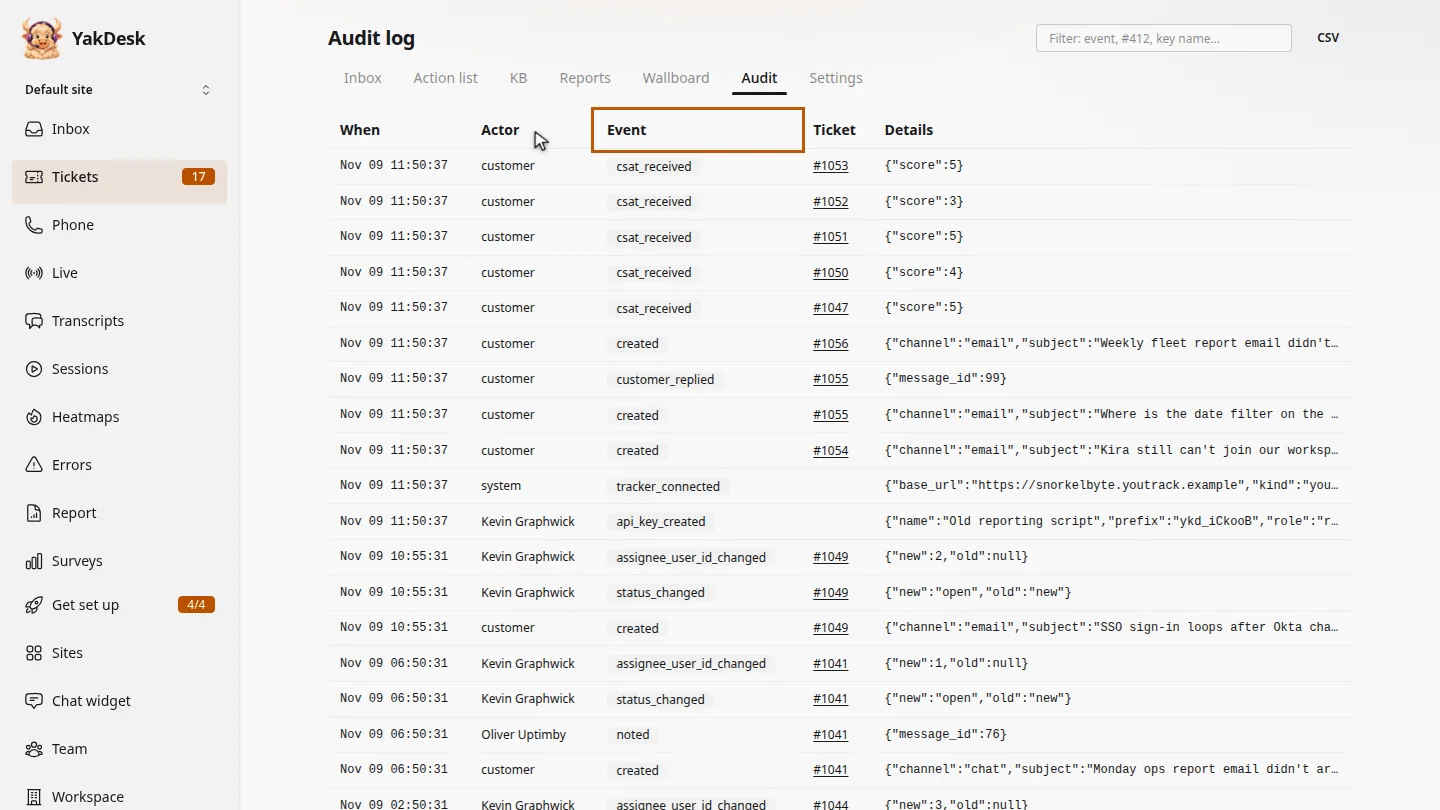
In Tickets, open the Audit tab. Each row is one change: when it happened, who made it, what the event was, and which ticket it belongs to.
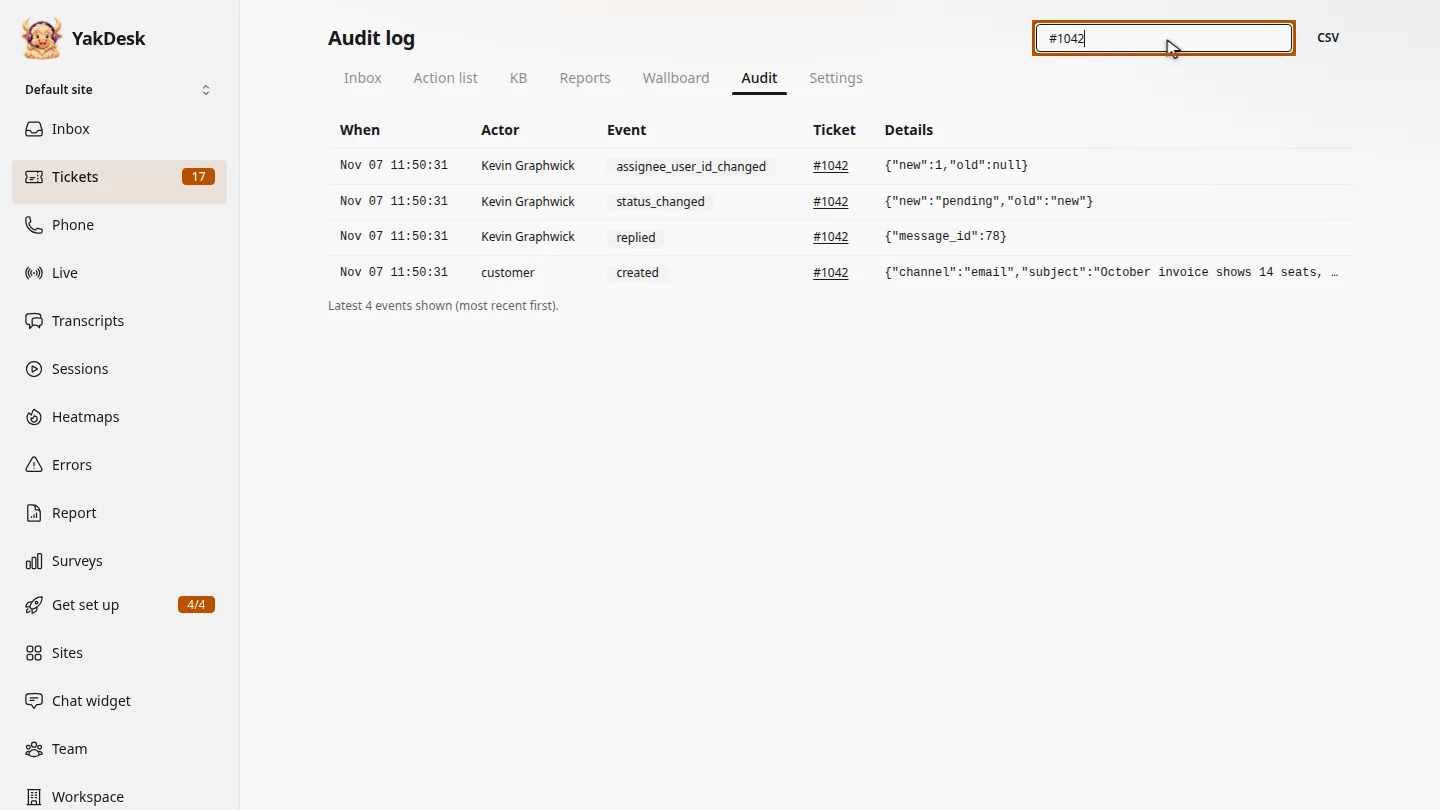
To see one ticket's history, type its number in the filter box. You can also filter by an event name, such as status changed.
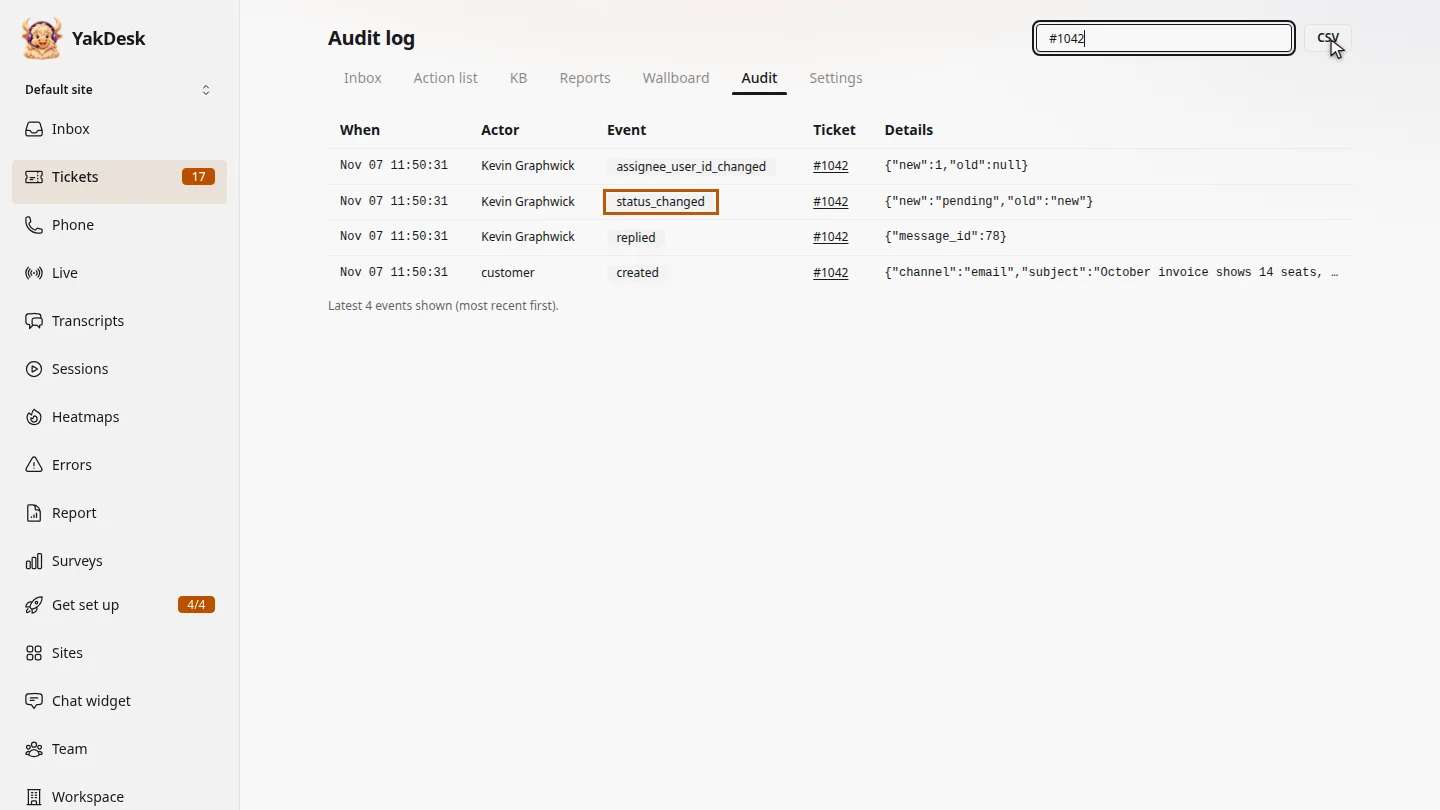
Here, Kevin assigned the ticket, set it to pending, and replied. Details shows the old and new values. Select CSV to download the log.
Steps
Open the audit log ▶ 0:05
In Tickets, select Audit. Each row shows When, Actor, Event, Ticket and Details.
Filter to one ticket ▶ 0:15
In the filter box, enter a ticket number such as #1042, an event name, or a key name.
Read or export the history ▶ 0:25
Read the events from newest to oldest. Details shows the old and new values. Select CSV to download the log.
Next steps
Updated 2026-11-09
audit trail ticket history who changed ticket activity log compliance