
How to save a ticket view in YakDesk
If you run the same ticket search every morning, such as high-priority open tickets, saving it as a view turns it into one button above the list. Shared views show up for the whole team.
Before you start
- A Growth or Agency plan (tickets are included)
Plays silently with captions; the narrated version is on its way.
Transcript
Turn a ticket search you use often into a one-click view.
In Tickets, type your search in the search box and press Enter. Here: open tickets with high priority. The list shows only the tickets that match.
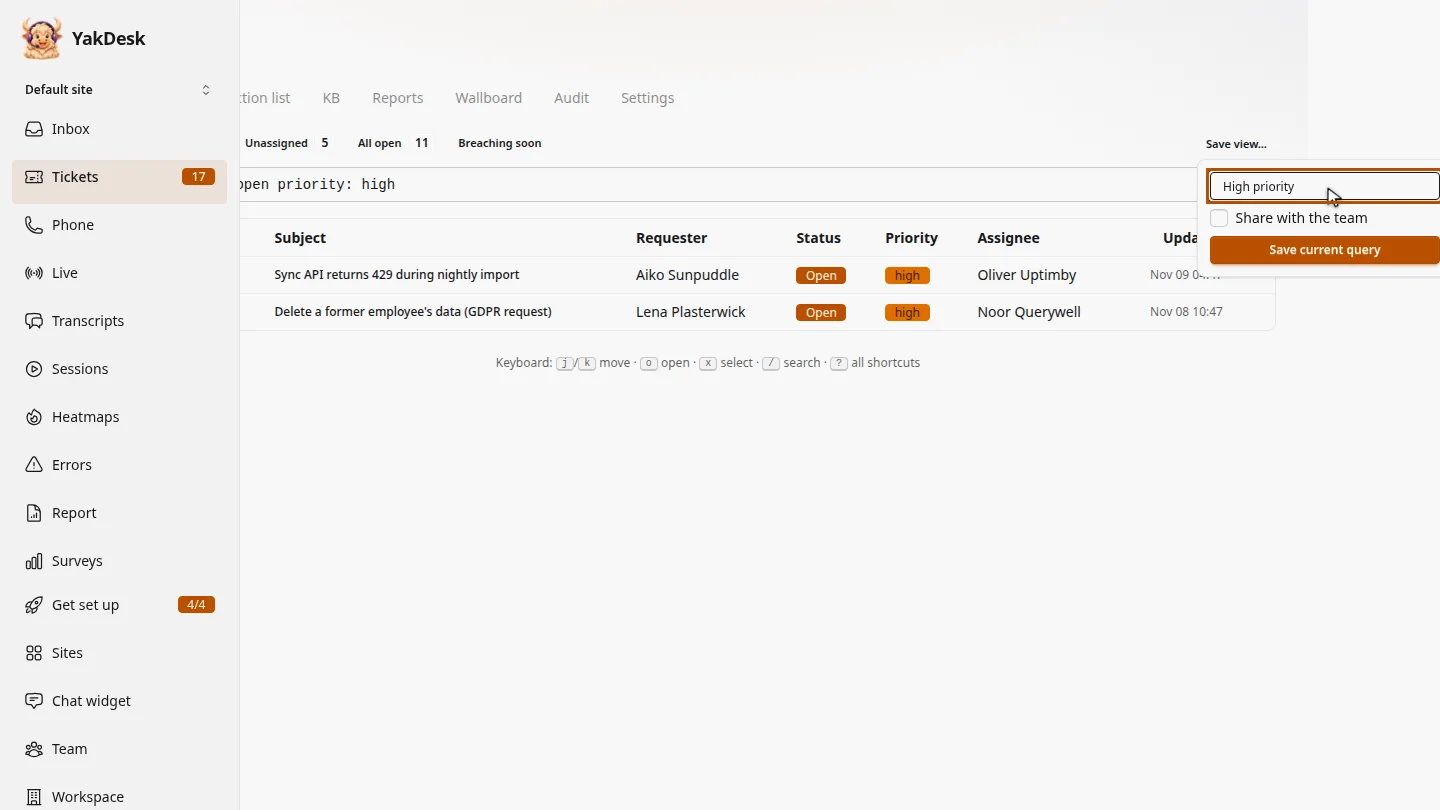
Select Save view, then type a name your team will recognise, such as High priority.
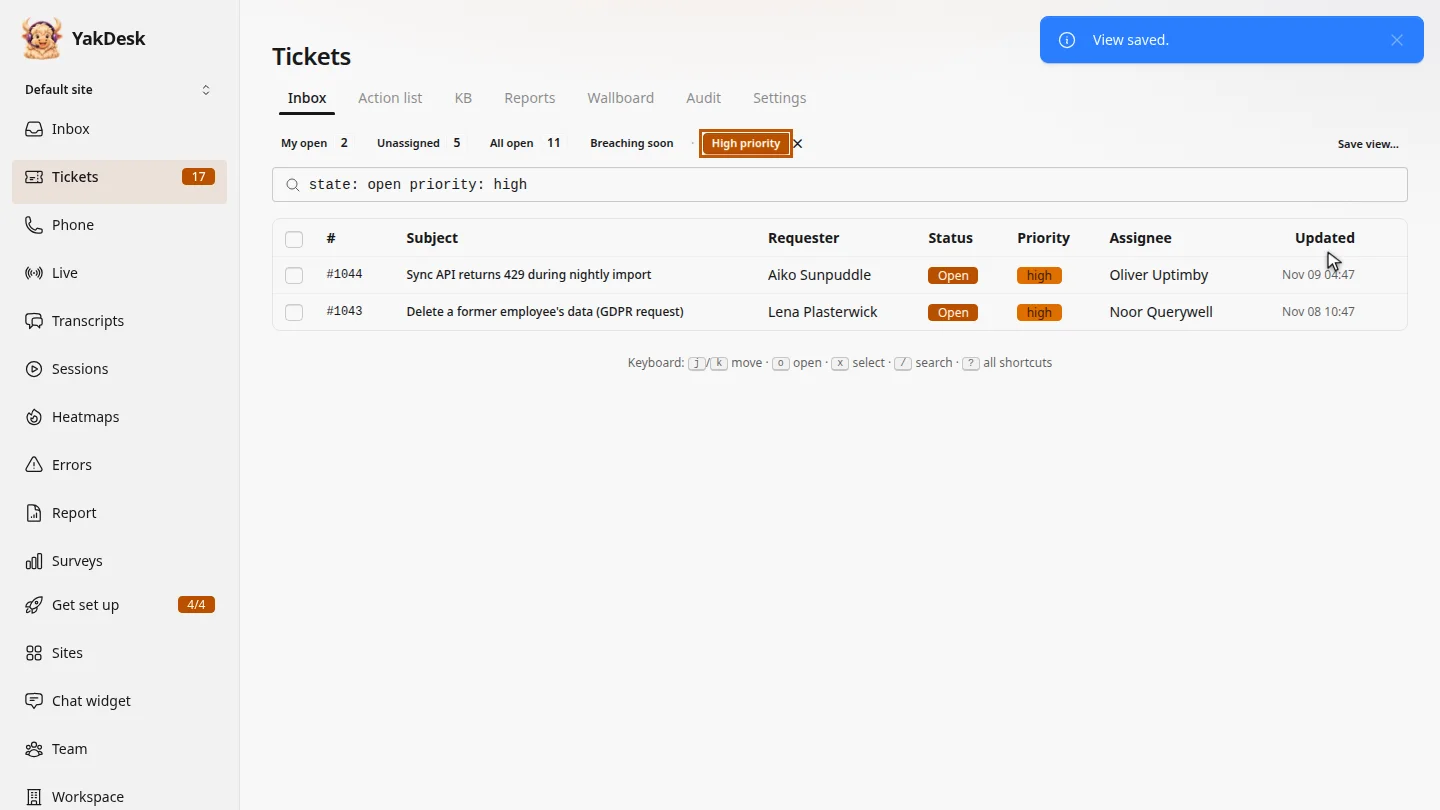
Select Share with the team, then Save current query. The view appears next to My open and the other built-in views, with its ticket count, for everyone on the team.
Steps
Search for the tickets ▶ 0:05
In the sidebar, select Tickets. In the search box, type your query, such as
state: open priority: high, and press Enter.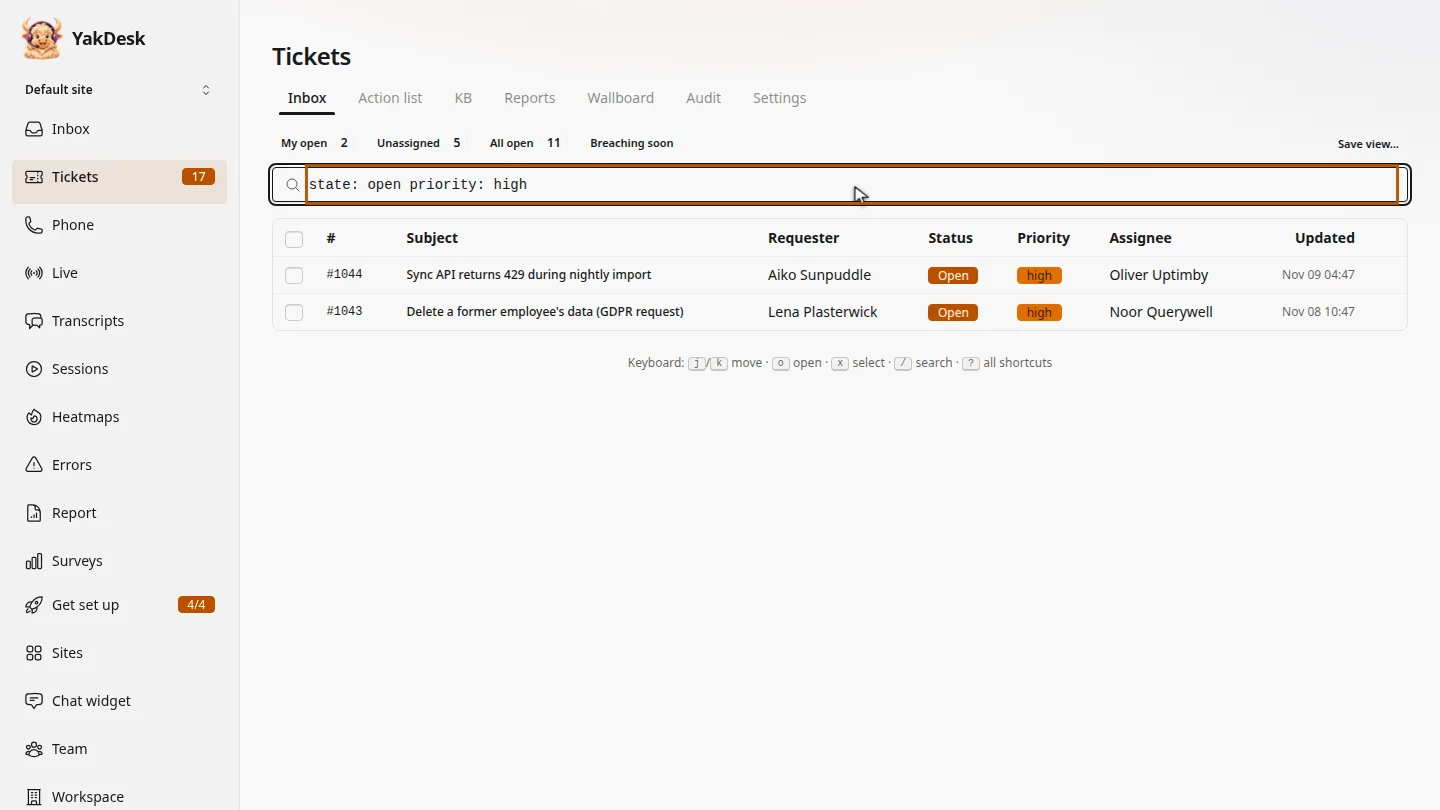
Name the view ▶ 0:16
Select Save view… and type a View name.
Save it ▶ 0:22
Select Share with the team, then Save current query. The view appears above the list.
Next steps
Updated 2026-11-09
saved search ticket filter custom view queue view