
How to track time on a ticket in YakDesk
If you bill clients for support or want to know where your team's hours go, you need the time spent on each ticket. YakDesk can time you while you work, or you can add time afterwards.
Before you start
- A Growth or Agency plan (tickets are included)
Plays silently with captions; the narrated version is on its way.
Transcript
Record how long a ticket takes, with a timer or by adding minutes.
In Tickets, open the ticket you're working on, and find Time tracked in the side panel.
Select Start timer. A clock appears and starts counting while you work on the ticket, so you don't have to note the time.
When you're done, select Stop. The time is saved as an entry.
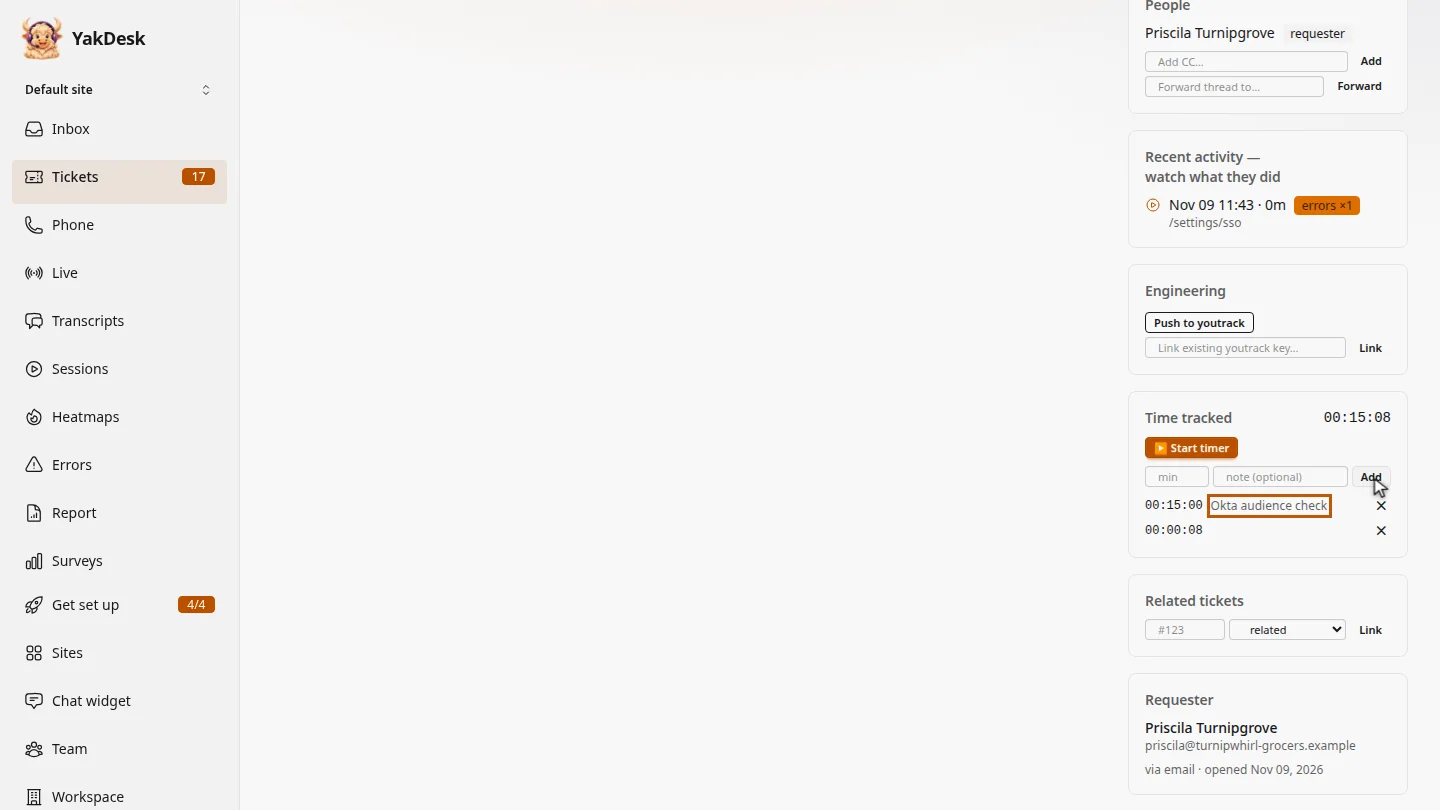
For work you did earlier, type the minutes and a note, then select Add. The total updates.
Steps
Open the ticket ▶ 0:06
In the sidebar, select Tickets, then select the ticket's subject. Find Time tracked.
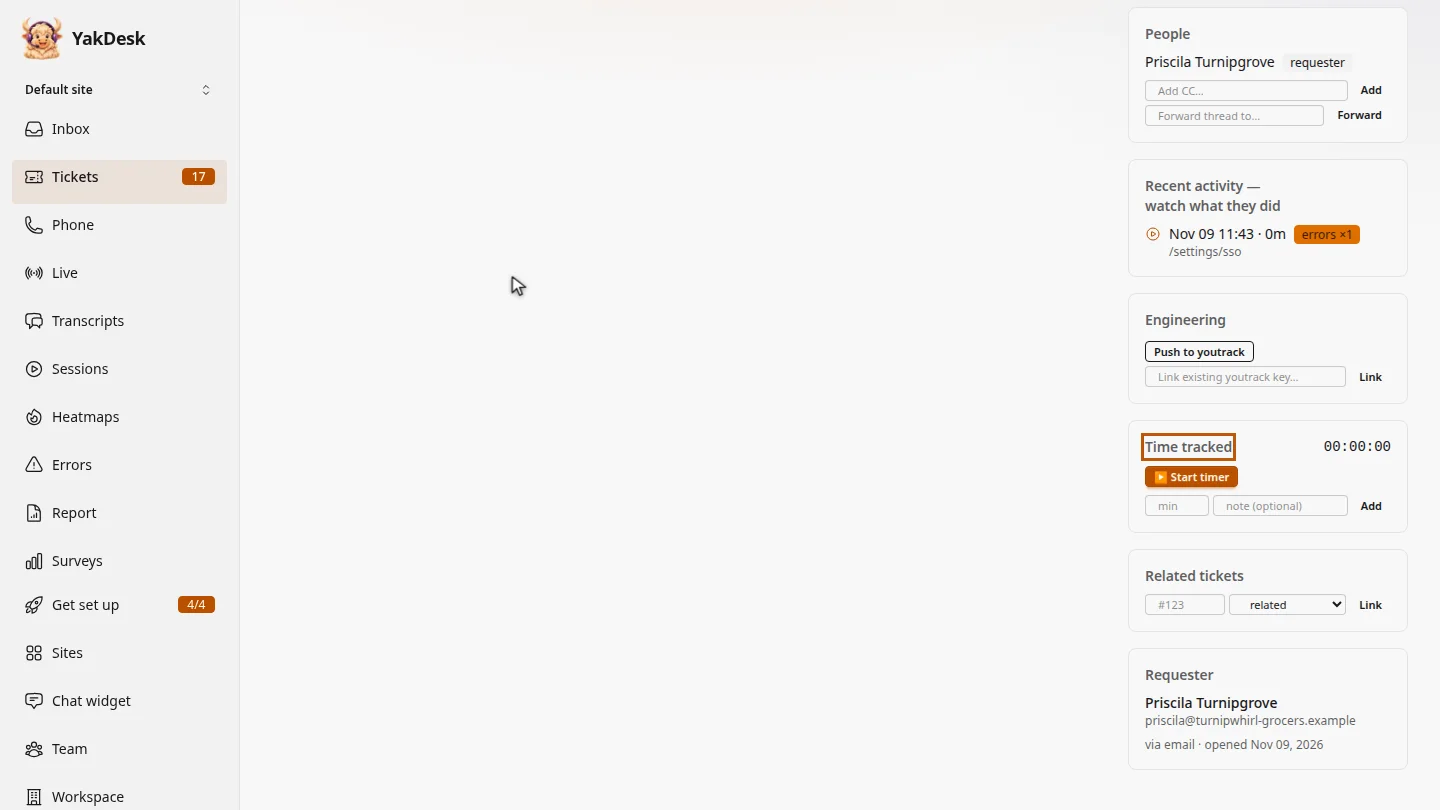
Start the timer ▶ 0:12
Select ▶ Start timer. A running clock appears.
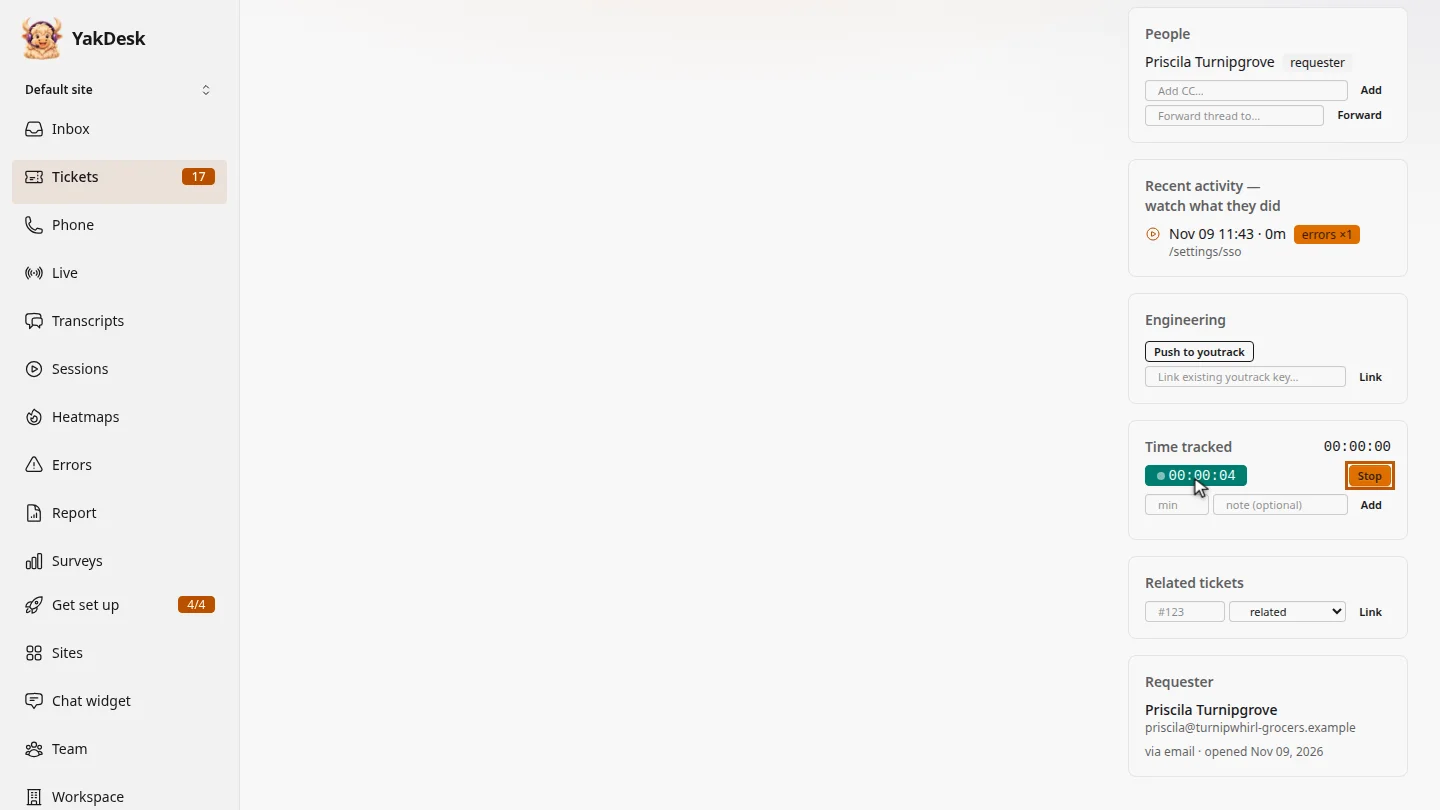
Stop the timer ▶ 0:21
Select Stop. The time is saved as an entry and added to the total.
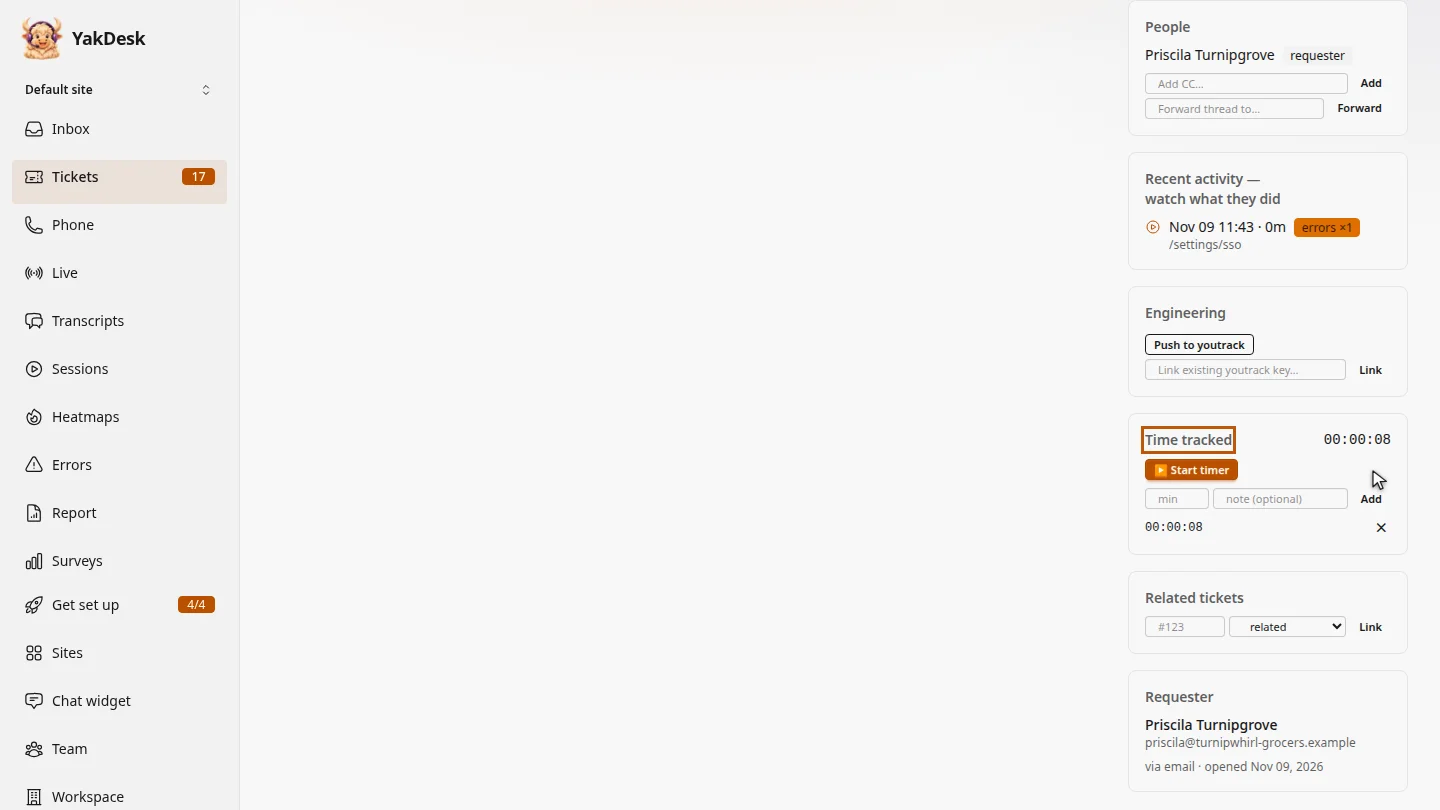
Add time afterwards ▶ 0:26
Optional: type the minutes in min and a note in note (optional), then select Add.
Next steps
Updated 2026-11-09
time tracking timer log hours billable time