
How to add a ticket participant in YakDesk
Sometimes the requester isn't the only person who needs your answers, such as a manager or a privacy officer. Adding them as a CC copies them on every reply, without forwarding each email by hand.
Before you start
- A Growth or Agency plan (tickets are included)
Plays silently with captions; the narrated version is on its way.
Transcript
Copy another person on every reply to a ticket.
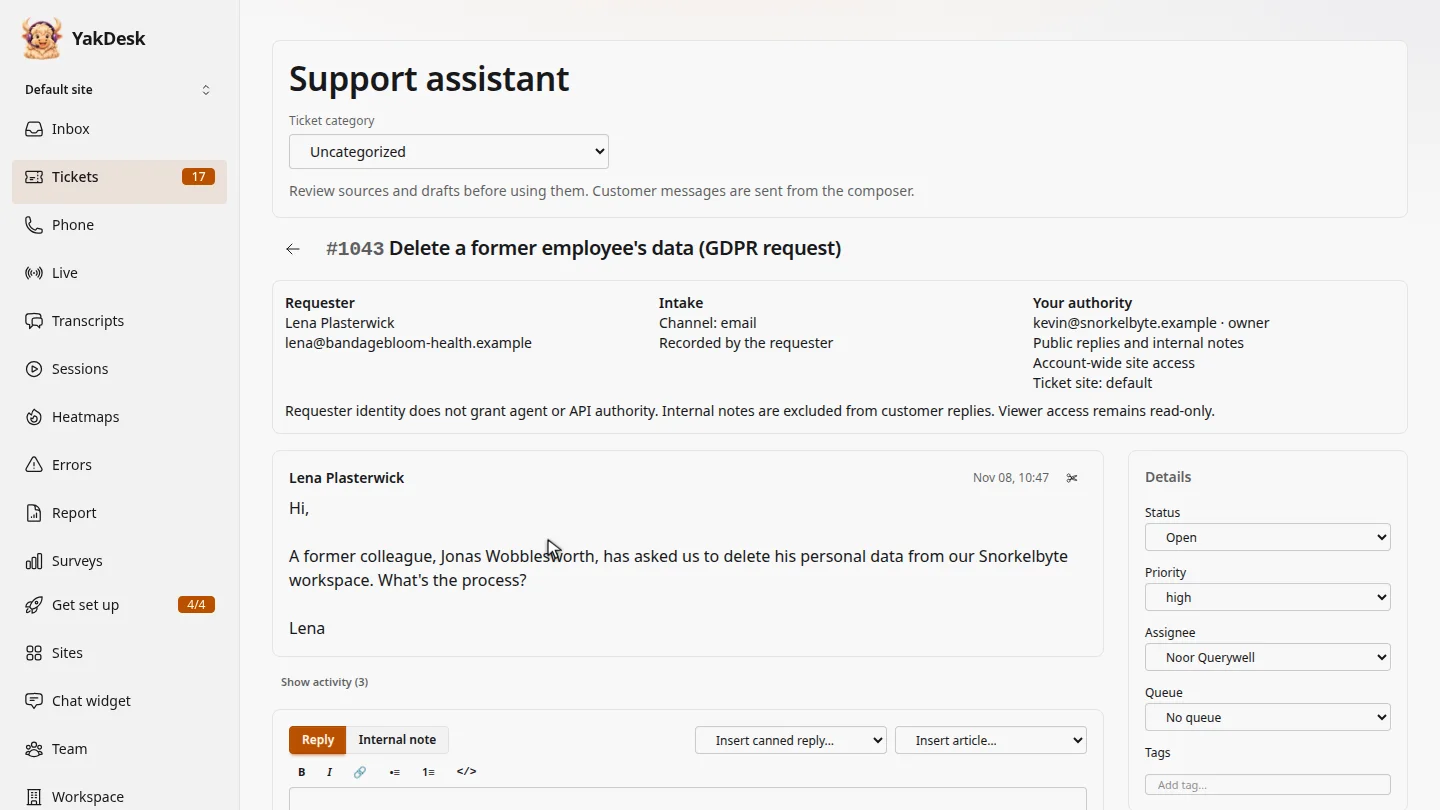
In Tickets, open the ticket, and find People in the side panel. Lena is asking how to delete a former employee's data, and her company's privacy team should see the answer too.
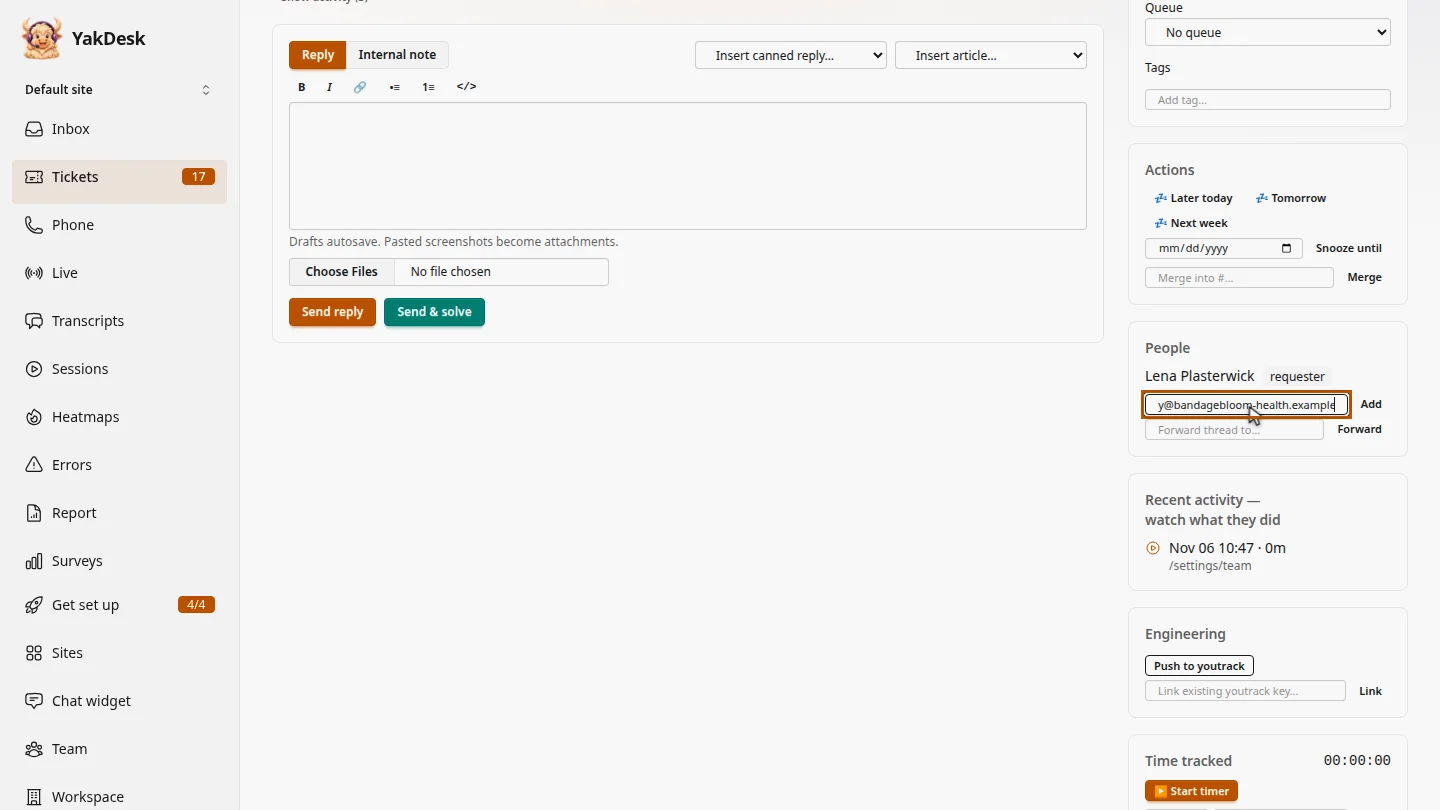
Under People, type their email address in Add CC. It can be anyone with an email address.
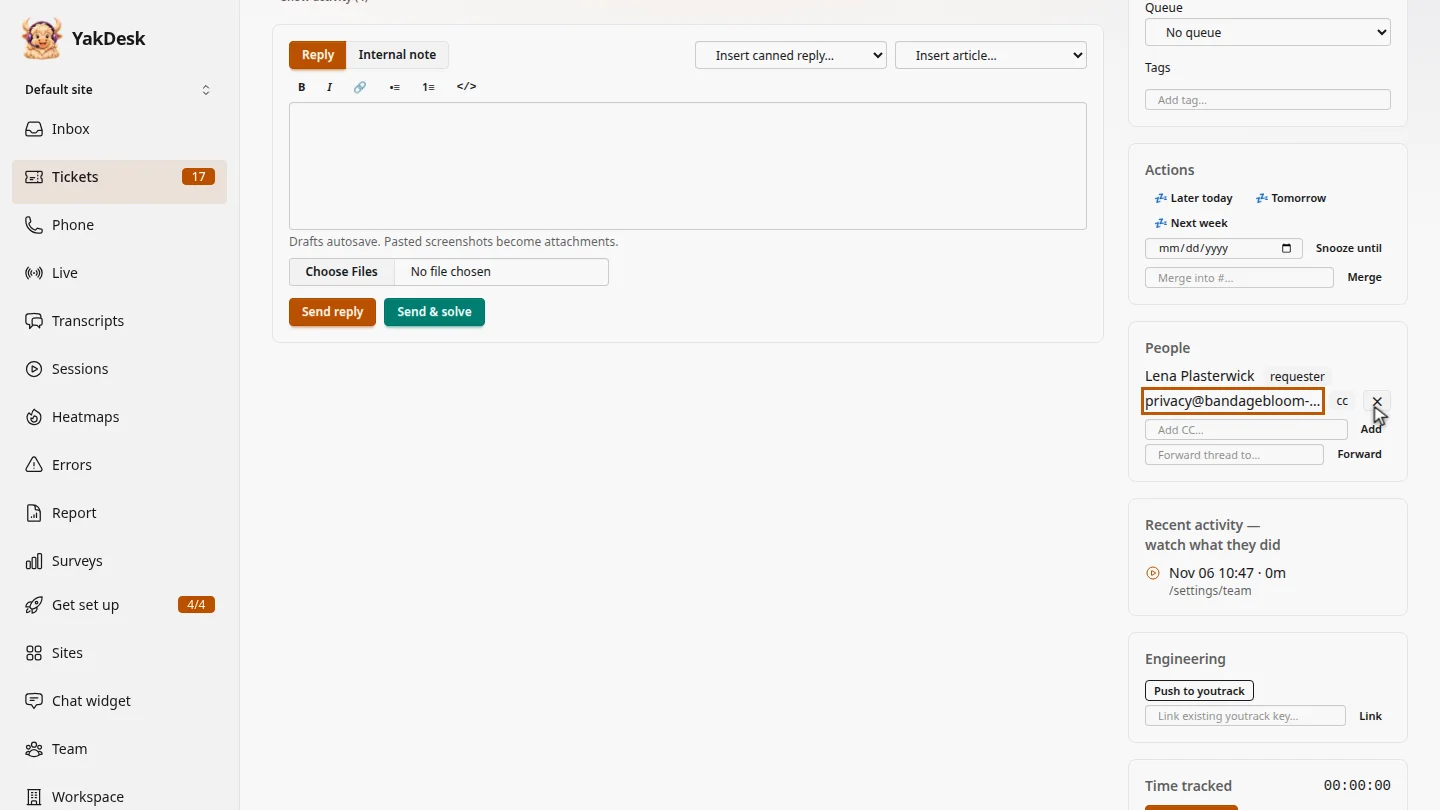
Select Add. They're listed with a cc badge. Every reply you send on this ticket now copies them, and their replies land in this thread.
Steps
Open the ticket ▶ 0:04
In the sidebar, select Tickets, then select the ticket's subject. Find People.
Enter their email ▶ 0:17
Under People, type the email address in Add CC….
Add them ▶ 0:24
Select Add. The person appears with a cc badge.
Next steps
Updated 2026-11-09
cc carbon copy add person to ticket participants