
How to cancel your YakDesk subscription
If you no longer need YakDesk, cancel from the billing page. You keep full access until the end of the period you've paid for, and you can change your mind until then.
Before you start
- An Owner or Admin role in YakDesk
- A paid YakDesk subscription
Plays silently with captions; the narrated version is on its way.
Transcript
Cancel your YakDesk subscription at the end of the period you have paid for.
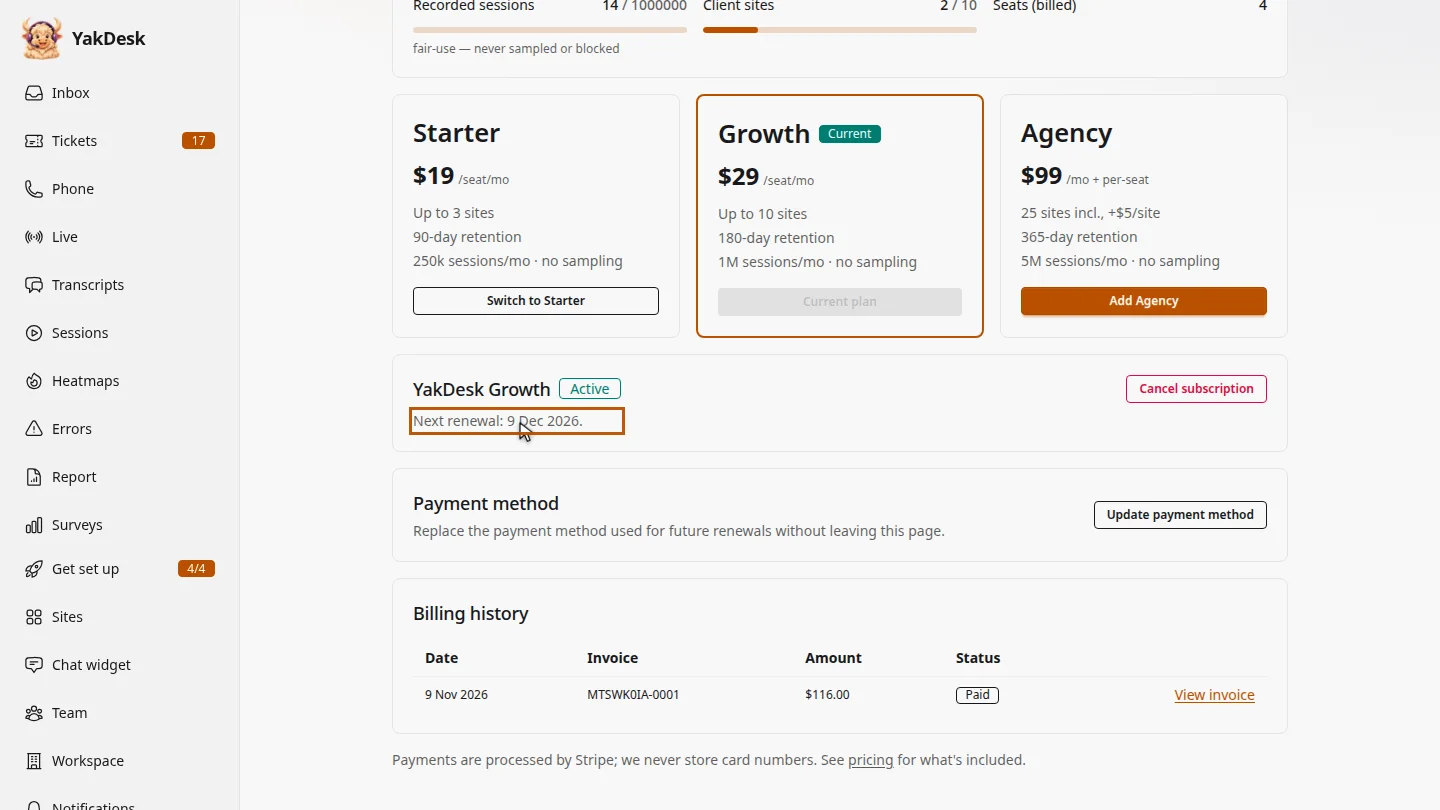
Open Billing from the sidebar and scroll to your subscription. It shows the date it next renews.
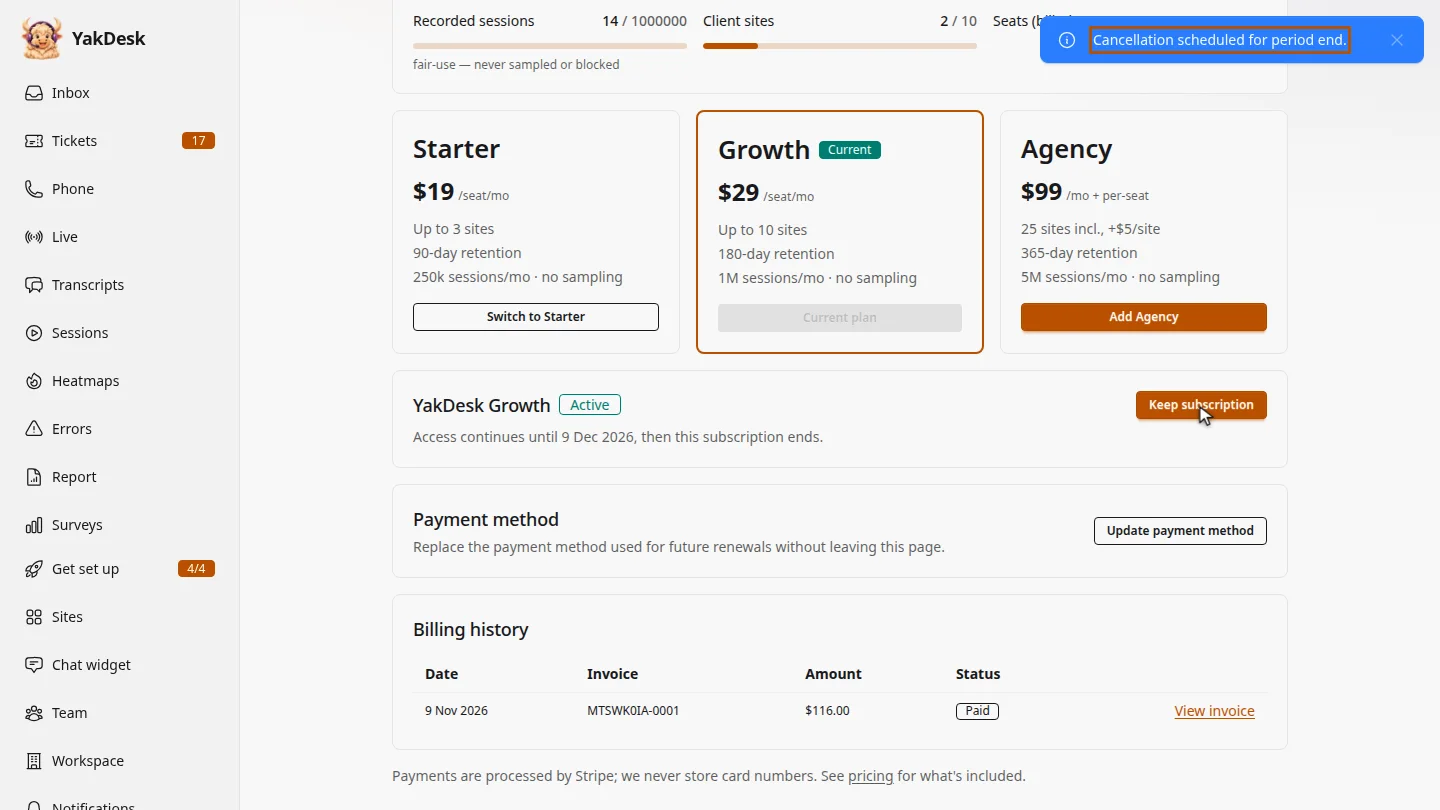
Select Cancel subscription and confirm. Nothing changes today: access continues until the end of the billing period.
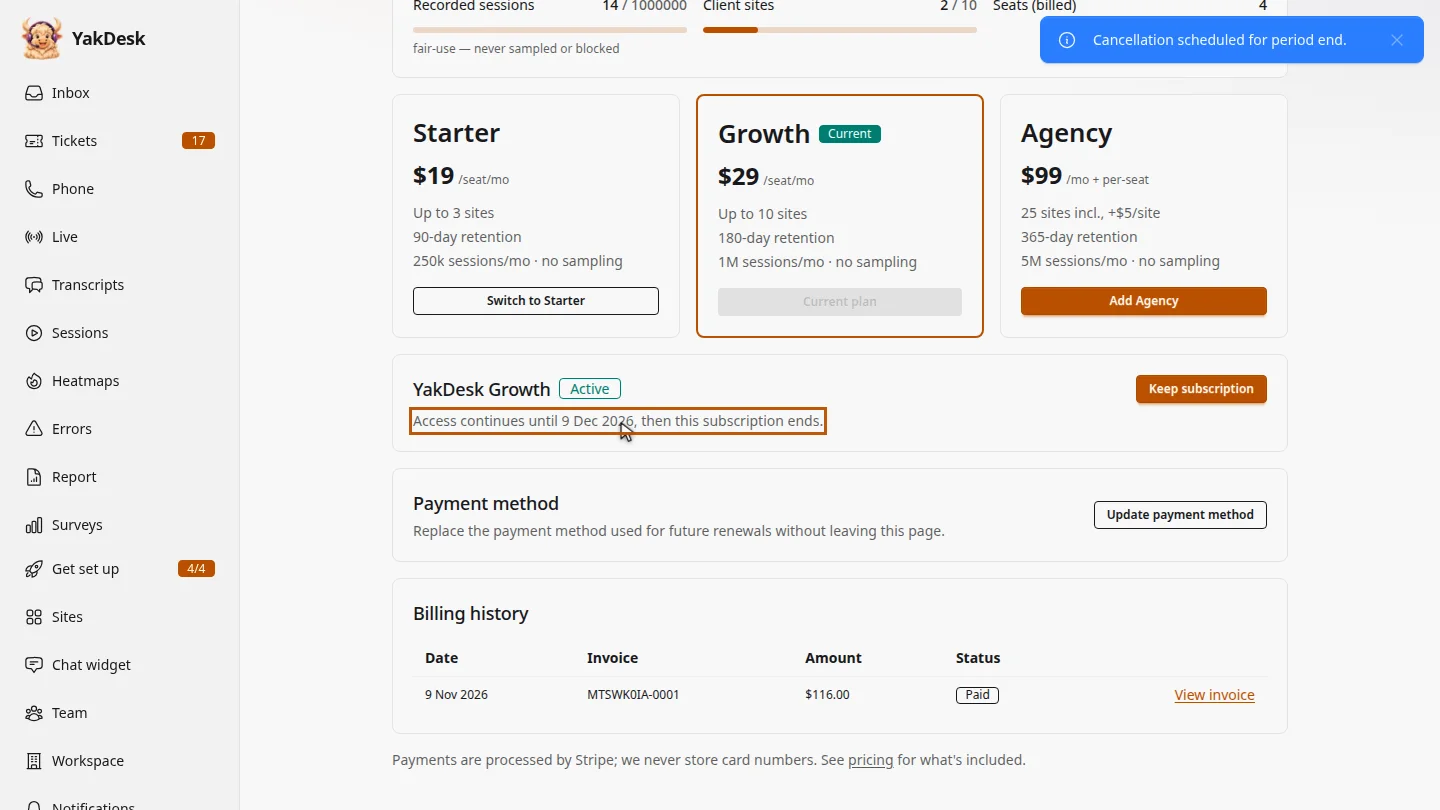
The subscription now says when your access ends. Until that date, your team keeps working as normal, and you can still change your mind and keep it.
Steps
Find your subscription ▶ 0:06
In the sidebar, select Billing. Your subscription shows its Next renewal date.
Cancel it ▶ 0:14
Select Cancel subscription, then confirm. Cancellation scheduled for period end. appears.
Check the end date ▶ 0:22
The subscription shows Access continues until the end date, then ends.
Next steps
Updated 2026-11-09
cancel plan stop billing unsubscribe end subscription downgrade