
How to change a teammate's role in YakDesk
A teammate's role decides what they can see and do. Promote a member to Admin when they start managing the desk, or move someone to Viewer when they only need to read conversations.
Before you start
- An Owner or Admin role in YakDesk
Plays silently with captions; the narrated version is on its way.
Transcript
Change what a teammate can see and do in YakDesk by changing their role.
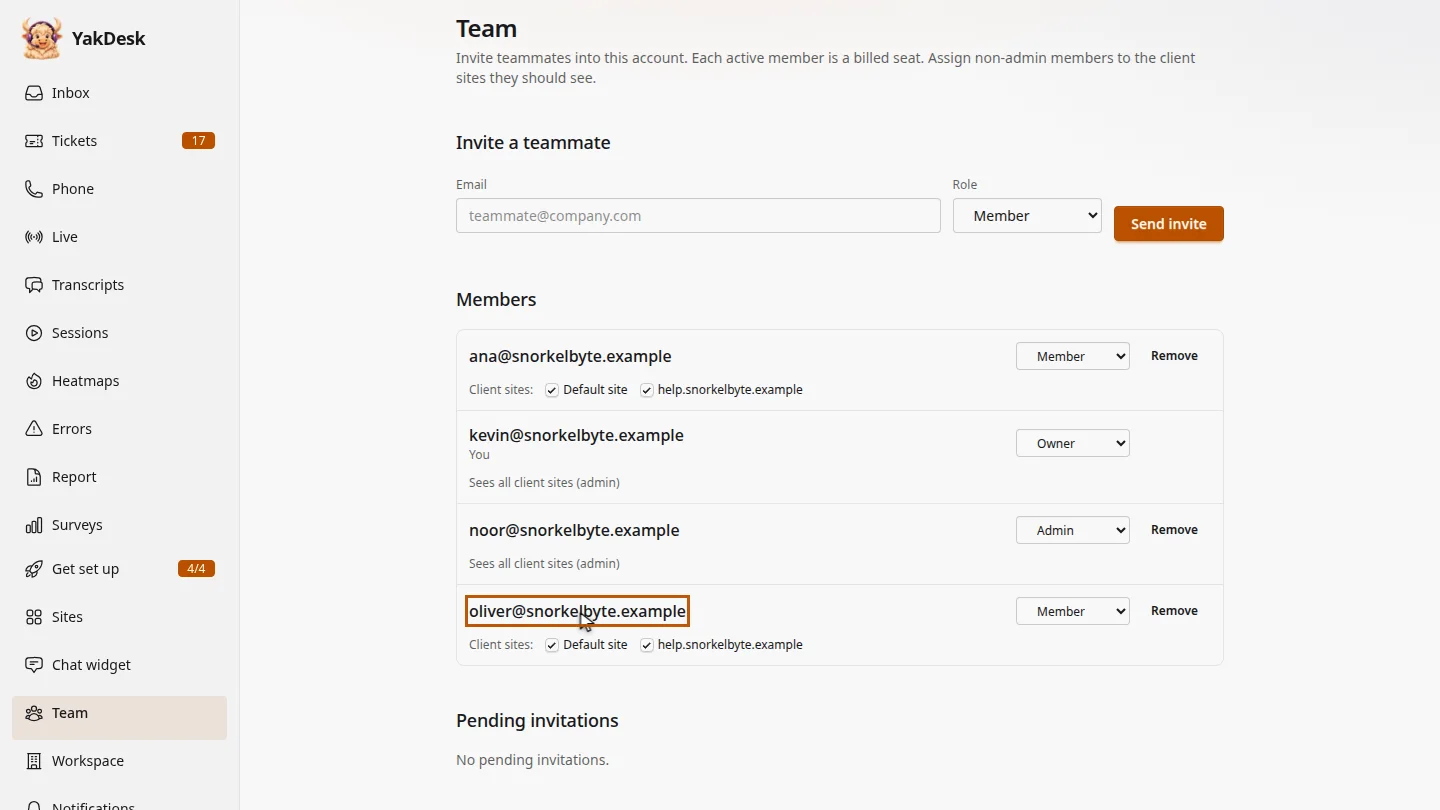
Open Team. Under Members, find your teammate. Members only see the client sites ticked under their name.
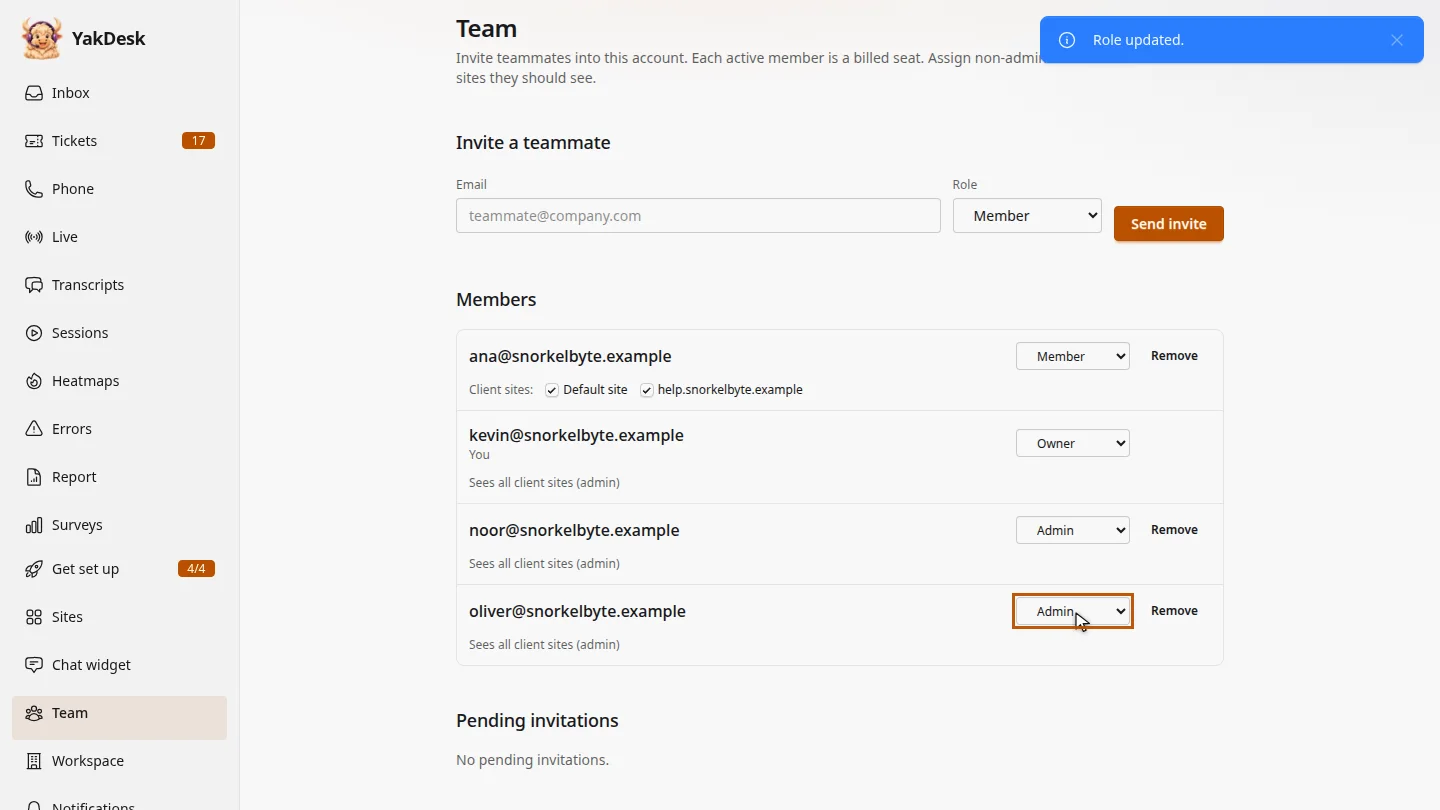
Choose a new role from the menu next to their name. Admins see every site and can manage the team, editors and members work only their assigned sites, and viewers can only read.
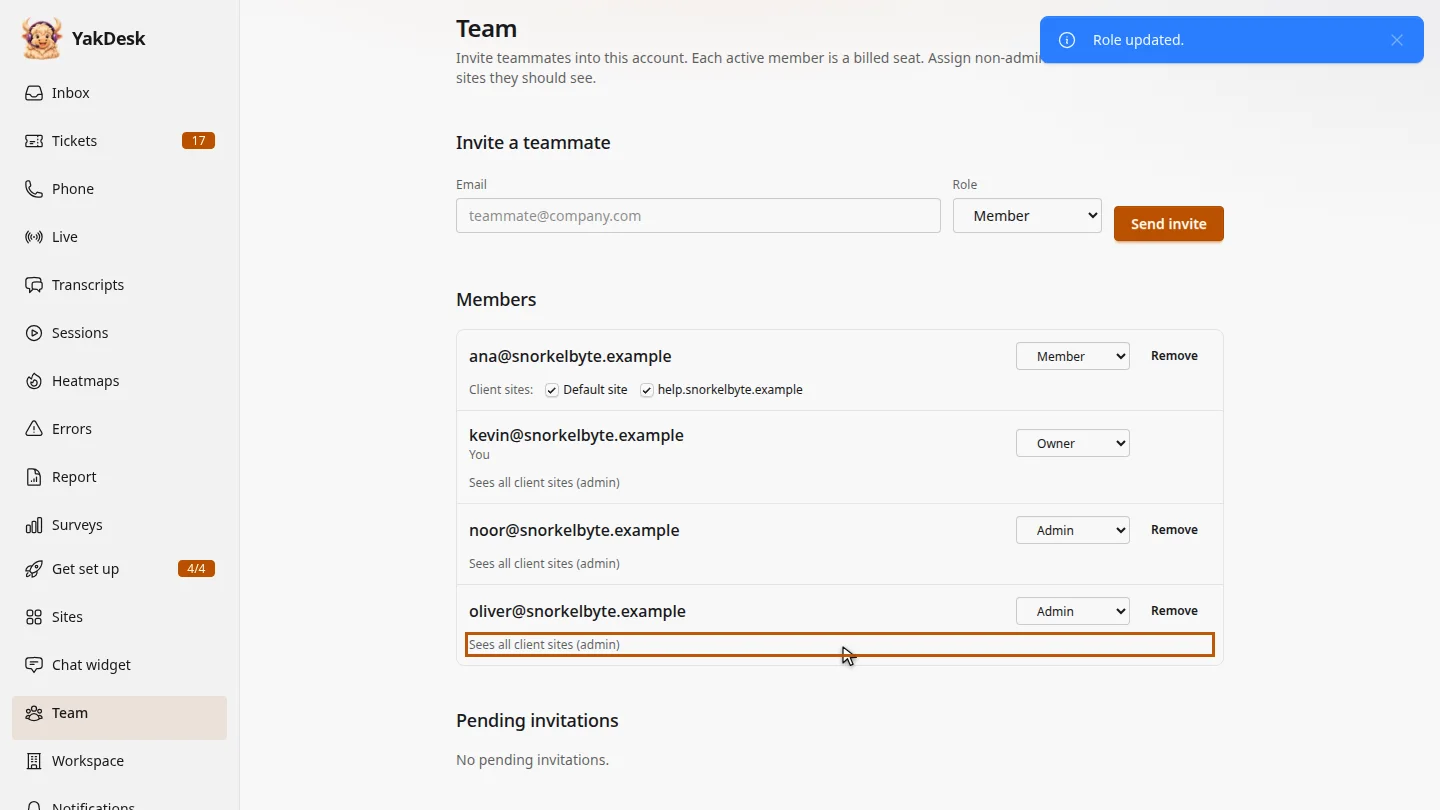
The change saves straight away. Oliver is now an admin, so his row says he sees all client sites.
Steps
Find the teammate ▶ 0:06
In the sidebar, select Team. Under Members, find the teammate.
Choose the new role ▶ 0:14
Next to their name, choose a new role. Admin sees every site and manages the team; Viewer is read-only.
Check the result ▶ 0:27
The role saves immediately. An admin's row shows Sees all client sites (admin).
Next steps
Updated 2026-11-09
permissions admin member viewer access level