
How to choose a paid plan in YakDesk
Pick the plan you'll stay on before your free trial ends, so nothing pauses when it does. During the trial you're charged nothing today: YakDesk saves your card and billing starts when the trial ends.
Before you start
- An Owner or Admin role in YakDesk
Plays silently with captions; the narrated version is on its way.
Transcript
Choose the YakDesk plan you'll stay on after your free trial.
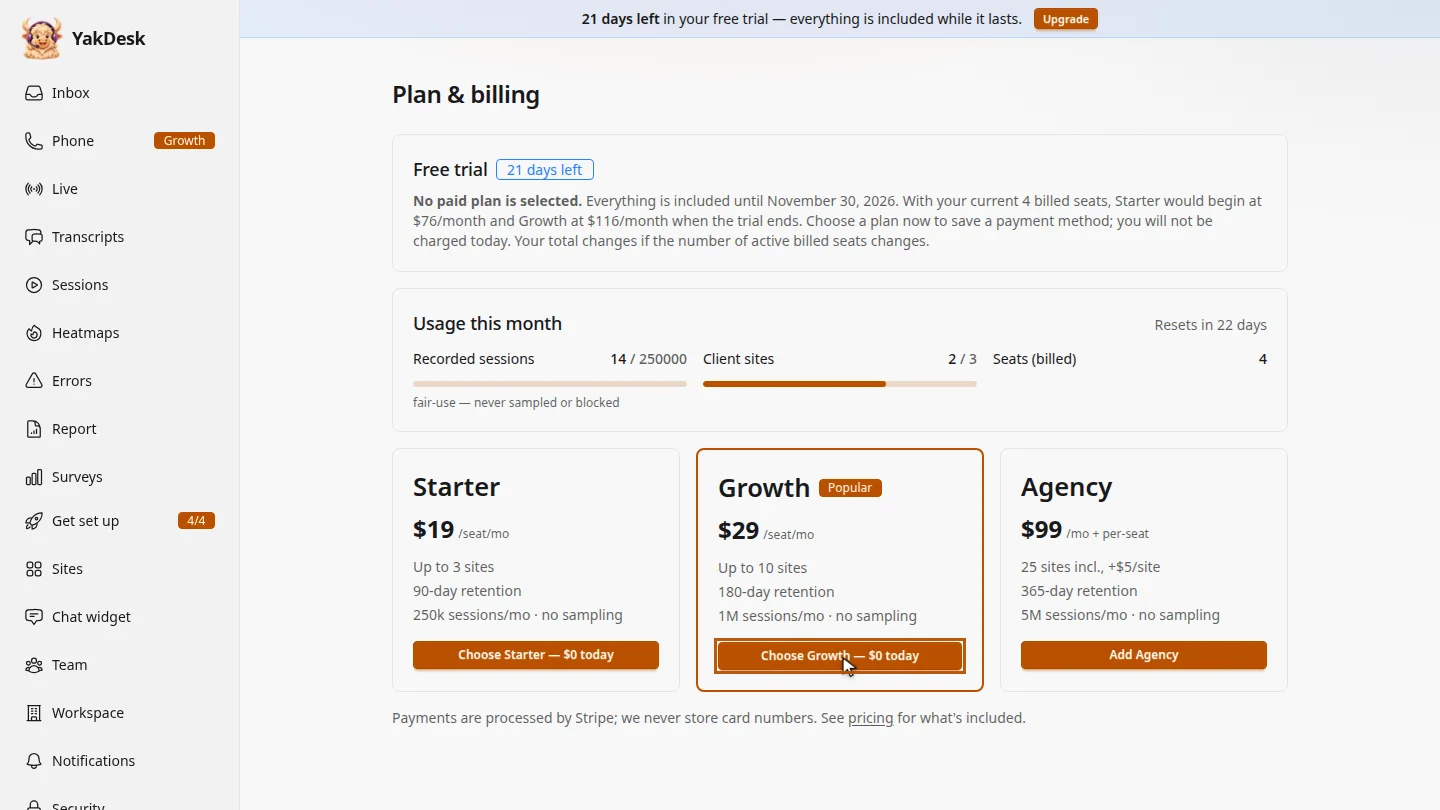
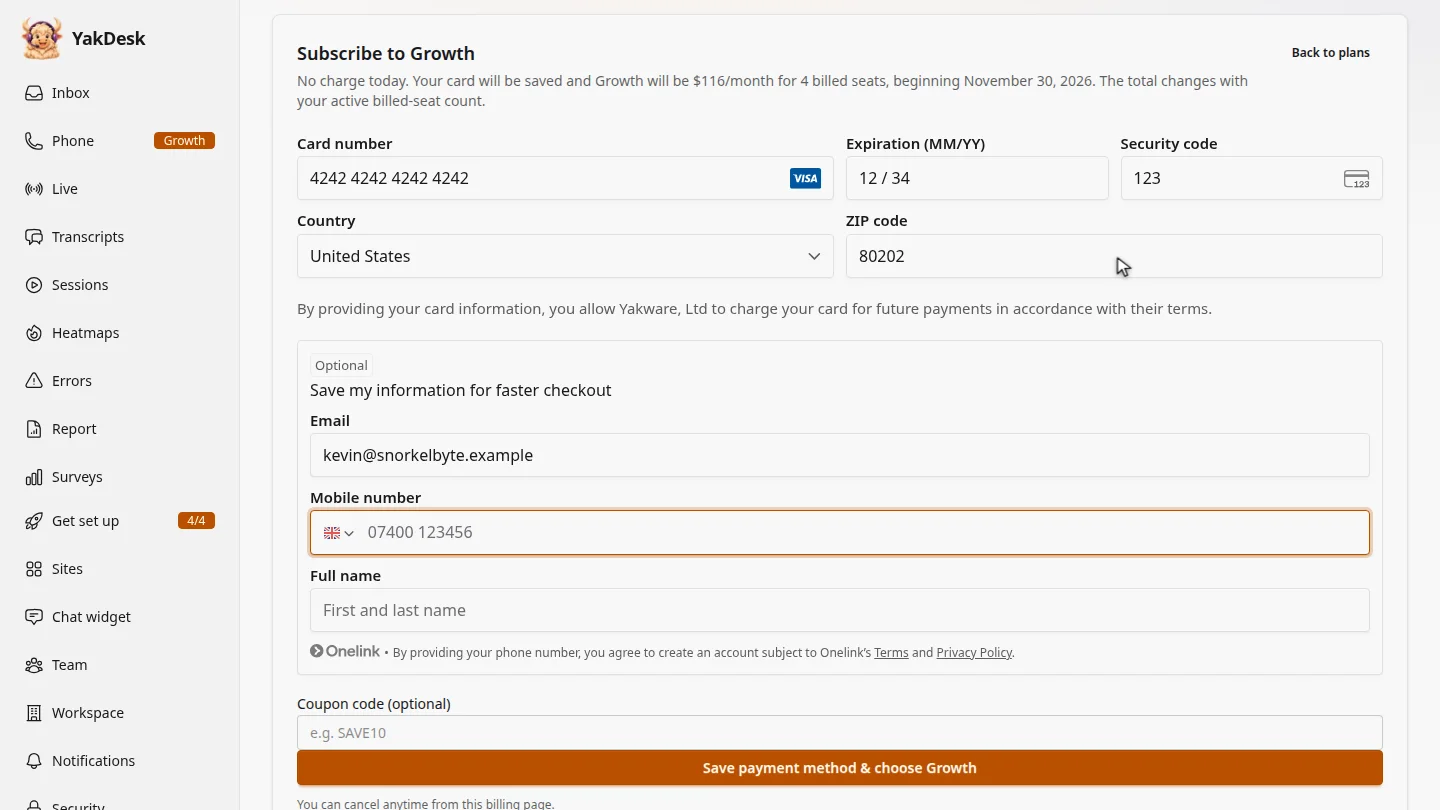
Open Billing and compare the plans, then select Choose Growth. During your trial nothing is charged today: the form shows what Growth will cost for your seats each month, and when billing starts.
Enter your card number, expiry date and security code, then your country and ZIP code. Payments are handled by Stripe, so YakDesk never sees your card number.
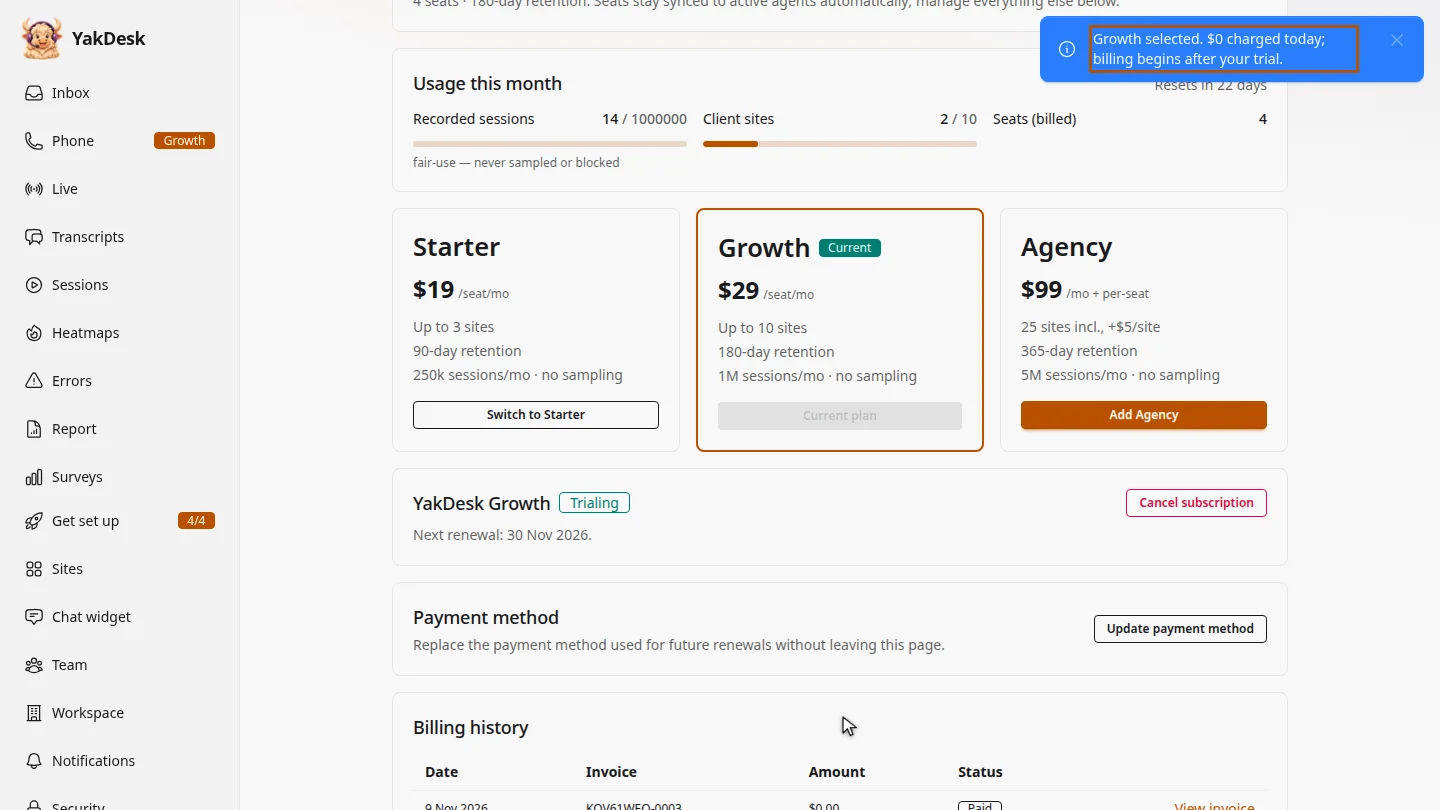
Select Save payment method and choose Growth. Stripe checks the card, which can take a few seconds. A message then confirms Growth is selected with nothing charged today, and the billing page lists your Growth subscription with its first renewal date.
Steps
Choose a plan ▶ 0:05
In the sidebar, select Billing. On the plan you want, select Choose Growth — $0 today (or the Starter option).
Enter your card ▶ 0:19
Check the monthly total and start date, then enter your card details in the secure payment form.
Confirm ▶ 0:30
Select Save payment method & choose Growth. A message confirms the plan, and You're on Growth appears.
Next steps
Updated 2026-11-09
upgrade subscribe pricing starter growth agency end trial credit card