
How to create a saved reply in YakDesk
If you type the same answer several times a week, save it once. Every agent can then insert it into a chat or a ticket reply in one step.
Plays silently with captions; the narrated version is on its way.
Transcript
Save an answer you give often, so anyone on the team can insert it in one step.
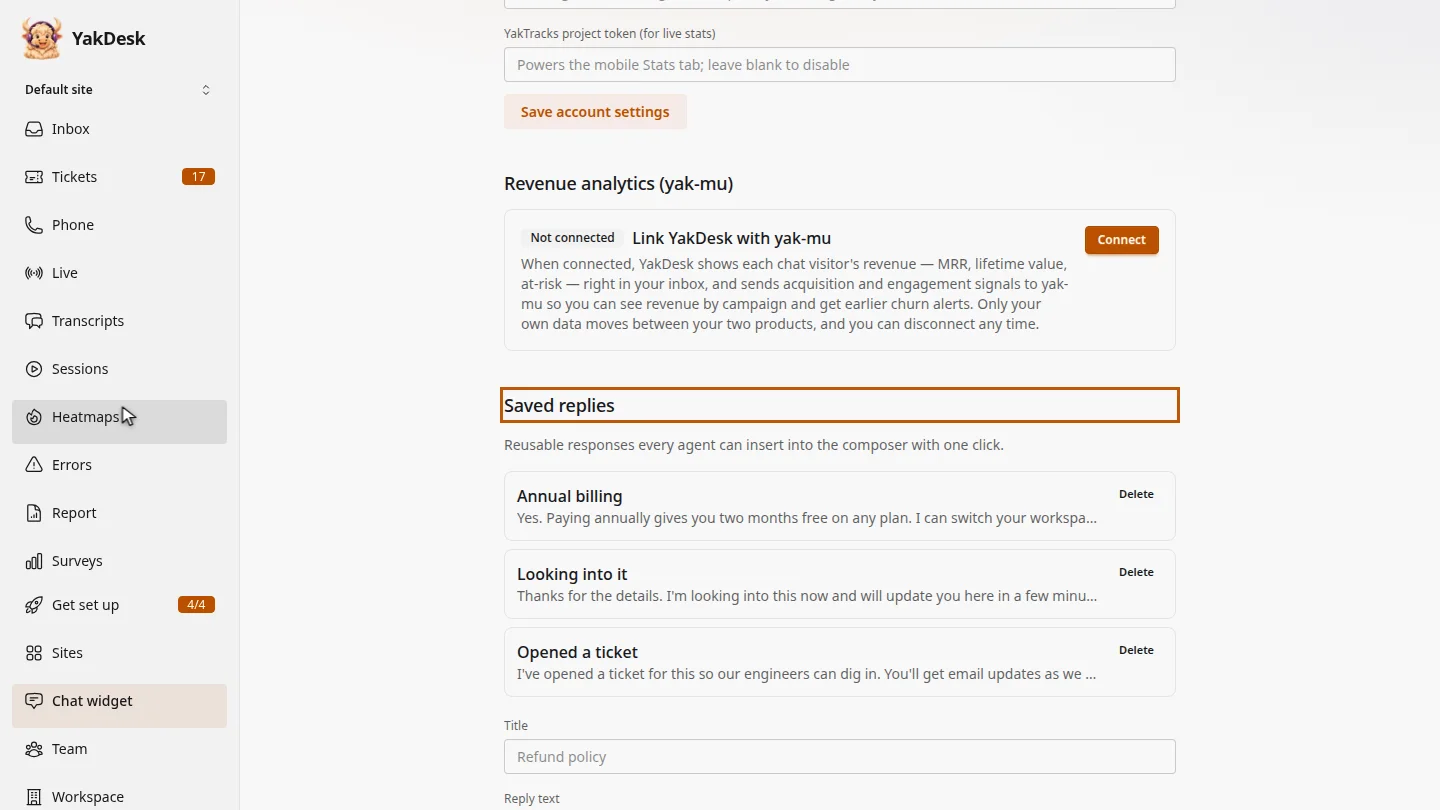
In the sidebar, select Chat widget. This page holds your widget settings, and further down, the saved replies your team already uses.
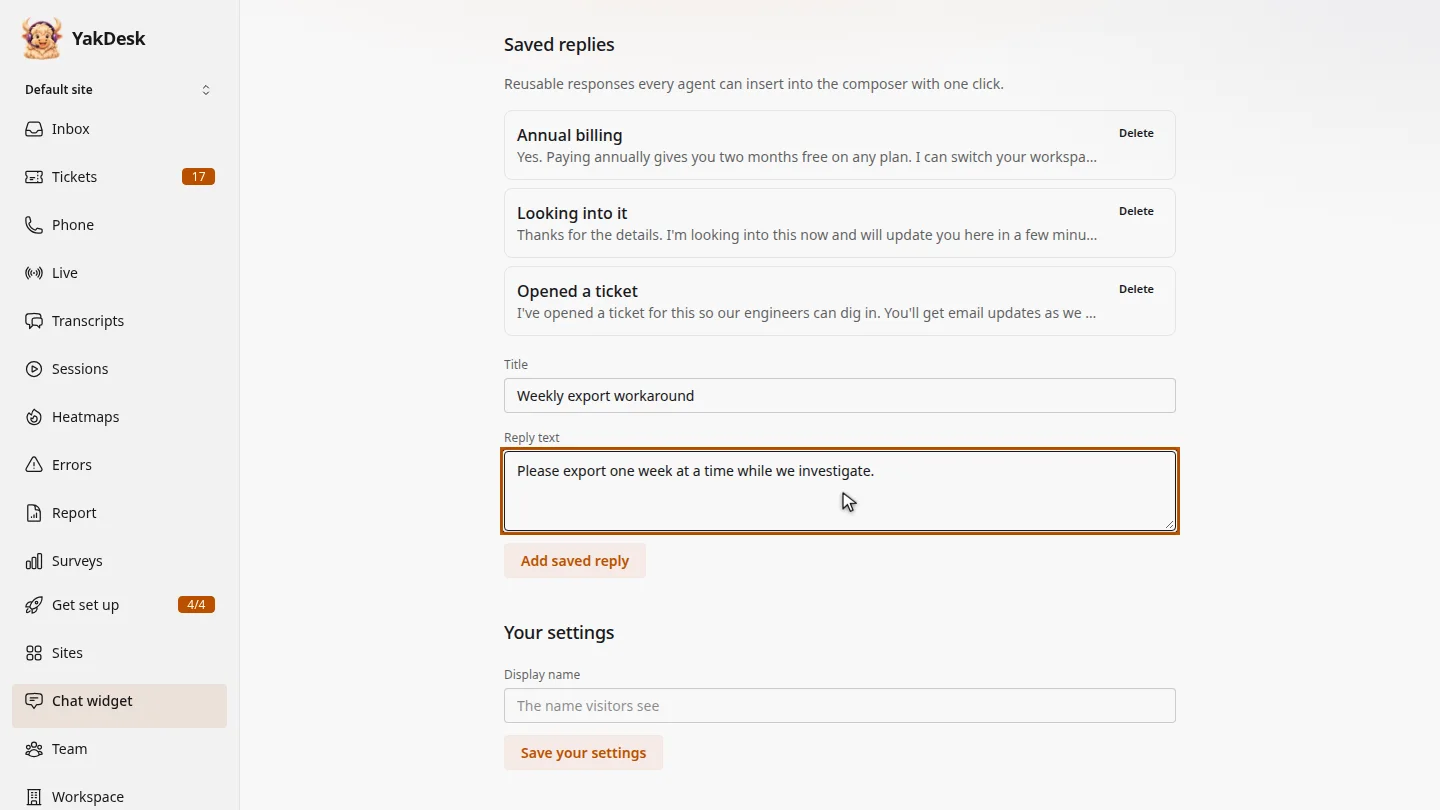
Give the reply a short title your team will recognise, then type the text that agents should send.
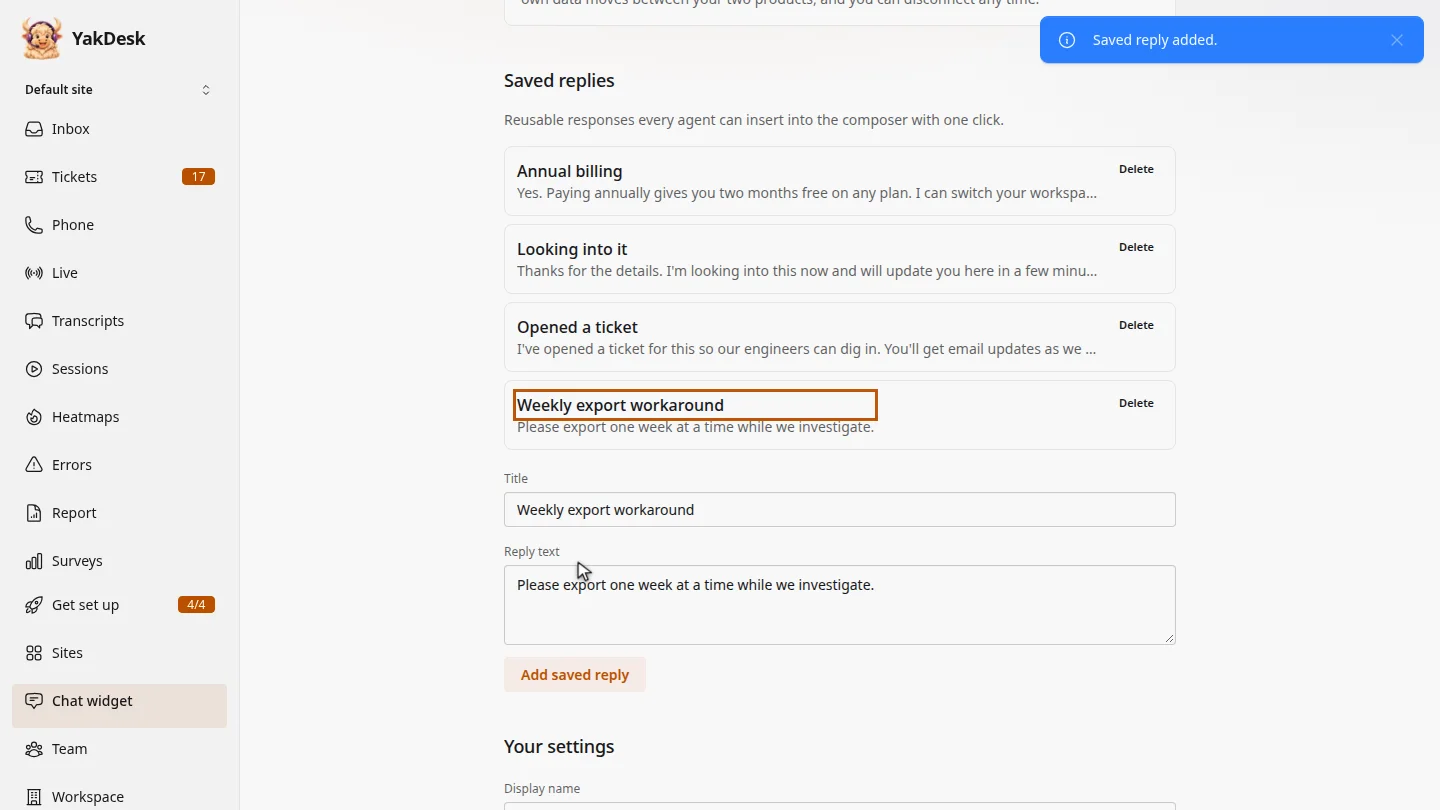
Select Add saved reply. YakDesk confirms Saved reply added, and the new reply joins the list for every agent on your team.
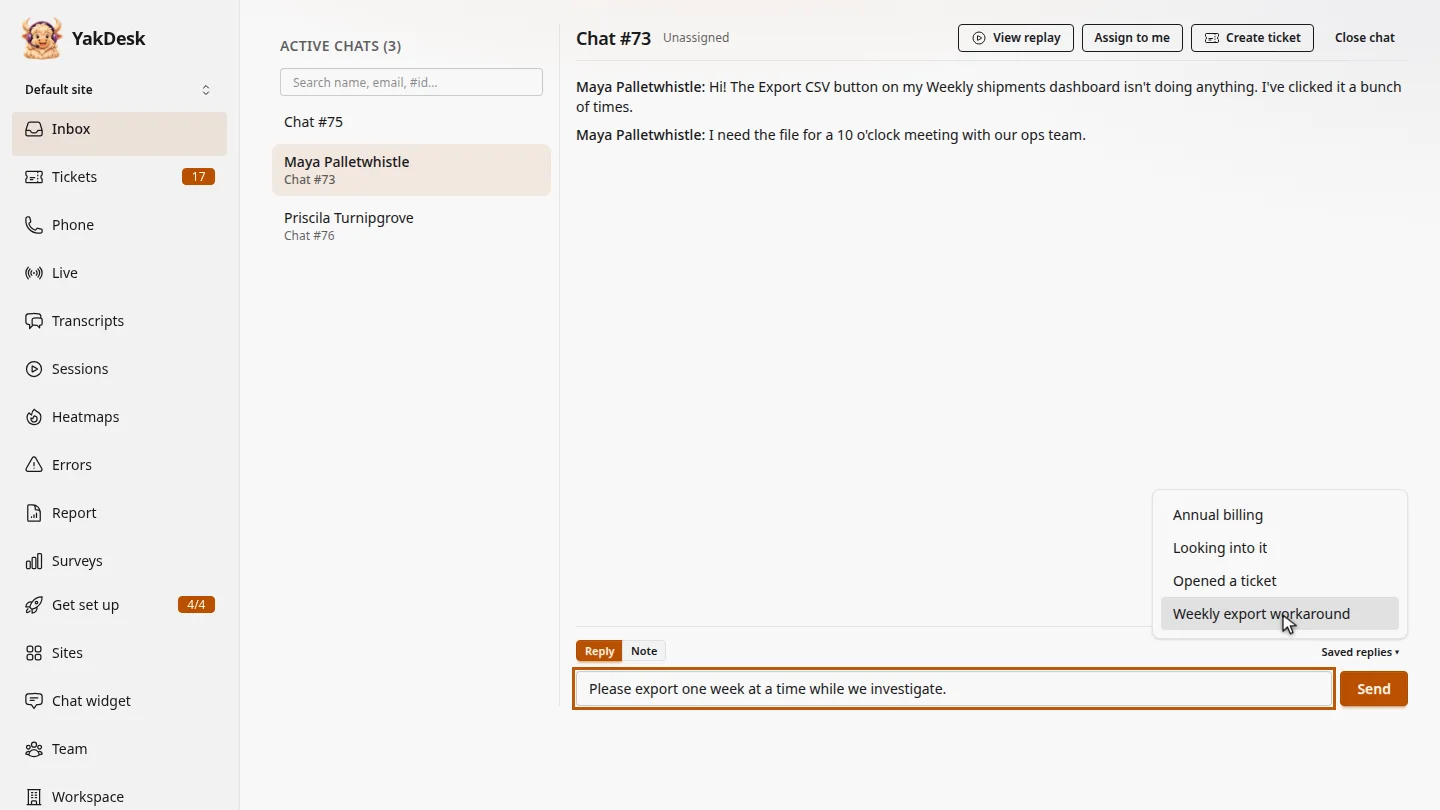
To use it, go back to the Inbox and open a chat. Select Saved replies, then choose the reply. Its text drops into the reply box, ready to edit and send.
Steps
Open Saved replies ▶ 0:07
In the sidebar, select Chat widget, then go to Saved replies.
Write the reply ▶ 0:16
Type a Title and the Reply text.
Save it ▶ 0:24
Select Add saved reply. It appears in the list.
Use it in a chat ▶ 0:33
In Inbox, open a chat, select Saved replies, and choose the reply. Its text fills the reply box.
Next steps
Updated 2026-11-09
canned response macro template reply snippet