
How to watch a session replay in YakDesk
Customers rarely describe a problem exactly. A session replay shows what they actually did: the pages, the clicks, and the errors behind them, so you can reproduce a bug without a back-and-forth.
Before you start
- The chat widget or session recorder installed on your site
Plays silently with captions; the narrated version is on its way.
Transcript
See exactly what a customer saw before they asked for help.
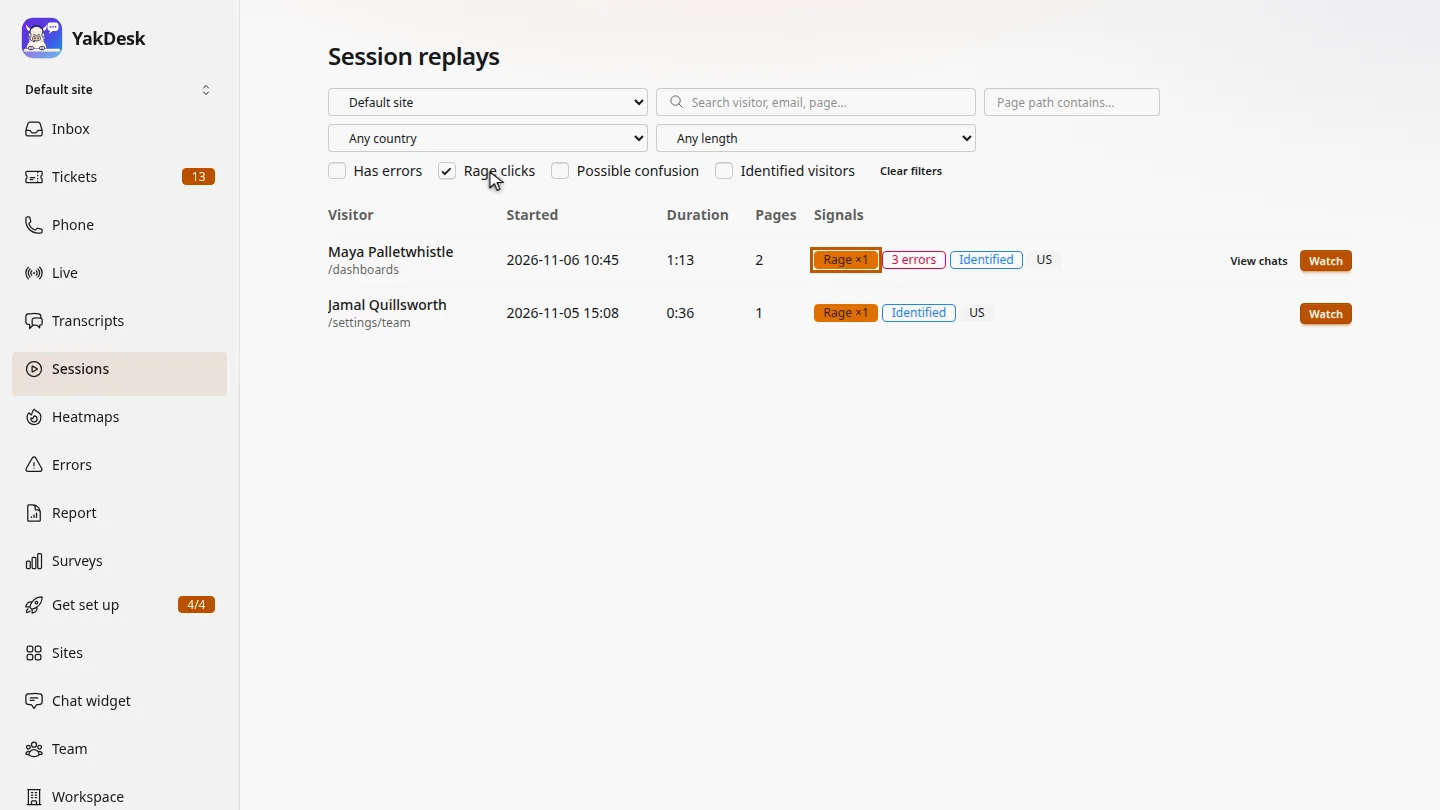
Open Sessions. Every visit is listed with its signals. Tick Rage clicks to find visitors who clicked the same spot over and over.
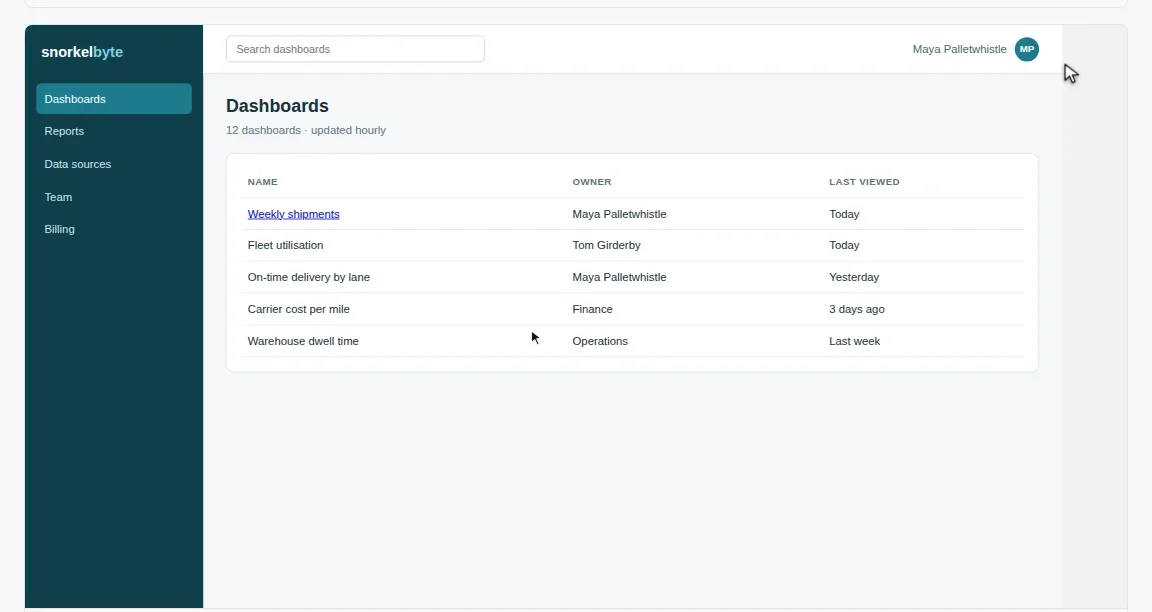
Select Watch on Maya's session. The replay opens in a new tab and starts playing.
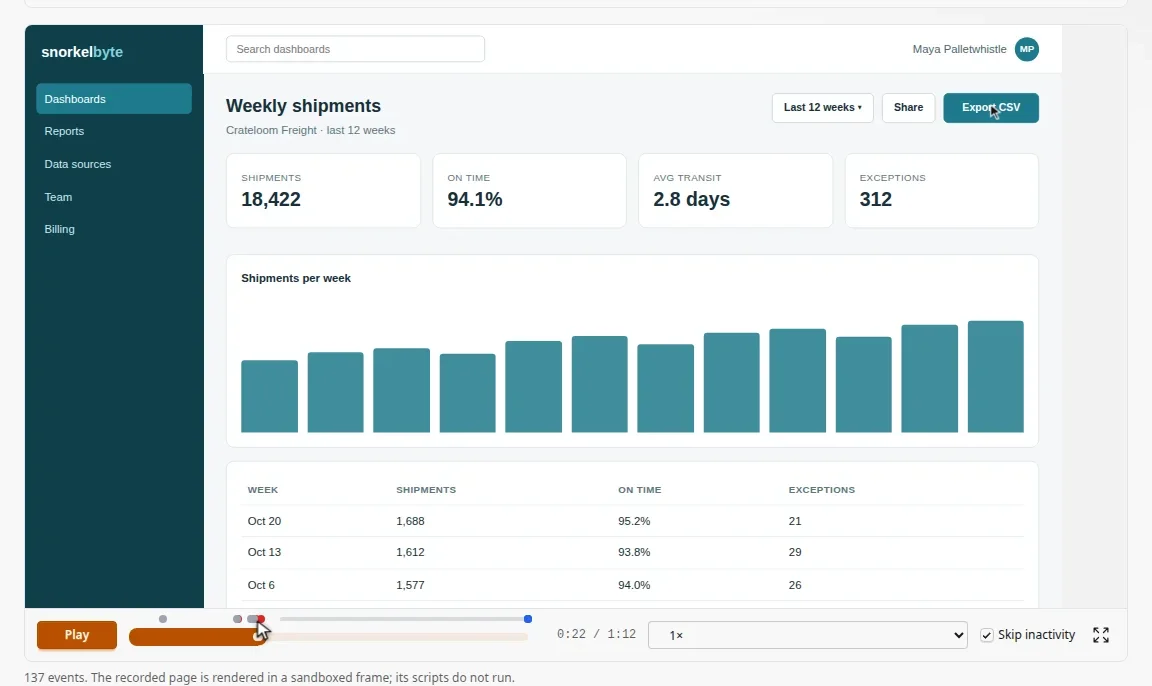
Dots above the timeline mark what matters: orange for rage clicks, red for errors. Select the orange dot to jump to the moment Maya clicked Export CSV four times in a row.
Steps
Find frustrated visitors ▶ 0:05
In the sidebar, select Sessions, then select Rage clicks. The list shows only sessions with a rage click.
Open the replay ▶ 0:15
Select Watch on the session. The replay opens in a new tab.
Jump to the problem ▶ 0:21
Above the timeline, select a marker: orange for a rage click, red for an error, blue for a chat message. The player jumps to that moment.
Next steps
Updated 2026-10-26
session recording screen recording rage clicks user replay see what the customer saw