
How to close a chat in YakDesk
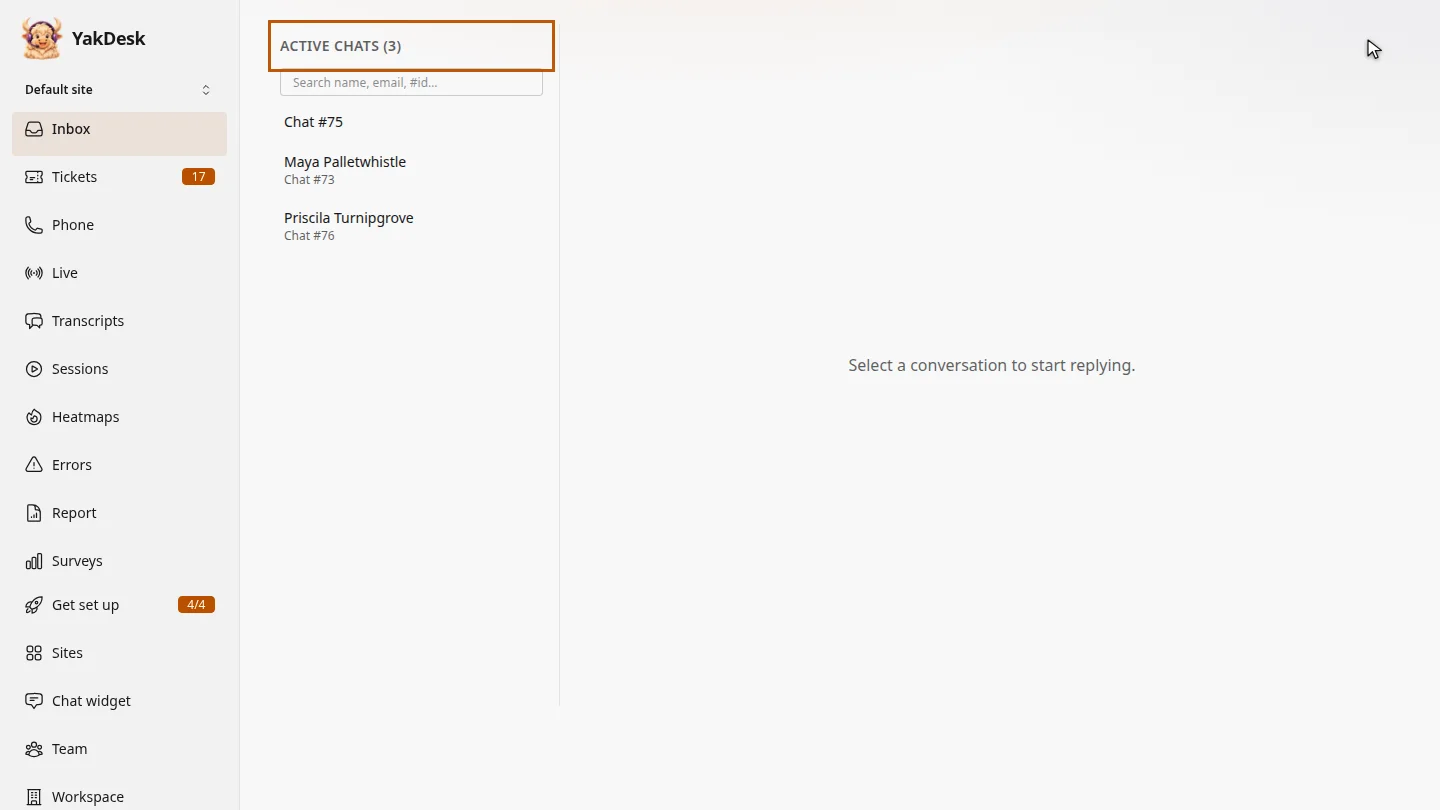
When a chat is answered, closing it clears it from your Active chats, so the list only shows people still waiting.
Plays silently with captions; the narrated version is on its way.
Transcript
Finish a conversation and clear it from your Active chats.
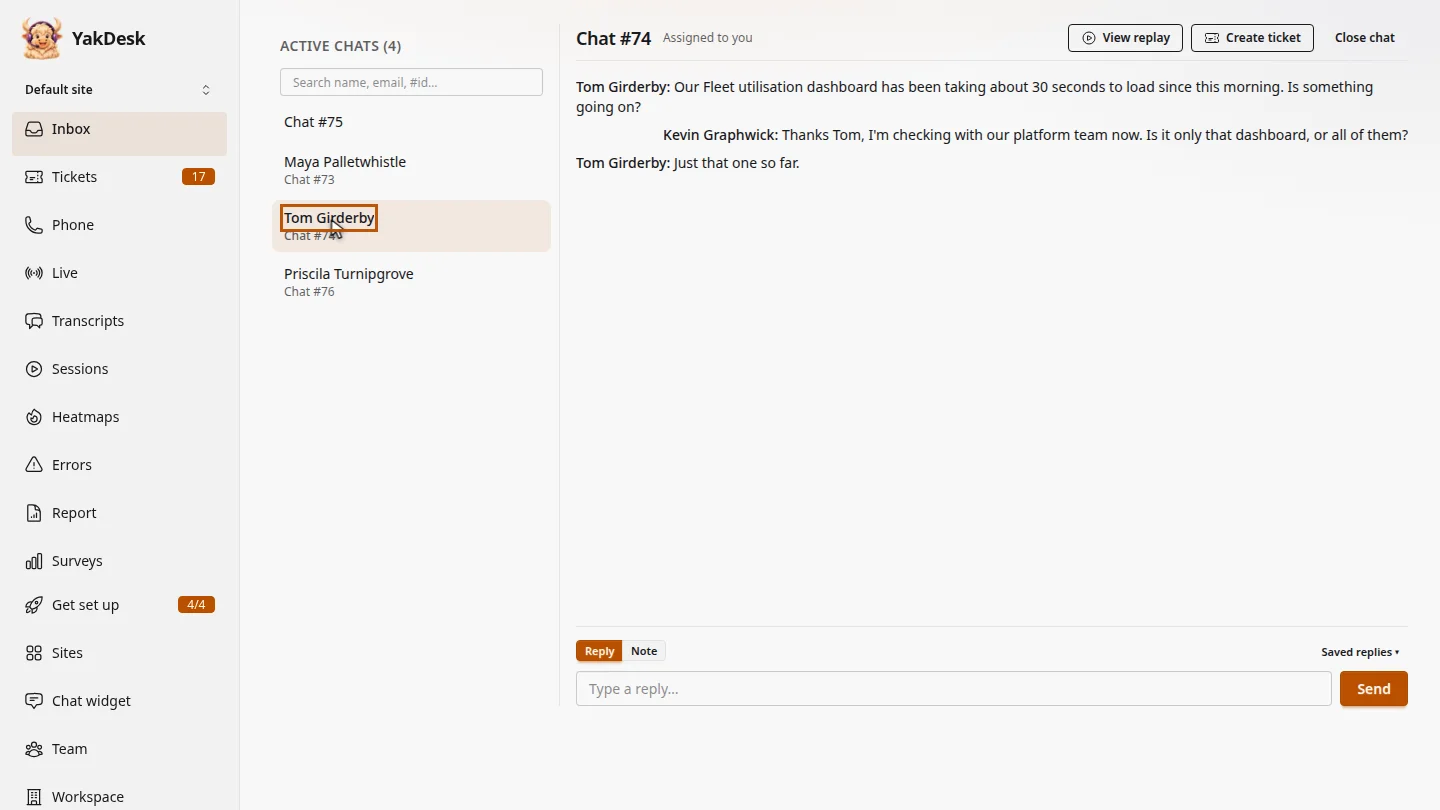
In the Inbox, under Active chats, open the conversation. Tom's dashboard is loading normally again.
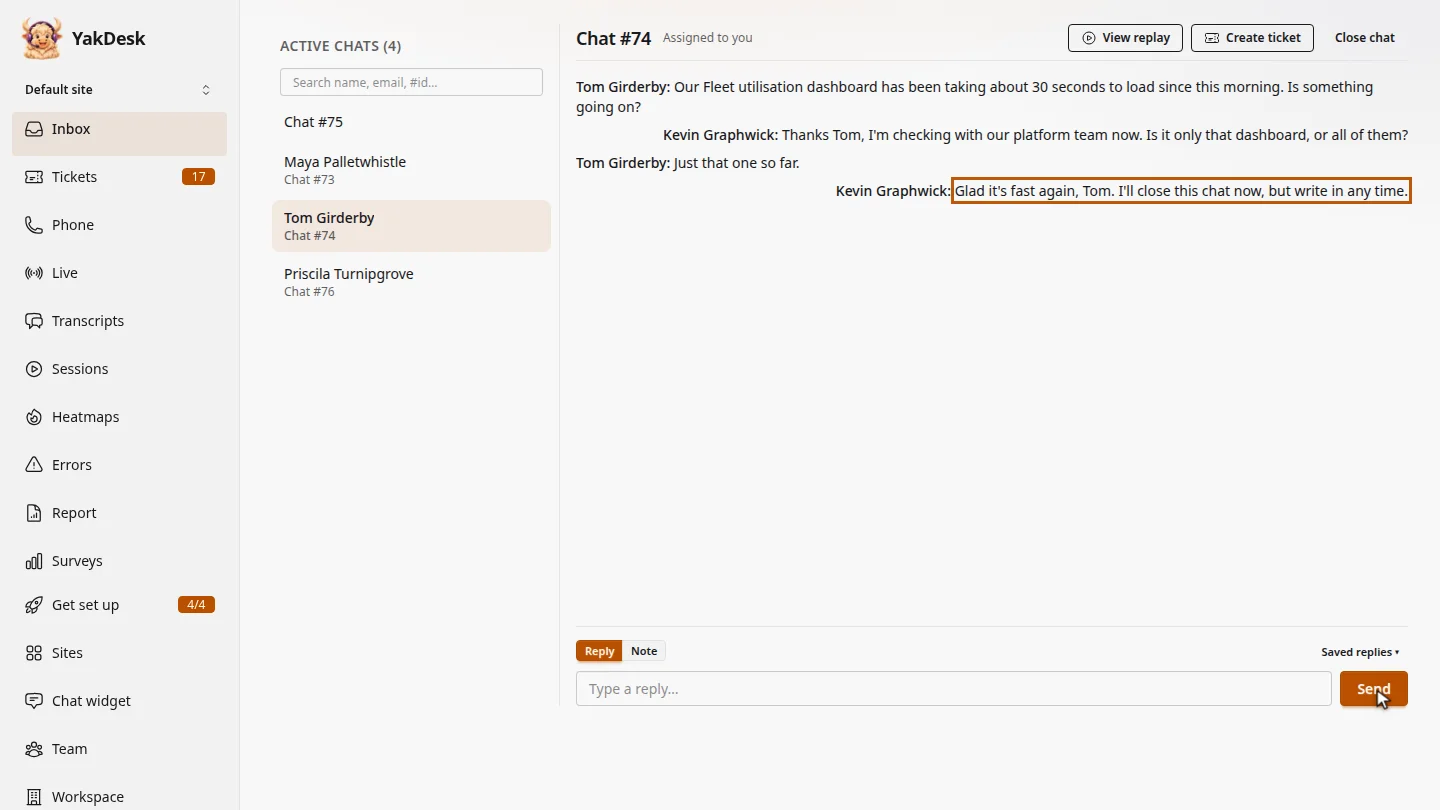
Send a last message, so the customer knows you're wrapping up, and that they can write in again later.
Select Close chat. The conversation leaves Active chats. You can still read it later in Transcripts.
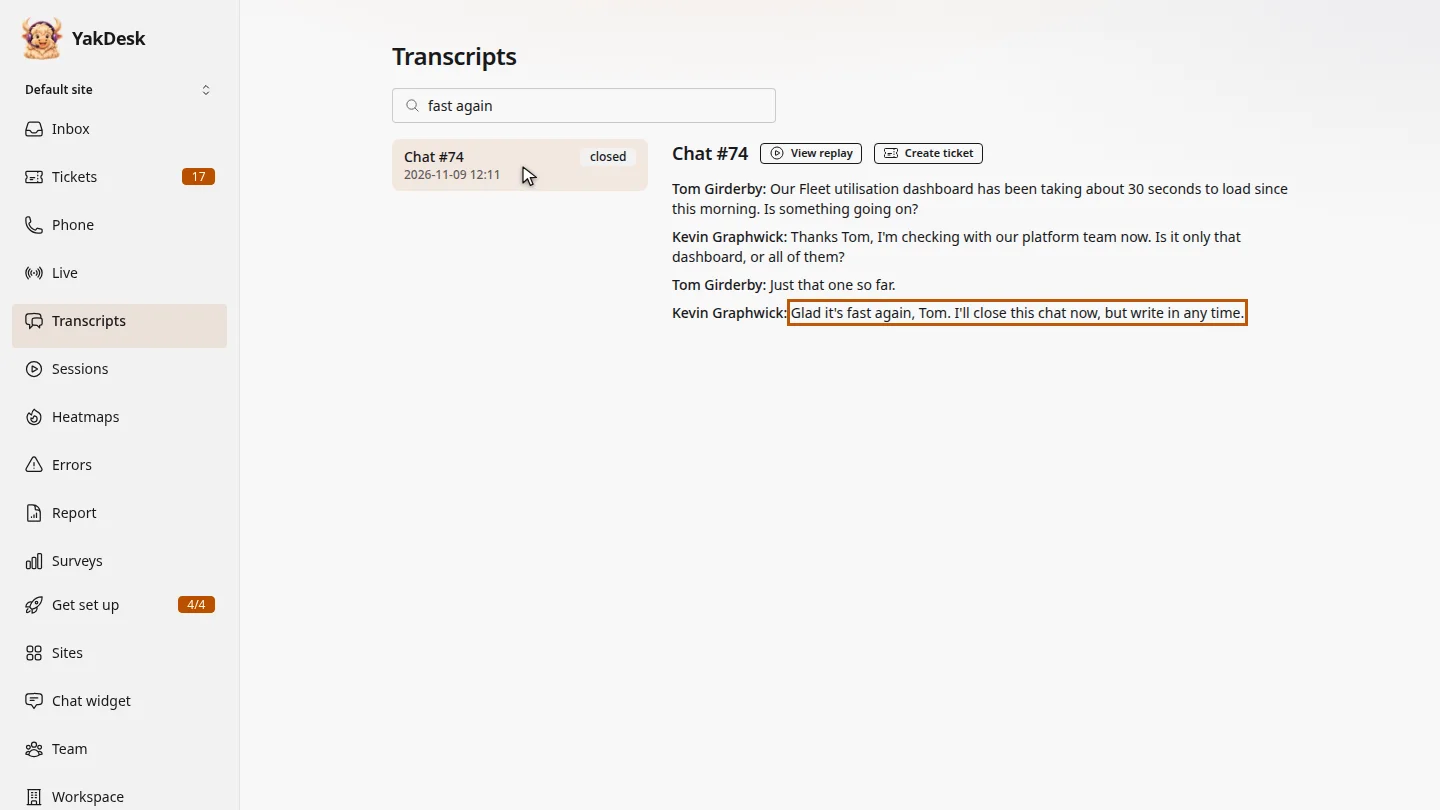
To read it again later, select Transcripts, and search for words from the conversation. Select the chat to see the whole transcript.
Steps
Open the chat ▶ 0:05
In the sidebar, select Inbox. Under Active chats, select the conversation.
Say goodbye ▶ 0:12
Optional: type a last message and select Send.
Close the chat ▶ 0:20
Select Close chat. The chat leaves Active chats.
Find it later ▶ 0:28
Optional: in the sidebar, select Transcripts, search for words from the chat, and select it to read the transcript.
Next steps
Updated 2026-11-09
end chat close conversation finish chat resolve chat