
How to edit a help center article in YakDesk
Help articles go out of date when your product changes. Editing a published article updates your help center right away, and YakDesk keeps the last published version so you can revert.
Plays silently with captions; the narrated version is on its way.
Transcript
Keep a help article up to date when your product changes.
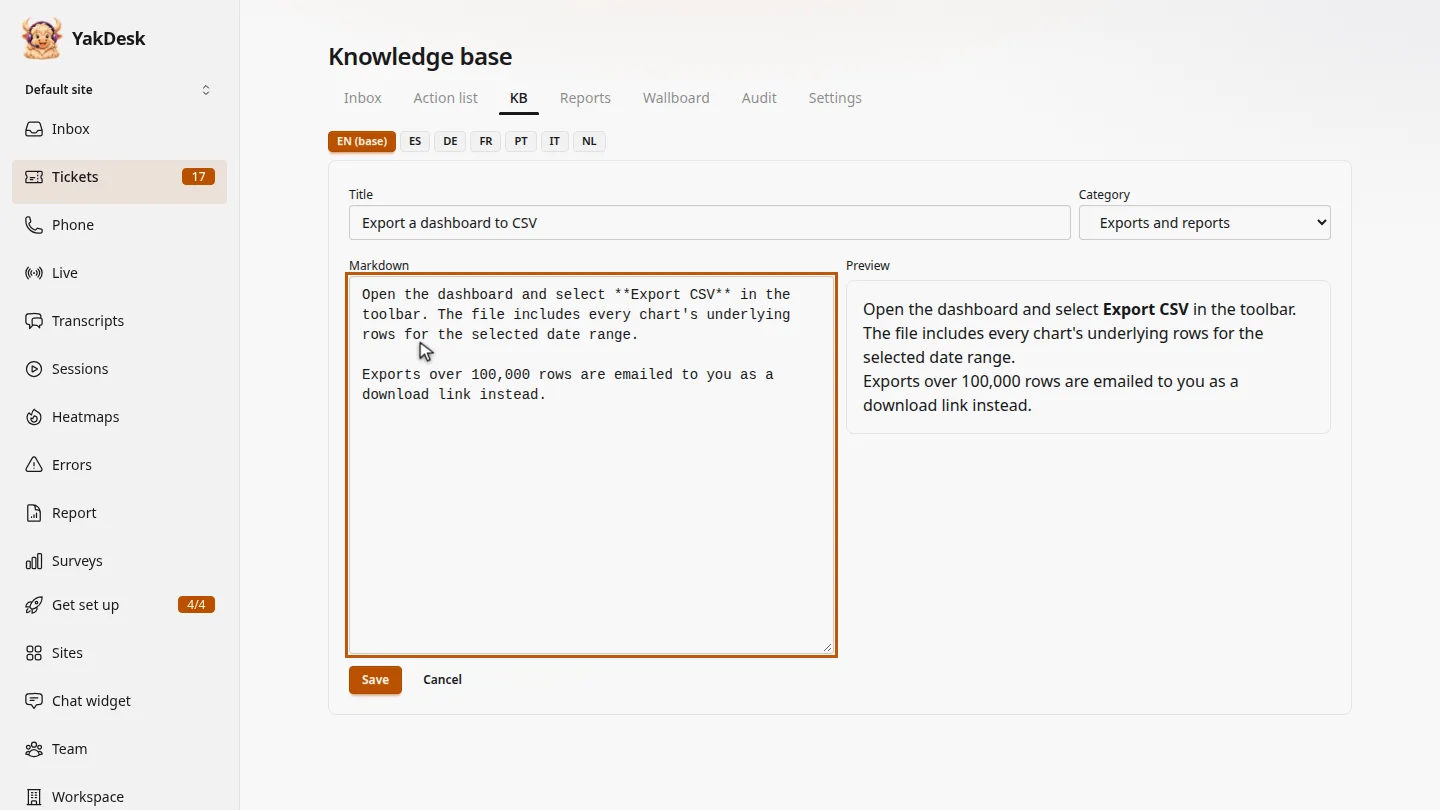
In Tickets, open the KB tab and select the article's title. The editor opens with its current text, next to a live preview.
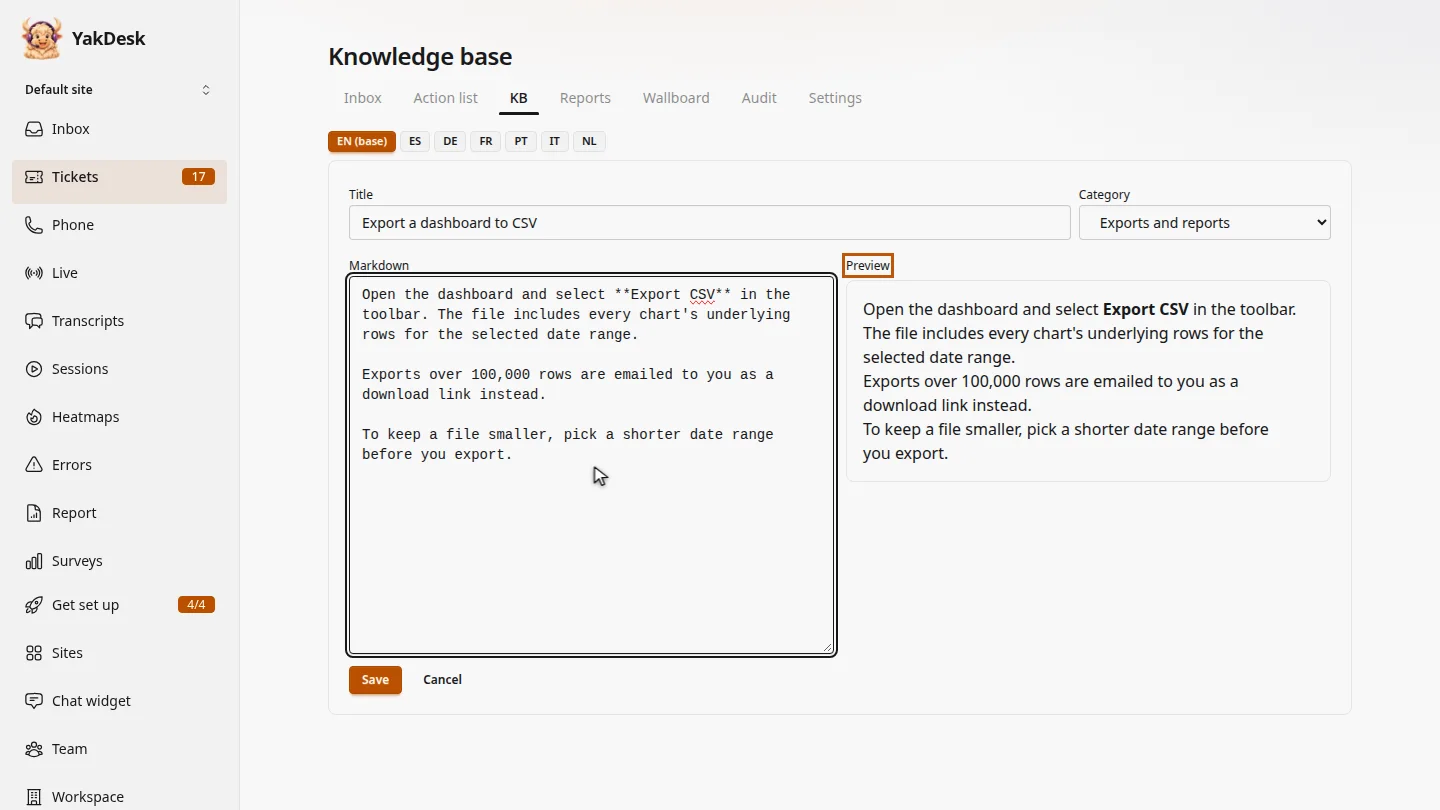
Change the text under Markdown. Here, we add a tip about picking a shorter date range. The preview updates as you type.
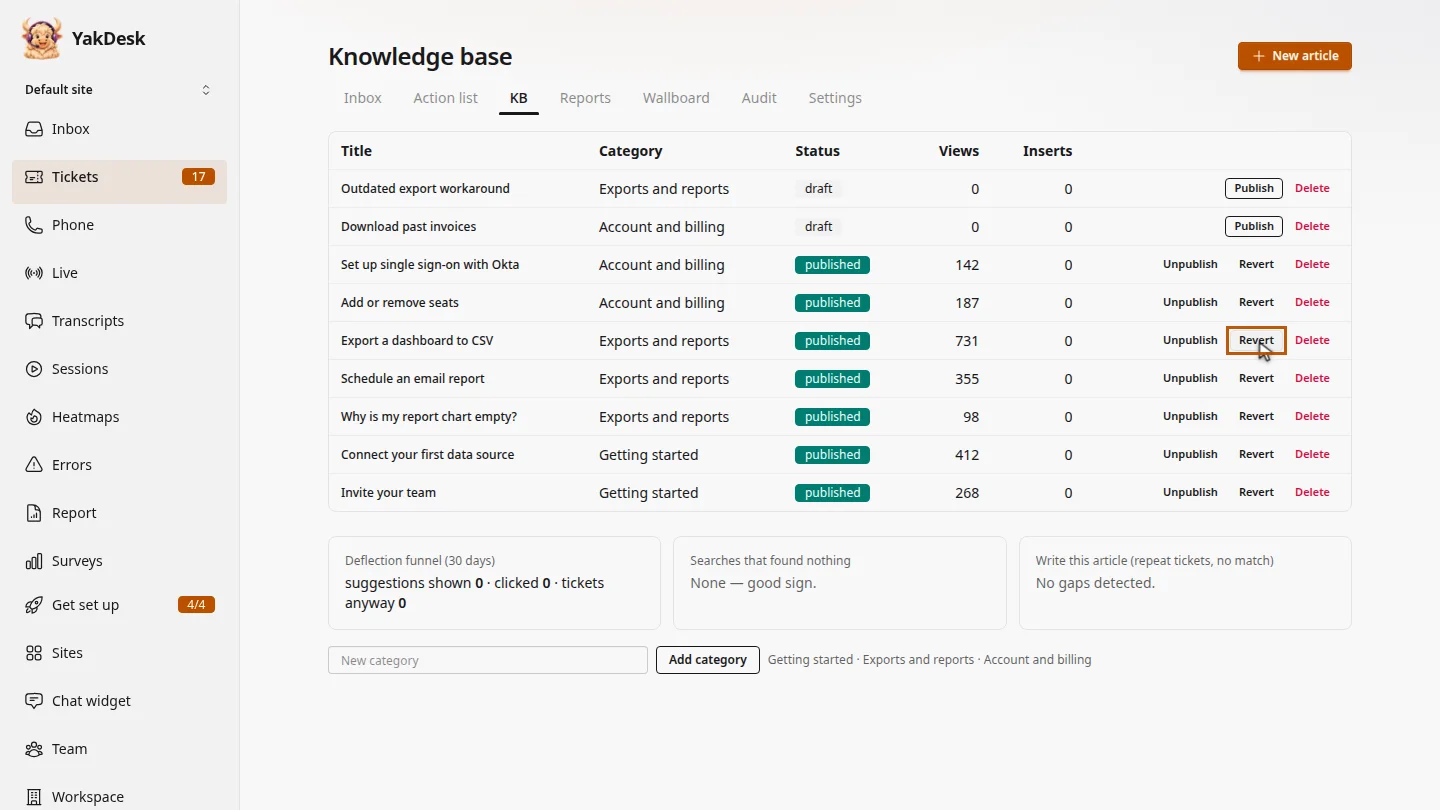
Select Save. Because the article is published, the new text is live in your help center straight away. If you change your mind, Revert on its row brings back the version you last published.
Steps
Open the article ▶ 0:05
In Tickets, select KB, then select the article's title.
Change the text ▶ 0:14
Edit the text under Markdown. The Preview updates as you type.
Save it ▶ 0:23
Select Save. A published article updates in the help center straight away. Revert on its row restores the version you last published.
Next steps
Updated 2026-11-09
update article change help article knowledge base edit revert article