
How to import tickets from HubSpot in YakDesk
If your support history lives in HubSpot tickets, bring it with you instead of starting from zero. YakDesk pulls your HubSpot tickets in with a private-app token. The token is used once and not stored, and imported tickets don't notify anyone or start SLA timers.
Before you start
- A Growth or Agency plan (tickets are included)
- An Owner or Admin role in YakDesk
Plays silently with captions; the narrated version is on its way.
Transcript
Bring your ticket history over from HubSpot.
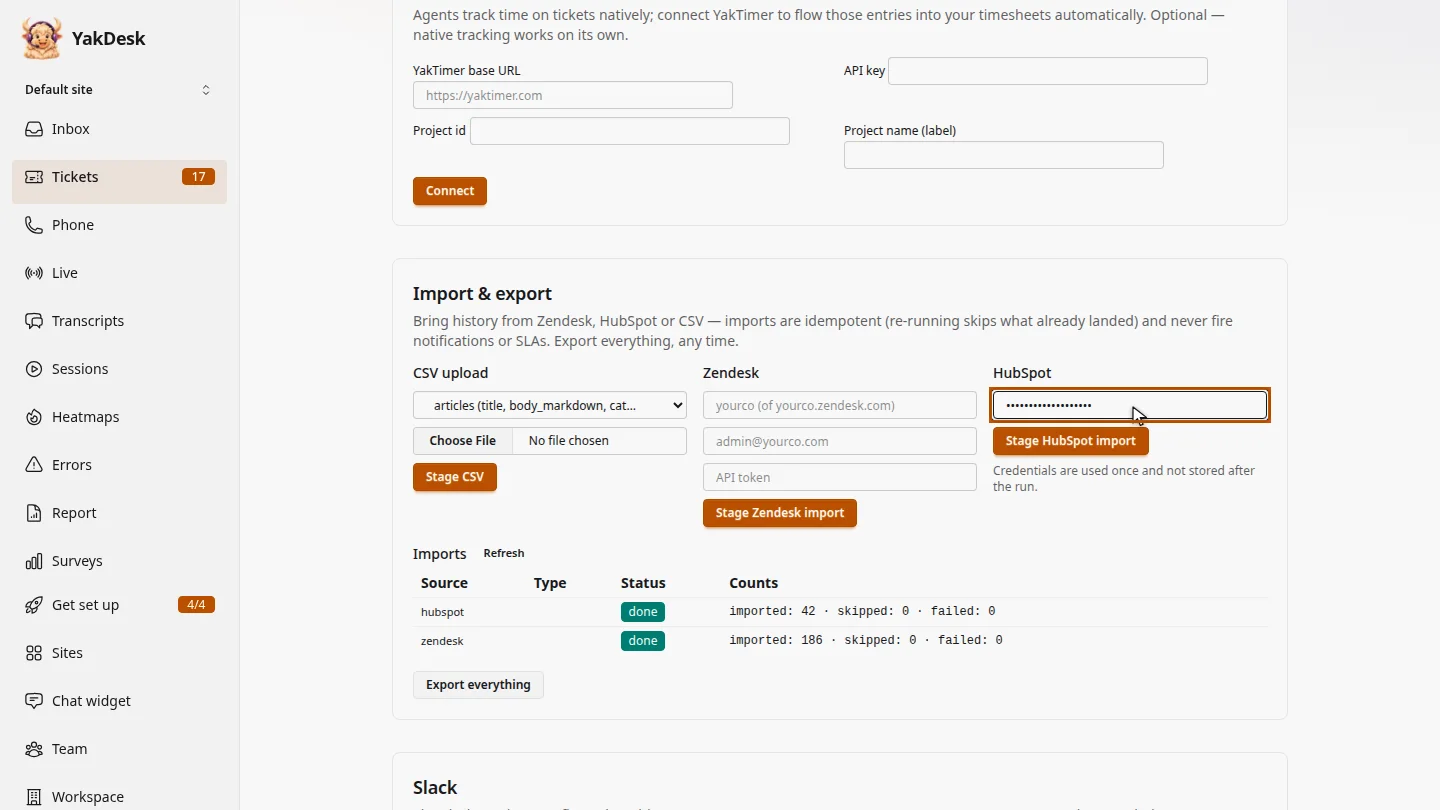
In Tickets, open Settings and scroll to Import and export. Under HubSpot, paste a private-app token with access to tickets.
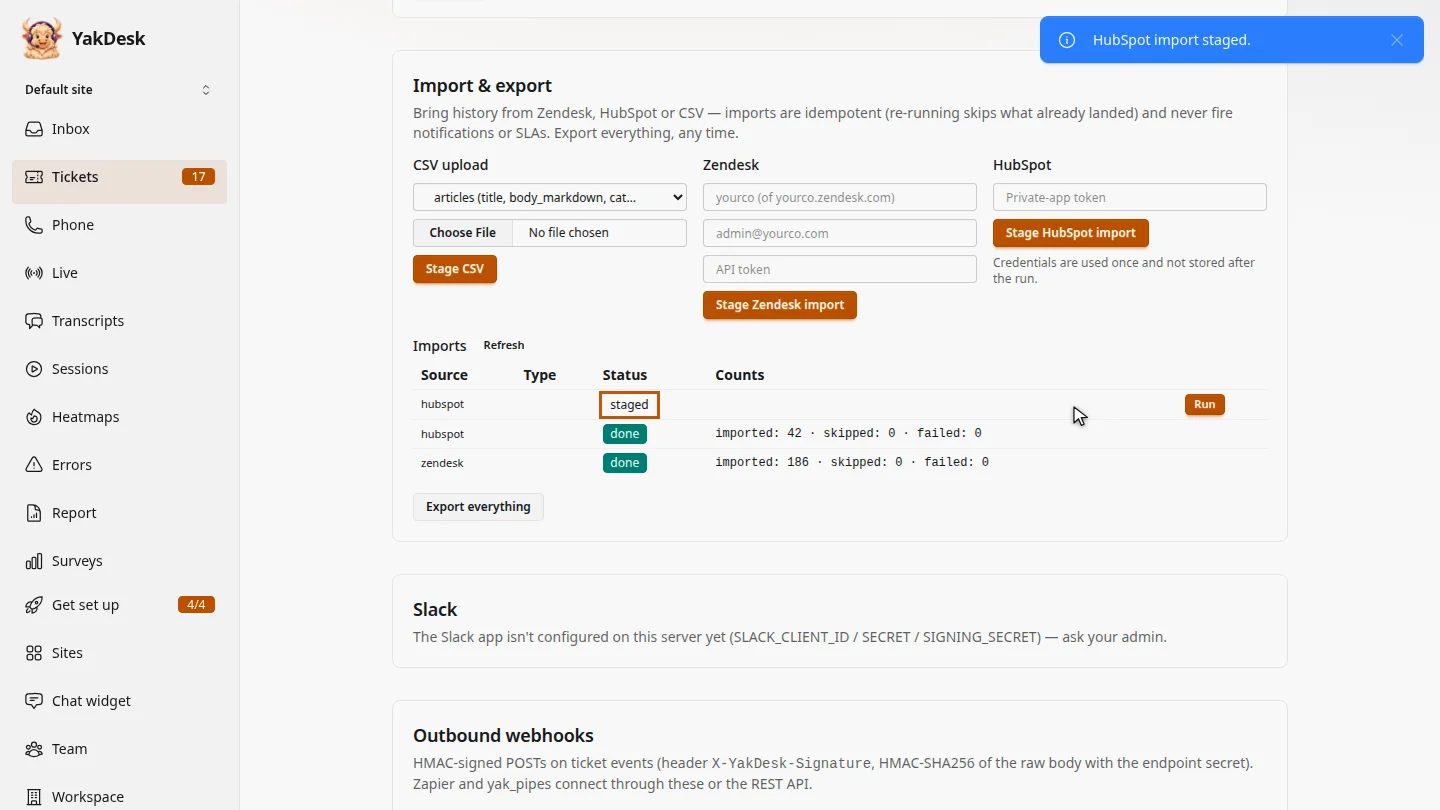
Select Stage HubSpot import. YakDesk lists the import as staged, ready to run when you are.
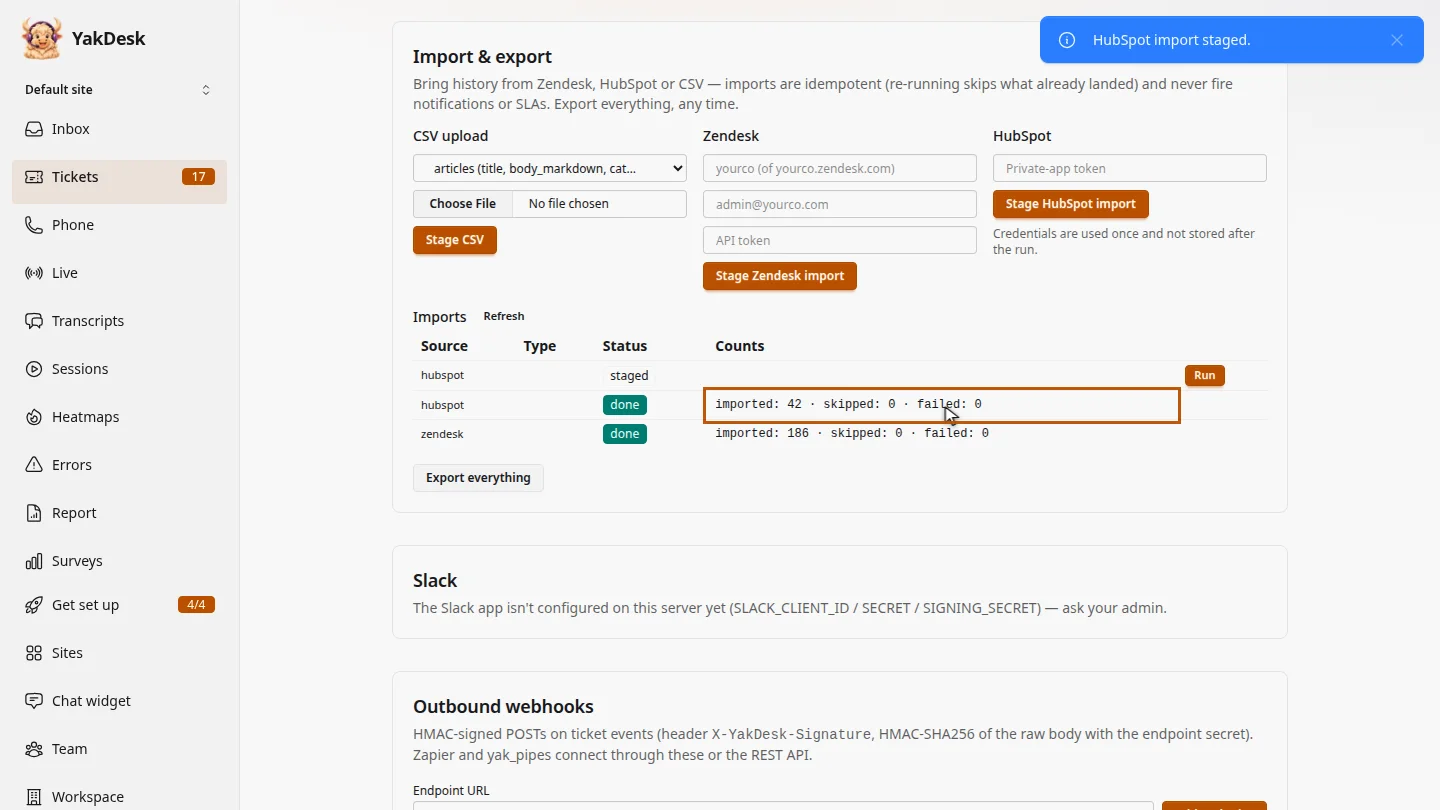
Select Run. The tickets import in the background; when it finishes, the status is done, with the number of tickets imported. The token is then deleted.
Steps
Paste a HubSpot token ▶ 0:04
In Tickets, select Settings. Under Import & export, in HubSpot, paste a Private-app token. Create it in HubSpot under private apps, with read access to tickets.
Stage the import ▶ 0:13
Select Stage HubSpot import. The import appears under Imports as staged.
Run it ▶ 0:20
Select Run. When the import finishes, its status changes to done and Counts shows how many tickets were imported. Select Refresh to update the list.
Next steps
Updated 2026-11-09
hubspot migration hubspot tickets import tickets private app token