
How to set chat office hours in YakDesk
If nobody answers chat overnight, don't let visitors wait in an empty chat. With office hours on, the widget offers live chat only while your team is working, and shows your away message the rest of the time.
Before you start
- An Owner or Admin role in YakDesk
Plays silently with captions; the narrated version is on its way.
Transcript
Offer live chat only while your team is working.
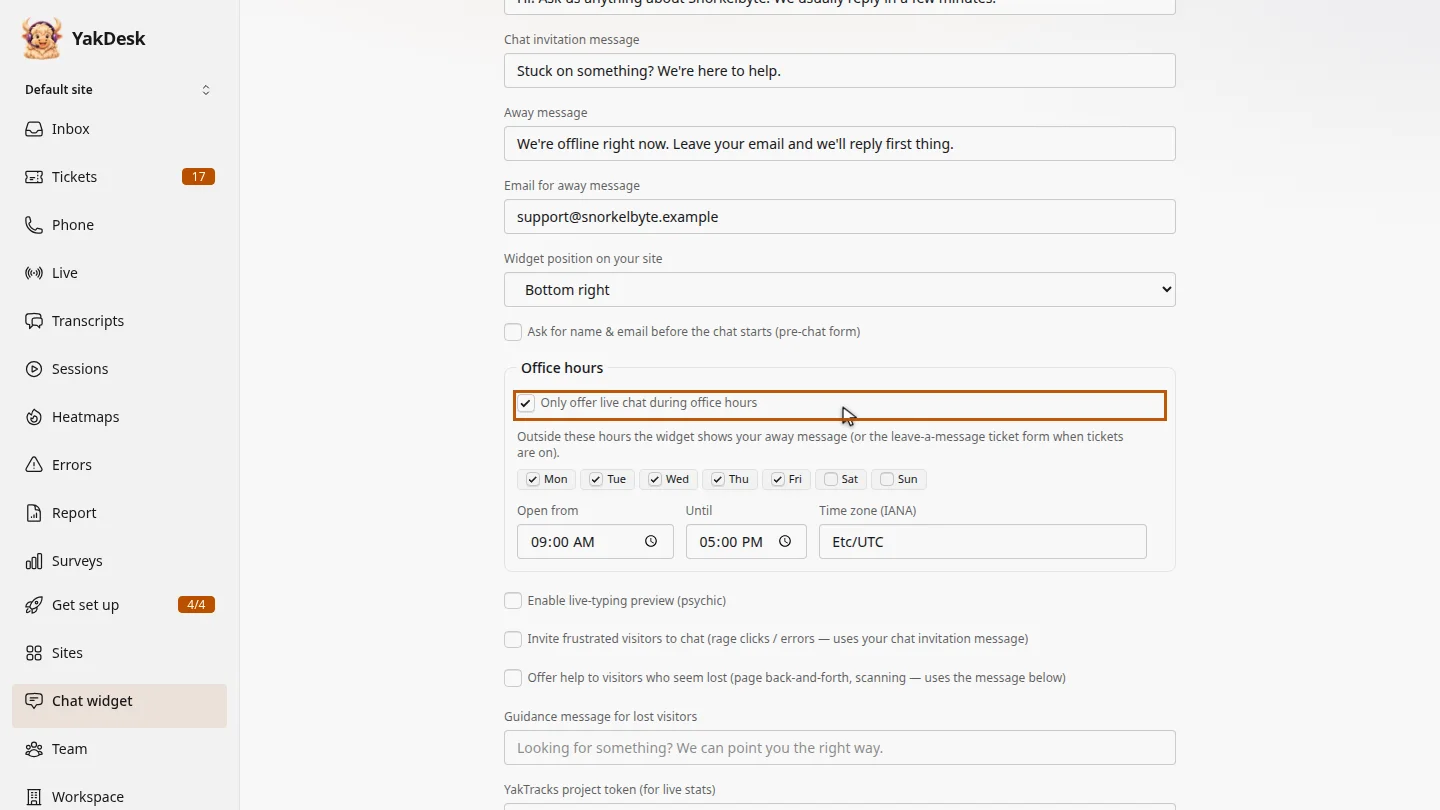
Open Chat widget and scroll to Office hours. Turn on Only offer live chat during office hours.
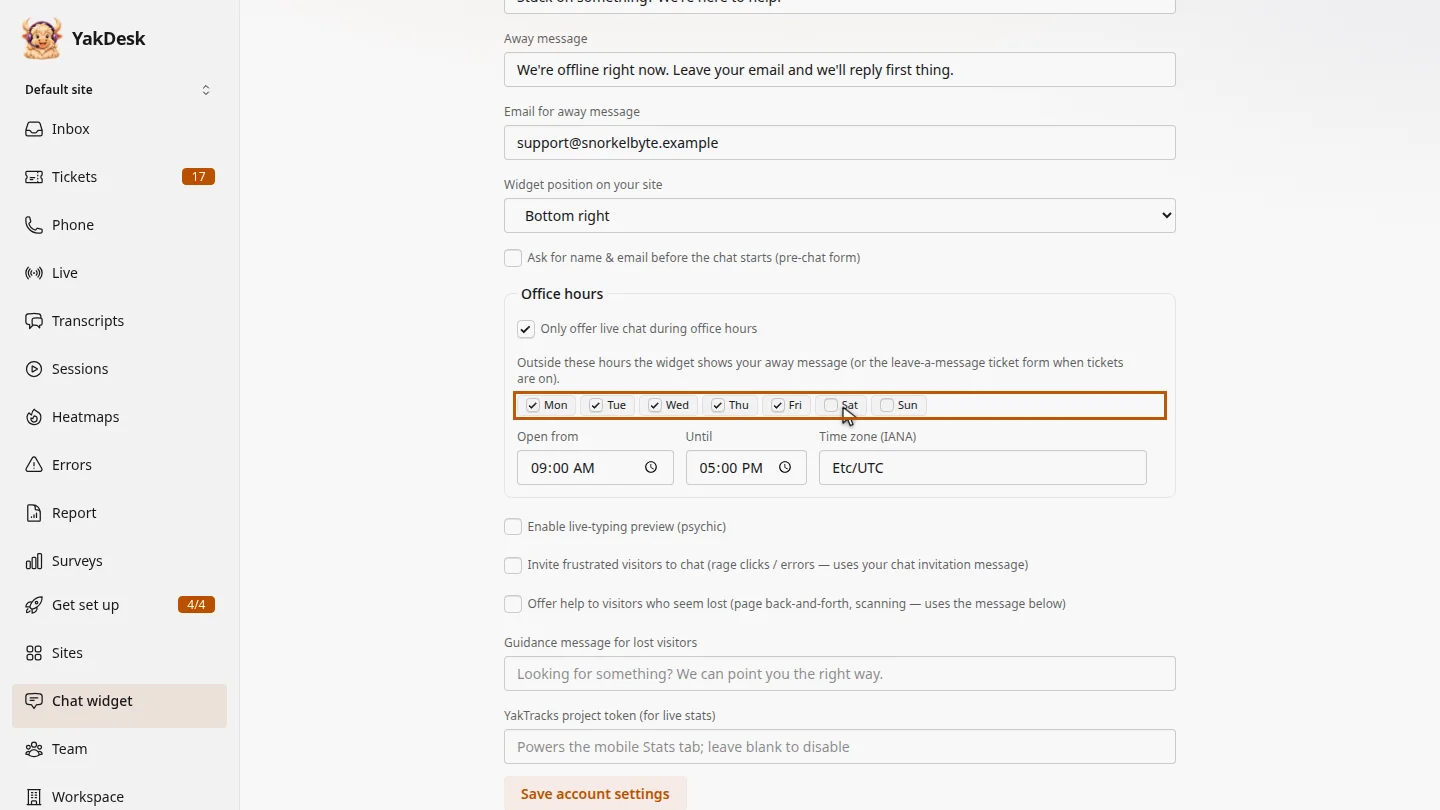
Tick the days your team answers chat. Monday to Friday are ticked to start with.
Set Open from and Until, then enter your Time zone, such as America slash Denver.
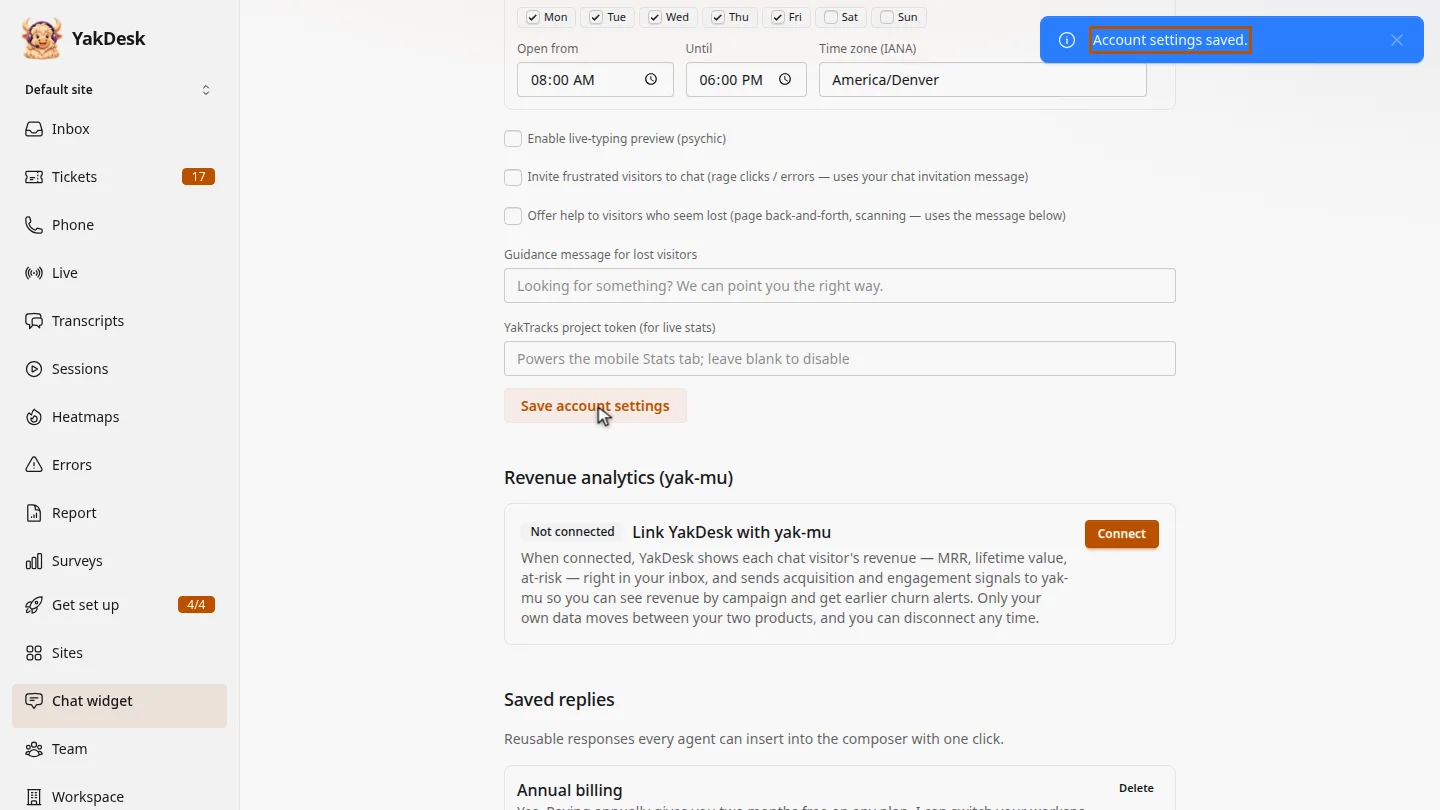
Select Save account settings. Outside these hours, visitors see your away message instead of a chat.
Steps
Turn on office hours ▶ 0:04
In the sidebar, select Chat widget. Under Office hours, select Only offer live chat during office hours.
Choose your days ▶ 0:11
Select the days your team answers chat, for example Mon to Fri.
Set your hours ▶ 0:18
Set Open from and Until, and enter your Time zone (IANA), such as
America/Denver.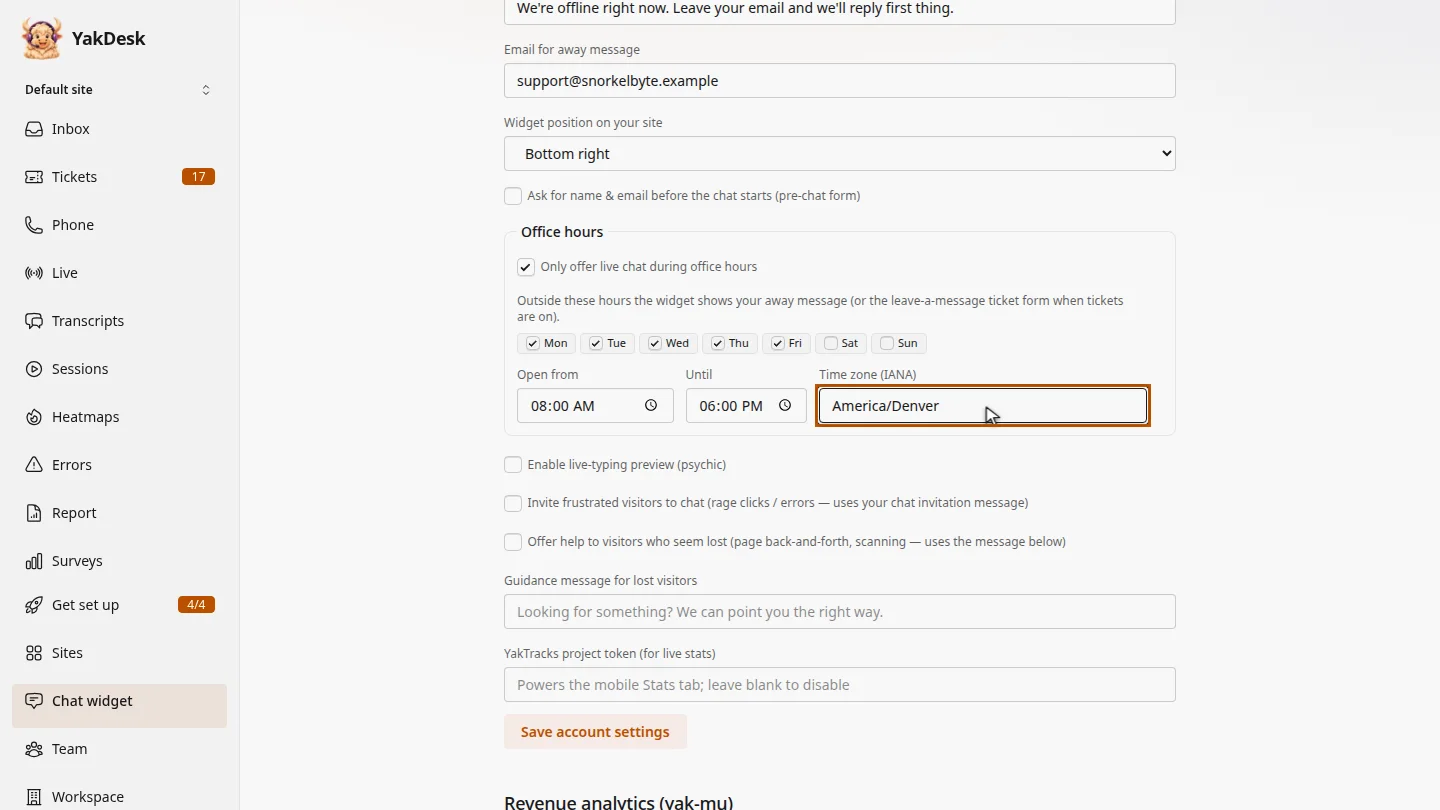
Save ▶ 0:24
Select Save account settings. An Account settings saved. message confirms it.
Next steps
Updated 2026-11-09
business hours away message offline schedule time zone